


If your WhatsApp Business interactive message buttons are not working, the cause is almost always one of four things: the message was sent outside the 24-hour customer service window, the JSON payload breaks one of Meta’s limits, your webhook isn’t reading the button reply correctly, or the customer’s app can’t display the buttons. Once you know which of these you’re dealing with, the fix usually takes minutes, not days.
This guide walks you through each problem in order, from “the buttons never sent” to “the customer tapped a button and nothing happened.” You’ll also find the exact character limits, the error codes that point to each cause, and the webhook formats that trip up most developers and chatbot builders.
Quick Overview
| What you see | Most likely cause | Quick fix |
| API returns error 131047 | More than 24 hours since the customer’s last message | Send an approved template with quick reply buttons instead |
| API returns error 131009 or a 400 error | Payload breaks a limit (too many buttons, label over 20 characters, duplicate titles) | Validate your JSON against Meta’s limits table below |
| Message arrives as plain text with no buttons | Outdated WhatsApp app, unofficial API, or unsupported client | Ask the user to update WhatsApp and use the official Cloud API |
| Customer taps a button, but your bot does nothing | Webhook not subscribed, not returning 200 OK, or parsing the wrong reply format | Check the webhook “messages” subscription and handle both reply formats |
| Button taps fail only on WhatsApp Web or Desktop | Webhook arrives with error 131000 “Unsupported webhook payload” | Add a text fallback and match replies by message context |
Why Are My WhatsApp Business Interactive Buttons Not Working?
WhatsApp interactive buttons stop working when something breaks between your system, Meta’s servers, and the customer’s phone. The problem can sit at any of those three points, which is why generic advice like “restart the app” rarely fixes it.
Here are the most common causes, roughly in order of how often they show up:
- You’re using the free WhatsApp Business app. Interactive buttons only exist on the WhatsApp Business Platform (the API).
- The 24-hour customer service window has closed. Free-form interactive messages can’t be sent after it expires.
- The payload breaks a limit. Four reply buttons, a 22-character label, or two buttons with the same title will all get rejected.
- The template isn’t approved. Pending, rejected, or paused templates won’t send.
- Your webhook can’t see or read the button reply. This is the top cause of “tap does nothing” complaints.
- The customer’s app or device can’t render the buttons. Old app versions, some desktop clients, and unofficial integrations are the usual suspects.
- You’re still pointing at the old On-Premises API. It no longer sends messages at all.
Which Type of “Not Working” Problem Do You Have?
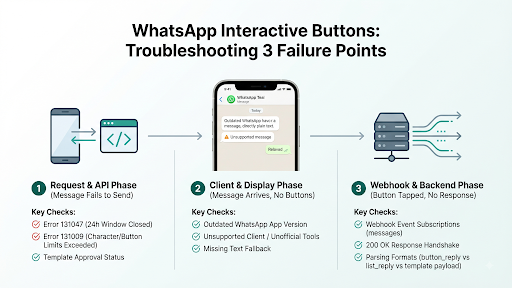
Before you change anything, figure out where the failure happens. It falls into one of three groups, and each group has a different fix.
- The message never sends. Your API call returns an error, or your chatbot platform shows “failed.” This is a request problem. Jump to the section on buttons that fail to send.
- The message sends, but the customer sees no buttons. The API says “sent” or “delivered,” yet the customer sees plain text or a “this message is not supported” note. This is a display problem on the customer’s side.
- The buttons show up, but tapping them does nothing. The customer taps “Yes,” and your bot never responds. This is a webhook or backend problem, and it’s the most common one for developers.
Pro Tip! Send a test message to your own phone first. If the buttons appear and work on your phone, the problem is either your webhook logic or the specific customer’s app. If they fail on your own phone too, the problem is in your request.
Can You Use Interactive Buttons on the Free WhatsApp Business App?
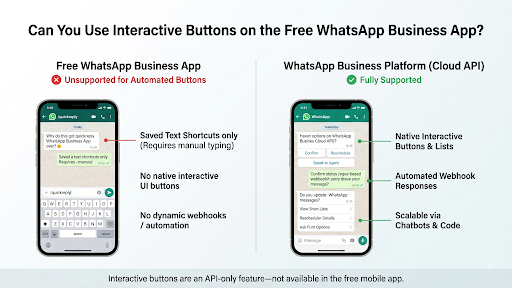
No. Interactive reply buttons, list messages, and CTA buttons are features of the WhatsApp Business Platform, also called the WhatsApp Business API. The free WhatsApp Business app on your phone can’t send them.
The app does have “quick replies,” but those are just saved text shortcuts that you type with a slash. They don’t create tappable buttons for the customer. If you need real buttons, you’ll have to use the Cloud API directly or go through a Business Solution Provider (BSP) or chatbot platform that connects to it. Don’t want to give up the app on your phone? Find out whether you can use the WhatsApp Business app and Cloud API on the same number before you switch.
This also explains a very common mix-up. Many “free WhatsApp interactive buttons” tutorials use unofficial tools that copy WhatsApp Web. Those tools broke when WhatsApp moved to multi-device and newer app versions stopped displaying buttons sent through them. If your buttons suddenly vanished after a WhatsApp update and you’re not on the official API, that’s very likely the reason.
How Do You Fix Interactive Buttons That Fail to Send?
Start with the error code in your API response or your platform’s message log. It almost always tells you which of the following fixes you need.
1. Check the 24-hour customer service window
Free-form interactive messages (reply buttons and lists) can only be sent while the customer service window is open. That window opens when a customer messages you and stays open for 24 hours from their latest message. Meta’s own guide states that list and reply button messages can’t be used as notifications, and if you send one outside that window, you get an error.
The error you’ll usually see is 131047 (Re-engagement message). The fix is simple: send an approved message template instead. Templates can carry their own quick reply buttons, and they work outside the window. Once the customer taps a button or replies, the window opens again and you can send free-form interactive messages.
Important Point to be Considered! A delayed queue can push a message past the 24-hour mark without you noticing. If a reminder was scheduled for “tomorrow at 9 AM” and the customer last wrote 23 hours earlier, the interactive message will fail. Build a check for the window into your sending logic.
2. Validate your payload against Meta’s limits
Meta rejects any interactive message that breaks a limit, and it does so even if just one field is too long. These are the limits for free-form interactive messages on the Cloud API:
| Element | Reply buttons message | List message |
| Number of options | 1 to 3 buttons | Up to 10 rows total, across up to 10 sections |
| Button or row title | 20 characters max, must be unique | Row title 24 characters max |
| ID | 256 characters max | Row ID 200 characters max |
| Row description | Not used | 72 characters max |
| Menu button label | Not used | 20 characters max |
| Body text | 1,024 characters max | 4,096 characters max |
| Footer text | 60 characters max | 60 characters max |
You can confirm these values in Meta’s documentation for interactive reply buttons messages and interactive list messages.
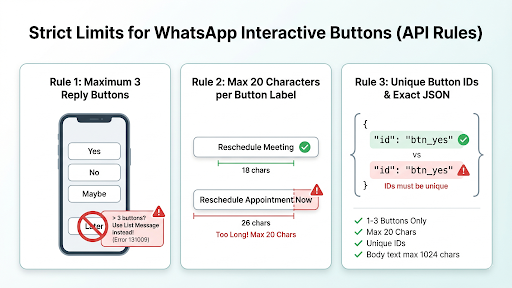
The mistakes that cause error 131009 (Parameter value is not valid) most often are:
- Adding a fourth reply button. If you need more than three choices, switch to a list message.
- A button label like “Reschedule my appointment” that runs past 20 characters.
- Two buttons with the same title, such as two “Yes” buttons in different languages that end up identical.
- Missing the required type, id, or title for a button.
- Sending “type”: “interactive” at the top level but forgetting the nested interactive.type (button or list).
- Copying JSON from a document or web page that swapped straight quotes for curly “smart” quotes or added hidden characters.
Pro Tip! If you copied the sample JSON from a website, paste it into a plain-text editor or a JSON validator before you use it. Invisible characters and curly quotes are a surprisingly common reason a payload that “looks perfect” keeps failing.
3. Confirm your template is approved and built correctly
If you’re sending buttons inside a message template, the template must be in the Approved state in WhatsApp Manager. Pending, rejected, paused, or disabled templates won’t send.
Template buttons follow different rules than free-form reply buttons:
- A template can have up to 10 buttons in total.
- You can add up to 2 URL buttons and 1 phone number button.
- Quick reply buttons must be grouped together. “Quick reply, quick reply, URL” is fine. “Quick reply, URL, quick reply” gets rejected as an invalid combination.
- The parameters you send at runtime must match the template exactly. A dynamic URL button that expects a variable will fail if you don’t pass one.
Some templates use a Flow button, which opens a form inside the chat. If that button shows up fine but the form opens blank or keeps spinning, the problem is usually the Flow itself, not the button. See our fix for WhatsApp Business Flows forms that won’t load.
Also check the template’s language code. If you approved the template in “en_US” but your API call asks for “en,” WhatsApp won’t find it.
4. Make sure you’re on the Cloud API
Meta shut down the On-Premises API on October 23, 2025. According to Meta’s On-Premises API sunset notice, it can no longer be used to send messages to WhatsApp users at all. Some online summaries list this date as October 2026, but that’s incorrect.
If you have an older integration with endpoints like /v1/messages on your own server, nothing will send until you migrate to the Cloud API endpoint at graph.facebook.com. Most BSPs have already done this for their customers, but self-hosted setups sometimes get missed.
Why Are WhatsApp Buttons Not Showing on the Customer’s Phone?
When the API says your message was delivered but the customer sees no buttons, the issue is usually on the customer’s side. Here’s what to check.
Outdated WhatsApp app
Older versions of WhatsApp may not render newer interactive features, or they show a “this message is not supported” placeholder. Ask the customer to update WhatsApp from the App Store or Google Play and then reopen the chat. Some newer features have hard version requirements, and sending them to older apps can return error 131026 (Message undeliverable).
WhatsApp Web, Desktop, and third-party clients
Buttons generally display on WhatsApp Web and the desktop app, but these clients have had more bugs with interactive replies than the phone apps. More on that in the WhatsApp Web section below.
Unofficial APIs and “free” button tools
If you send buttons through a tool that automates WhatsApp Web or a personal account instead of the official Cloud API, newer WhatsApp versions often won’t display them. There’s no fix on the customer’s side here. The only reliable solution is moving to the official WhatsApp Business Platform.
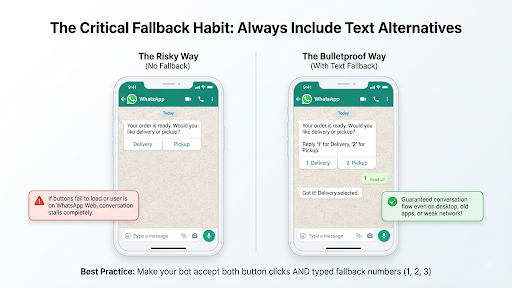
Always include a text fallback
Write your body text so the message still makes sense without buttons. For example: “Reply 1 to confirm or 2 to reschedule.” Then have your bot accept typed replies like “1,” “yes,” or “confirm” in addition to button taps. This one habit saves a lot of lost conversations.
What Should You Do If Nothing Happens When a Customer Taps a Button?
When a customer taps a reply button, WhatsApp sends a messages webhook event to your server with the button’s ID and title. If your bot does nothing after a tap, that event is either not reaching you, not being acknowledged, or not being read correctly.
Step 1: Confirm the webhook is set up and subscribed
- Your callback URL must be public HTTPS with a valid SSL/TLS certificate. Self-signed certificates aren’t supported.
- The webhook must pass Meta’s verification request (it has to return the hub.challenge value).
- In your app’s WhatsApp settings, the messages field must be subscribed. Without it, you won’t receive button taps at all.
- The app must be subscribed to the right WhatsApp Business Account. This often gets missed after you move a number or create a new app.
Step 2: Return 200 OK immediately
Your endpoint should respond with HTTP 200 OK as soon as it receives the event, then do the real work (database calls, CRM lookups, AI replies) in the background. If you respond slowly or with an error, Meta treats the delivery as failed and retries it. Retries go to every app subscribed to that business account, which can cause duplicate events and double replies.
Important Point to be Considered! Store each incoming message ID and skip any you’ve already processed. This makes your bot safe against retries, so a single tap never triggers two replies.
Step 3: Handle both button reply formats
This is the mistake that catches the most developers. A tap on a free-form reply button and a tap on a template’s quick reply button arrive in different formats. If your code only checks for one, the other will look like “nothing happened.”
| What the customer tapped | Webhook type | Where to find the value |
| Reply button in a free-form interactive message | interactive | interactive.button_reply.id and .title |
| Row in a list message | interactive | interactive.list_reply.id, .title, and .description |
| Quick reply button in a template | button | button.payload and button.text |
| URL (CTA) button | No webhook | The customer just opens the link, so nothing is sent back to you |
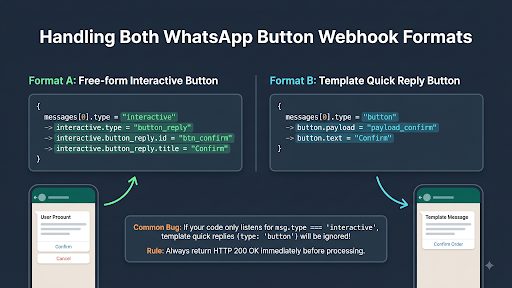
You can check the exact structure in Meta’s interactive messages webhook reference. A simple routing check looks like this:
const msg = body.entry[0].changes[0].value.messages?.[0];
if (!msg) return; // status updates have no “messages” array
let choice = null;
if (msg.type === “interactive” && msg.interactive.type === “button_reply”) {
choice = msg.interactive.button_reply.id;
} else if (msg.type === “interactive” && msg.interactive.type === “list_reply”) {
choice = msg.interactive.list_reply.id;
} else if (msg.type === “button”) {
choice = msg.button.payload; // template quick reply
} else if (msg.type === “text”) {
choice = msg.text.body.trim().toLowerCase(); // text fallback
}
Notice the first check. Status webhooks (sent, delivered, read) also arrive at the same URL but have no messages array. If your code assumes every event is a message, it can crash on status updates and miss the button tap that comes right after.
Pro Tip! If your CTA URL button “doesn’t work,” remember that it isn’t supposed to send you anything. To track clicks, add a tracking parameter to the URL and measure it on your website instead. If those chats started from an ad and the ad results look empty too, that’s a separate setup problem. Our guide on Click-to-WhatsApp ads not tracking conversions covers it.
Step 4: Check that button IDs match
Your bot logic should match on the button id, not the visible title. Titles get edited and translated, while IDs stay stable. A typical bug: someone changes a button from “Yes” to “Yes, confirm” and the bot stops recognizing it because the code was checking the title.
Step 5: Trace multi-service pipelines
If one service receives the webhook and passes it to another through a queue, function, or message bus, the button data can get lost along the way. Developers have reported this exact problem with setups that split webhook ingestion from processing. Common culprits include:
- A serializer that only copies text.body and drops the interactive object
- A message schema that doesn’t define the button type
- A filter that discards any message that isn’t plain text
Log the raw webhook body at the moment it arrives, then log it again where your bot logic runs. If the button data is in the first log but not the second, you’ve found the leak.
Why Does the Button Reply Fail Only on WhatsApp Web or Desktop?
In 2026, many developers on Meta’s community forum reported that button taps from WhatsApp Web and the Desktop app sometimes arrive as an error instead of a normal reply. The webhook contains error 131000 (“Something went wrong”) with the detail “Unsupported webhook payload” instead of the expected interactive.button_reply object. The same customer tapping from the phone app works fine.
This is a platform-side issue, so you can’t fully fix it in your code. You can make your bot handle it gracefully, though:
- Check for the errors array on incoming messages instead of assuming every message has content.
- Use the context field. It still points to your original outbound message, so you at least know which question the customer was answering.
- Send a friendly follow-up. Something like “Sorry, I didn’t catch that. Please tap the button again or type 1, 2, or 3.”
- Accept typed answers so customers on desktop always have a way forward.
What Do Common WhatsApp API Error Codes Mean for Buttons?
These are the error codes most closely tied to interactive button problems. Meta keeps the full list on its WhatsApp error codes page.
| Error code | What it means | How to fix it |
| 131047 | Re-engagement message. More than 24 hours since the customer last replied. | Send an approved template instead of a free-form interactive message. |
| 131009 | Parameter value is not valid. | Check button count, label length, unique titles, and required fields. |
| 131051 | Unsupported message type. | Check the type and interactive.type values in your request or the incoming webhook. |
| 131026 | Message undeliverable. | Confirm the number is on WhatsApp and ask the customer to update the app. |
| 131000 | Something went wrong (generic). | Retry. If it shows up on incoming button replies from WhatsApp Web, add a text fallback. |
| 130429 | Rate limit hit. | Slow down your sending and add retries with a delay. |
Don’t forget that some errors arrive later, inside the statuses webhook, rather than in the API response. A message can be accepted when you send it and fail a few seconds afterward. If you only log API responses, you’ll miss these.
How Do You Fix Interactive Buttons in n8n, Make, or a Chatbot Platform?
If you use a no-code tool or a BSP, the same rules apply, but the problem often sits inside the tool’s settings.
- n8n: The built-in “Send and Wait for Response” option only supports text and links, not interactive buttons. Use an HTTP Request node that calls the Cloud API directly with your interactive JSON. Then add a WhatsApp Trigger or Webhook node and a Switch node that checks for interactive and button message types.
- BSP dashboards: Check the message log for the error code. Most dashboards show the same Meta codes listed above.
- Chatbot builders: Make sure the button step is connected to a “wait for reply” step that accepts button replies, not just text. A disconnected branch is a common reason a tap goes nowhere.
- Testing: Use the platform’s test number and your own phone before you send to real customers.
How Can You Prevent WhatsApp Button Problems in the Future?
A few small habits prevent most interactive button failures:
- Track each customer’s last message time and only send free-form buttons inside the 24-hour window.
- Send button templates only to people who opted in. Blasting them to a list you uploaded drags down your quality rating, and it’s a common reason businesses get banned after importing contacts.
- Validate button counts and character limits in your code before you call the API.
- Use short, clear labels like “Confirm,” “Reschedule,” and “Talk to agent.”
- Use three buttons or fewer for simple choices and a list message for four to ten options.
- Match replies by button ID, never by title.
- Parse all three reply formats: button_reply, list_reply, and template button.
- Return 200 OK right away and process events in the background.
- Skip duplicate message IDs so retries never trigger double replies.
- Add a typed fallback (“Reply 1 or 2”) to every interactive message.
- Avoid crowding the message with long text, heavy media, and too many choices at once.
Frequently Asked Questions
What is the 24-hour rule for WhatsApp Business?
The 24-hour rule means a business can send free-form messages, including interactive buttons and lists, only within 24 hours of the customer’s latest message. After that, you can reach the customer only with an approved message template. Each new message from the customer resets the 24-hour clock.
Are WhatsApp interactive buttons free to use?
The buttons themselves don’t cost extra, but you need the WhatsApp Business Platform to send them. Free-form interactive messages you send inside an open customer service window aren’t charged per message. Template messages are billed based on their category and the customer’s country, and BSPs may add their own fees.
What is the difference between a quick reply button and a CTA button?
A quick reply button sends the customer’s choice back to your business as a webhook, so your bot can respond. A CTA button opens a website or starts a phone call and sends nothing back to you. If you need the bot to react to a tap, use a quick reply button.
How do I set up automated messages on the WhatsApp Business app?
In the WhatsApp Business app, open Settings, go to Business tools, and set up a Greeting message or an Away message. These send plain text automatically, but they can’t include interactive buttons. For automated replies with buttons, you’ll need the WhatsApp Business API or a chatbot platform built on it.
Why isn’t the send button working on WhatsApp?
If the send arrow itself won’t work in the WhatsApp or WhatsApp Business app, the cause is usually a weak connection, an outdated app, or full storage. Check your internet, update WhatsApp, restart your phone, and make sure WhatsApp has permission to use mobile data and run in the background. This is a separate issue from interactive buttons that a business sends you.
How do I fix general WhatsApp Business problems?
For general WhatsApp Business app issues, start by updating the app, restarting your phone, and checking your internet connection and the app’s permissions. If you use the API, check the WhatsApp Business Platform status page and your error logs first. Most API problems trace back to an error code that points to the exact cause.
Final Recommendation
Start by finding out where the failure happens. If the API returns an error, read the code and fix the request, starting with the 24-hour window and Meta’s character limits. If the buttons don’t appear, have the customer update WhatsApp and confirm that you’re on the official Cloud API. If taps do nothing, log the raw webhook and make sure your code handles button_reply, list_reply, and template button replies, and returns 200 OK right away.
Then add a typed fallback to every interactive message. Even when everything is configured correctly, some customers will be on an old app or WhatsApp Web, and a simple “Reply 1 or 2” keeps those conversations moving.
