


If your WhatsApp Business quick replies are not showing, start with the basics: open a chat and type a forward slash (/) as the very first character in the message box. If the list still doesn’t pop up, the cause is usually an outdated app, a keyboard conflict, a sync glitch between linked devices, or you’re trying it on a device where the feature isn’t supported.
The good news is that this is almost never a permanent problem. Below, you’ll find the quick checks, the device-specific fixes for Android and iPhone, and what to do when your saved replies seem to have vanished completely.
Quick Overview
Work through these in order. Most people fix it within the first four steps.
- Confirm you’re in WhatsApp Business, not regular WhatsApp. Quick replies only exist in the Business app.
- Type “/” at the start of an empty message box, with no space or text before it.
- Use the attachment icon (paperclip or +) and pick Quick replies as a backup method.
- Check that your replies still exist under Business tools > Quick replies.
- Update WhatsApp Business from the Google Play Store or Apple App Store.
- Switch to your phone’s default keyboard if you use a third-party one.
- Clear the app cache (Android) or offload and reinstall (iPhone).
- Delete and recreate any single quick reply that refuses to appear or send.
- Use your phone, not WhatsApp Web, if replies or their media won’t show on a computer.
Why Are My WhatsApp Business Quick Replies Not Showing?
Quick replies usually fail to show for one of a few reasons: the slash isn’t triggering the menu, the app has a bug that an update fixes, or the replies didn’t sync properly. Here are the most common causes, matched with what to do.
| What you’re seeing | Likely cause | Best fix |
| Typing “/” shows nothing at all | Slash typed mid-sentence, keyboard conflict, or outdated app | Type “/” in an empty box, switch keyboards, update the app |
| No Quick replies option anywhere | You’re using regular WhatsApp, or the menu moved in a newer version | Open WhatsApp Business and check Business tools or the Tools tab |
| The list appears, but one reply is missing | That reply was deleted or saved incorrectly | Recreate it with a new shortcut |
| Reply shows as “saved” but won’t send or edit | App glitch or corrupted local data | Delete it, restart the app, and create it again |
| Replies work on phone but not on a computer | Limited support on WhatsApp Web and desktop | Send from your phone, especially for media replies |
| Images or videos missing from a quick reply | Media isn’t supported in quick replies on Web or Desktop | Use the mobile app for media quick replies |
| Everything stopped working at once for many users | A buggy app release | Install the next update when it’s available |
That last row matters more than people think. Community threads on Reddit and X show waves of users reporting that quick replies stopped working at the same time, which points to an app bug rather than anything wrong with their phone. In those cases, an update is the real fix.
How Do You Make Quick Replies Show Up in a Chat?
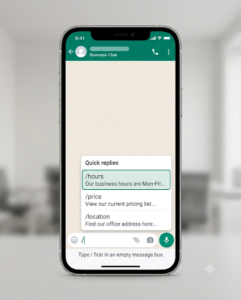
Open any chat, tap the message field, and type / as the first character. Your saved quick replies, including the default ones WhatsApp creates from your business profile, should appear in a list above the keyboard.
There are two ways to bring them up:
Method 1: The Forward Slash Shortcut
- Open the customer chat.
- Tap the message box so it’s empty.
- Type / and wait a second for the list to load.
- Tap the reply you want, or keep typing the shortcut (for example, /hours) to filter the list.
- Edit the message if needed, then tap Send.
Common mistake: typing a space, a greeting, or any other text before the slash. The menu is designed to trigger at the start of the message box, so “Hi /hours” usually won’t open anything.
Method 2: The Attachment Menu
- Open the chat.
- Tap the paperclip or + icon next to the message box.
- Select Quick reply.
- Pick the message you want to send.
If this method works but the slash doesn’t, the problem is almost certainly your keyboard, not your saved replies. Jump to the keyboard fix below.
How Do You Check If Your Quick Replies Still Exist?
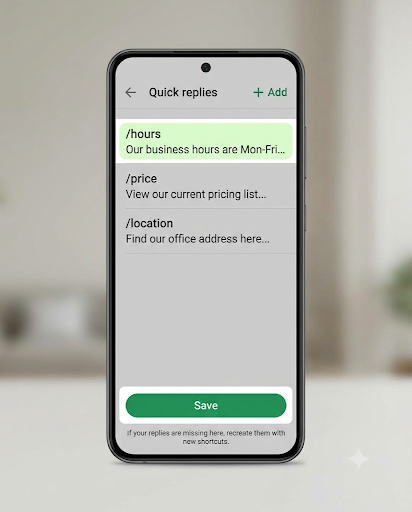
Go to the Quick replies settings screen and see whether your messages are listed there. If they’re gone from this screen, they won’t show in chats either.
The exact path depends on your device and app version:
- Android: Tap the three dots (⋮) > Business tools > Quick replies.
- iPhone: Tap Settings > Business tools > Quick replies.
- Newer app versions: Look for a Tools tab at the bottom of the app, then open Quick replies.
If the list is there, the issue is with how they’re being triggered. If the list is empty, the replies were deleted, lost during a reinstall, or never saved properly. According to setup guides that track the feature, a deleted quick reply can’t be restored, so you’ll need to create it again.
What Are the Step-by-Step Fixes on Android?
On Android, clearing the cache, checking permissions, and switching keyboards solve most cases. Try these one at a time and test after each step.
1. Update WhatsApp Business
Open the WhatsApp Business listing on Google Play and tap Update if it’s available. New releases often patch display bugs that affect shortcuts and pop-up menus.
2. Clear the App Cache (Not Data)
- Go to your phone’s Settings > Apps > WhatsApp Business.
- Tap Storage.
- Tap Clear cache.
Warning: do not tap Clear data or Clear storage. That wipes your local chats and settings unless you have a backup.
3. Check App Permissions
Go to Settings > Apps > WhatsApp Business > Permissions and allow access to photos, media, and files. This matters most if your quick replies include images or videos.
4. Turn Off Background Data Restrictions and Battery Saver
Some phones, especially OnePlus, Xiaomi, and Samsung models with aggressive battery settings, limit what apps can do in the background. Make sure background data isn’t restricted for WhatsApp Business and set battery usage to Unrestricted or Not optimized.
5. Switch to Your Default Keyboard
Third-party keyboards with heavy autocorrect, clipboard pop-ups, or suggestion bars can sometimes cover or interfere with the quick reply list. Temporarily switch to Gboard or Samsung Keyboard, then type “/” again in an empty chat box.
What Are the Step-by-Step Fixes on iPhone?
On iPhone, updating the app and using the Offload App option are the most reliable fixes. Offloading removes the app but keeps its documents and data, so it’s a gentler reset than deleting.
1. Update From the App Store
Open the WhatsApp Business page on the App Store and install any pending update.
2. Offload and Reinstall
- First, back up your chats in WhatsApp Business under Settings > Chats > Chat backup.
- Open the iPhone Settings app > General > iPhone Storage.
- Find WhatsApp Business and tap Offload App.
- Tap Reinstall App on the same screen.
Several iPhone users in a large Reddit thread on this exact problem said offloading and reinstalling brought their quick replies back. It’s worth trying before a full delete.
3. Check Your Keyboard Settings
If you use a third-party keyboard, switch back to the Apple keyboard by tapping the globe icon. Then test the slash again.
Why Are Quick Replies Not Working on WhatsApp Web or Desktop?
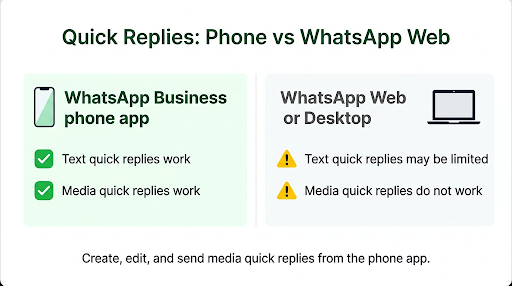
Quick replies have limited support outside the phone app. WhatsApp’s own Help Center lists the devices where the feature works and notes that it isn’t available on the web app, and media files are not supported in quick replies on WhatsApp Web or Desktop.
Here’s what that means in practice:
- If a quick reply includes an image or video, send it from your phone.
- If text replies show on your phone but not on your computer, that’s expected on some versions, not a fault.
- If replies you just created on your phone don’t appear on a linked device, give it a few minutes, then log out and relink the device under Linked devices.
Business help sites also report a “quick replies save error” that happens when the phone and the desktop app fall out of sync. Creating and editing replies on the phone, rather than on the computer, avoids most of these conflicts.
What Should You Do If a Quick Reply Is Saved But Won’t Send?
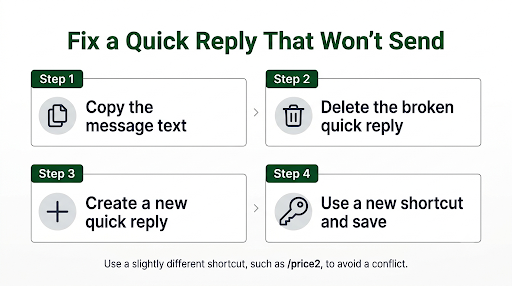
Delete that specific reply and recreate it. This is the fix for a frustrating bug where a reply shows as “saved” but can’t be sent, edited, or removed properly, which users have reported on Meta’s developer community forum.
- Go to Business tools > Quick replies.
- Copy the message text somewhere safe, like your Notes app.
- Delete the broken reply.
- Close WhatsApp Business completely and reopen it.
- Tap Add (+), paste the message, and give it a new shortcut.
- Tap Save and test it in a chat.
Using a slightly different shortcut name (for example, /price2 instead of /price) helps rule out a conflict with the old, corrupted entry.
Are You Hitting a Quick Reply Limit?
Yes, this can happen. The WhatsApp Business app lets you save up to 50 quick replies, and shortcuts are capped at 25 characters. If you’ve reached 50, the app won’t let you add more, which can look like a new reply “isn’t showing” because it was never saved.
Tips to stay under the limit:
- Merge similar replies, such as separate pricing messages, into one editable template.
- Delete seasonal or outdated replies, like old holiday hours.
- Keep shortcuts short and easy to remember: /hours, /track, /refund.
- Avoid spaces and special symbols in shortcuts, since they’re harder to type quickly and easier to mistype.
If your team truly needs hundreds of saved responses, the free Business app isn’t built for that. The WhatsApp Business Platform (API), used through a provider, supports much larger reply libraries and shared team inboxes.
Could the Problem Be Something Bigger Than Quick Replies?
Sometimes. If quick replies won’t show and messages are also stuck, notifications are silent, or the app feels slow overall, the root cause may be a wider app or connection issue.
- If replies appear but nothing actually delivers, see our guide on WhatsApp Business messages not sending.
- If you’re also missing customer alerts, check our fixes for WhatsApp Business notifications not working.
- If the list shows up but typing a specific shortcut doesn’t pull up the right reply, our walkthrough on the WhatsApp Business quick reply shortcut not working goes deeper into shortcut-specific problems.
Also, quick replies are not automatic. They only send when you pick one. If you expected customers to get an instant answer without you tapping anything, you’re thinking of the greeting message or away message, which live in the same Business tools menu.
When Should You Reinstall WhatsApp Business?
Reinstall only after the softer fixes fail. A clean install clears out corrupted app files, but it can also remove local quick replies if they weren’t backed up.
- Back up your chats to Google Drive (Android) or iCloud (iPhone).
- Write down or copy your quick replies into a note, since there’s no reliable way to export them on their own.
- Uninstall WhatsApp Business.
- Restart your phone.
- Reinstall from the official app store and restore your backup.
- Check Business tools > Quick replies and recreate anything missing.
Pro tip: keep a simple document with all 50 of your quick replies and their shortcuts. If anything goes wrong in the future, you can rebuild your library in ten minutes instead of rewriting everything from memory.
Frequently Asked Questions
Does regular WhatsApp have quick replies?
No. Quick replies are a feature of the WhatsApp Business app only. If you switched from WhatsApp Business back to the standard WhatsApp app, the Quick replies option and the “/” shortcut won’t be there.
Why did my quick replies disappear after changing phones?
Quick replies may not come across if the chat backup didn’t restore fully or you set up the account fresh. Restore from your latest Google Drive or iCloud backup during setup, then check Business tools. If they’re still missing, you’ll need to add them again.
Why does the slash show my default replies but not my custom ones?
WhatsApp creates some default quick replies from your business profile details, such as your address and hours. If only those appear, your custom replies were likely deleted or didn’t save. Open the Quick replies screen to confirm, then recreate the missing ones.
Can I use quick replies in group chats?
Yes, you can usually trigger quick replies in any chat where you can type, including groups. If the list appears in one-on-one chats but not in a specific group, check whether the group only allows admins to send messages.
Can I add images or videos to a quick reply?
Yes, the mobile Business app supports media in quick replies. Just remember that the media part won’t work on WhatsApp Web or Desktop, and the app needs permission to access your photos and files.
Is WhatsApp down if quick replies stop working?
Not necessarily. If chats, calls, and messages work normally, WhatsApp itself is fine and the issue is with the quick reply feature on your app version. If everything is failing, check your internet connection first and then the WhatsApp Help Center for known issues.
Final Recommendation
Start simple. Type “/” in an empty message box, try the attachment menu, and confirm your replies are still listed under Business tools. If they’re there but won’t appear, update the app and switch to your default keyboard. Those two steps fix the majority of cases.
If one reply is broken, delete and recreate it with a new shortcut. If nothing works on iPhone, offload and reinstall. On Android, clear the cache. And before you ever reinstall, save a copy of your quick replies so you never have to rebuild them from scratch.
