


Quick fix: Go to Settings > Apps > WhatsApp Business > Notifications and turn on notifications. Then allow background data, set battery usage to Unrestricted, and turn off Do Not Disturb, Focus, or Low Power Mode while testing.
When WhatsApp Business notifications stop working, the cause is usually a setting on your phone or in the app. Less often, a WhatsApp service issue can delay or prevent alerts. Your phone’s notification permission, battery saver, Do Not Disturb or Focus, background data, and the app’s own notification settings can each block or delay an alert. Phone settings override WhatsApp Business settings, so turning alerts on inside the app won’t help if your phone is blocking them.
For a business, a missed alert can mean a missed order, a customer who gives up, or a call that never rings. This guide helps you work out which kind of notification problem you have, then fix the setting that’s causing it on Android, iPhone, and WhatsApp Web.
Quick Overview
| What you notice | Most likely cause | First thing to check |
| No alerts at all | Phone notification permission is off | Phone Settings > Apps > WhatsApp Business > Notifications |
| Alerts show up only after you open the app | Battery saver or background limits are putting the app to sleep | Set battery usage to Unrestricted and turn on background data |
| Alert appears but makes no sound | Tone is set to None or Silent, or Do Not Disturb or Focus is on | WhatsApp Business > Settings > Notifications > Notification tone |
| One customer or group never alerts you | That chat is muted or archived | Unmute it, or unarchive it |
| Calls from new customers don’t ring | Silence Unknown Callers is on | Settings > Privacy > Calls |
| Alerts come late, in batches | Samsung, Xiaomi, or other brand battery management | Add WhatsApp Business to “Never sleeping apps” or allow Autostart |
| No alerts on your computer | Browser or desktop permission is blocked | Allow notifications for web.whatsapp.com |
Is It a Notification Problem or a Message Delivery Problem?
Before you change any settings, find out whether the message reached your phone at all. Most guides skip this step, but it tells you which fixes to try.
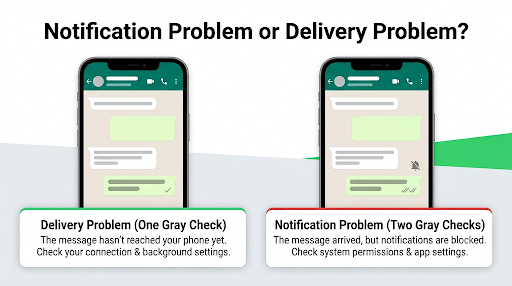
Ask a friend or coworker to send you a message while your phone is locked and WhatsApp Business is closed. Then have them look at the check marks on their side:
- One gray check: the message hasn’t reached your phone yet. This is a connection or background problem. Your phone isn’t getting the message, so it can’t show an alert.
- Two gray checks, but you heard nothing: the message arrived and your phone didn’t alert you. This is a notification settings problem.
If messages keep sitting on one check, or your own replies to customers won’t go out, you may be dealing with a bigger connection issue. Our guide to fixing WhatsApp Business messages that won’t send covers that side of the problem in detail.
Why Do WhatsApp Business Notifications Stop Working?
Notifications fail when something between WhatsApp’s servers and your lock screen blocks or delays them. The common causes are:
- Notification permission is off. On Android 13 and later, apps have to ask before they can send notifications. If you tapped “Don’t allow” during setup or after reinstalling, alerts stay blocked.
- Battery optimization. Android brands such as Samsung, Xiaomi, Oppo, Vivo, and OnePlus put background apps to sleep to save battery. On iPhone, Low Power Mode cuts back background activity.
- Background data is restricted. Data Saver or a per-app data limit stops WhatsApp Business from staying connected while you’re not using it.
- Do Not Disturb, Focus, or a notification summary. These silence alerts or hold them back to deliver later.
- Muted or archived chats. This catches a lot of business users who archive older customer chats to keep their inbox tidy.
- Notification settings may need a reset. Updates, restores, and phone resets can leave the notification settings in a broken state.
- Linked devices and browser permissions. If you reply from a computer, the computer has its own notification settings.
How Do You Fix WhatsApp Business Notifications on Android?
On Android, start with the system notification permission, then remove battery and data restrictions. Menu names vary a little between brands and Android versions, but the steps are similar on most phones.
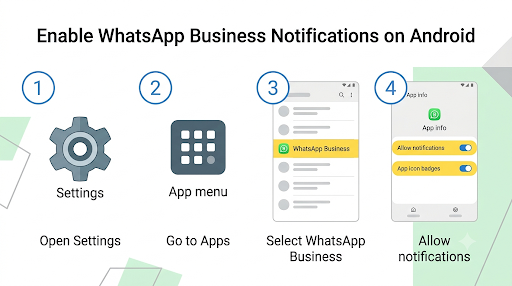
1. Turn on notification permission
- Open your phone’s Settings.
- Go to Apps (or Apps & notifications) and tap WhatsApp Business.
- Tap Notifications and turn on Allow notifications.
- Turn on App icon badges if you want the unread count on the icon.
2. Check each notification category
Android splits WhatsApp Business alerts into separate categories, such as message, group, and call notifications. One category can be off while the rest are on. On the same Notifications screen, open each category and check that:
- It is turned on.
- It is set to Alerting or Default, not Silent.
- Sound, vibration, and “Show on lock screen” are allowed.
WhatsApp notes that when you set custom notifications for a chat, it creates a new notification category in your device settings. If you’ve given your top customers custom tones, check those categories too. One of them could be turned off.
3. Remove battery restrictions
This is the main fix for the “notifications only show up when I open the app” problem.
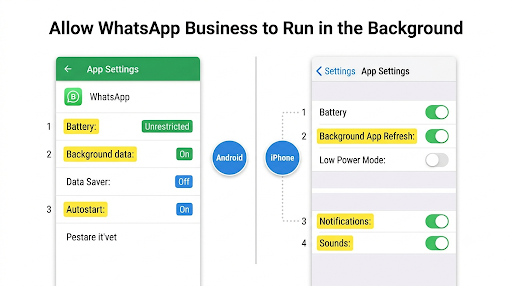
- Go to Settings > Apps > WhatsApp Business > Battery (sometimes called App battery usage).
- Choose Unrestricted (or Not optimized or No restrictions, depending on your phone).
4. Reset background data
WhatsApp’s own help page suggests turning background data off and back on:
- Go to Settings > Apps > WhatsApp Business > Mobile data and Wi-Fi.
- Turn Background data off, then turn it back on.
- If Data Saver is on, turn on Unrestricted data usage for WhatsApp Business.
Data restrictions affect more than alerts. If photos, invoices, or catalog images also fail to send or download, see our guide to fixing WhatsApp Business when it won’t send media.
5. Turn off Do Not Disturb
Go to Settings > Sound and vibration > Do not disturb (or Notifications > Do not disturb) and make sure it’s off. Also check for a schedule. Many people set DND for sleep and forget it runs every night. If you need DND during off-hours, add WhatsApp Business as an allowed app.
6. Check Android 15’s Notification cooldown
Phones running Android 15 may have a feature called Notification cooldown. It gradually lowers the volume of notifications when many arrive from the same app in a short time. That’s handy for noisy group chats. For a business getting a rush of customer messages, it means your second, third, and fourth alerts get quieter.
To turn it off, go to Settings > Notifications > Notification cooldown and select Don’t use notification cooldown. The feature started on Pixel phones, and other brands may name it differently or leave it out.
What Extra Steps Do Samsung and Xiaomi Phones Need?
Samsung and Xiaomi phones have their own battery systems on top of standard Android, and these are behind many “delayed notification” complaints. Turning off standard battery optimization isn’t always enough on these phones.
Samsung Galaxy (One UI)
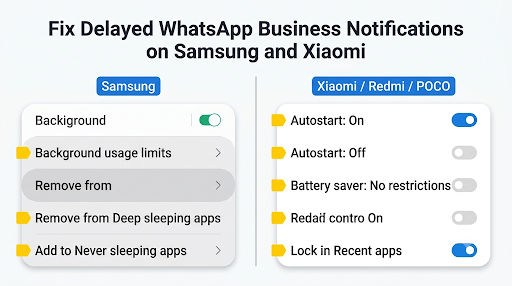
Samsung sorts apps into Sleeping apps, Deep sleeping apps, and Never sleeping apps. Notifications from sleeping apps can be delayed. Apps in deep sleep can’t run in the background at all, so you may get no alerts until you open them.
According to Samsung’s developer documentation on app management, apps that haven’t been used for a long time (currently 16 days, though Samsung may change this) can be put into deep sleep automatically. That matters if you run WhatsApp Business on a secondary number you don’t open every day.
- Go to Settings > Battery (or Battery and device care > Battery) > Background usage limits.
- Open Sleeping apps and Deep sleeping apps, and remove WhatsApp Business if it’s listed.
- Open Never sleeping apps, tap +, and add WhatsApp Business.
Also check Settings > Apps > WhatsApp Business > Notifications for a Silent notifications toggle, and turn it off if it’s on.
Xiaomi, Redmi, and POCO (HyperOS or MIUI)
- Go to Settings > Apps > Manage apps > WhatsApp Business.
- Turn on Autostart.
- Tap Battery saver and choose No restrictions.
- Optional: open Recent apps, long-press the WhatsApp Business card, and tap the lock icon so the system doesn’t clear it.
Tip: Big system updates on Samsung and Xiaomi phones sometimes reset these battery settings. If alerts stop right after an update, check these steps again first.
How Do You Fix WhatsApp Business Notifications on iPhone?
On iPhone, check the iOS notification permission, Focus, Scheduled Summary, and Background App Refresh. iPhone works a little differently from Android: WhatsApp has said that iPhone push notifications are delivered by Apple’s Push Notification service (APNs), so the iPhone itself controls delivery.
1. Allow notifications
- Open Settings > Notifications > WhatsApp Business (or Settings > Apps > WhatsApp Business > Notifications on newer iOS versions).
- Turn on Allow Notifications.
- Turn on Lock Screen, Notification Center, and Banners.
- Turn on Sounds and Badges.
If WhatsApp Business doesn’t appear in the Notifications list at all, iOS never registered the permission. Delete the app (after backing up), restart your iPhone, reinstall, and tap Allow when it asks.
2. Check Focus and Reduce Interruptions
Swipe down from the top-right corner to open Control Center and check whether a Focus is on. Work and Sleep Focus modes often block messaging apps. To keep a Focus but still get customer messages, go to Settings > Focus, choose the Focus, and add WhatsApp Business under Apps.
On iPhones that support Apple Intelligence, the Reduce Interruptions Focus decides for itself which notifications seem important and silences the rest. A short customer message like “Is this in stock?” can easily be judged unimportant. Add WhatsApp Business as an allowed app, or don’t use this Focus during business hours.
3. Take WhatsApp Business out of Scheduled Summary
Go to Settings > Notifications > Scheduled Summary. If WhatsApp Business is included, its alerts are held back and delivered in a batch at set times. Remove it so messages reach you right away.
4. Turn on Background App Refresh and turn off Low Power Mode
- Go to Settings > General > Background App Refresh and turn it on for WhatsApp Business.
- Go to Settings > Battery and turn off Low Power Mode while you test.
5. Stop force-closing the app
Swiping WhatsApp Business away in the app switcher feels tidy, but WhatsApp advises against force-closing it on iPhone because it can affect notifications. Leave it running in the background.
Which WhatsApp Business Settings Can Block Alerts?
Even with every phone setting correct, a few settings inside WhatsApp Business can still block or silence alerts. Check these next.
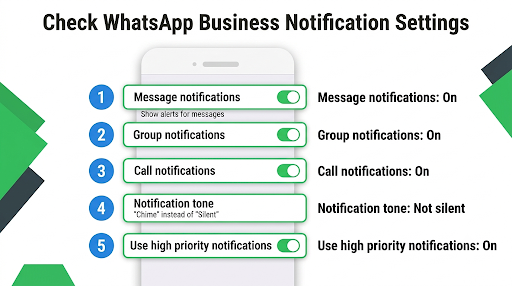
In-app notification settings
- Open WhatsApp Business and go to Settings > Notifications (on Android, tap the three dots first).
- Make sure message, group, and call notifications are turned on.
- Check that the Notification tone isn’t set to None or Silent.
- On Android, turn on Use high priority notifications for messages and groups. This shows a preview at the top of the screen.
If nothing looks wrong but alerts still misbehave, tap Reset notification settings at the bottom of the Notifications page. This clears custom tones and per-chat settings, so you’ll need to set those up again afterward.
Muted chats
Open a chat that isn’t alerting you and tap the contact’s name at the top. If it says Muted, tap it and choose Unmute. Team members who share a phone sometimes mute busy customers without telling anyone else.
Archived chats
This one rarely shows up in other guides, and it causes a lot of missed business messages.
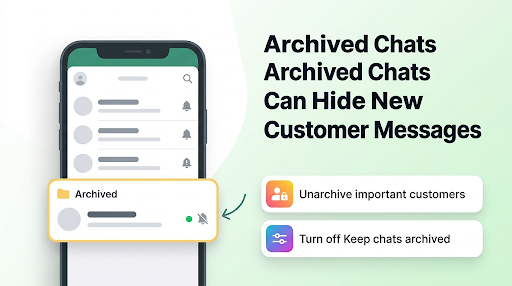
WhatsApp’s help page on archiving says that you won’t get notifications for archived chats unless someone mentions you or replies to you, and that you can’t change notification settings for archived chats. By default, an archived chat also stays archived when a new message comes in.
So if you archived a past customer to clean up your inbox, and they come back with a new order, you may get no alert at all. To fix this:
- Unarchive chats with customers you still serve, or
- Go to Settings > Chats and turn off Keep chats archived, so archived chats come back to your main list when a new message arrives.
Silence Unknown Callers
If calls from new customers never ring, check Settings > Privacy > Calls > Silence unknown callers. With it on, calls from numbers that aren’t in your contacts don’t ring. They still appear in your Calls tab. That protects against spam calls, but for many businesses, unknown callers are new customers.
You have two options: turn the setting off, or keep it on and save regular customers to your contacts. If saved customers still show up as bare phone numbers instead of names, our guide to fixing WhatsApp Business contacts that aren’t showing names walks through the contact-sync settings involved.
Popup notifications on Android
Some older guides tell you to turn on “Popup notification.” WhatsApp says popup notifications aren’t available on Android 10 and later, so you won’t find that option on most current phones. Turning on Use high priority notifications is the nearest replacement.
Why Are Notifications Not Working on WhatsApp Web or Desktop?
WhatsApp Web and the desktop app need their own permission from your browser or computer.
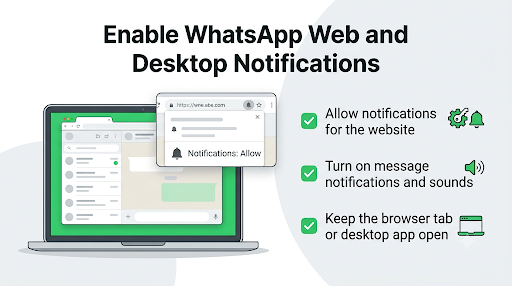
Turning on notifications on your phone doesn’t turn them on for the computer.
WhatsApp Web in a browser
- Open web.whatsapp.com. If you see a blue banner that says Turn on desktop notifications above your chat list, click it and follow the prompts. WhatsApp’s help page on Chrome notifications describes the same step.
- If there’s no banner, click the lock or site icon in the address bar, find Notifications, and set it to Allow.
- Check that your computer allows notifications from the browser itself. On Windows, go to Settings > System > Notifications. On Mac, go to System Settings > Notifications.
- In WhatsApp Web, open Settings > Notifications and turn on message notifications and sounds.
WhatsApp desktop app
In the desktop app, go to Settings > Notifications and turn on message notifications and incoming sounds. Then make sure Windows Focus assist, Do Not Disturb, or macOS Focus isn’t blocking the app.
Keep in mind that WhatsApp says you won’t get notifications from WhatsApp on your computer while it’s closed. If your team relies on the computer during the day, keep the app or browser tab open.
A few users report that their phone gets quieter while a computer session is active, because the alert goes to the device they’re using at that moment. If your phone seems silent whenever WhatsApp Web is open, log out of linked devices you don’t use and test again. If a computer keeps disconnecting or won’t link, see our guide to fixing WhatsApp Business linked devices that aren’t working.
What If You Use WhatsApp Business With an API Platform or CRM?
If your number is connected to a messaging platform, CRM, or chatbot tool through the WhatsApp Cloud API, notifications behave differently. Standard troubleshooting guides almost never mention this.
- Without “coexistence” mode, connecting a number to the Cloud API normally switches off the WhatsApp Business app for that number. The app can’t alert you, because it’s no longer handling messages. Your alerts come from the platform’s own inbox or app instead.
- With coexistence mode, the same number works in both the app and the API, and messages show up in both places. Providers note that you may get duplicate alerts, so agree on who replies from where. Some providers also recommend opening the WhatsApp Business app at least every 14 days to keep the connection healthy.
- Automated messages that show “sent” but never arrive are usually a template or API problem, not a phone notification setting. Check your platform’s delivery logs and template status.
If you only use the WhatsApp Business app on your phone, you can skip this section.
What Should You Try If Nothing Else Works?
If every setting is correct and alerts still fail, work through these deeper fixes, starting with the least disruptive:
- Update WhatsApp Business from the Google Play Store or App Store. Notification bugs are sometimes fixed in updates.
- Update your phone’s software. Check under Settings > System (Android) or Settings > General > Software Update (iPhone).
- Restart your phone. This clears temporary glitches in the notification system.
- Clear the app cache (Android only). Go to Settings > Apps > WhatsApp Business > Storage > Clear cache. Don’t tap “Clear data” or “Clear storage,” because that can delete your chats.
- Reset network settings if you also see connection problems. This removes saved Wi-Fi passwords, so have them handy.
- Turn off VPNs and ad-blocking apps while you test. Some keep WhatsApp from holding a steady connection.
- Reinstall WhatsApp Business as a last resort, and back up your chats first. When the app reinstalls, tap Allow when it asks for notification permission.
Warning: A reinstall without a working backup can wipe years of customer chat history. If your backup keeps failing or getting stuck, fix that first using our guide to fixing WhatsApp Business backup problems.
If you’ve tried everything here, contact your phone’s manufacturer, as WhatsApp’s official notification troubleshooting page suggests. On iPhone, Apple Support is the right contact, since Apple’s push service delivers the alerts.
How Can You Make Sure You Never Miss Customer Messages Again?
Once the alerts work again, a few habits help keep them working:
- Test after every major update. Have someone message you while your phone is locked and the app is closed. It takes a minute and catches reset settings before customers notice.
- Use a distinct tone for WhatsApp Business. If you run both WhatsApp and WhatsApp Business on one phone, give them different tones so you can tell a customer from a friend. Each app has its own permissions and settings, so fixing one doesn’t fix the other.
- Don’t archive active customers. Use labels to sort chats instead, so archived chats don’t hide new orders.
- Set up an away message. Away messages don’t affect your alerts, but they reassure customers who write after hours, even if you’re asleep with DND on.
- Allow WhatsApp Business in every Focus or DND schedule that runs during your working hours.
Frequently Asked Questions
Why do I only get WhatsApp Business notifications when I open the app?
Your phone is putting WhatsApp Business to sleep in the background, so it only checks for messages when you open it. On Android, set battery usage to Unrestricted and allow background data. On Samsung, add it to Never sleeping apps. On iPhone, turn on Background App Refresh and turn off Low Power Mode.
Why is my WhatsApp Business notification sound not working when the banner shows?
The alert is getting through, but the sound is being muted somewhere. Check that the in-app tone isn’t set to None, that the Android category isn’t set to Silent, and that your ringer or notification volume is up. On Android 15 phones, Notification cooldown can also make repeated alerts much quieter.
Why do I get notifications from regular WhatsApp but not WhatsApp Business?
The two are separate apps, each with its own notification permission, battery setting, and in-app settings. Your phone may have blocked notifications for WhatsApp Business alone, for example after a reinstall when you didn’t approve the permission prompt. Go through the Android or iPhone steps above for WhatsApp Business specifically.
Why did WhatsApp Business notifications stop working after an update?
Phone or app updates sometimes reset notification permissions, battery settings, or notification categories. Samsung and Xiaomi updates are known for resetting battery optimization. Check the permission and battery settings first, then use Reset notification settings inside the app if the problem continues.
Does a notification badge without a banner mean something is broken?
Not necessarily. A badge with no banner usually means banners or lock screen alerts are turned off for WhatsApp Business while badges are still on. Turn on Banners (iPhone) or Pop on screen and Lock screen (Android) for the app.
Can WhatsApp Business notifications fail because WhatsApp is down?
Yes, but it’s rare and usually short. If messages stop arriving on every device at the same time, including WhatsApp Web, and other people report the same problem, it’s likely a service outage. Wait it out instead of changing settings. If only your phone is affected, the cause is on your device.
Final Recommendation
Start by sending yourself a test message while your phone is locked, and look at the check marks. If the message reaches you but there’s no alert, work through your phone’s notification permission, battery settings, and Focus or DND, then check for muted or archived chats inside WhatsApp Business. If it only shows up when you open the app, battery and background restrictions are the cause, especially on Samsung and Xiaomi phones.
For most business owners, three changes fix the problem: allow notifications at the phone level, give WhatsApp Business unrestricted battery and data access, and stop archiving customers you still serve. Then test again after every major phone update, so a reset setting doesn’t cost you an order.
