


If some contacts on your WhatsApp Business broadcast list are not receiving your message, the most likely reason is simple: they have not saved your business number in their phone’s contacts. WhatsApp only delivers broadcast list messages to people who have added you, and it does not show an error or bounce alert when someone is skipped.
The good news is that this is usually fixable in a few minutes. Below, you will learn how to find out exactly who is missing your broadcasts, which fixes work on Android and iPhone, and what to use instead when a broadcast list is no longer enough for your business.
Quick Overview
| What You Notice | Most Likely Cause | Fastest Fix |
| Some contacts get the broadcast, others never do | Those contacts have not saved your number | Ask them to save your number with the country code |
| A customer who used to receive broadcasts suddenly stopped | They deleted your number, blocked you, or changed phones | Message them one-to-one and ask them to re-save your number |
| Message stays on one gray tick for one person | Recipient offline, inactive account, or blocked | Wait, then confirm the number is active on WhatsApp |
| You cannot add more people to a list | The 256-contact limit per list | Split your audience into multiple lists |
| You cannot send broadcasts at all | Monthly broadcast limit, suspension, or account restriction | Check the in-app notice and wait for the limit or suspension to reset |
| Broadcast option is missing | Using WhatsApp Web, desktop, or a linked device, or the option moved after an update | Open the WhatsApp Business app on your primary phone |
Why Are WhatsApp Business Broadcast List Contacts Not Receiving Your Message?
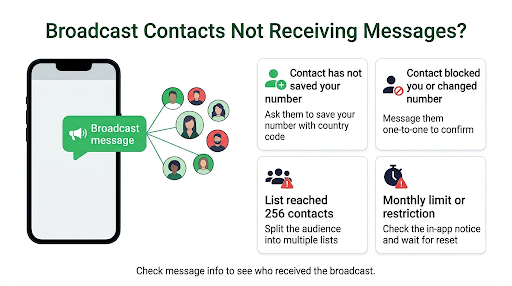
The saved-contact rule causes most delivery problems. WhatsApp built broadcast lists so people only get bulk messages from businesses they chose to add. If a customer never saved your number, your broadcast simply never reaches them. There is no “failed” notice on your side.
Here are all the common reasons, starting with the most frequent:
- Your number is not saved on their phone. This is the cause in most cases. A customer who messaged you once but never tapped “Save contact” will not receive broadcasts.
- They saved your number in the wrong format. If they saved it without the country code, or with an old number, WhatsApp may not match it to your account.
- They deleted your contact or changed phones. A new phone, a SIM change, or a contacts sync problem can wipe your saved number without them noticing.
- They blocked you. Blocked contacts receive nothing from you, including broadcasts.
- Their number is no longer on WhatsApp. Old or switched numbers stay in your list but cannot receive anything.
- Your list is over the limit. Each broadcast list holds up to 256 contacts.
- You hit a monthly broadcast limit. WhatsApp has been rolling out monthly caps on broadcast messages in some countries.
- Your account or broadcast feature is restricted. Too many blocks or reports can trigger a temporary suspension.
- Phone, app, or connection issues. An outdated app, weak internet, or battery restrictions can delay sending on your side.
One useful rule of thumb: if only one or two people miss a broadcast, the problem is usually on their side. If many contacts miss the same broadcast, check your account, limits, and connection first.
How Do You Check Who Actually Received Your Broadcast?
You can see delivery status for every broadcast from the message info screen. This is the fastest way to find out who is missing your messages instead of guessing.
- Open the WhatsApp Business app and go to your broadcast list.
- Find the message you sent.
- On Android: Tap and hold the message, then tap the info icon (the small “i”) at the top.
- On iPhone: Swipe left on the message, or tap and hold it and choose Info.
- Review the Read by and Delivered to sections.
Anyone who does not appear under either section has not received the message. Compare that against your list. Those are the contacts you need to follow up with.
Keep in mind that read receipts can be turned off by the recipient. Someone who appears only under “Delivered to” may have read your message with read receipts disabled.
What Do the Ticks Mean on a Broadcast?
- One gray tick: Sent from your phone, but not yet delivered to at least some recipients.
- Two gray ticks: Delivered to the recipient’s phone.
- Two blue ticks: Read (only if the recipient has read receipts on).
If a message shows a clock icon instead of ticks, it has not left your phone yet. That points to your internet connection or app, not the recipients. Our guide on fixing WhatsApp Business messages that won’t send covers clock icons, one-tick problems, and temporary restrictions in detail.
How Do You Get Customers to Save Your Business Number?
Asking customers to save your number is the real fix for most broadcast delivery problems. Make it easy, specific, and worth their time.
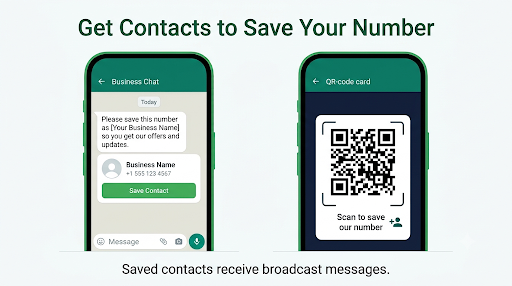
- Ask directly in a one-to-one chat. Normal chats do not require a saved contact, so you can message people individually and say something like: “Please save this number as [Your Business Name] so you get our offers and updates.”
- Share your number with the full country code. Write it as +1 555 123 4567 for U.S. numbers, not just the local digits.
- Use your WhatsApp short link or QR code. In the WhatsApp Business app, go to Settings > Business tools > Short link to get a link and QR code you can put on receipts, packaging, your website, and social profiles.
- Add a “Save our number” line to your greeting message. New customers see it the first time they message you.
- Give a reason to save it. Order updates, early access to sales, or appointment reminders give people a clear reason to add you.
- Send a vCard contact. Share your own business contact card in chat so customers can save it with one tap.
Tip: After a customer says they saved your number, ask them to pull down to refresh their WhatsApp contact list or restart the app. That helps WhatsApp pick up the new contact faster.
What Should the Recipient Check on Their Phone?
If a specific customer still is not getting your broadcasts after saving your number, walk them through these quick checks. The steps vary slightly by device.
On Android
- Open the phone’s Contacts app and confirm your business number is saved with a + and the country code.
- Go to Settings > Apps > WhatsApp > Permissions and make sure Contacts is allowed.
- In WhatsApp, open a new chat, tap the three-dot menu, and tap Refresh.
- Check Settings > Privacy > Blocked contacts in WhatsApp to confirm your number is not blocked.
- Check archived chats. Your broadcast arrives as a normal one-to-one chat, so if they archived your chat earlier, new messages may land there.
On iPhone
- Confirm the number is saved in the iPhone Contacts app with the full country code.
- Go to iPhone Settings > Apps > WhatsApp > Contacts and choose Full Access. If WhatsApp only has access to selected contacts and yours is not one of them, broadcasts may not come through.
- Check WhatsApp Settings > Privacy > Blocked to make sure your number is not on the list.
- Look in Archived chats at the top of the Chats tab.
If your name shows only as a number on their side, the contact is not matching correctly. Our walkthrough on WhatsApp Business contacts showing numbers instead of names explains contact permissions, sync problems, and number formatting on both Android and iPhone.
What Should You Check on Your Side as the Sender?
When lots of contacts miss your broadcast, or none of them get it, the issue is likely with your list, your phone, or your account.
1. Make Sure the Contacts Are Still Saved on Your Phone
If you deleted a customer from your phone’s contacts, they may still appear in an old broadcast list but will not receive the message. Open the list, review each name, and re-add anyone who shows as a bare number or is missing.
2. Stay Under the 256-Contact Limit
Each broadcast list can hold up to 256 recipients. If your audience is larger, create several lists, such as “Repeat Customers,” “New Leads,” and “Local Pickup.” Labels in WhatsApp Business make it easier to sort people before building lists.
3. Check for a Monthly Broadcast Limit
WhatsApp has been gradually introducing a monthly cap on broadcast messages to reduce spam. The exact number varies by country and account, and WhatsApp warns you as you get close. If you reach the limit, broadcasts stop until the period resets. You can usually see your remaining count in the broadcast section of Settings.
4. Look for a Broadcast Suspension or Restriction
If many people block or report your messages, WhatsApp can temporarily stop your business broadcasts. According to the WhatsApp Help Center, access returns automatically after a three-day suspension, but continued blocks and reports can lead to further limits. To reduce that risk, remove contacts who have not interacted with you recently and only send messages that match what people signed up for.
5. Update the App and Check Your Connection
- Update WhatsApp Business from the Google Play Store or Apple App Store.
- Switch between Wi-Fi and mobile data to rule out network blocks.
- Turn off any VPN while sending.
- On Android, set battery use for WhatsApp Business to Unrestricted so it is not paused mid-send.
6. Send From Your Primary Phone
Broadcast lists work in the WhatsApp Business mobile app. They are not available on WhatsApp Web, the Windows or Mac desktop app, or companion devices. If you run your business mostly from a computer, that can make it look like broadcasts are broken. Our guide on WhatsApp Business linked devices not working explains which features stay on the primary phone and how to keep companion devices stable.
Where Is the Broadcast List Option in WhatsApp Business?
If you cannot find broadcast lists at all, they have likely moved after an app update. The location depends on your device and app version.
| Device | Where to Find Broadcast Lists |
| Android | Chats tab > three-dot menu (top right) > New broadcast or Broadcast lists |
| iPhone | Settings tab (bottom right) > Broadcast lists or Broadcast messages. Older versions show it at the top of the Chats tab. |
| WhatsApp Web, desktop, linked devices | Not available. Use the primary phone. |
Many iPhone users thought their broadcast lists had disappeared after WhatsApp moved the option out of the Chats screen. Your existing lists are usually still there under Settings once you update the app.
How Do You Create a Broadcast List That Actually Delivers?
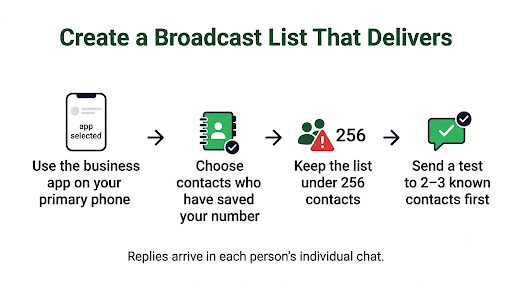
A clean list built from engaged customers delivers far better than a large list of random numbers. Here is how to set one up properly.
On Android
- Open WhatsApp Business and go to Chats.
- Tap the three-dot menu, then New broadcast (or Broadcast lists, then the plus icon).
- Select contacts who have saved your number and have chatted with you before.
- Tap the green check mark to create the list.
On iPhone
- Open WhatsApp Business and tap Settings.
- Tap Broadcast lists (or Broadcast messages), then New list.
- Select your contacts.
- Tap Create.
Before sending to everyone, send a test. Create a small list with two or three people you know have saved your number. If they receive it, your setup works, and any missing deliveries in the main list come down to individual contacts.
Is WhatsApp Business Broadcast Free, and What Does It Cost?
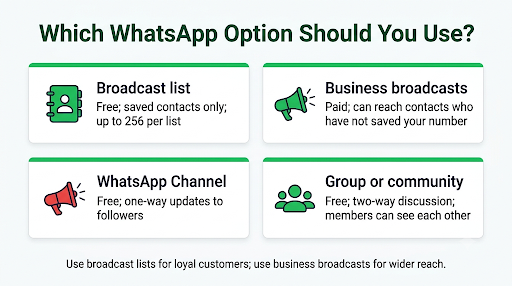
Standard broadcast lists in the WhatsApp Business app are free to use. You do not pay per message, per contact, or per list. The trade-offs are the saved-contact rule, the 256-contact cap, and any monthly limit in your country.
WhatsApp has also added a separate paid feature called business broadcasts. This is different from a normal broadcast list, and it changes who you can reach.
What Are WhatsApp Business Broadcasts, and Do They Fix the Saved-Number Problem?
Yes, for many businesses they do. According to WhatsApp, business broadcasts can reach your customers even if they haven’t saved your number. They also add scheduling, call-to-action buttons, and insights such as read rate and reply rate.
To try them, open the WhatsApp Business app, tap Tools, and select business broadcasts. Here is what to know before you switch:
- Charges apply. Pricing is per delivered message, and the rate depends on the recipient’s country. Any free allowance varies by country and account. The price shown in the app before you send is the one to trust.
- Availability is rolling out by region. If you do not see the option under Tools, it may not be available in your country or app version yet.
- Quality still matters. If recipients block or report your business broadcasts, the feature can be suspended.
Broadcast List vs. Business Broadcasts vs. Other Options: Which Should You Use?
The right choice depends on how many people you need to reach and whether they have saved your number.
| Option | Reaches People Who Haven’t Saved Your Number? | Audience Size | Cost | Best For |
| Broadcast list (Business app) | No | Up to 256 per list | Free | Small, loyal customer groups |
| Business broadcasts (Business app) | Yes | Larger audiences, subject to limits | Paid per delivered message | Promotions and updates to all customers |
| WhatsApp Channel | Yes, people follow your channel | Unlimited followers | Free | One-way announcements and content |
| WhatsApp group or community | Yes, once added | Up to 1,024 per group | Free | Two-way discussion where members can see each other |
| WhatsApp Business Platform (API) | Yes, with opt-in | Thousands or more, based on messaging tier | Paid per message through a provider | Growing businesses that need automation and personalization |
Privacy note: groups show members’ phone numbers to each other. Broadcasts and channels do not. For customer lists, avoid groups unless your customers expect to talk to each other.
Real-World Scenarios and What to Do
“I sent to 200 customers, but only about 80 received it.”
This pattern almost always means the other 120 have not saved your number. Check message info, export the missing names, and message them one-to-one asking them to save your number. If you need to reach them right away, business broadcasts are the better tool.
“One loyal customer stopped getting broadcasts last month.”
They likely changed phones, lost their contacts in a sync, or accidentally deleted your number. A quick one-to-one message usually solves it.
“None of my contacts received anything today.”
Look at your own side first. Check whether the message shows a clock icon, whether you have reached a monthly limit, and whether WhatsApp shows any restriction notice. Test by sending a regular one-to-one message to a friend.
“Customers reply, but I cannot find their replies in the broadcast list.”
That is normal. Replies to a broadcast arrive in your individual chat with each person, not in the broadcast list screen.
Common Mistakes That Hurt Broadcast Delivery
- Adding cold leads or bought lists. People who do not know you are more likely to block or report you, which can get your broadcasts suspended.
- Sending too often. Frequent promotions lead to blocks. Space out your messages and keep them useful.
- Never cleaning your lists. Inactive or changed numbers make your delivery numbers look worse and add risk.
- Assuming everyone who chatted with you saved your number. Chatting and saving are not the same thing.
- Using unofficial bulk sender apps or modified WhatsApp versions. These can get your number banned.
- Trying to send from WhatsApp Web. Broadcast lists only work on the primary phone.
Frequently Asked Questions
Why do some people get my WhatsApp broadcast and others don’t?
The people who receive it have saved your number, and the others have not. A smaller number of misses can also come from blocks, inactive numbers, or contacts who are offline for a long time.
Does the recipient know they are part of a broadcast list?
No. The message looks like a normal one-to-one chat from you. Recipients cannot see who else is on the list or that the message was sent to multiple people.
Why is my WhatsApp broadcast message not delivered on iPhone?
The same saved-number rule applies on iPhone. If the recipient’s WhatsApp only has access to selected contacts in iOS settings, it may not recognize your saved number. Ask them to allow Full Access to Contacts for WhatsApp.
Can I send a broadcast to more than 256 contacts?
Not in a single broadcast list. You can create several lists and send to each one, use paid business broadcasts for larger audiences, or move to the WhatsApp Business Platform through an approved provider.
If I remove someone from a broadcast list, will they be notified?
No. Adding or removing people from a broadcast list happens silently. They will simply stop or start receiving your broadcasts.
Why does WhatsApp say my account can’t create or send business broadcasts?
This usually means the paid business broadcasts feature has been temporarily suspended because recipients blocked or reported your messages. Wait for the suspension to end, then send fewer, more relevant messages to people who expect to hear from you.
Will customers receive my broadcast if their phone is off?
Yes, once they come back online. The message stays pending and is delivered when their phone reconnects, as long as they still have your number saved.
What Should You Do Next?
Start by opening message info on your last broadcast and listing everyone who did not receive it. Message those people one-to-one and ask them to save your number with the full country code. Then share your WhatsApp short link or QR code everywhere customers find you, so new customers save you from day one.
If many customers still have not saved your number, or your audience has grown past a few hundred people, try business broadcasts from the Tools menu in the WhatsApp Business app. For high-volume, automated messaging, the WhatsApp Business Platform is the long-term solution. And if your broadcasts stop sending entirely, check for a monthly limit or restriction notice before changing anything else.
