


When WhatsApp Business linked devices stop working, the cause is usually one of five things: an outdated app on the phone or computer, a network or VPN blocking the pairing, the four-device limit, the primary phone going unused for more than 14 days, or a business tool (like a Cloud API “Coexistence” connection) that quietly unlinked everything. The fastest fix for most people is to update both apps, remove old sessions from Linked devices, and relink using the “Link with phone number” option instead of the QR code.
The trick is knowing which problem you actually have. A device that won’t link at all needs different fixes than one that keeps logging out every day. This guide sorts the problem by symptom first, so you can skip straight to what works.
Quick Overview
| What you’re seeing | Most likely cause | First thing to try |
| “Couldn’t link device. Try again later.” | Outdated app, network block, wrong date and time | Update both apps, switch Wi-Fi to mobile data, set time to automatic |
| QR code won’t scan | Camera permission, expired code, screen glare | Use “Link with phone number” and the 8-character code |
| Can’t add a new device | Four-device limit reached | Log out an old or unused session on the primary phone |
| All devices logged out at once | Primary phone unused for 14+ days, a security resync, or a Cloud API onboarding | Open the app on the primary phone and relink |
| Logged out every 24 to 48 hours | Browser privacy settings, unofficial tools, or an API/Coexistence setup | Remove third-party tools, use the official desktop app, check integrations |
| Linked, but a feature is missing | Feature not supported on linked devices | Use that feature on the primary phone |
How Do WhatsApp Business Linked Devices Actually Work?
Your WhatsApp Business account lives on one primary phone. Everything else, such as WhatsApp Web, the Windows or Mac desktop app, a tablet, or a second phone, is a “companion” device that borrows access from that phone.
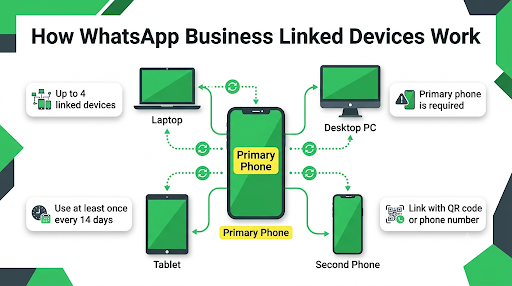
Here are the official rules that cause most of the confusion:
- Four linked devices maximum on the standard WhatsApp Business app, plus the primary phone. That’s five screens total.
- Your phone doesn’t need to stay online for linked devices to work day to day.
- But the primary phone must be used at least once every 14 days. If it isn’t, every linked device disconnects and has to be relinked.
- You can link with a QR code or with your phone number and an 8-character code.
- Only one phone can be the primary. A second phone can join only as a companion, never as a second “owner.”
WhatsApp explains these limits on its official linked devices help page. Once you understand that the primary phone is the “key” and everything else is a copy, most of the errors below start to make sense.
Why Does WhatsApp Business Say “Couldn’t Link Device”?
This error means the secure handshake between your phone and the new device failed before it finished.
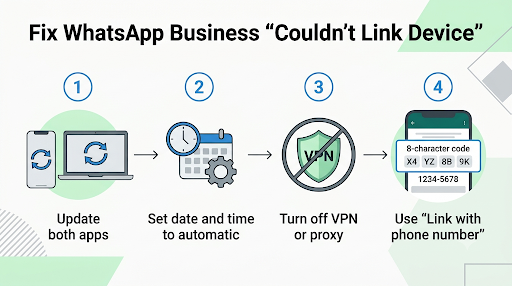
It’s rarely a problem with your account. Usually something in the middle is getting in the way.
The common causes are:
- Version mismatch. An old WhatsApp Business app on the phone paired with a newer desktop client (or the reverse).
- Date and time glitches. If either device has a manually set clock, the security check can fail. This often shows up after migrating data to a new phone.
- Network blocks. Office firewalls, routers with strict filtering, VPNs, and proxies can all block the pairing.
- Missing permissions. Without camera access, the QR scanner can’t work.
- Corrupted app cache on Android.
How to fix “Couldn’t link device” step by step
- Update WhatsApp Business on your phone from the App Store or Google Play.
- Update the other side too. Update the Windows app from the Microsoft Store, the Mac app from the App Store, or refresh WhatsApp Web in an up-to-date browser.
- Set date and time to automatic on both the phone and the computer. Check the time zone while you’re there.
- Turn off any VPN or proxy on both devices.
- Switch networks on your phone. If you’re on office Wi-Fi, try mobile data, or the other way around.
- Restart both devices, then open WhatsApp Business fresh.
- Try again with “Link with phone number” instead of the QR code (steps below).
If you’re on iPhone and the error keeps coming back after a recent phone transfer, the date and time step matters more than people think. Users on Apple’s community forum have reported this exact error on iPhone 15 Pro models after data migrations.
What If the QR Code Won’t Scan?
Skip the QR code entirely.
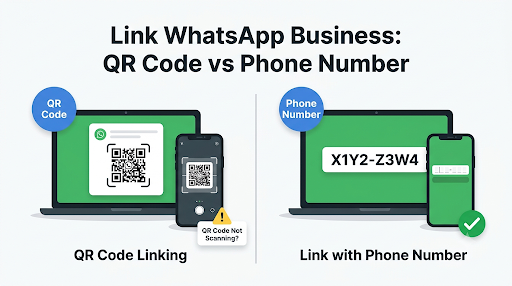
WhatsApp lets you link using your phone number and a one-time code, and it works even when your camera can’t read the screen.
- On the computer, open WhatsApp Web or the desktop app.
- Click Log in with phone number (instead of scanning).
- Enter your WhatsApp Business number. An 8-character code appears on the computer.
- On your phone, open WhatsApp Business and go to Linked devices > Link a device > Link with phone number instead.
- Type in the code shown on the computer.
If you’d still rather use the QR code, a few small things help:
- Scan from inside WhatsApp Business only. Don’t use your camera app, Google Lens, or a screenshot of the code.
- Refresh the code if it’s been sitting on screen for a while. QR codes expire.
- Lower screen brightness or tilt the monitor to cut glare, and wipe your phone’s camera lens.
- Zoom the browser in (Ctrl or Cmd and +) so the code is bigger.
- Allow camera permission for WhatsApp Business in your phone settings.
Why Can’t I Add Another Device to WhatsApp Business?
You’ve most likely hit the four-device limit.
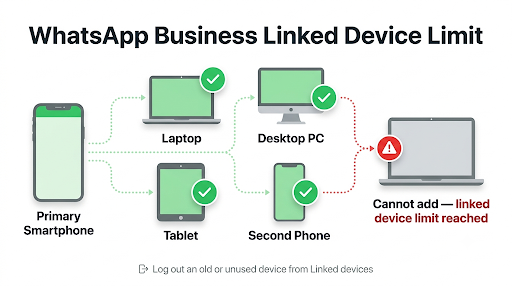
Old laptops, a browser you used once at a coworking space, or a former employee’s computer all still count until you log them out.
How to remove old linked devices
- Android: Open WhatsApp Business, tap the three-dot menu, then Linked devices. Tap the device and choose Log out.
- iPhone: Open WhatsApp Business, go to Settings > Linked devices, tap the device, and choose Log out.
The list shows when each device was last active. Anything you don’t recognize should go first. That’s also a good security habit, since every linked session can read your customer chats.
Need more than four devices?
WhatsApp offers a multi-agent feature that raises the limit to up to 10 devices and adds chat assignment, plus a way to see which agent or device sent each message. It’s available through Meta Verified or Meta One subscription benefits, and it isn’t offered on every account or in every region yet.
Two catches worth knowing before you pay:
- If the subscription ends, only your four most recently active devices stay linked. The rest are logged out.
- Tablets aren’t supported for multi-agent use, according to WhatsApp’s own guidance.
Why Do My WhatsApp Business Linked Devices Keep Logging Out?
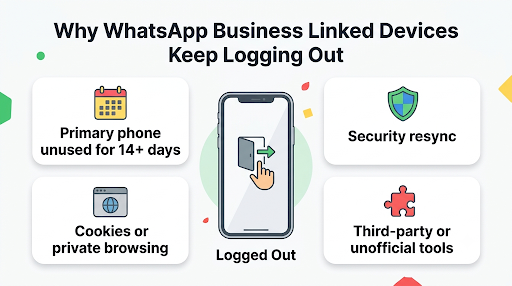
Random logouts usually come from one of four places: the 14-day rule, a security resync by WhatsApp, the browser itself, or a third-party tool connected to your number.
1. The 14-day rule
If nobody opens WhatsApp Business on the primary phone for more than 14 days, every linked device gets disconnected. This catches teams off guard when the “business phone” sits in a drawer while staff reply from computers, or when the owner goes on vacation.
Fix: Open WhatsApp Business on the primary phone with an internet connection at least once a week. Put it on a calendar if several people share the account.
2. “Your devices were logged out due to an unexpected issue”
If you see this banner on your phone, WhatsApp detected that chats weren’t syncing correctly between devices and logged them out as a safety step. It has happened in waves after certain app updates. There’s nothing wrong with your account. Just relink each device.
3. The browser is clearing your session (WhatsApp Web)
WhatsApp Web stores your session in the browser. Anything that wipes site data will log you out.
- Don’t use incognito or private windows for WhatsApp Web.
- Check “clear cookies when browser closes” settings in Chrome, Edge, Firefox, or Safari and add web.whatsapp.com as an exception.
- Disable aggressive privacy or ad-blocking extensions on that site.
- Cleanup apps on Windows or Mac that clear browser data on a schedule can do the same thing.
- Better option: install the official WhatsApp desktop app, which tends to keep sessions more reliably than a browser tab.
4. Unofficial apps, automation tools, or the Cloud API
This is the cause the top results mostly skip, and it’s the one behind many “logged out every 24 to 48 hours” complaints from verified businesses on Reddit.
- Unofficial WhatsApp versions (modded apps) and browser-based auto-senders or bulk message tools break WhatsApp’s terms. They can trigger repeated logouts, and in some cases account restrictions or bans.
- Session-based “WhatsApp API” services that work by scanning a QR code count as a linked device. They use up a slot, and if WhatsApp flags them, the session drops.
- Official Cloud API Coexistence (when you connect your Business app number to a platform like a CRM or chatbot tool) unlinks every companion device at the moment of onboarding. You have to relink them afterward.
If you can’t figure out why devices drop, temporarily disconnect every third-party tool and see whether the logouts stop.
Does WhatsApp Business Coexistence Affect Linked Devices?
Yes, and this is worth its own section because so many small businesses now connect their number to a chatbot or CRM.
| Situation | What happens to linked devices |
| You first connect your number to the Cloud API (Coexistence) | All companion devices are unlinked. Relink the supported ones. |
| You use WhatsApp for Windows as a companion | Not supported with Coexistence. Messages sent from it may not show up in your platform. Use WhatsApp Web or the Mac app instead. |
| You use WhatsApp on a Wear OS watch | Not supported with Coexistence. |
| You change phones, reinstall the app, or re-register the number | The Cloud API connection reconnects automatically, but WhatsApp Web and other companions must be relinked by hand. |
Meta documents this behavior in its Coexistence reconnection guide for developers. If you use a business platform, ask your provider which companion apps they support before rolling WhatsApp out to your team.
Why Is a Feature Missing on My Linked Device?
Some things simply don’t work on companion devices. Your setup isn’t broken. The feature just has to be used on the primary phone.
- Broadcast lists: you can’t create or view them on linked devices.
- Live location: you can’t view it on linked devices.
- Business profile edits: changing your business name, phone number, and some profile details is done in the WhatsApp Business app on your phone.
- Older chat history: WhatsApp has acknowledged a known issue where some linked devices don’t display up to a year of older history.
Feature support changes with updates, so if something that used to work suddenly disappears, check for an app update before assuming it’s gone for good.
Linked, But Messages, Media, or Names Look Wrong?
Sometimes the device stays linked, but things inside it misbehave. These are related problems with their own fixes.
- Messages stuck on one clock icon: the linked device has lost its connection or the sync is stuck. Our guide on WhatsApp Business messages not sending walks through the network and account checks.
- Photos, PDFs, or videos won’t upload from the computer: this is usually a file size, format, or storage issue rather than a linking problem. See how to fix WhatsApp Business not sending media.
- The desktop shows phone numbers instead of customer names: names come from your phone’s address book and sync to companions. If they don’t, follow the steps for WhatsApp Business contacts not showing names.
- No alerts on the computer or phone: notifications are controlled separately on each device. Here’s how to fix WhatsApp Business notifications not working.
How Do You Link a Second Phone to WhatsApp Business Correctly?
A lot of “linking fails on my second phone” problems come from doing it the wrong way.
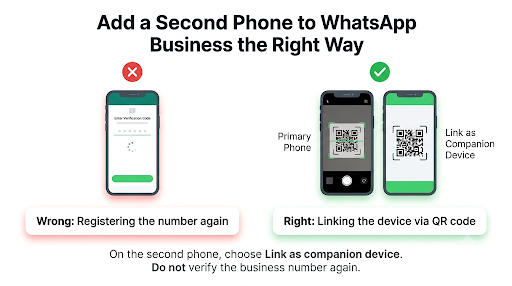
If you type your business number into WhatsApp Business on a second phone and verify it by SMS, you’re not linking. You’re moving the account, and your original phone gets logged out.
Here’s the right way:
- Install WhatsApp Business on the second phone.
- On the welcome screen, tap the menu and choose Link as companion device. Don’t register a number.
- A QR code appears on the second phone.
- On your primary phone, go to Linked devices > Link a device and scan it.
If you don’t see a “Linked devices” option at all on your primary phone, update WhatsApp Business first. On some Android phones with very large display or font settings, menu items can also get cut off, so try the default display size.
What Should You Do Before Reinstalling WhatsApp Business?
Reinstalling is a common “last resort” tip, but it’s also where people lose months of customer chats.
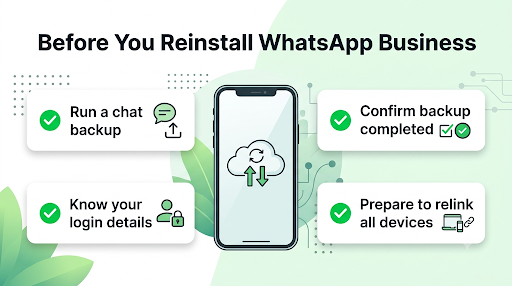
Back up first. Go to Settings > Chats > Chat backup and run a backup to Google Drive (Android) or iCloud (iPhone). If the backup itself fails, sort that out before going further. Our guide to WhatsApp Business backup not working covers the usual fixes.
Then:
- On Android, try clearing the cache first. Go to Settings > Apps > WhatsApp Business > Storage > Clear cache. This doesn’t delete chats. Avoid “Clear data” unless you have a working backup.
- On iPhone, there’s no cache button, so offloading or reinstalling the app is the equivalent. Back up first.
- After reinstalling and restoring, expect every linked device to need relinking.
What Mistakes Make Linked Device Problems Worse?
- Leaving the business phone unused for weeks while the team works from laptops.
- Re-registering the number on another phone instead of using “Link as companion device.”
- Clearing app data or reinstalling without a backup.
- Running WhatsApp Web in incognito or with cookie-clearing extensions.
- Connecting unofficial bulk-sender tools that put the number at risk.
- Never reviewing the Linked devices list, so old sessions eat up your four slots.
- Assuming it’s your fault during an outage. WhatsApp Web has had regional problems where QR codes failed for many businesses at once. If nothing works on any browser, check for a reported outage before resetting everything.
How Can a Team Keep Linked Devices Stable Long Term?
If several people answer customers from one number, a little routine prevents most disconnects:
- Keep the primary phone charged, connected, and opened at least weekly.
- Give each person a dedicated browser profile or install the desktop app on their computer.
- Rename linked devices (for example, “Front desk PC”) so you can spot unknown sessions fast.
- Turn on automatic updates for WhatsApp Business on every device.
- Log out shared or borrowed computers the same day.
- If your team regularly needs more than five people, compare multi-agent (up to 10 devices) with the WhatsApp Business Platform through a provider, which isn’t limited to linked device slots.
Frequently Asked Questions
Do linked devices still work if my phone is switched off?
Yes, for a while. Linked devices can send and receive messages without the primary phone online. The limit is 14 days without using the phone. After that, all companions disconnect.
Why does WhatsApp Business Web work on my laptop but not on my office computer?
Office networks often block the connections WhatsApp needs. Try the office computer on a phone hotspot. If it links instantly, ask your IT team to allow WhatsApp traffic or use the desktop app on a less restricted network.
Can I use WhatsApp Business on two phones at the same time?
Yes. One phone is the primary, and the second joins as a companion through “Link as companion device.” Both can reply to customers. You can’t register the same number as primary on both.
Will logging out a linked device delete my chats?
No. Logging out removes that device’s access and its local copy. Your chats stay on the primary phone, and they sync again when you relink.
Why are my older chats missing on a newly linked computer?
Linked devices receive a copy of recent history when you first link them, not always your full archive. WhatsApp has also confirmed a known issue with some devices not showing up to a year of history. Older chats remain on your phone.
Is the “Linked devices” option missing because my account is banned?
Usually not. A missing option is most often an outdated app or a display setting hiding the menu. A banned account shows a clear ban message when you open the app, and it can’t link anything.
Final Recommendation
Start with the symptom. If the device won’t link, update both apps, set the time to automatic, turn off your VPN, and use “Link with phone number.” If you can’t add a device, log out old sessions. If devices keep dropping, open the primary phone regularly, stop using incognito or cookie-clearing tools, and disconnect any unofficial or third-party WhatsApp tools.
Still stuck after all of that? Back up your chats, reinstall WhatsApp Business on the primary phone, and relink each device one at a time. If it still fails, contact WhatsApp from inside the app at Settings > Help > Contact us and include your device model, app version, and the exact error message.
