


If your WhatsApp Business impersonation protection isn’t working, the cause is usually one of three things. Your Meta Verified subscription isn’t fully active, your business verification isn’t approved yet, or a profile change quietly canceled it. Impersonation protection only kicks in for subscribed and verified businesses on an eligible plan, so paying alone is not enough.
This guide walks you through every reason fake accounts may still be using your brand, how to check your plan and verification status, how to protect your own extra numbers from false bans, and when to escalate to Meta Verified support.
Quick Overview
- Check your plan: Impersonation protection comes with Business Standard, Business Plus, Business Premium, and Business Max on Meta Verified for Business, and with Meta One business plans once you’re verified.
- Check your verification: A subscription that’s still “pending” or “in review” doesn’t turn protection on.
- Don’t edit locked details: Changing your business name, category, address, email, or website after verification cancels it.
- Report the fake account: Protection is proactive monitoring, not an instant takedown. Reporting speeds up review.
- Add protected accounts: On Business Premium, Business Max, Meta One Expert, or Meta One Max, register your other numbers so they aren’t banned as impersonators.
- Escalate: In the WhatsApp Business app, go to Tools > Meta Verified > Enhanced Support and send screenshots, numbers, and usernames.
What Does Meta Verified Impersonation Protection Actually Do on WhatsApp?
Impersonation protection means WhatsApp proactively monitors other accounts and removes the ones it decides are pretending to be your business. According to the official WhatsApp Help Center article on impersonation protection, the decision is WhatsApp’s. It’s not a button you press, and it doesn’t block every lookalike automatically.
That difference matters. Many business owners expect protection to work like a trademark filter that stops any account using a similar name or logo. It doesn’t work that way. WhatsApp looks for accounts that are actually impersonating you, then acts on the ones it confirms.
Here’s what protection covers and what it doesn’t:
| What protection does | What it does not do |
| Monitors for accounts pretending to be your verified business | Guarantee that every fake account is removed right away |
| Removes accounts WhatsApp determines are impersonating you | Remove accounts that only use a similar or generic business name |
| Works alongside reports you submit | Stop scammers from creating new numbers after a removal |
| Protects registered associated accounts from false bans (higher plans only) | Cover your other numbers unless you add them as protected accounts |
Important Point to be Considered! A verified badge and impersonation protection are two separate benefits. You can see the badge on your profile and still have fake accounts active if WhatsApp hasn’t flagged them yet.
Why Is WhatsApp Business Impersonation Protection Not Working?
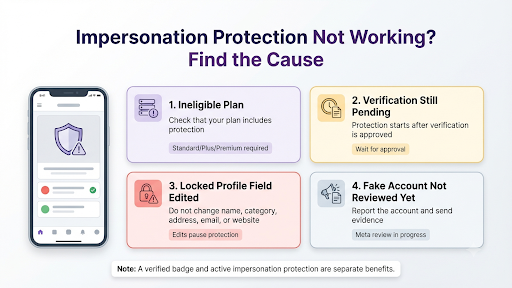
The most common reason is that your account doesn’t currently qualify, even though you’re paying. Work through the causes below in order. Most people find the problem in the first three.
1. Your Subscription Is Not on an Eligible Plan
On Meta Verified for Business, impersonation protection is included in Business Standard, Business Plus, Business Premium, and Business Max. Meta decides which plans you see based on your business activity and how many WhatsApp conversations you handle, so some plans are limited to certain businesses or locations.
If you moved to a Meta One plan, the rules are a little different. Meta’s Meta One plans page says impersonation protection on the Essential plan is for “subscribed and verified” profiles, and that subscribers must be verified to get this benefit. Higher Meta One tiers (Advanced, Expert, Max) include everything in Essential.
2. Your Business Verification Is Still Pending
Subscribing starts the process. Verification finishes it. Until Meta approves your business details, you won’t get the badge or the protection. If your status is stuck, read our guide on fixing a WhatsApp Business Meta Verified subscription that’s stuck on pending.
3. You Edited a Locked Profile Field
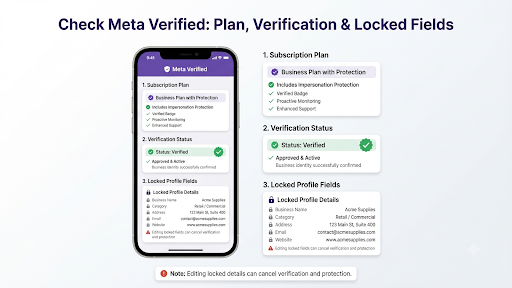
This one catches a lot of businesses. After verification, your business name, category, address, email, and website are locked. WhatsApp’s Meta Verified for Business help page explains that changing any of these cancels your verification and you’d need to subscribe again. Your profile picture is also locked for 20 days after verification. After that, you can request a change twice every 60 days.
So if you updated your shop address or swapped your website URL last week, your protection may have ended quietly with it.
4. Your Payment Failed or the Subscription Was Canceled
Impersonation protection is a subscription benefit. If a card payment fails, or you or a team member cancels, the benefit ends once that billing period runs out. Check Settings > Subscriptions (or the Meta Verified section) in the WhatsApp Business app to confirm the plan still shows as active.
5. Your Business Name Doesn’t Match Your Profile Name
WhatsApp can’t verify your business if the name you submit doesn’t match the profile name on your WhatsApp Business account. No verification means no protection. Small differences like “LLC,” “Inc.,” or an extra word in your display name are enough to cause a mismatch. If WhatsApp has already rejected your name for brand reasons, see our guide on what to do when a WhatsApp Business display name is rejected for trademark.
6. WhatsApp Hasn’t Flagged the Fake Account Yet
Even when everything on your side is correct, monitoring takes time. Some fake accounts use a slightly different name, a copied logo, or a lookalike username that the system doesn’t confirm right away. That’s when a manual report helps.
7. You’re on the WhatsApp Business Platform (API), Not the App
Meta Verified for Business on WhatsApp is managed inside the WhatsApp Business app. If your number runs on the Cloud API through a provider, the verification route is usually different.
It’s the Official Business Account (blue tick) process inside Meta Business Suite. Our breakdown of WhatsApp Business green tick vs blue tick explains which badge applies to your setup.
How Do You Check If Impersonation Protection Is Active?
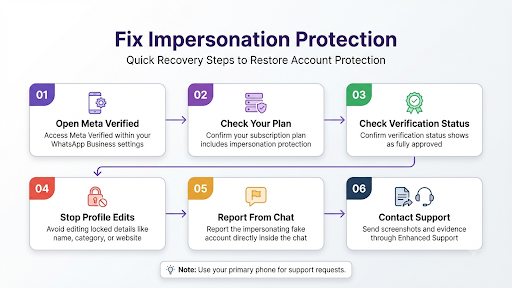
Open the WhatsApp Business app, go to Settings or Tools, and tap Meta Verified. Your plan and verification status are shown there. If you don’t see the Meta Verified option at all, it isn’t available to your account yet.
- Open the WhatsApp Business app on your primary phone, not a linked device.
- Tap Settings (or Tools, depending on your app version).
- Tap Meta Verified. If you’re on Meta One, go to Settings > Subscriptions > Meta One.
- Confirm the plan name is one that includes impersonation protection.
- Confirm your status says verified, not pending or under review.
- Check your profile for the verified badge next to your business name.
If the Meta Verified option is missing entirely, our guide on WhatsApp Business Meta Verified waitlist or not available errors covers why it shows up for some businesses and not others.
Pro Tip! Take a screenshot of your plan and verification screen today. If you ever need to contact support about a fake account, that screenshot proves your subscription was active when the impersonation happened.
Is Meta Business Verification the Same as Meta Verified?
No, and mixing them up is one of the biggest reasons people think protection is broken. They’re separate processes:
| Meta Business Verification | Meta Verified for Business | |
| Where you do it | Meta Business Suite > Security Center | WhatsApp Business app > Meta Verified (or Meta One) |
| Cost | Free | Paid monthly subscription |
| Main use | Unlocks WhatsApp Business Platform (API) features and limits | Verified badge, impersonation protection, support |
| Includes impersonation protection? | No | Yes, on eligible plans once verified |
Most of the “verification rejected” videos and Reddit threads you’ll find are about Meta Business Verification in Security Center. They usually point to name mismatches, unverified domains, or unsigned documents. Those fixes help API users, but completing Security Center verification does not give your WhatsApp Business app impersonation protection.
What Should You Do If a Fake WhatsApp Business Account Is Still Active?
Report it directly from the chat, collect evidence, and then send that evidence to Meta Verified support. Don’t wait for monitoring to catch it, especially if customers are already being contacted.
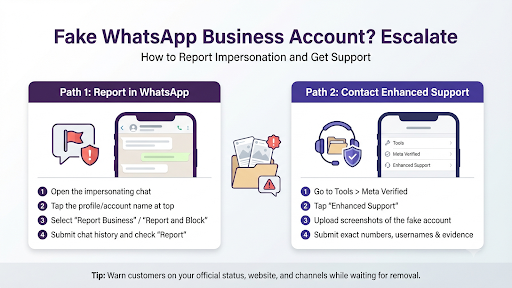
Step 1: Report the Account in WhatsApp
- Open a chat with the fake account (or ask a customer who received a message to do this).
- Tap the account name at the top of the chat.
- Scroll down and tap Report.
- Choose to block the account too if you don’t need to keep messaging it.
WhatsApp also lets you report accounts that use a business username to impersonate you, or that try to buy, sell, trade, or squat usernames.
Step 2: Gather Evidence
- The fake account’s phone number and username (if it has one)
- Screenshots of the profile name, logo, and catalog
- Screenshots of messages sent to customers, with dates
- Your own verified business number and plan name
Step 3: Contact Meta Verified Enhanced Support
- Open the WhatsApp Business app on your primary device.
- Tap Tools > Meta Verified > Enhanced Support.
- Pick Meta Verified account for subscription or verification problems, or WhatsApp for feature problems like impersonation.
- Describe the issue clearly. Include the fake numbers, usernames, and what they’re doing.
- Attach your screenshots and submit.
On Meta One, the level of human support depends on your plan. Advanced includes one human agent chat per month, Expert includes five, and Max has no set monthly limit.
Step 4: Warn Your Customers
While you wait, post a short notice on your WhatsApp Status, channel, website, and social profiles. Tell customers your only official number, and that you’ll never ask for payment through a different number. This limits damage even before the fake account is removed.
Important Point to be Considered! Meta doesn’t publish a fixed timeline for removing impersonating accounts. Be cautious of any service or “agent” promising guaranteed takedowns for a fee. Only WhatsApp can disable an account.
Why Is My Own Second WhatsApp Business Number Flagged for Impersonation?
Your extra numbers can look like copies of your brand to WhatsApp’s systems, especially if they use the same name and logo. The fix is the protected business accounts benefit, which lets you tell WhatsApp which accounts belong to you so they aren’t falsely banned.
According to WhatsApp’s protected business accounts help article, the number of accounts you can add depends on your plan:
| Plan | Protected business accounts |
| Meta Verified Business Standard | Not included |
| Meta Verified Business Plus | Not included |
| Meta Verified Business Premium | Up to 10 |
| Meta Verified Business Max | Up to 50 |
| Meta One Expert | Up to 10 |
| Meta One Max | Up to 50 |
How to Add Protected Business Accounts
- Subscribe to a plan that includes protected accounts on your main business number.
- Open the Meta Verified section in the WhatsApp Business app.
- Tap Protected business accounts.
- Add each associated WhatsApp number your business owns.
- On the associated account, watch for the request and accept it if prompted.
If one of your numbers has already been banned, adding it later may not reverse the ban. Request a review first. Our guide on “This account is not allowed to use WhatsApp Business” walks through the appeal steps.
Pro Tip! If you run one number on the app and another on the Cloud API, keep their display names consistent and register the app number as protected. Mixing setups is covered in more detail in our post on using the WhatsApp Business app and Cloud API on the same number.
Did Switching to Meta One Change Impersonation Protection?
It can. Meta launched Meta One globally in September 2026 as a subscription bundle covering Facebook, Instagram, WhatsApp, and Meta AI. Business bundles start at $14.99 a month in the U.S. for Essential and go up to $499 a month at the top tier. Prices and benefits vary by country, app, and account.
Here’s what to watch for if you moved from Meta Verified to Meta One, or if you see both options in your app:
- Verification still comes first. Meta lists the verified badge and impersonation protection as “pending successful verification.”
- Check what the plan covers on WhatsApp. Meta’s Essential plan description lists impersonation monitoring on Instagram and Facebook. Confirm the WhatsApp benefits shown in your own app before assuming coverage.
- Protected accounts start at Expert. Essential and Advanced don’t list protected business accounts.
- Don’t run two subscriptions blindly. If you’re unsure which one is active, ask Enhanced Support before canceling either, so you don’t lose your badge in the switch.
If you’re bringing an existing verification over from Instagram, see how to transfer Meta Verified from Instagram to WhatsApp Business without losing your badge.
Can Impersonation Protection Stop Fake WhatsApp Usernames?
Partly. WhatsApp started rolling out usernames in 2026, and business accounts can claim them too. WhatsApp says it reserves some well-known names and variations, and uses automated systems to ban accounts showing common impersonation patterns. Lookalike handles with an extra letter, number, or underscore are still a risk, though.
To reduce username impersonation:
- Claim your business username as early as you can, ideally matching your brand on Instagram and Facebook.
- Keep your verified business number visible on your website so customers can cross-check it.
- Report squatted or lookalike usernames the same way you’d report a fake account.
What Common Mistakes Make Impersonation Protection Fail?
- Editing your profile after verification. Even a small website or address change can cancel it.
- Assuming the badge means you’re fully protected. Check the plan name, not just the checkmark.
- Using a different name on WhatsApp than on your business documents. Match it exactly before subscribing.
- Contacting support from a linked device. Enhanced Support works from your primary phone.
- Ignoring re-verification prompts. If someone tries to take over your account, WhatsApp may ask you to verify your number again. Repeated prompts are a red flag worth fixing. See why WhatsApp Business keeps asking to verify your phone number.
- Running several numbers with the same brand and no protected accounts. This invites false impersonation bans on your own accounts.
Frequently Asked Questions
Does Meta Verified impersonation protection work right after I subscribe?
No. It starts only after Meta finishes verifying your business details. Until your status shows verified, you’re paying for a subscription that hasn’t unlocked protection yet.
Why is the verified badge showing but fake accounts are still active?
The badge confirms your identity, but removal depends on WhatsApp confirming that another account is impersonating you. Accounts with slightly changed names or logos can stay up until they’re reported and reviewed.
Will I lose impersonation protection if I change my business address?
Yes. Address, name, category, email, and website are locked after verification. Changing any of them cancels your verification, and you’ll need to subscribe and verify again to get protection back.
Is impersonation protection available on WhatsApp Business for free?
No. It’s a paid benefit of Meta Verified for Business or Meta One business plans. The free WhatsApp Business app lets you report fake accounts, but it doesn’t include proactive monitoring.
How many of my own numbers can I protect from impersonation bans?
Up to 10 on Business Premium or Meta One Expert, and up to 50 on Business Max or Meta One Max. Business Standard and Business Plus don’t include protected business accounts.
Can I get impersonation protection on the WhatsApp Business API?
Meta Verified for Business is offered in the WhatsApp Business app. API numbers usually go through Meta Business Verification and the Official Business Account route instead. Check with your provider or Meta Business Support Home for what’s available on your account.
Final Recommendation
Start by opening Meta Verified in your WhatsApp Business app and confirming two things: your plan includes impersonation protection, and your status says verified. If either one is off, fix that first, because nothing else will work until it’s sorted. Then report any fake accounts directly from the chat, register your other numbers as protected accounts if your plan allows, and send your evidence through Enhanced Support. Finally, stop editing locked profile details once you’re verified, since that’s the fastest way to lose protection without noticing.
