


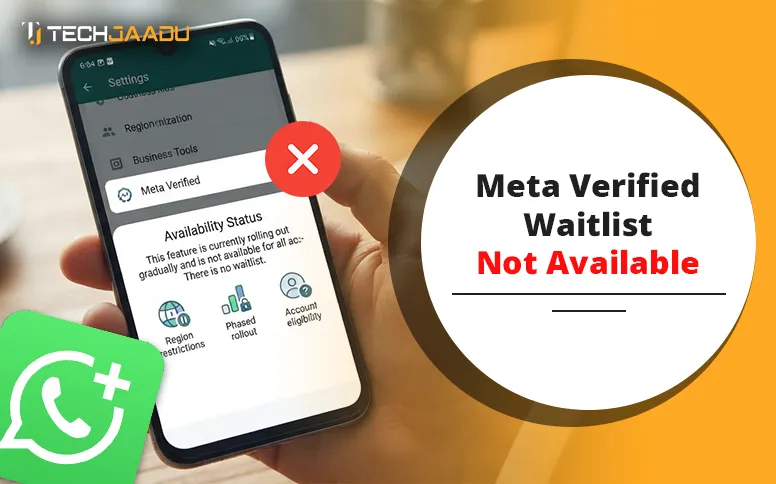
If you can’t find the Meta Verified waitlist on WhatsApp Business, it usually means Meta hasn’t opened Meta Verified to your account or country yet, or your account is missing one of the eligibility requirements. WhatsApp only shows the subscribe button, or a waitlist, to accounts it has decided to offer it to. If neither shows up, there’s nothing to tap.
The good news is that a lot of the causes are things you can fix yourself, like an incomplete profile, the wrong app, or missing admin permissions. Below, you’ll see each cause, how to check it, and what to do next.
Quick Overview
| Reason the waitlist or option is missing | Can you fix it? | What to do |
| Meta Verified isn’t rolled out in your country or to your account | No | Update the app and check again every few weeks |
| You’re using regular WhatsApp or the WhatsApp Business API | Yes | Use the WhatsApp Business app on your primary phone |
| Account is too new or hasn’t sent messages recently | Yes, with time | Keep using the account and send messages to customers |
| No profile name or profile picture | Yes | Complete your business profile |
| Active WhatsApp Business Premium plan | Yes | Let the Premium plan end, then check again |
| Missing Full control admin access in the linked business portfolio | Yes | Ask the portfolio admin to subscribe or grant Full control |
| Phone number not registered in a supported country | Not easily | Meta Verified follows your number’s country, not your location |
What Does It Mean When Meta Verified Isn’t Showing on WhatsApp Business?
It means WhatsApp has not made Meta Verified available to your business account right now. According to the WhatsApp Help Center, you check availability by going to Settings or Business Tools in the WhatsApp Business app and tapping Meta Verified. If you don’t see that option at all, the feature isn’t available to you yet.
There are really three different screens people run into, and they mean different things:
- The Meta Verified option is missing completely. The feature isn’t offered to your account or region. There’s no waitlist to join.
- You see a waitlist screen. Meta knows about your account but hasn’t opened subscriptions for it. Joining the waitlist doesn’t guarantee a date.
- You see the option but get a “not eligible” message. The feature exists for you, but your account fails one of the requirements.
Knowing which one you’re looking at saves a lot of guessing. The first is mostly a waiting game. The third is almost always fixable.
Why Is the Meta Verified Waitlist Not Available on WhatsApp Business?
The most common reasons are a regional or gradual rollout, using the wrong version of WhatsApp, a new or inactive account, an incomplete profile, an active Premium plan, or missing admin permissions. Here’s each one in more detail.
1. Meta Verified Hasn’t Rolled Out to Your Country or Account
Meta has always launched Meta Verified for WhatsApp in stages. When Meta announced Meta Verified for businesses in 2023, it said WhatsApp would come later, starting with tests on the WhatsApp Business app. Since then it has opened country by country, and even inside a supported country, not every account gets it at the same time.
You may read on some sites that the old waitlist and country limits are gone. That’s true for many Facebook and Instagram accounts, but WhatsApp’s own help pages still say the feature may not be available to you yet. So if the option is missing, the rollout is the first thing to suspect.
Important Point to be Considered! Availability is tied to the country code of your WhatsApp Business phone number, not where you are standing. A U.S. business using a number from another country will see what that country gets. Using a VPN won’t change it.
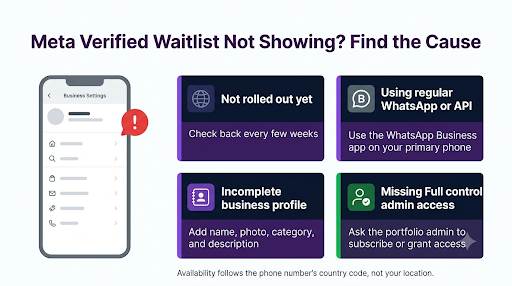
2. You’re Using Regular WhatsApp or the WhatsApp Business API
Meta Verified for Business on WhatsApp is built for the WhatsApp Business app. You won’t find it in regular WhatsApp Messenger, and it’s a different path from the free Official Business Account (OBA) blue tick that companies on the WhatsApp Business Platform (API) apply for through Meta Business Manager or a solution provider.
This trips up a lot of people. If your number runs on the API through a provider, look into OBA instead. If you use both the app and the API on the same number (coexistence), some users report that Meta Verified behaves differently, so check with your provider before paying for anything.
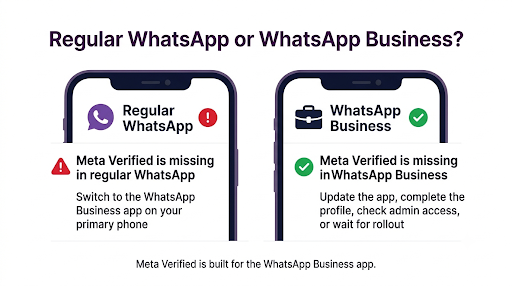
3. Your Account Is Too New or Not Active Enough
Meta requires your WhatsApp Business account to have been on the app for a certain number of days and to have sent a message recently. Meta doesn’t publish an exact number of days, so be careful with any blog that claims a fixed figure.
If you just set up a new number or reinstalled on a new phone, give it some time and keep chatting with real customers. A dormant number that hasn’t sent messages in a while can drop out of eligibility too.
4. Your Business Profile Is Incomplete
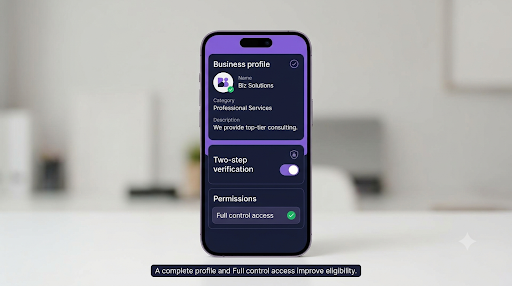
Your WhatsApp Business account needs at least a profile name and a profile picture. Meta’s business help page on the waitlist also lists missing profile details and a missing business category on linked assets (like a Facebook Page or Instagram professional account) as reasons a business lands on, or stays on, the waitlist.
Fill in these fields in the WhatsApp Business app under Settings > Business tools > Business profile:
- Business name (use your real, consistent business name)
- Profile photo or logo
- Category
- Description
- Email and website, if you have them
If customers also can’t see your profile details properly, fix that first. Our guide on why your WhatsApp Business profile isn’t showing to customers covers the common causes.
Pro Tip! Choose your name and logo carefully before you subscribe. Once your business is verified, changing the name or profile picture can send you back through verification review.
5. You Have an Active WhatsApp Business Premium Subscription
Meta’s eligibility rules say your account must not have an active WhatsApp Business Premium subscription. If you or a past team member turned on Premium, Meta Verified can stay hidden until that plan ends.
6. You Don’t Have Full Control Admin Access
Subscribing to Meta Verified or Meta One for businesses on WhatsApp requires Full control admin permissions in the linked Meta business portfolio. If someone else at your company holds Full control, WhatsApp may tell you another admin needs to log in and purchase the subscription.
This is common for agencies and family businesses where the person handling the phone isn’t the person who set up Meta Business Suite.
7. You Already Subscribed on Facebook or Instagram
Some business owners say the WhatsApp option disappeared or turned into a waitlist after they bought Meta Verified on Instagram or Facebook. This isn’t documented by Meta, so treat it as a possibility, not a rule. If it happened to you, check whether your existing plan can cover WhatsApp. Our walkthrough on moving Meta Verified from Instagram to WhatsApp Business explains what’s possible.
Did Meta One Change Where Meta Verified Appears on WhatsApp?
Yes, in some accounts. On September 15, 2026, Meta launched Meta One, a subscription service with plans for individuals, creators, and businesses. Its Essential business plan (starting at $14.99 a month in the U.S.) includes a verified badge, impersonation protection, and a verified channel on the WhatsApp Business app, all pending verification. You can read the details in Meta’s Meta One announcement.
Meta says standalone Meta Verified still exists alongside Meta One. But depending on your region and app version, you might see a Meta One offer where you expected Meta Verified. If you’re scanning your menus for the words “Meta Verified” and finding nothing, look for “Meta One” too.
Is It the Meta Verified Waitlist or the Meta Business Agent Waitlist?
These are two different things, and search results often mix them up. Meta Verified is the paid badge and impersonation protection subscription. Meta Business Agent is Meta’s AI tool that replies to customers for you, and it has its own separate waitlist.
The Business Agent waitlist also rolls out by country, by business selection, and by the language of your phone number. If you joined a waitlist and nothing about verification changed, double-check which waitlist it was.
How Do You Check If Meta Verified Is Available on WhatsApp Business?
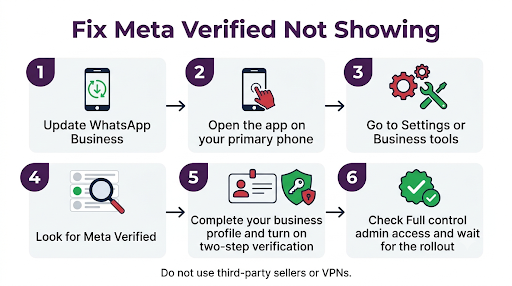
Open the WhatsApp Business app, go to Settings or Tools, and look for Meta Verified. If it’s there, tap it and follow the prompts. Here’s the full process:
- Update WhatsApp Business from the App Store or Google Play.
- Open the app on your primary phone, not a linked device.
- Tap Settings (iPhone) or the three-dot menu > Settings (Android). On some versions, it’s under Tools or Business tools.
- Look for Meta Verified (or Meta One).
- If you see it, tap Continue, pick a plan, and complete the identity check and payment.
- If you see a waitlist, join it and keep your profile complete while you wait.
- If you see nothing, work through the fixes in the next section.
Pro Tip! Settings menus on WhatsApp Web and linked devices don’t always show every business feature. If you usually run your business from a computer, check on the phone itself. If your linked devices are acting up in general, see our fix for WhatsApp Business linked devices not working.
What Should You Do If Meta Verified Isn’t Showing Up?
Start with the quick fixes you control, then wait for the rollout if everything checks out. Work through this list in order:
- Update the app. New features only show up in recent versions.
- Confirm you’re in WhatsApp Business, not regular WhatsApp and not an API-only number.
- Complete your profile: name, photo, category, description, and contact info.
- Add a business category to any linked Facebook Page or Instagram professional account in Meta Business Suite.
- Turn on two-step verification in WhatsApp (Settings > Account > Two-step verification). It’s good security either way.
- Keep the account active. Send and reply to customer messages regularly.
- Cancel WhatsApp Business Premium if it’s active, and wait for it to end.
- Check admin rights in Meta Business Suite and make sure the subscriber has Full control.
- Check back in a few weeks. If it’s a rollout issue, there’s no faster path.
Important Point to be Considered! Don’t pay third-party sellers or “agents” who promise to unlock the Meta Verified option or skip the waitlist. Meta controls the rollout from its side. These offers can cost you money and, in some cases, your account.
Why Does It Say “Not Eligible” or Get Stuck After You Apply?
If you can see Meta Verified but get blocked after starting, the issue is usually verification, not availability. Common causes include:
- Your business name doesn’t match the profile name on your WhatsApp Business account. WhatsApp says it can’t verify a business in that case.
- The ID or video selfie didn’t pass, or you didn’t finish the steps in time.
- Meta needs extra documents to confirm your business details.
- A payment went through, but the review is still running.
If you’ve paid and the status hasn’t moved, follow our guide on fixing a WhatsApp Business Meta Verified subscription that’s stuck pending. And if you’re already verified but features aren’t working, check out WhatsApp Business impersonation protection not working.
Real-World Scenarios
A bakery owner switched to a new phone last week. The Meta Verified option vanished. The account itself is old, but the app was just reinstalled. Updating the app, restoring the backup, and sending a few customer messages is the right first move. If the option doesn’t come back after a couple of weeks, it’s likely a rollout issue.
A marketing agency manages a client’s WhatsApp number. The agency can see Meta Verified but can’t buy it. That’s a permissions problem. The client, who holds Full control in the business portfolio, needs to subscribe or grant Full control.
A store runs customer support through a WhatsApp API provider. There’s no Meta Verified menu because the number lives on the WhatsApp Business Platform. The better route here is applying for an Official Business Account through the provider.
Frequently Asked Questions
How long does the Meta Verified waitlist take on WhatsApp Business?
There’s no set timeline. Meta doesn’t publish waitlist dates, and joining doesn’t guarantee access. Some businesses get in quickly, while others wait months. Keeping your profile complete and your account active is the only thing you can do on your end.
Can I get Meta Verified on WhatsApp Business for free?
No. Meta Verified for Business is a paid subscription, and prices vary by country. The only free verification badge on WhatsApp is the Official Business Account, which is limited to businesses on the WhatsApp Business Platform (API) that meet Meta’s notability rules.
Is Meta Verified available for WhatsApp Business in the United States?
It depends on your account and the country code of your number, not just your location. Meta rolls the feature out gradually, so two U.S. businesses can see different things. The only reliable check is opening Settings or Tools in your own WhatsApp Business app.
Why did the Meta Verified option disappear after an update?
Meta sometimes moves or renames subscription menus. After the Meta One launch, some accounts see Meta One where Meta Verified used to be. It can also disappear if your account temporarily fails an eligibility check, like inactivity or a profile change.
Does Meta business verification give me the Meta Verified badge?
No. Meta business verification in Business Manager confirms your legal business details and unlocks things like higher messaging limits on the API. Meta Verified is a separate paid subscription that adds the badge and impersonation protection.
Will changing my business name affect Meta Verified?
Yes. After you’re verified, changing your business name or profile picture may require going through verification again. Settle on your branding before you subscribe.
Final Recommendation
If the Meta Verified waitlist isn’t showing on WhatsApp Business, don’t assume something is broken. First, update the app and check on your primary phone. Then make sure your profile is complete, you’re not on WhatsApp Business Premium, and the person subscribing has Full control admin access. Also look for Meta One in the same menu.
If all of that checks out and the option still isn’t there, Meta simply hasn’t opened it to your account yet. Keep the account active, check back every few weeks, and skip anyone promising a shortcut.
