


When a click to WhatsApp ad shows “Something went wrong,” the cause is usually a broken link between your Facebook Page and your WhatsApp Business number, a Page and WhatsApp account that sit in different business portfolios, or a short-lived glitch from too many retries. Less often, it’s an ad account restriction, a greeting message Meta won’t accept, or a region where the ad type isn’t available yet.
The good news is that Meta’s generic error almost always maps to one of a few fixable problems. This guide helps you figure out which one you’re hitting, whether you see the error in Ads Manager, in the WhatsApp Business app, or when a customer taps your live ad.
Quick Overview
- Find where the error appears: while creating or publishing the ad, while linking WhatsApp to your Page, or after someone taps the ad.
- Relink your WhatsApp Business number to the Facebook Page running the ad and confirm the code sent to WhatsApp.
- Check ownership: the Page and the WhatsApp Business Account should belong to the same business portfolio.
- Check Account Quality and payment: a restricted ad account or failed payment often shows up as a vague error.
- Clean up the ad: remove names or variables from the greeting, re-select the WhatsApp number, and try a different performance goal if one is unavailable.
- Stop retrying for a while, update the app, and try again from a different device or browser.
Where Are You Seeing the “Something Went Wrong” Error?
The fix depends on where the error pops up. The same message can come from three very different places, so start here before changing settings.
| Where the error appears | Most likely cause | Where to start |
| Ads Manager, when you click Publish | Unlinked or wrong WhatsApp number, ownership mismatch, greeting with names, restricted ad account, unavailable performance goal | Linked accounts, Account Quality, ad-level message settings |
| Facebook Page or Meta Business Suite, when connecting WhatsApp | Number already linked to another Page, personal WhatsApp number, new or ineligible number, confirmation code issue | Page settings, Linked accounts, WhatsApp Business app |
| WhatsApp Business app, under Advertise | Outdated app, connection problem, ad account or payment issue, rapid retries | App update, Manage ads, payment method |
| On the customer’s phone after tapping the live ad | Number no longer linked to the Page, old number on the ad, customer’s app or connection issue | Ad’s WhatsApp number, test the ad on your own phone |
Why Do Click to WhatsApp Ads Show “Something Went Wrong”?
Meta shows this message when one piece of the ad chain fails and it doesn’t share the exact reason. A click to WhatsApp ad depends on four connected assets: your Facebook Page, your ad account, your WhatsApp Business number, and your payment method. If any one of them is out of sync, publishing can fail.
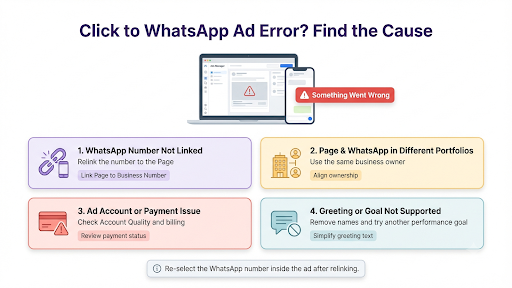
Here are the causes we see behind this error most often:
- The WhatsApp number was unlinked from the Page, or a different number is now connected.
- A personal WhatsApp number is being used. These ads need a WhatsApp Business app or WhatsApp Business Platform (API) number.
- The number is linked to another Page already, often an old Page or a client’s Page.
- The Page and the WhatsApp Business Account (WABA) are owned by different business portfolios in Meta Business Manager.
- The ad account is restricted, has an unpaid balance, or has hit its spending limit.
- The greeting or message template includes unsupported content, such as the customer’s name.
- The performance goal or optimization isn’t available for your targeting, which has affected messaging campaigns aimed at Europe.
- Too many retries in a short time, which can trigger temporary blocks on Meta’s side.
How Do You Fix a Click to WhatsApp Ad That Says “Something Went Wrong”?
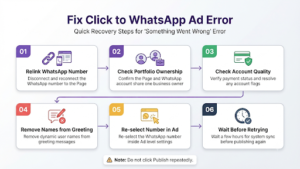
Work through these fixes in order. The first three solve the problem for most advertisers, so don’t skip ahead to reinstalling apps.
1. Relink Your WhatsApp Business Number to the Facebook Page
Relinking fixes the most common cause: a number that is no longer connected to the Page running the ad. It’s easy to miss because the ad can still show your old setup while the link behind it is broken.
- Open your Facebook Page and go to Settings, then Linked accounts (in some layouts this is under Professional dashboard or Meta Business Suite settings).
- Select WhatsApp and check which number is connected.
- If it’s wrong or missing, disconnect it and connect your WhatsApp Business number again.
- Enter the confirmation code Meta sends to that number in WhatsApp.
- Go back to Ads Manager, open the ad, and re-select the WhatsApp number in the message destination section before publishing.
Pro Tip! Re-selecting the number inside the ad matters. Ads created before you relinked can keep pointing at the old connection until you pick the number again and save.
2. Make Sure You’re Using a WhatsApp Business Number
A personal WhatsApp number won’t work for click to WhatsApp ads. You need a number on the WhatsApp Business app or the WhatsApp Business Platform. If your business still runs on a personal account, move it to the WhatsApp Business app first. You can keep the same phone number and chats when you switch.
If you use the same number across the Business app and a Cloud API tool, read our guide on using the WhatsApp Business app and Cloud API on the same number, because that setup changes how the number connects to ads.
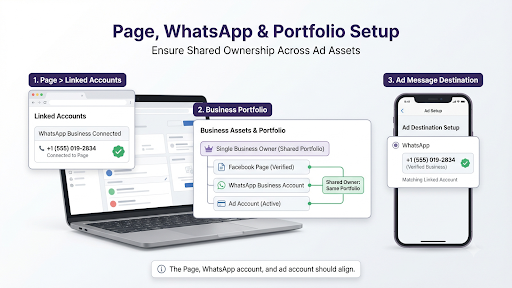
3. Check That the Page and WhatsApp Account Share One Business Owner
Ownership mismatches are behind many “something went wrong” errors in Ads Manager, especially for agencies. If the Facebook Page belongs to one business portfolio and the WhatsApp Business Account belongs to another, Meta may refuse to publish or may send users to the wrong number.
- Open Meta Business Settings (business.facebook.com/settings).
- Under Accounts, check Pages and WhatsApp accounts.
- Confirm both are owned by the same business portfolio, not just shared with it as a partner asset.
- Make sure your own user has full control (admin access) of the Page and the WhatsApp account.
- Also confirm the ad account you’re using is in the same portfolio, or has permission to advertise for that Page.
Important Point to be Considered! Moving ownership of a Page or WhatsApp account between portfolios can affect other assets and team access. If a client or agency owns one of them, agree on who should own it before you make changes.
4. Check Account Quality, Alerts, and Payment
A restricted or unpaid ad account often triggers a generic error instead of a clear warning. Check these three places before editing the ad again:
- Account Quality in Meta Business Suite, for restrictions on your ad account, Page, or profile.
- Notifications in Meta Business Suite, for policy or verification alerts.
- Billing and payments, for a failed card, unpaid balance, or an account spending limit you’ve reached.
If your account is restricted, editing the ad won’t help. Follow our guide to appeal a restricted WhatsApp Business ad account first, then come back and publish.
5. Remove Names and Variables From the Greeting
Meta doesn’t allow customer names in the greeting of click to WhatsApp ads. When this is the problem, Ads Manager may show a specific message like “ads that click to WhatsApp cannot have names in their greeting,” but it can also surface as a general publishing failure.
- Open the ad in Ads Manager and go to the Message template section.
- Edit the greeting and remove any name placeholder or personal variable.
- Keep the greeting simple, such as “Hi! How can we help you today?”
- Check your pre-filled message and quick replies for the same issue, then save and publish.
6. Switch the Performance Goal if One Is Unavailable
If you see “Performance goal unavailable” or the error appears right after you pick an optimization, the goal may not be supported for your targeting. Advertisers targeting Europe have run into this with conversation-based optimization because of privacy rules.
- Try a different performance goal, such as link clicks, and see if the ad publishes.
- Check that the country settings in your Page, ad account, and business portfolio match where you’re actually operating.
- If you’re targeting multiple regions, try splitting European countries into a separate ad set.
7. Stop Retrying and Wait
Tapping Publish or Confirm again and again can make things worse. Repeated failed attempts in a short window can trigger temporary blocks that last longer than the original glitch. After two failed tries, wait a few hours, then try once more.
Brand-new WhatsApp Business numbers can also be flagged as not eligible yet. In some tools, Meta’s message says more activity on the WhatsApp Business app is needed to determine eligibility. Use the number for normal customer chats for a while before connecting it to ads or third-party platforms.
8. Refresh the App, Browser, and Connection
If the error only shows inside the WhatsApp Business app or on one computer, a local glitch is likely. Try these quick fixes:
- Update the WhatsApp Business app from the App Store or Google Play.
- Switch between Wi-Fi and mobile data.
- Set your phone’s date and time to automatic.
- Force stop the app and clear its cache on Android (Settings, then Apps, then WhatsApp Business, then Storage).
- In Ads Manager, try an incognito window, a different browser, or turn off ad blockers and extensions.
What If the Error Appears When Creating an Ad in the WhatsApp Business App?
If you see “Something went wrong” under Advertise in the WhatsApp Business app, the cause is usually the app version, your connection, or the ad account behind it. You can create Facebook and Instagram ads directly from the app, and Meta no longer requires a Facebook account for this, but you still need a valid payment method and an ad account in good standing.
- Update the app and restart your phone.
- Tap More options (three dots), then Advertise, then Manage ads, to check whether a previous ad was marked Rejected.
- Confirm your payment method is active and not declined.
- If the app keeps asking you to verify your number before you can advertise, sort that out first with our guide on WhatsApp Business asking to verify your phone number again.
If you can create the ad but can’t reply to people who respond to your ad from Status, WhatsApp’s own advice is to update the app, update your phone’s operating system, restart the device, and check your internet connection.
What If Customers See an Error After Tapping Your Live Ad?
When the ad is live but people can’t reach the chat, the number on the ad is usually the issue. This is the most expensive version of the problem because you’re paying for clicks that never turn into conversations.
- Test the ad yourself. Open the ad preview on a phone that has WhatsApp installed and tap the button.
- Check the number on the ad. If you changed numbers, the ad may still point to the old one.
- Check your WhatsApp Business account status. A banned or restricted number can’t receive the chat.
- Check the destination. The call to action should be a WhatsApp message button, not a website link or FAQ flow.
If chats do open but your results column stays empty, the problem is measurement, not delivery. Our guide on click to WhatsApp ads not tracking conversions covers that separately.
What Do Related Click to WhatsApp Errors Mean?
Sometimes Meta shows a more specific message next to or instead of “something went wrong.” Here’s what the common ones point to:
| Error message | What it usually means | What to do |
| WhatsApp number required | The ad doesn’t have a connected number selected, or Ads Manager hasn’t refreshed it | Re-select the number in the ad. Some advertisers report this warning clears when they publish once anyway, but don’t keep retrying |
| Ads that click to WhatsApp cannot have names in their greeting | The greeting includes a name variable | Remove the name from the greeting and quick replies |
| Performance goal unavailable | The goal isn’t supported for your targeting or region | Pick another goal or split regions into separate ad sets |
| Your advertising access is restricted | Meta has limited ads on your account | Request a review in Account Quality |
| The business you selected has one or more ad accounts in an invalid state | An ad account in the portfolio is disabled or has a payment problem | Fix or remove the problem ad account in Business Settings |
| Your phone number isn’t eligible to connect | The number is too new or has too little activity | Use the number for normal chats for a while, then try again |
If you see a message saying your account isn’t allowed to use WhatsApp Business at all, that’s a different problem from an ad error. Our guide on “This account is not allowed to use WhatsApp Business” explains what triggers it and how to request a review.
Is Your Ad Rejected or Just Failing to Publish?
A rejected ad and a publishing error look similar but need different fixes. A publishing error stops the ad before it’s submitted. A rejection happens after Meta reviews it, and the ad shows Rejected with a policy reason.
If the ad was rejected, read the policy reason, edit the part Meta flagged, and resubmit. If you believe the rejection is a mistake, open Account Quality, select the ad, and click Request review if the option is available. Don’t resubmit the same ad unchanged, since repeated rejections can put the whole ad account at risk.
Pro Tip! Bulk-importing contacts and messaging them all at once can get your number flagged, which then breaks your ads too. If that’s happened, see why WhatsApp Business gets banned after importing contacts before you run another campaign.
What Should API and Agency Users Check?
If you create click to WhatsApp ads through the Marketing API or a WhatsApp Business Solution Provider, the error often comes from missing fields or permissions. Meta’s Marketing API documentation for ads that click to WhatsApp lists the requirements. The key ones to check:
- The ad set’s destination_type is set to WHATSAPP.
- The promoted_object includes the correct page_id, and the WhatsApp number linked to that Page is the one you expect.
- The access token belongs to someone who can advertise on the Page, with ads_management and pages_manage_ads permissions.
- The WhatsApp Business Account and the Page sit in the same business portfolio as the provider’s setup expects.
For agencies managing many clients, keep a simple record of which portfolio owns each Page, WhatsApp account, and ad account. Most “something went wrong” tickets come from one of those three living somewhere unexpected.
How Can You Prevent This Error in the Future?
- Don’t change the WhatsApp number on your Page while ads are running.
- Keep the Page, WhatsApp account, and ad account in one business portfolio.
- Keep a backup payment method on the ad account.
- Keep greetings simple, with no names or personal variables.
- Check Account Quality once a week if you run ads regularly.
- Preview every new ad on your own phone before you scale the budget.
Frequently Asked Questions
Why does Ads Manager say “something went wrong” but the ad still publishes?
Sometimes the error is a display glitch and the ad goes through anyway. Check the Ads Manager table before retrying. If the ad shows as In Review or Active, don’t publish again, or you may end up with duplicate ads.
Can I run click to WhatsApp ads without a Facebook Page?
If you create the ad from the WhatsApp Business app, you can advertise without a Facebook account. In Ads Manager, the ad needs a Facebook Page with your WhatsApp Business number linked to it.
Can one WhatsApp number be linked to two Facebook Pages?
Plan on one number per Page. Linking a number already connected to another Page is a common reason the connection fails, so disconnect it from the old Page first.
Why can’t I create a click to WhatsApp ad for some countries?
Some ad experiences are only available in certain regions. If your ad won’t deliver in one country, WhatsApp says this can be due to limited availability there. Try removing that country from the ad set to confirm.
Does “something went wrong” mean my WhatsApp account is banned?
No, not by itself. Most of the time it’s a linking, ownership, or payment problem. A banned number usually shows its own message inside the WhatsApp Business app, so check the app before assuming the worst.
How long should I wait before trying again?
If you’ve already retried a few times, wait a few hours before the next attempt. Use that time to check Account Quality, payment, and the linked number so your next try has the best chance of working.
Final Recommendation
Start with the fix that matches where you see the error. For Ads Manager publishing errors, relink your WhatsApp Business number, re-select it in the ad, and confirm the Page and WhatsApp account share one business owner. For errors in the WhatsApp Business app, update the app and check Manage ads and payment. If nothing works after you’ve checked Account Quality and waited a few hours, contact Meta Business Support from Meta Business Suite and include a screenshot of the error and the ad ID, so they can find the real cause behind the generic message.
