



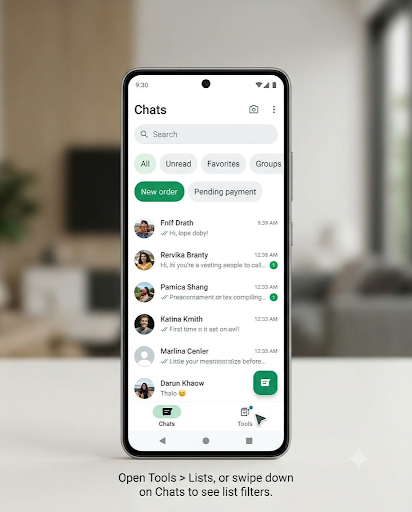
If your WhatsApp Business labels disappeared after an update, they most likely weren’t deleted. WhatsApp has renamed labels to “Lists,” and your existing labels usually show up there under the same names, with the same chats. On most updated phones, you’ll find them under Tools > Lists or by swiping down on the Chats screen.
The confusing part is that the change is rolling out slowly. Your phone might show Lists while a coworker’s phone still shows Labels. This guide shows you where to look on Android, iPhone, and WhatsApp Web, what changed, and what to do if your labels are truly gone.
Quick Overview
| Your situation | What it means | What to do |
| Labels menu is gone after an update | Labels were renamed to Lists | Open Tools > Lists, or swipe down on Chats |
| You still see “Label chat” in the menu | Lists hasn’t reached your account yet | Keep using labels from Chats > More (⋮) > Label chat |
| You saw a “final reminder about labels” notice | Your account is being moved to Lists | Update the app and check Tools > Lists |
| Lists exist, but they look empty or incomplete | Sync delay, old app version, or a reinstall without a backup | Update, clear cache (Android), restart, then check your backup |
| New lists are appearing on their own | Auto-created lists (automatic events) is turned on | Go to Tools > Lists and manage Auto-created lists |
Why Did My WhatsApp Business Labels Disappear?
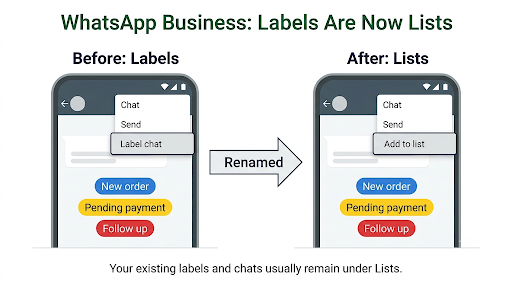
Your labels disappeared because WhatsApp is replacing the Labels feature with Lists. WhatsApp’s own Help Center guide on labels now opens with a note that labels are now lists, and that the rollout is gradual, so labels might not be available to every account.
This change has been coming for a while. Back in 2024, WABetaInfo reported that WhatsApp was building a Lists feature for regular WhatsApp and planned to eventually replace Business labels with it. In 2026, the switch started reaching WhatsApp Business users on iPhone first, then Android.
So if you opened the app one morning and couldn’t find “Labels” anywhere, nothing is broken. The feature moved and got a new name.
Other reasons labels can seem to vanish
- Your app is outdated. Older builds can show a mix of old and new menus, or neither.
- The app hasn’t finished syncing after an update or a new linked device.
- You reinstalled WhatsApp Business without restoring a backup. Labels are stored with your chat data, so a fresh install can lose them.
- You switched between phones (for example, Android to iPhone) and the labels didn’t come across with the chat transfer.
- A list filter is still active. If you tapped a list at the top of Chats, you only see chats in that list until you switch back to “All.”
Where Are Labels Now in WhatsApp Business?
Labels now live under Lists. The exact path depends on your device and which version of the rollout your account has.
On Android
- Open WhatsApp Business.
- Tap the Tools tab at the bottom (or tap the three dots ⋮ in the top right if you don’t see a Tools tab).
- Tap Lists.
- Tap any list to see every chat assigned to it.
If your account hasn’t moved to Lists yet, use the older path: Chats > More (⋮) > Label chat, then tap a label.
On iPhone
- Open WhatsApp Business.
- Tap Tools at the bottom of the screen.
- Tap Lists.
You can also go to the Chats tab and swipe down. Your lists appear as filter chips at the top of the screen, next to defaults like All, Unread, Favorites, and Groups. This is the step most people miss on iPhone. The labels were there the whole time, just hidden above the chat list.
On older iPhone builds that still use labels, you’ll find them under Settings > Business Tools > Labels.
On WhatsApp Web and Desktop
If Lists has reached your account, open Tools > Lists in WhatsApp Web. From there you can also add a new list. Lists you create on your phone should appear on your linked devices once they sync.
Quick check: from a customer’s chat
From the Chats screen, tap a customer’s profile photo. You’ll see the lists (or labels) that chat belongs to. It’s a fast way to confirm your old tags survived the update.
What’s the Difference Between Labels and Lists?
For day-to-day use, lists do the same job labels did: they let you tag chats and filter them later. The main differences are where they live and how they show up in your inbox.
| Feature | Old Labels | New Lists |
| Where to find them | Chats > More > Labels (Android), Settings > Business Tools (iPhone) | Tools > Lists, or swipe down on Chats |
| Filter bar at top of Chats | No | Yes, lists show as filter chips |
| Colors | Yes | Yes |
| Multiple tags per chat | Yes | Yes |
| Can include groups | Limited | Yes, contacts and groups |
| Limit | Up to 20 labels | WhatsApp’s Lists page doesn’t state a number; most users report the same cap |
| Visible to customers | No | No, lists are private to you |
| Automatic tagging | No | Optional, through auto-created lists |
One thing worth knowing: lists tag whole chats, not single messages. Some older versions of WhatsApp Business let you label an individual message. If you relied on that, use starred messages instead to bookmark specific replies, like an order confirmation or a delivery address.
Did I Lose My Labeled Chats?
No, not if your account simply moved to Lists. The renaming keeps your existing labels with the same names and the same chats inside them. Your conversations, contacts, and media are not touched by the change.
Where people do lose labels is a reinstall or phone switch without a proper backup. If that happened, the chats may come back from your Google Drive or iCloud backup, but the tags can be missing. In that case, you’ll need to rebuild your lists manually.
If your labeled chats show up but the names look wrong, like plain phone numbers instead of customer names, that’s a separate contact sync issue. Our guide on WhatsApp Business contacts not showing names walks through the fix.
How Do You Fix Labels That Are Actually Missing?
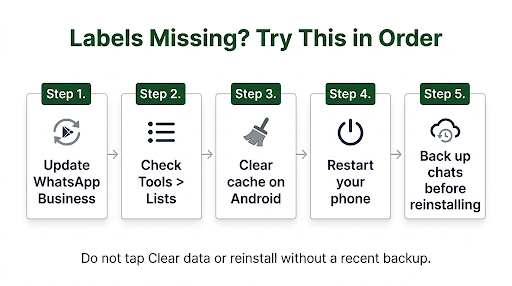
If you checked Tools > Lists and swiped down on Chats and still can’t find your labels, work through these steps in order. Most people are fixed by step two.
- Update WhatsApp Business. Open the Google Play Store or Apple App Store, search for WhatsApp Business, and tap Update. A half-updated app is the most common cause of missing menus.
- Force close and reopen the app. This forces a fresh sync of your chats and lists.
- Clear the cache (Android only). Long-press the WhatsApp Business icon, tap App info (i), go to Storage, and tap Clear cache. Do not tap Clear data or Clear storage. That wipes your local chats.
- Restart your phone. Simple, but it clears stuck background processes.
- Reset your chat filter. On the Chats tab, tap All at the top. An active list filter can make chats look like they vanished.
- Check your linked devices. If you only checked on WhatsApp Web, open the app on your phone. The phone is the main device and usually updates first.
- Confirm your backup before any reinstall. Go to Settings > Chats > Chat backup and run a backup first. Only reinstall as a last step.
Warning: Many YouTube fixes tell you to uninstall and reinstall the app. Don’t do this unless you’ve confirmed a recent backup. A reinstall without a backup is one of the few ways to actually lose your labels for good.
What Was the “Final Reminder About Labels” Message?
The “final reminder about labels” notice is WhatsApp telling you that your account is about to switch from labels to lists. It’s not an error, and you don’t have to do anything to keep your data.
When the switch completes, the app shows a short “Labels are now Lists” intro screen. After you tap through it, everything that used to be under Labels sits under Tools > Lists.
Why Are New Lists Appearing That I Didn’t Create?
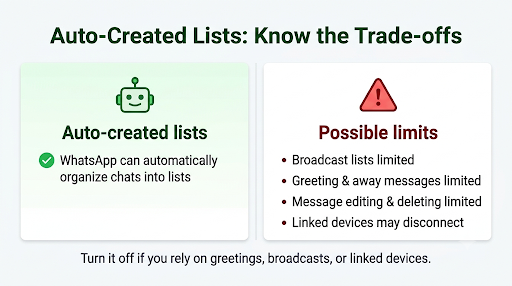
New lists you didn’t create usually come from auto-created lists, which WhatsApp calls automatic events. When this setting is on, WhatsApp can automatically tag chats that look like orders or leads.
It sounds handy, but there are real trade-offs. According to WhatsApp’s page about automatic events on the WhatsApp Business app, turning it on may limit some features, including:
- Broadcast lists
- Disappearing messages
- Greeting and away messages
- Editing and deleting messages
It also disconnects your linked devices. Most can be linked again, but some, like WhatsApp for Windows, may not reconnect while the feature is on. Customers chatting with you may also see a notice that a secure Meta service manages the chat.
How to turn auto-created lists on or off
- Go to Tools > Lists.
- Tap Auto-created lists.
- Tap Turn on or Turn off.
If your greeting messages or broadcasts stopped working right around the time your labels changed, check this setting first. It’s an easy one to miss.
How Do You Use Lists the Way You Used Labels?
Once you find your lists, the daily workflow is almost the same as before.
Add a chat to a list
- Tap and hold a chat in the Chats tab (or open the chat and tap the menu).
- Tap Add to list.
- Tick one or more lists, then tap Save or Done.
Create a new list
- Go to Tools > Lists.
- Tap New list.
- Enter a name, pick a color if offered, and tap Done.
WhatsApp may suggest starter names like New customer, New order, Pending payment, Paid, Order complete, Important, Follow up, and Lead. Use them or replace them with your own.
Edit, reorder, or delete a list
- Rename or recolor: open the list and tap Edit.
- Reorder: on the Lists screen, tap Reorder. On some versions, you can also long-press a list chip on the Chats tab and choose Reorder lists.
- Delete: open the list, tap More (⋮), then Delete list. Deleting a list removes the tag only. The chats themselves stay.
- Bring back a default list: if you removed a built-in list like Unread or Groups, it can usually be added again from the available presets.
Send a broadcast to a list
Lists can still work as broadcast audiences, just like labels did. Keep two rules in mind:
- Broadcasts only go to individual customers, not to groups inside the list.
- Customers must have your business number saved in their phone contacts to receive a broadcast.
If your broadcast to a list shows a clock icon or never delivers, the problem is usually the saved-contact rule or a connection issue, not the list itself. See our fix for WhatsApp Business messages not sending for the full checklist.
Are There Any Limitations With Lists?
Yes. Lists fix the naming confusion, but they bring a few quirks of their own.
- Rollout is uneven. Two phones on the same business account can briefly show different menus. You can’t force the update or roll it back.
- Some users report lists showing mainly recent chats. A few business owners have noticed that when they open a list, recent conversations show up first and older contacts are harder to find. If a chat seems missing, search for the contact or open their chat directly to check its lists.
- Tagging is still manual unless you turn on auto-created lists, which comes with the trade-offs above.
- Lists don’t assign chats to staff. If several people share one business phone, agree on what each list means. “Follow up” should mean the same thing to everyone.
- Muting a list affects alerts. Some versions include a Mute option for lists. If you muted one during setup, chats in it won’t alert you the way they used to.
That last point catches a lot of people. If you’ve stopped getting alerts from customers since the switch, check whether a list is muted, then go through our guide on WhatsApp Business notifications not working.
Common Mistakes to Avoid
- Reinstalling first. It’s the riskiest fix, and in most cases it’s unnecessary.
- Tapping “Clear data” instead of “Clear cache.” One is harmless. The other wipes your local chats.
- Only checking WhatsApp Web. The phone app usually gets the update first.
- Creating duplicate lists in a panic. If you make a new “New order” list before finding the old one, you’ll end up with two. Search Tools > Lists first.
- Turning on auto-created lists without reading the trade-offs. You could lose greeting messages and linked devices without realizing why.
Frequently Asked Questions
Can I switch back from Lists to Labels in WhatsApp Business?
No. There’s no setting to go back to the old Labels layout. Once your account moves to Lists, that’s the version you’ll use going forward. The good news is that the core job, tagging and filtering chats, works the same way.
Is the labels change happening on Android and iPhone?
Yes. Early versions of the change appeared in the WhatsApp Business iOS beta, and it has since spread to more iPhone and Android users. Android users may still see labels for a while longer because the rollout is gradual.
Can customers see which list I put them in?
No. Lists are private to your business account. A customer can’t see that you tagged them as “Pending payment” or “Lead,” and they aren’t notified when you add or remove them from a list.
Do lists work in the WhatsApp Business API or CRM tools?
Not in the same way. Lists are a feature of the free WhatsApp Business app. If you use the WhatsApp Business Platform (API) through a CRM or chat tool, tagging is handled inside that tool, and app lists usually aren’t shared with it.
Why do my lists show on my phone but not on my computer?
Your linked device may not have synced yet, or it may be running an older version. Update WhatsApp Desktop, or log out of WhatsApp Web and link it again with a fresh QR code. If you recently turned on auto-created lists, that may also have disconnected the device.
How many lists can I create in WhatsApp Business?
WhatsApp’s labels guide allowed up to 20 labels. The newer Lists page doesn’t list a number, but most business users report a similar cap. If you hit the limit, merge similar lists, like “New inquiry” and “New lead,” into one.
Final Recommendation
If your WhatsApp Business labels disappeared, start with the simplest check: open Tools > Lists, or swipe down on the Chats screen. In most cases, your labels are sitting right there under their new name.
If they’re still missing, update the app, clear the cache on Android, and restart before you try anything bigger. Never reinstall without a confirmed backup. Once you’ve found your lists, take two minutes to review the auto-created lists setting and any muted lists, so your greetings, broadcasts, and notifications keep working the way your customers expect.
