


If WhatsApp Business sends text fine but photos, videos, or documents fail, the cause is usually missing media permissions, low phone storage, or a file WhatsApp can’t process, like a video that is too large or in an unsupported format. A slow upload connection is the other common reason, because media needs far more bandwidth than text.
This guide focuses only on attachments. You will learn how to read the error you see, fix permissions on Android and iPhone, get around size and format limits, and solve media problems on WhatsApp Web, quick replies, and the WhatsApp Business API.
Quick Overview
| Symptom | Most likely cause | Fastest fix |
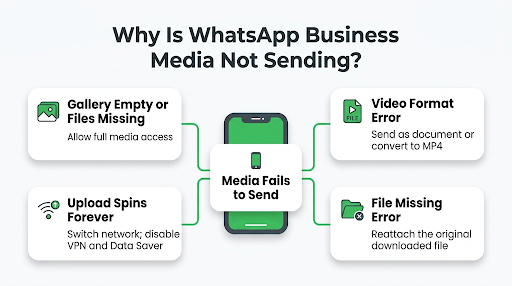
| Gallery is empty or files don’t appear when you tap attach | Photos, videos, or files permission is off or limited | Allow full media access in phone settings |
| “Can’t send this video. Choose a different video and try again” | Unsupported video format, codec, or app glitch | Send it as a document or convert it to MP4 |
| Upload spins forever, then fails | Weak upload speed, VPN, or data saver | Switch networks and turn off VPN and data saver |
| “Media not present in device” or file missing | File was moved, deleted, or is only stored in the cloud | Download the original file to your phone and reattach |
| Large file refuses to send | File is above WhatsApp’s size limit | Use the Document option (up to 2 GB) or share a cloud link |
| API error 131053 or “Bad request” on media templates | Unsupported file type, size, or media URL | Match Meta’s media specs and use a public HTTPS link |
Is It Only Media, or Are All Messages Failing?
Send a short text message to the same person first. This one test tells you which problem you are actually fixing.
- Text sends, media fails: Stay here. The issue is permissions, storage, the file itself, or upload speed.
- Text also fails or shows a clock icon: The problem is bigger than attachments. Start with our full guide on fixing WhatsApp Business messages that won’t send.
- Media shows one gray tick and never delivers: Your file went out, but the recipient’s phone has not received it.
What Does Each Media Error Mean?
WhatsApp’s error messages are short, but each one points to a different cause. Here is what they usually mean in plain terms.
- “Can’t send this video. Choose a different video and try again”: WhatsApp could not process the video. This often happens with unusual formats, high-frame-rate or pro-camera footage, or edited clips. It has also appeared after buggy app updates on Android.
- “Couldn’t send” or a red exclamation mark: The upload started but did not finish. This points to your connection, storage, or file size.
- “Media not present in device” or “Sorry, this media file doesn’t exist”: The file WhatsApp is pointing to is gone. It was deleted, moved, or saved somewhere WhatsApp cannot read.
- “The file format is not supported”: The file type cannot be sent as a photo or video. Sending it as a document usually works.
- An empty or partial gallery: WhatsApp Business does not have permission to see all your photos and files.
How Do You Fix Media Permissions on Android?
On Android, WhatsApp Business needs permission to read your photos, videos, and files before it can attach them. Newer Android versions split these permissions up, so one can be on while another is off.
- Open Settings > Apps > WhatsApp Business > Permissions.
- Tap Photos and videos and choose Allow all. If you see “Allow limited access,” WhatsApp can only see the specific items you picked earlier.
- Check Music and audio and Files (or “Files and media” on older phones) and set them to Allow.
- Make sure Camera and Microphone are allowed if you shoot photos, videos, or voice notes inside the app.
- If everything already looks allowed, turn each permission off, then back on. This resets a stuck permission, and it is a step WhatsApp’s own Help Center recommends.
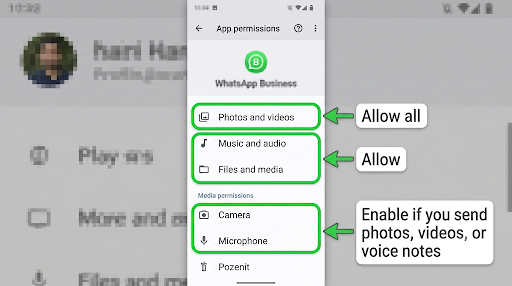
Menu names vary by brand. Samsung, Xiaomi, OnePlus, and Pixel phones all word these slightly differently, but the permissions screen is always under the app’s info page.
Clear the cache after resetting permissions
Go to Settings > Apps > WhatsApp Business > Storage and tap Clear cache. This removes temporary files that can break media processing.
Warning: Do not tap “Clear data” or “Clear storage.” That signs you out and can erase chats that are not backed up.
Check your SD card
If your phone saves media to an SD card, a full, read-only, or failing card can stop media from opening or sending. Free up space on the card, or move WhatsApp storage back to internal memory to test.
How Do You Fix Media Permissions on iPhone?
On iPhone, the most common problem is Limited Access to Photos. WhatsApp Business then only sees the handful of pictures you approved once, so new photos and videos seem to vanish from the picker.
- Open Settings > Apps > WhatsApp Business > Photos (on older iOS versions, Settings > WhatsApp Business > Photos).
- Choose Full Access. If you prefer to keep limited access, tap “Edit Selected Photos” and add the item you want to send.
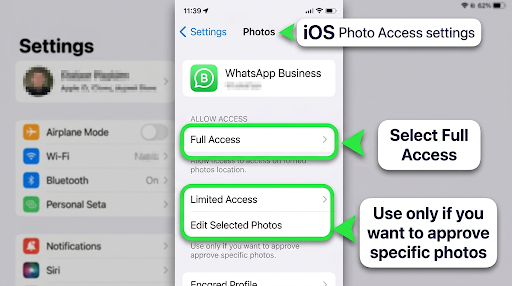
- Go back and make sure Camera, Microphone, and Mobile Data are turned on for WhatsApp Business.
Watch out for iCloud Photos “Optimize Storage”
This is a cause most guides skip. If Optimize iPhone Storage is on in iCloud Photos, your iPhone keeps only a small preview of older photos and videos. The full file lives in iCloud. When you attach it, the iPhone has to download it first, and on a slow connection the send can stall or fail.
Fix: Open the photo or video in the Photos app and wait until it fully loads, then attach it again. If it happens a lot, switch to “Download and Keep Originals” in Settings > [your name] > iCloud > Photos, as long as you have the storage space.
Offload the app instead of deleting it
iPhone users can reset WhatsApp Business without losing chats by offloading it. Go to Settings > General > iPhone Storage > WhatsApp Business > Offload App, then tap Reinstall App. This removes the app but keeps your documents and data on the phone.
What Are WhatsApp’s Media Size and Format Limits?
How you attach a file decides how big it can be. Photos and videos sent from the gallery are compressed and have a lower size cap. Files sent with the Document option keep their original quality and can be up to 2 GB.
| How you send it | What happens | Best for |
| Photo or video from Gallery | Compressed. Video limits are lower and can depend on your app version and connection | Quick product photos, short clips |
| Photo or video in HD quality | Less compression, larger upload, more likely to fail on slow networks | Sharper product images when your connection is strong |
| Any file as a Document | No compression, up to 2 GB per file | Long videos, PDFs, invoices, price lists, design files |
| Cloud link (Google Drive, Dropbox, OneDrive) | No WhatsApp size limit, recipient downloads from the link | Files over 2 GB, or many large files at once |
Formats that commonly cause trouble
- HEVC/H.265 or 4K, 60 fps videos from newer phones and action cameras
- Videos from pro cameras or editing apps with unusual audio settings
- MKV, AVI, or MOV files that did not come from your phone’s own camera
- Very large HEIC or RAW photos
Fix: Convert or export the file as a standard MP4 (H.264 video, AAC audio) for video, or JPEG for photos. Most free phone video editors can do this. Or skip conversion and send the file as a document.
Example: A boutique owner records a 4K product video on a new phone and gets “Can’t send this video.” Trimming it or exporting at 1080p in the phone’s editor usually fixes it. Sending it as a document works too, but the customer has to download it before watching.
How Do You Send a Video or Photo as a Document?
The Document option is the most reliable workaround for media that won’t send. It skips WhatsApp’s video processing, which is where many errors happen.
- Open the chat and tap the attach icon (paperclip on Android, plus sign on iPhone).
- Tap Document.
- On Android, tap “Browse other docs” if the file is not listed. On iPhone, choose Choose Photo or Video to pick from your gallery, or browse Files.
- Select the file and tap Send.
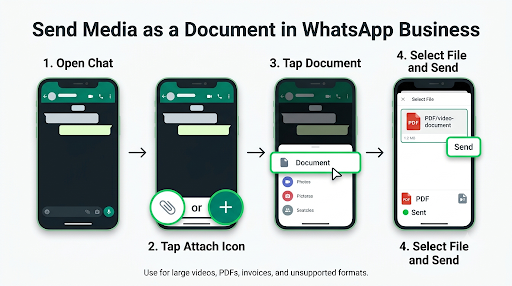
The trade-off: the recipient sees a file, not a playable preview, and must tap to download it.
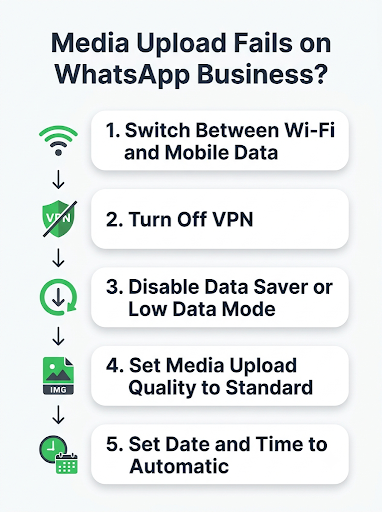
Why Does Media Upload Fail on a Working Connection?
Your internet can be fast enough for text and browsing but too weak or restricted for uploads. Media problems often come down to upload speed, which is usually much lower than download speed.
- Switch networks. Move from mobile data to Wi-Fi, or the other way around. Public and office Wi-Fi sometimes blocks large uploads.
- Turn off your VPN. VPNs can slow uploads or block WhatsApp’s media servers.
- Turn off Data Saver or Low Data Mode for WhatsApp Business.
- Check your upload quality setting. In WhatsApp Business, go to Settings > Storage and data > Media upload quality. Choosing Standard instead of HD makes files smaller and faster to send.
- Set date and time to automatic. A wrong phone clock can break secure uploads.
Does Low Storage Stop Media From Sending?
Yes. WhatsApp needs free space to process, compress, and temporarily store a file before it uploads. If your phone is nearly full, media can fail even though text still works.
- In WhatsApp Business, open Settings > Storage and data > Manage storage.
- Review “Larger than 5 MB” and “Forwarded many times” to find files you can delete.
- Clear out large chats with old videos you no longer need.
- Aim to keep at least 1 to 2 GB of free space on your phone.
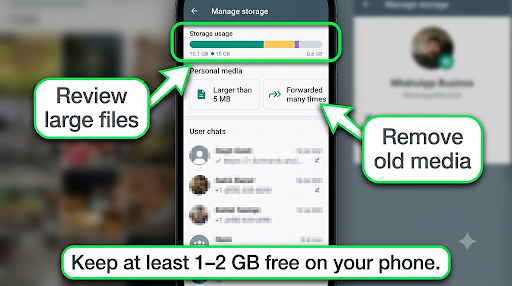
Business accounts fill up fast because customers send photos, voice notes, and videos all day. A monthly storage cleanup prevents a lot of these failures.
Why Does “Media Not Present in Device” Appear?
This error means WhatsApp is trying to send or forward a file that no longer exists where it expects. Common causes include:
- You deleted the original photo or video from your gallery or a cleaner app removed it.
- You are forwarding old media that was cleared from your phone to save space.
- The file was moved to an SD card or another folder.
- On iPhone, the file is only in iCloud and has not downloaded.
Fix: Find the original file, open it so it is fully saved on your phone, and attach it fresh instead of forwarding. If you’re forwarding a customer’s media, ask them to resend it.
On Android, WhatsApp Business saves media in its own folder, separate from regular WhatsApp. If your files don’t show in your Gallery app, look under Android > media > com.whatsapp.w4b > WhatsApp Business > Media in your file manager. Also check that Media visibility is on in WhatsApp Business under Settings > Chats.
Why Is Quick Reply Media Not Working?
Quick replies in WhatsApp Business can include a photo or video, which is handy for sending your menu or price list. Some business owners have reported that the media in saved quick replies stops attaching or sending after a while.
- Update WhatsApp Business to the latest version.
- Go to Business tools > Quick replies, open the reply, remove the media, and add it again from your gallery.
- Make sure the original file still exists on your phone. If it was deleted, the quick reply has nothing to send.
- If it still fails, delete the quick reply and create it again.
The same idea applies to catalog images. If a catalog photo will not upload, try a smaller JPEG and check your connection.
Why Can’t You Send Files From WhatsApp Web or Desktop?
On a computer, media problems usually come from the browser, the computer’s connection, or a linked device that is out of sync.
- Refresh WhatsApp Web, or try a different browser.
- Clear the browser’s cache and cookies for web.whatsapp.com.
- Use the Document option for large files, or drag and drop the file into the chat.
- Check that the file is not open or locked by another program.
If WhatsApp Web keeps disconnecting or messages fail only on your computer, our guide to WhatsApp Business linked devices not working covers how to relink and resync.
Why Is a Media Broadcast or Status Not Going Through?
Broadcasts and Status updates follow their own rules, so the fix is different from a normal chat.
- Broadcasts: Media in a broadcast only reaches people who saved your business number. If the photo “sent” but many customers never saw it, this is almost always why.
- Status: Status videos are capped at a short length (WhatsApp currently lists 90 seconds), and HD quality is not available for Status. Longer clips need trimming.
How Do You Fix Media Errors in the WhatsApp Business API?
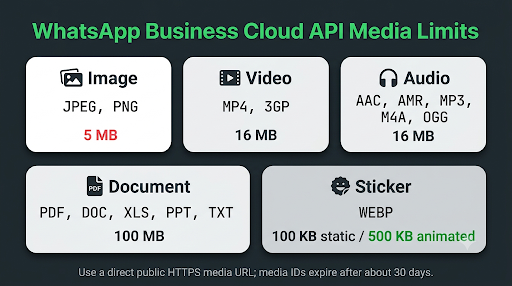
The WhatsApp Business API (Cloud API) has stricter media limits than the app. A file that sends fine from your phone can be rejected by the API. Here are the main limits from Meta’s documentation:
| Media type | Supported formats | Max size |
| Image | JPEG, PNG (8-bit, RGB or RGBA) | 5 MB |
| Video | MP4, 3GP (H.264 video, AAC audio, one audio stream or none) | 16 MB |
| Audio | AAC, AMR, MP3, M4A, OGG (OPUS codec only) | 16 MB |
| Document | PDF, DOC/DOCX, XLS/XLSX, PPT/PPTX, TXT | 100 MB |
| Sticker | WEBP | 100 KB static, 500 KB animated |
Limits can change, so check Meta’s Cloud API supported media types before building a campaign.
Common API media problems and fixes
- Error 131053 (media upload error): The file type or format is not supported, or the file could not be fetched. Check the error details in your webhook and convert the file to a supported format.
- “Bad request, please check your parameters” on media templates: Users in automation tools like n8n often hit this. It usually means the template header type (image, video, or document) does not match the media you passed, or the media link is missing.
- Media URL not working: The link must be a public HTTPS URL that points straight to the file. Google Drive share pages, links that need a login, and redirects often fail.
- Expired media ID: Uploaded media IDs expire after about 30 days. Re-upload the file to get a new ID.
- Videos that won’t play after sending: Re-export as MP4 with H.264 and AAC, and use the “faststart” option so the video can stream.
- Error 131052: A customer sent you a file larger than the API can download. Ask them to compress it or share it another way.
Should You Reinstall WhatsApp Business to Fix Media Issues?
Only after you’ve tried permissions, storage, file format, and network fixes. Reinstalling resets the app’s media handling, but it also puts your chats at risk if your backup isn’t current.
Check Settings > Chats > Chat backup and confirm the last backup date first. Turn on “Include videos” if you want customer videos saved too. If the backup fails, fix that first with our guide on WhatsApp Business backup not working.
Common Mistakes That Make Media Problems Worse
- Tapping “Clear data” instead of “Clear cache” and losing unbacked-up chats
- Forwarding old media that you already deleted from your phone
- Sending 4K or HD video on slow mobile data instead of trimming or using Standard quality
- Leaving photo access on “Limited” and assuming new photos are missing
- Using API media links that need a login, like private cloud folders
Frequently Asked Questions
Why can I receive photos on WhatsApp Business but not send them?
Receiving and sending use different permissions and different network directions. Receiving only needs download speed and storage, while sending needs read access to your gallery and a decent upload speed. Check that photo access is set to full, then test on a different network.
Why are WhatsApp Business videos sending in poor quality?
WhatsApp compresses gallery videos to make them smaller. Choose HD before sending, or set Media upload quality to HD in Storage and data settings. For full original quality, send the video as a document.
Why are voice notes not sending on WhatsApp Business?
Voice notes need microphone permission. Check that it’s allowed in your phone settings, close other apps that may be using the mic, like call recorders, and restart the phone. If the voice note records but won’t upload, it’s a connection issue.
Can I send a PDF invoice or price list on WhatsApp Business?
Yes. Use the Document option to send PDFs, Word files, spreadsheets, and more. If the customer can’t open it, they may need a PDF reader app, or the file may be password protected.
Why do photos fail to send only to one customer?
If media works with everyone else, the problem is probably on the customer’s side. Their phone may be full, offline, or running an outdated app. Ask whether they received a text from you, and suggest they free up space and update WhatsApp.
Does WhatsApp Business limit how many photos I can send at once?
Yes, there is a per-send limit for selecting media, and the exact number depends on your app version and device. If a big batch fails, send fewer files at a time, or zip them and send the ZIP as a document.
What Should You Do Next?
Start with the fix that matches what you see:
- Missing files in the picker: Allow full photo, video, and file access, then clear the cache.
- “Can’t send this video”: Send it as a document, or export it as a standard MP4.
- Uploads that stall: Switch networks, turn off your VPN and data saver, and pick Standard quality.
- “Media not present”: Reattach the original file instead of forwarding it.
- API failures: Match Meta’s format and size limits and use a direct public HTTPS link.
If nothing works, update the app, back up your chats, and reinstall. You can also review WhatsApp’s official guide for when you can’t download, open, or send media files, or contact support from Settings > Help > Contact us with your phone model, app version, and the exact error you see.
