


When a WhatsApp Business backup is not working, the cause is almost always one of five things: not enough cloud storage, not enough free space on the phone, a weak or restricted connection, the wrong cloud account, or a background setting that pauses the upload. Find which one is blocking you, fix that, and run a manual backup while the phone is plugged in and on Wi-Fi. Most stuck or failed backups clear up within one or two tries once the real blocker is gone.
This guide helps you match your exact symptom (stuck at 0%, frozen at 99%, “preparing backup” forever, or an error message) to the right fix. It also covers the things most guides skip, like Google storage limits, encrypted backup passwords, and why a business account needs a different backup habit than a personal one.
Quick Overview
- Android: WhatsApp Business backs up to your Google Account. The backup now counts toward your Google storage (15 GB free, shared with Gmail, Drive, and Photos). If that storage is full, the backup stops.
- iPhone: Backups go to iCloud Drive. You need free space on both iCloud and the iPhone of at least 2.05 times the size of the backup.
- Stuck at 99% or “preparing”: Usually phone storage, Low Power Mode, a sleeping screen, or an unstable network.
- Fast fix order: Check storage, switch to stable Wi-Fi, plug in the phone, update the app, turn off battery savers, then retry a manual backup.
- Last resort: Sign out and back into your Google Account or iCloud, or delete the old cloud backup and create a fresh one (your chats stay on the phone as long as you do not uninstall the app).
How Do You Know Which Problem You Have?
Start with what you actually see on the screen. Each symptom points to a different root cause, so matching them saves you from trying fifteen random fixes.
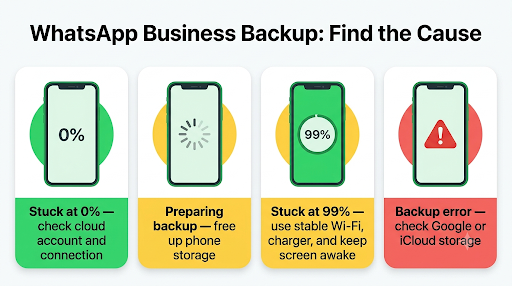
| What you see | Most likely cause | Where to start |
| Stuck at 0% or never starts | No cloud account linked, iCloud Drive off, Google Play services issue, or no network access for the app | Check the account and connection settings |
| Stuck on “Preparing backup” | Not enough free space on the phone to build the backup file | Free up phone storage |
| Frozen at 99% | Upload interrupted by a weak network, screen lock, or Low Power Mode | Stable Wi-Fi, charger, Auto-Lock off |
| “Couldn’t complete backup” or “Unable to back up messages” | Cloud storage full, account sign-in problem, or corrupted old backup | Check Google or iCloud storage, then refresh the account |
| Backup runs but “Last backup” date never changes | Schedule set to Never, wrong Google Account, or background restrictions | Check backup frequency and battery settings |
| Asks for a password or key you do not remember | End-to-end encrypted backup is turned on | See the encrypted backup section below |
Why Is My WhatsApp Business Backup Not Working on Android?
On Android, the most common reason today is full Google storage.
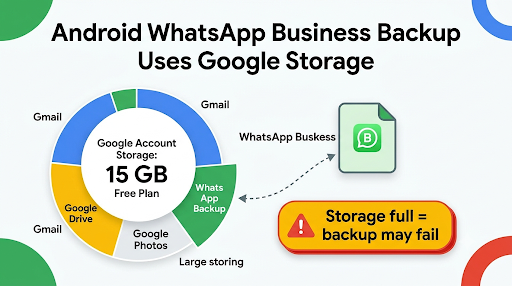
For years, WhatsApp backups did not count against your Google quota. That changed in 2024, and now the backup shares the same 15 GB free space as your Gmail, Google Drive, and Google Photos. Google’s own storage help page confirms that WhatsApp backups on Android count toward your Google Account storage limit and can become one of the largest single items in it.
So if your phone has plenty of room but Gmail and Photos have quietly filled your Google account, the backup will fail even though nothing looks wrong inside WhatsApp Business.
WhatsApp’s own requirements for an Android backup are simple. According to the WhatsApp Help Center guide to backing up chat history, you need:
- A Google Account active on the phone
- Google Play services installed
- Enough free space on the phone to create the backup
- Enough free space in your Google Account
- A strong, stable internet connection
If any one of these is missing, the backup can fail or stall without a clear error.
How Do You Fix a WhatsApp Business Backup on Android?
Work through these steps in order. Stop as soon as a manual backup completes.
- Check your Google storage. Open the Google One app or go to your Google storage page and see how much is left. If you are near 15 GB, delete large Gmail attachments, old Drive files, or unneeded Photos, or move to a paid storage plan.
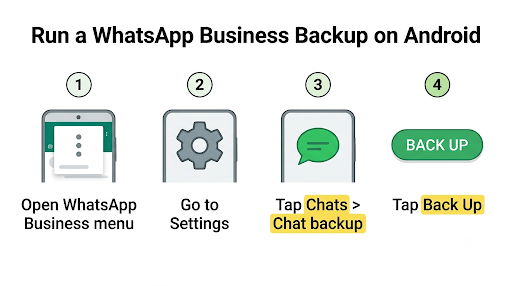
- Check the backup size inside the app. In WhatsApp Business, tap the three dots, then Settings > Chats > Chat backup. You will see the last backup date and its size. Compare it with your free Google storage.
- Shrink the backup. Turn off Include videos on the Chat backup screen. Then go to Settings > Storage and data > Manage storage and delete large files and forwarded media you no longer need. For a business account, old product videos and repeated promo images are usually the biggest offenders.
- Confirm the backup schedule. Under Back up to Google Account, choose Daily, Weekly, or Monthly. If it says Never, automatic backups will not run.
- Confirm the right Google Account. Tap Google Account on the backup screen and make sure it is the one with free space. You can switch to a different Google Account here if your main one is full.
- Allow background activity. Go to your phone’s Settings > Apps > WhatsApp Business > Battery and set it to Unrestricted (the label varies by brand). Also make sure background data is allowed under Mobile data. Battery savers on Samsung, Xiaomi, Oppo, and Vivo phones often kill uploads halfway through.
- Clear the cache. Long-press the WhatsApp Business icon, tap App info > Storage, and tap Clear cache. Do not tap Clear data or Clear storage, because that wipes your local chats.
- Update Google Play services and WhatsApp Business from the Play Store.
- Refresh the permission trick. This one comes up again and again in Reddit and Stack Exchange threads: set backup frequency to Never, force stop the app, clear cache, remove the Photos and Videos permission in phone settings, reopen WhatsApp Business, grant the permission again, and run a manual backup.
- Sign out and back into your Google Account on the phone, then retry.
Dual SIM tip: If you run WhatsApp Business on a second SIM, make sure the SIM tied to the business number is active. WhatsApp’s troubleshooting advice specifically calls this out for dual SIM phones, and it is easy to miss when the business SIM is set to off for calls or data.
Where Is the Local WhatsApp Business Backup on Android?
Android also keeps a local copy of your chats on the phone, separate from the Google Account backup. WhatsApp Business uses its own folder, not the regular WhatsApp folder. Its app package name is com.whatsapp.w4b, and the files sit in a folder named WhatsApp Business, inside a Databases subfolder. On newer Android versions, you will usually find it under Android > media > com.whatsapp.w4b in a file manager.
This matters for two reasons. First, if you look in the regular “WhatsApp” folder, you will think no backup exists. Second, if a cloud backup keeps failing, copying this folder to a computer gives you a safety net before you try any risky fix like reinstalling.
Why Is My WhatsApp Business Backup Not Working on iPhone?
On iPhone, the backup usually fails because of space on both sides.
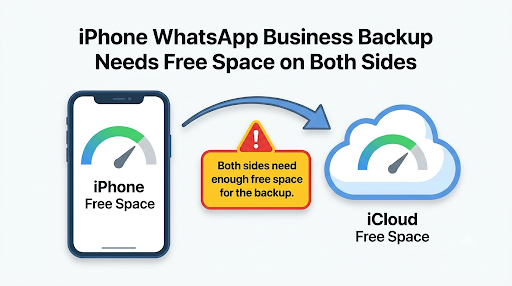
iCloud needs room to store the backup, and your iPhone needs room to build it first. WhatsApp’s rule is that both iCloud and the iPhone need free space of at least 2.05 times the size of the backup. So a 6 GB backup needs a little over 12 GB free on the phone and in iCloud.
The second big cause is iCloud Drive. WhatsApp Business saves its backup to iCloud Drive, not to the regular iPhone backup. If iCloud Drive is off, or WhatsApp Business is not allowed to use it, the backup cannot start.
Apple users get only 5 GB of free iCloud storage, and that space is shared with device backups, photos, and messages. Many business owners hit this limit within months.
How Do You Fix a WhatsApp Business Backup on iPhone?
- Check iCloud storage. Go to Settings > [your name] > iCloud and see what is left. Compare it with the backup size shown in WhatsApp Business under Settings > Chats > Chat Backup.
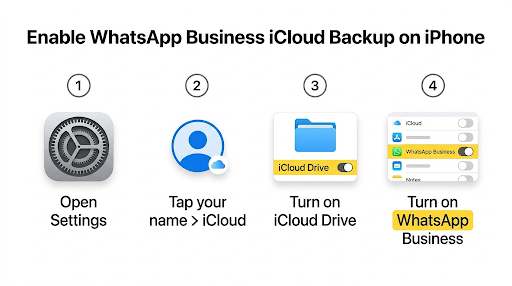
- Check iPhone storage. Go to Settings > General > iPhone Storage. Apply the 2.05 times rule here as well.
- Turn on iCloud Drive for WhatsApp Business. Go to Settings > [your name] > iCloud > iCloud Drive and make sure it is on, and that WhatsApp Business is switched on in the app list. If it is already on, turn it off and back on.
- Turn off Low Power Mode. Go to Settings > Battery. Low Power Mode disables Background App Refresh, which can pause a long upload.
- Turn on Background App Refresh for WhatsApp Business in Settings > General > Background App Refresh.
- Turn off Low Data Mode on your Wi-Fi network (tap the info icon next to the network in Wi-Fi settings).
- Set Auto-Lock to Never while the backup runs (Settings > Display & Brightness > Auto-Lock), keep the app open, and plug in the charger. Set Auto-Lock back afterward.
- Using mobile data? Make sure iCloud Drive is allowed to use cellular data in Settings > Cellular. Wi-Fi is the safer choice for large backups.
- Update iOS and WhatsApp Business. Older iOS versions are a known cause of backup failures.
- Sign out of iCloud and back in, then try a manual backup.
Watch out for double storage: If both the WhatsApp Business chat backup and the full iPhone iCloud Backup include WhatsApp data, the same chats can take up iCloud space twice. If you are short on iCloud space, check Settings > [your name] > iCloud > Manage Account Storage > Backups and see whether WhatsApp Business is being stored there too.
What Should You Do If the Backup Is Stuck at 99%?
A backup stuck at 99% has usually finished building the file but cannot finish the upload. The fix is to give it a clean, uninterrupted run.
- Force-close WhatsApp Business and restart the phone.
- Connect to a fast, stable Wi-Fi network. Avoid public or hotel Wi-Fi with login pages.
- Turn off any VPN for a moment, since some VPNs slow or block large uploads.
- Plug in the phone, turn off Low Power Mode or battery saver, and keep the screen awake.
- Delete large, unneeded media to cut the upload size.
- Start a manual backup and leave the phone alone until it finishes.
If it still stalls at the same point every time, the existing cloud backup may be damaged. WhatsApp says it cannot repair a corrupted backup or tell you what caused it. In that case, the practical fix is to delete the old cloud backup and create a brand new one. Your chats stay on your phone as long as you do not uninstall WhatsApp Business.
Be careful here. Deleting the cloud backup is permanent. Do it only while the app is working normally on your phone, and run a new backup right after.
Is Your Backup Blocked by an Encrypted Backup Password?
If you turned on end-to-end encrypted backup at some point, WhatsApp Business protects the backup with a password, a 64-digit encryption key, or a passkey.
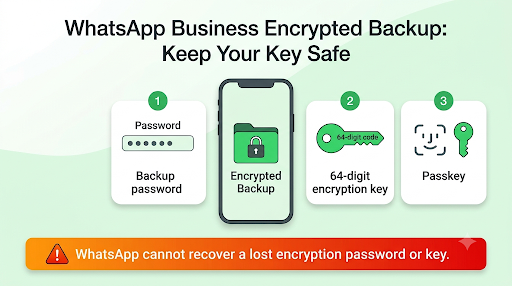
WhatsApp started rolling out passkey-encrypted backups in late 2025, which let you unlock the backup with your fingerprint, face, or screen lock instead of remembering a password.
Here is what most guides do not tell you clearly:
- WhatsApp cannot reset or recover your encryption password or key. Without it, nobody can open that backup. Not WhatsApp, not Google, not Apple.
- If you still have access to WhatsApp Business on your phone and forgot the password, you can change it from Settings > Chats > Chat backup > End-to-end encrypted backup. New backups will then use the new password.
- Passkey backups need Android 9 or later or iOS 18 or later, plus a screen lock on the phone.
- Third-party tools that promise to “unlock” an encrypted WhatsApp backup without the key do not work. Save your money.
For a business account, store the encryption password or key in a password manager that more than one trusted person on your team can reach. If the owner’s phone is lost, that key is the only way back into years of customer chats.
Why Did My Backup Disappear or Fail to Restore?
Sometimes the backup “worked” but you cannot find it when you need it. These limits explain most of those cases:
- Google can delete old backups. WhatsApp notes that Google may automatically delete WhatsApp backups that have not been updated in about 5 months. If your schedule was off for a long time, the old backup may be gone.
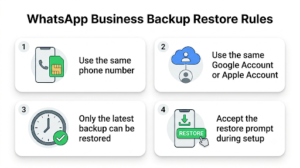
- Only the latest backup can be restored. Each new backup replaces the old one. Messages sent or received after the last backup cannot be restored.
- Same number, same account. You must restore with the same phone number and the same Google Account or Apple Account used to create the backup.
- Accept the restore the first time. The restore option only appears during setup. If you skip it and the app makes a new backup, the old one can be overwritten.
- Android and iPhone backups do not cross over. A Google Account backup cannot be restored on an iPhone, and an iCloud backup cannot be restored on Android. Use WhatsApp’s chat transfer feature to switch platforms.
- Channel media is not included unless you are the channel admin.
After a restore, some people notice customer chats show phone numbers instead of saved names. That is usually a contacts sync or permission issue, not a broken backup. Our guide on fixing WhatsApp Business contacts that show numbers instead of names walks through that part.
Is WhatsApp Business Backup Different From Regular WhatsApp?
The backup process is the same, but a few business-specific details trip people up.
- Separate backups. WhatsApp Business and WhatsApp Messenger keep separate backups, even on the same phone and the same cloud account. Seeing a recent Messenger backup does not mean your Business chats are safe.
- One number, one app. A phone number can only be active on WhatsApp Messenger or WhatsApp Business at one time. If you moved your number between the two apps, back up first, then restore during setup.
- Backups come from the main phone only. WhatsApp Web, the desktop app, and other linked devices do not create their own backups. If your staff answer customers mostly from a computer, the chats still need to be backed up from the main phone. If those linked sessions keep dropping, see our guide on WhatsApp Business linked devices not working.
- Bigger backups. Business accounts tend to collect far more media: catalog images, invoices, PDFs, voice notes, and videos from customers. That is why business backups hit storage limits much sooner than personal ones.
Could Another WhatsApp Business Problem Be Causing This?
Yes. A backup failure is often a sign of a deeper issue with storage, network, or background access, and those same issues break other features too.
- If photos and documents also fail to go through, the root cause is often the same storage or permission problem. Check our guide on WhatsApp Business not sending media.
- If messages stay on one grey tick or the clock icon, your connection or data settings are likely blocking the backup as well. See why WhatsApp Business messages are not sending.
- If you also miss customer alerts, battery optimization is probably restricting the app in the background, which is the same thing that kills overnight backups. Our fix for WhatsApp Business notifications not working covers those battery settings in detail.
What Mistakes Make Backup Problems Worse?
A few common “fixes” can cost you your chat history. Avoid these:
- Uninstalling the app before you have a good backup. Uninstalling deletes chats from the phone. If the cloud backup is old or broken, those chats are gone.
- Tapping “Clear data” instead of “Clear cache” on Android. Clear data resets the app.
- Deleting the cloud backup and then changing phones before a new backup finishes.
- Skipping the restore prompt during setup and assuming you can come back to it later.
- Trusting the automatic schedule blindly. Check the “Last backup” date once a week. A business can lose weeks of orders without noticing the backup stopped.
- Paying for recovery software to open an encrypted backup without the key. It will not work.
How Do You Keep WhatsApp Business Backups From Failing Again?
A few small habits prevent most future failures:
- Set a daily backup schedule and turn on Wi-Fi only backups.
- Leave the phone charging on Wi-Fi overnight, since daily Android backups run at night.
- Exclude videos if you do not need them, and clear old media every month with the storage manager.
- Keep at least a few GB free in Google storage or iCloud above your backup size.
- Store your encrypted backup password or key somewhere safe and shared with a trusted partner.
- Run a manual backup before any big change: a new phone, a phone reset, an app switch, or a number change.
Frequently Asked Questions
Why does WhatsApp Business say my Google storage is full when Google Drive looks empty?
Your Google storage is shared across Gmail, Google Drive, and Google Photos. Drive can look empty while Gmail attachments or Photos use most of the 15 GB. Check the full storage breakdown in the Google One app, not just the Drive app.
How long should a WhatsApp Business backup take?
It depends on the backup size and your upload speed. A small, text-heavy backup may finish in a few minutes, while a backup of several GB with lots of media can take an hour or more on slower Wi-Fi. The first backup is always the slowest, so WhatsApp recommends doing it on Wi-Fi with the phone plugged in.
Can I back up WhatsApp Business to OneDrive, Dropbox, or a computer?
Not directly. WhatsApp Business only supports Google Account backups on Android and iCloud on iPhone. On Android, you can manually copy the local WhatsApp Business folder to a computer as an extra safety copy, but restoring from it takes more steps than a cloud restore.
Will I lose my chats if the backup keeps failing?
No, not as long as WhatsApp Business stays installed and working on your phone. A failed backup only means the cloud copy is out of date. The risk comes if you lose, reset, or replace the phone before a backup succeeds.
Can I use a different Google Account just for WhatsApp Business backups?
Yes. You can pick any Google Account added to the phone on the Chat backup screen. Many business owners use a separate account so customer chat backups never compete with personal Gmail and Photos storage. Just remember you must use that same account when you restore.
Why does my backup keep asking for a 64-digit key?
That key means end-to-end encrypted backup was turned on, either by you or by someone who set up the phone. You need that key, the password, or the passkey to restore. If you are still logged in, you can change the encryption password from the encrypted backup settings before you need to restore.
What Should You Do Next?
If you are on Android, open the Google One app first and check your storage, because a full Google account is now the number one reason WhatsApp Business backups fail. If you are on iPhone, check that iCloud Drive is on for WhatsApp Business and that both iCloud and the phone have more than twice the backup size free.
Then plug in the phone, connect to strong Wi-Fi, turn off battery savers, and run one manual backup. Watch the “Last backup” date change. Once it does, set a daily schedule and check it once a week. For a business that depends on customer chats, that one weekly glance is the cheapest insurance you will ever buy.
