



If your WhatsApp Business product price is not showing, the cause is usually one of these: the price field was left blank or didn’t save, the item is still under review or was rejected, the item is hidden, or price entry isn’t supported in your region. If your catalog comes from Meta Commerce Manager or the API, a bad price or currency value in the product data can also hide the price or show the wrong amount.
The good news is that most of these take a few minutes to fix. This guide covers every cause, from simple app settings to Commerce Manager sync problems. It also shows you how to check what your customers actually see.
Quick Overview
| What you see | Most likely cause | Quick fix |
| Price is blank on one or two items | Price never entered or didn’t save | Edit the item, add the price, tap Save |
| No price field in the item editor | Price entry isn’t available in your country or region | Add the price to the item name or description |
| You see the price, customers don’t see the item | Item pending review, rejected, or hidden | Wait for approval, request another review, or unhide it |
| “Changes not saved” when adding a price | Price or link field blocked, or a temporary app glitch | Update the app, retry, or save without the price |
| Wrong amount or currency | Currency setting or price format error in synced data | Fix the currency and price format in Commerce Manager |
| Prices missing on all API or Shopify-synced items | Catalog not linked, sync failed, or catalog visibility off | Check the catalog connection and item status in Commerce Manager |
Why Is My WhatsApp Business Product Price Not Showing?
The price usually disappears because of missing data, a review status, or a regional limit. It is rarely a bug that only WhatsApp can fix. Here are the real causes, in the order you should check them.
- The price field is empty. Price is an optional field in the WhatsApp Business app. If you skipped it, or the save failed, the item shows up with no price.
- The item is pending review. WhatsApp reviews every new or edited catalog item against its Commerce Policies. Until it’s approved, customers can’t see it.
- The item was rejected. A rejected item shows a red exclamation mark on your side and stays invisible to customers.
- The item is hidden. The “Hide item” toggle removes a product from your public catalog without deleting it. It’s easy to switch on by accident.
- Your region doesn’t support prices. In some countries, the app doesn’t let you add a price at all, or the save fails when a price is included.
- The product data is wrong. For catalogs managed in Meta Commerce Manager, a missing currency code or a wrongly formatted price can block the item or show the wrong number.
- The customer’s app is outdated. Older versions of WhatsApp may not display catalog and product messages correctly.
How Do You Fix a Missing Price in the WhatsApp Business App?
Open the item in your catalog, add the price in the Price field, and tap Save. Then wait for the edit to clear review. The exact path depends on your device.
On Android
- Open WhatsApp Business.
- Tap More options (three dots) > Business tools > Catalog. On newer versions, you may find Catalog under the Tools tab instead.
- Tap the product with the missing price.
- Tap the Edit (pencil) icon.
- Enter the amount in the Price field. Check that the currency next to it is correct.
- Tap Save.
On iPhone
- Open WhatsApp Business.
- Tap Settings > Business tools > Catalog.
- Select the product and tap Edit.
- Add the price, confirm the currency, and tap Save.
On WhatsApp Web or Desktop
- Open WhatsApp Web or the desktop app linked to your business account.
- Click the three dots menu > Business tools > Catalog.
- Open the item, add the price, and click Save.
Tip: After saving, reopen the item. If the price field is empty again, the save didn’t go through. That points to a regional limit or an app issue, not a typo.
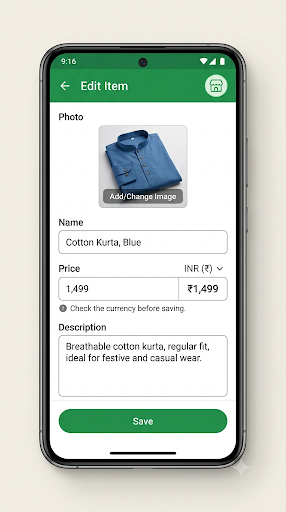
Remember that every edit can send the item back into review. Review usually takes a few hours, though it can take up to about 24 hours. During that window, the updated item may not appear for customers.
What Should You Do If There’s No Price Field at All?
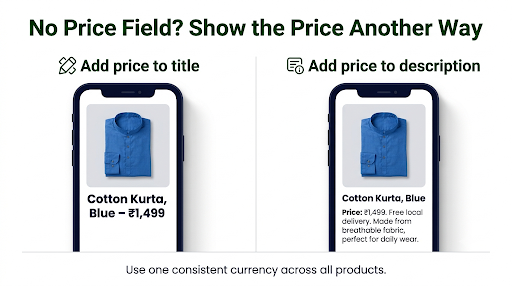
If the Price field is missing or the app refuses to save with a price, your country or region most likely doesn’t support catalog prices. WhatsApp first launched catalogs in a limited set of countries, and price support still varies by market.
You can’t turn this on yourself, but you can work around it:
- Put the price in the item name. For example: “Cotton Kurta, Blue, $24.99.” Customers see the name first, so this is the most visible option.
- Add the price at the start of the description. Something like “Price: $24.99, free local delivery” works well.
- Use “Price on request” for custom work. If prices change per order, say so clearly. It tells shoppers to message you instead of leaving them guessing.
- Keep prices updated in text. Manual prices don’t sync anywhere, so set a reminder to review them when your rates change.
Getting “Changes not saved”? Try removing the price and saving the item. If it saves, the price field is the blocker, and you should move the price into the title. If it still won’t save, remove the website link from the item and try again. Links can also cause failed saves.
Why Does the Price Show for You but Not for Customers?
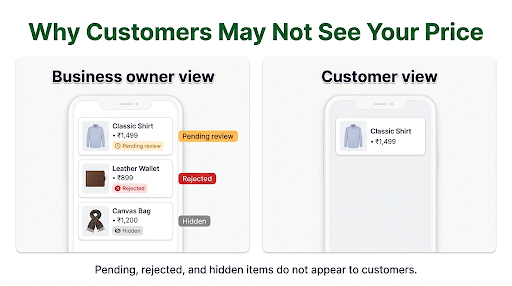
You see your catalog through the business owner view, which includes items that are pending, rejected, or hidden. Customers only see approved, visible items. So an item that looks perfect on your phone may not exist for buyers yet.
Check these one by one:
- Look for a status label. Items under review show a pending status. Rejected items show a red exclamation mark.
- Request another review. For a rejected item, tap it and choose Request another review. Before you do, fix whatever likely broke the rules, such as a misleading image or a restricted product category.
- Check the Hide item toggle. Open the item, tap Edit, and make sure Hide item is off.
- Test from another phone. Ask a friend to open your profile and tap your catalog. This is the only reliable way to see the customer view.
- Ask the customer to update WhatsApp. According to Meta’s WhatsApp catalog documentation, customers on outdated app versions may not receive product messages properly.
If customers can’t see your catalog or your business details at all, the problem is bigger than one price. Work through the steps in our guide on fixing a WhatsApp Business profile that isn’t showing to customers before you edit individual items.
Why Is the Price Showing the Wrong Amount or Currency?
A wrong price is almost always a currency setting or a formatting error, especially if your catalog syncs from another platform. The item looks active, but the number is off.
In the WhatsApp Business app
The currency usually defaults to your country’s currency. If you sell to customers in another country, check the currency shown next to the Price field before saving. Mixing currencies across items confuses shoppers, so pick one and use it everywhere.
In Meta Commerce Manager, data feeds, or the API
Synced catalogs are strict about format. Common errors include:
- Using a symbol instead of a currency code. Feeds need the three-letter ISO code, like USD, GBP, or INR, not $ or £.
- Missing the currency entirely. If the currency isn’t set, the price may fall back to a default currency and display incorrectly.
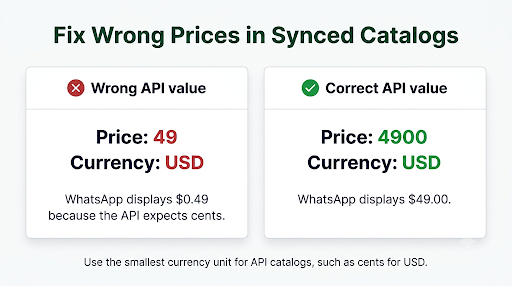
- Sending the wrong unit through the API. Meta’s catalog API expects the price in the smallest currency unit. So $19.99 is sent as 1999, and ₹499 is sent as 49900. Send “499” for a ₹499 item and customers will see ₹4.99.
- Stale feed data. If you changed prices on your website but the feed hasn’t refreshed, WhatsApp keeps showing the old price until the next sync.
Example: A clothing store syncs products from Shopify. The website shows $49, but WhatsApp shows $0.49. The cause is a price sent in dollars to a field that expects cents. Fixing the value at the source and re-syncing solves it for every item at once.
Can You Show a Sale or Discounted Price on WhatsApp?
Not in the WhatsApp Business app itself. The app gives you one Price field, with no built-in “compare at” or strikethrough option. If you edit the price to the sale amount, customers simply see the new number.
If you manage products in Meta Commerce Manager, you can set a sale price alongside the regular price. Many WhatsApp tools that use the API rely on this field to show discounts in product messages.
For app users, the simplest approach is to edit the price and note the offer in the description, such as “Was $40, now $30 until Sunday.” Then remember to change it back when the sale ends.
How Do You Fix Prices on a Catalog Connected to Commerce Manager or the API?
Start in Meta Commerce Manager, because WhatsApp only shows what’s approved there. Check the item status, the price and currency fields, and the catalog connection to your WhatsApp Business account.
- Confirm the catalog is connected. In WhatsApp Manager, open your account and check the Catalog section. Only one catalog can be connected per WhatsApp Business account.
- Check item status. In Commerce Manager, look for items marked rejected or with errors. Error messages usually name the field that failed, such as price or currency.
- Make sure price is filled in. On the API side, price is a required field. Items without one may be held back from WhatsApp completely.
- Turn on catalog visibility. For API numbers, the catalog storefront has to be enabled in the number’s commerce settings. If it’s off, customers won’t see the catalog in chats or on your profile.
- Re-sync after fixes. Changes can take anywhere from a few minutes to about a day to appear.
Edge cases that trip people up
- Product variants. Some integrations show variants (sizes, colors) as a single WhatsApp product. The price shown may only match one variant, so list price differences in the description.
- Coexistence numbers. If your number runs on both the WhatsApp Business app and the API, the app’s own catalog may still be the one customers see. Editing the Commerce Manager catalog won’t change it.
- Product sets. If you share products through sets, an item missing from the set won’t appear, even if the main catalog has it.
- Businesses in India. Meta has extra compliance requirements for API catalogs in India. If catalog features won’t turn on, check that your business compliance details are submitted.
What Are the Most Common Mistakes to Avoid?
- Editing items over and over. Every save can restart review. Make all your changes in one go.
- Testing only on your own phone. Your view includes hidden and pending items. Always check from a customer’s phone.
- Using misleading prices. Prices that look unrealistic, such as $0 or $1 for a premium product, can get items rejected under commerce rules.
- Mixing currencies. One item in USD and another in local currency makes your catalog look unreliable.
- Forgetting manual prices. Prices typed into names or descriptions don’t update on their own.
- Ignoring the policy. Restricted products like alcohol, weapons, and prescription drugs get rejected no matter how you format the price. Review the WhatsApp Commerce Policy before you request another review.
Which Other Profile Problems Should You Check?
A missing price is often a sign that other parts of your business profile need attention too. Shoppers who can’t find a price usually check your hours, address, and website next. If any of those are broken, they may not message you at all.
- If your opening times don’t appear, follow our steps for WhatsApp Business hours not showing.
- Local shoppers rely on your address, so make sure your business location shows up on your profile.
- Many customers tap your website to compare prices. Check that the website link on your WhatsApp Business profile is clickable.
WhatsApp also suggests keeping your catalog fresh and sharing items directly in chats. Its catalog guide for the WhatsApp Business app covers sharing collections and single items.
Frequently Asked Questions
Why is my WhatsApp Business product price not showing on iPhone?
The causes are the same on iPhone and Android: a blank price, a pending or rejected item, a hidden item, or a regional limit. On iPhone, also make sure the app is updated from the App Store, since older versions can fail to save catalog edits.
Is the price field required in a WhatsApp Business catalog?
No. In the WhatsApp Business app, price is optional, and items can go live without one. On the API and Commerce Manager side, though, price is required, and items without a valid price may not sync to WhatsApp.
How long does it take for an updated price to show?
Most edits clear review within a few hours. Some take up to about 24 hours. If the price still isn’t visible after a day, check the item for a rejection mark.
Can I hide prices on purpose in my WhatsApp catalog?
Yes. Just leave the Price field empty. It’s a good idea to add “Price on request” or “Message us for a quote” to the description so customers know what to do next.
Why does my catalog show the price in the wrong currency?
In the app, the currency next to the Price field may have defaulted to another country. For synced catalogs, the currency code in your product data is missing or wrong. Fix it at the source, then re-sync.
Do customers need WhatsApp Business to see my prices?
No. Customers can view your catalog and prices on regular WhatsApp. They just need a reasonably current app version and an approved, visible item.
Final Recommendation
Start with the simplest check: open the item, confirm a price is saved, and make sure it isn’t hidden or rejected. Then test your catalog from a second phone to see the real customer view. If there’s no price field at all, move the price into the item name and description. If you run a synced catalog through Commerce Manager or the API, fix the price format and currency code at the source and re-sync. That one step usually fixes every affected product at once.
