


If your WhatsApp Business hours are not showing, the cause is usually one of four things: the hours were never saved properly, a closing time runs past midnight, your phone’s time zone is off, or your number runs on the WhatsApp Business API (which has no business hours field at all). Most people fix it in under five minutes by re-saving the schedule in the app and keeping each day’s hours inside one calendar day.
This guide walks you through every fix, from the quick checks to the less obvious API and CRM issues, so customers can see exactly when you are open.
Quick Overview
| What you see | Most likely cause | Quick fix |
| Hours missing from your profile | Schedule not saved, or field left blank | Go to Settings > Business tools > Business profile > Business hours, set a schedule, tap Save |
| Opening time resets or hours look broken | Closing time set past midnight (for example 6:00 PM to 2:00 AM) | End the day at 11:59 PM and add the late hours to the next day |
| Profile says “Closed” when you are open | Wrong phone time zone or manual date and time | Turn on automatic date, time, and time zone on your phone |
| Edit option for hours is gone | App glitch or outdated version | Update the app, restart your phone, then check again |
| No hours option at all | Number connected to the WhatsApp Business API, Meta Business Manager, or a CRM | Add hours in the About or Description field, and set hours inside your provider’s dashboard |
| “Outside of business hours” missing in Away message | No business hours saved in your profile | Save business hours first, then reopen Away message |
Where Do Business Hours Show Up on WhatsApp Business?
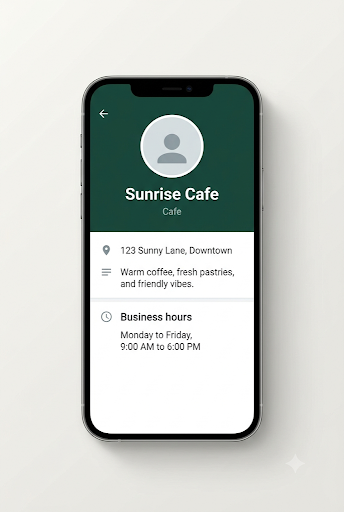
Your business hours appear on your business profile, which customers open by tapping your business name at the top of a chat. According to the WhatsApp Help Center, customers can see your
OrthoMend Hospital Website – Complete Homepage Redesign Prompt
Act as a Senior UI/UX Designer and Frontend Developer specializing in premium healthcare and orthopedic hospital websites.
I want you to completely redesign the homepage of my existing website:
Website: https://demo-nine-omega-61.vercel.app/
Use the existing live website and the attached homepage screenshot as your reference for the current content, sections, branding, and functionality.
1. Main Design Objective
Redesign the entire homepage into a modern, premium, trustworthy orthopedic hospital website.
The new design should feel like a professional international orthopedic and joint replacement hospital, not a generic medical website template.
Design requirements:
- Modern, clean, attractive and professional.
- Flat design with minimal shadows.
- Premium healthcare visual identity.
- Excellent visual hierarchy.
- Consistent spacing and alignment.
- Clean white backgrounds with carefully selected medical colors.
- Beautiful medical imagery and orthopedic doctor photography.
- Professional cards with subtle borders and rounded corners.
- Responsive across desktop, tablet and mobile.
Important typography requirement:
Keep the existing website’s font family, font sizes and typography scale exactly the same. Do not introduce new font families or arbitrarily increase or decrease heading and paragraph sizes.
You can improve font weights, colors, line heights and text spacing only when necessary, without changing the established typography system.
2. New Healthcare Color Palette
Replace the existing dark-heavy blue and cyan combination with a more premium orthopedic healthcare color system.
Use this color palette consistently:
- Primary Medical Blue: #0879B9
- Deep Navy: #123B56
- Healthcare Teal: #13A89E
- Soft Medical Background: #F3F8FB
- White: #FFFFFF
- Main Text: #263B4D
- Secondary Text: #718394
- Border: #E3EDF2
- Accent: #DDF3F2
Color guidelines:
- Use white as the primary section background.
- Use soft medical blue for alternate sections.
- Use deep navy for selected sections and footer.
- Use teal for small highlights, labels and trust indicators.
- Use primary blue for buttons and important actions.
- Avoid excessive gradients, neon colors and unnecessary color combinations.
3. Header and Navigation Redesign
Create a clean, premium and modern hospital header.
Requirements:
- White background.
- Existing OrthoMend logo on the left.
- Navigation links on the right.
- About, Specialties, Our Team, Patient Stories, Clinic Gallery and Contact.
- Phone number with Font Awesome phone icon.
- Attractive Book Consultation button.
- Sticky navigation on scroll.
- Smooth hover effects.
- Mobile responsive hamburger navigation.
Keep the header compact and professional.
4. Hero Section – Completely Redesign
This is the most important part of the redesign.
Do not reuse the existing hero layout. Create a completely new and visually attractive hero section.
Design direction:
Use a modern split-layout hero with:
- Left side: headline, supporting description, trust badges and CTA buttons.
- Right side: large, high-quality orthopedic doctor or orthopedic patient treatment image.
- Add a small floating doctor experience or patient satisfaction card.
- Add a clean trust indicator section.
- Use a soft medical background instead of a heavy dark blue background.
Suggested content:
Small label:
ADVANCED ORTHOPEDIC & JOINT CARE
Main heading:
Move Better. Live Better. Stay Pain-Free.
Description:
Expert orthopedic care, advanced joint replacement and personalized treatment to help you return to an active and healthy life.
CTA buttons:
- Book Free Consultation
- Explore Treatments
Trust indicators:
- 12K+ Surgeries
- 98% Patient Satisfaction
- 18+ Years Experience
Hero Slider / Multiple Slides
Make the hero section dynamic using Owl Carousel.
Create 3 different hero slides with different orthopedic visuals and messaging:
Slide 1: Joint Replacement
Headline: Move Without Pain. Live With Confidence.
Visual: Orthopedic surgeon and patient.
Slide 2: Sports Injury Treatment
Headline: Recover Stronger. Return to Your Game.
Visual: Sports physiotherapy or sports injury recovery.
Slide 3: Advanced Orthopedic Care
Headline: Expert Care for Every Step of Life.
Visual: Orthopedic doctor consulting a patient.
Requirements:
- Smooth transition animations.
- Auto-play with a reasonable interval.
- Navigation arrows and pagination dots.
- Mobile-friendly image positioning.
- Avoid excessive animation.
- Maintain consistent section height between slides.
If the consultation form is retained, integrate it elegantly into the hero without making the layout crowded. On mobile, prioritize the headline and CTA, with the consultation form accessible immediately below.
5. Doctor Introduction / About Surgeon Section
Redesign the existing About the Surgeon section.
Layout:
- Left: Large professional doctor photograph with clean rectangular or slightly rounded corners.
- Right: Doctor name, designation, credentials and professional description.
- Add experience and achievement highlights.
- Add 3–4 small expertise indicators with Font Awesome icons.
Keep the existing content and factual information.
Use:
- White background.
- Balanced two-column layout.
- Minimal decoration.
- Clean typography and spacing.
6. Orthopedic Specialties Section
Redesign Advanced Orthopedic Treatments.
Create an attractive responsive grid of specialty cards.
Existing specialties:
- Knee Replacement
- Hip Replacement
- Sports Injuries
- Arthroscopy
- Spine Care
- Fracture & Trauma Care
- Physiotherapy & Rehab
- Joint Preservation
Card design:
- White background.
- Small medical icon inside a soft blue icon container.
- Specialty title.
- Short description.
- Explore Treatment link with arrow icon.
- Subtle border.
- Small hover elevation or border-color transition.
Desktop: 4 cards per row.
Tablet: 2 cards per row.
Mobile: 1 or 2 cards per row depending on available width.
Avoid oversized cards and excessive shadows.
7. Our Medical Team Section
Redesign the Meet the Care Team section.
Use an attractive doctor profile layout.
Each card should contain:
- Professional doctor photograph.
- Doctor name.
- Medical designation.
- Specialty.
- Short experience description.
- Optional social or profile link.
Use clean white cards with consistent image ratios.
Use Owl Carousel for the doctor slider if it improves the layout.
Maintain the existing doctor information.
8. Patient Testimonials Section
Create a premium patient stories section.
Design direction:
- Soft medical blue background or deep navy background.
- White testimonial cards.
- Star ratings.
- Patient photograph or avatar.
- Patient name.
- Treatment type.
- Short testimonial.
Use Owl Carousel for sliding testimonials.
Add:
- Custom navigation arrows.
- Pagination dots.
- Responsive behavior.
- Smooth transitions.
9. Clinic Gallery Section
Redesign Inside OrthoMend Clinic.
Requirements:
- Clean white background.
- Centered section heading and description.
- Large clinic photographs.
- Consistent image aspect ratios.
- Owl Carousel slider.
- Custom navigation arrows and pagination dots.
- Attractive spacing.
Display images without distortion and use appropriate object-fit properties.
10. Final Consultation CTA Section
Create an attractive full-width consultation call-to-action section.
Suggested heading:
Ready to Take the First Step Toward Pain-Free Movement?
Supporting text:
Book your consultation with our orthopedic specialists and discover the right treatment for your needs.
Button:
Book Free Consultation
Use primary medical blue or teal background with white text.
Keep this section clean and visually prominent.
11. Footer Redesign
Create a modern professional healthcare footer.
Include:
- OrthoMend logo and short description.
- Clinic address.
- Contact number.
- Email address.
- Emergency contact.
- Quick navigation links.
- Specialty links.
- Social media icons.
- Google Maps embed or existing map.
Use deep navy background with white and muted blue text.
Add a clean copyright section.
12. Floating Contact Buttons
Add a fixed bottom contact bar or floating contact actions.
Include:
- Call Now.
- WhatsApp Us.
Use Font Awesome icons.
Ensure the buttons do not cover important content or interfere with mobile navigation.
13. Technical Requirements – Strictly Follow
Build the complete frontend using:
- HTML5
- Bootstrap 5.3
- Custom CSS3
- JavaScript (ES6)
- jQuery
- Owl Carousel 2.3.4
- Font Awesome icons
Use CDN links for all libraries.
Owl Carousel must be used for:
- Hero slider.
- Patient testimonials.
- Doctor team slider where appropriate.
- Clinic gallery slider.
Use Font Awesome icons for:
- Phone.
- WhatsApp.
- Navigation.
- Medical specialties.
- Trust indicators.
- Social media.
- CTA buttons.
Do not use:
- React.
- Vue.
- Angular.
- Tailwind CSS.
- Any additional CSS framework.
- Unnecessary animation libraries.
Code Quality
- Use semantic HTML5.
- Use Bootstrap 5 grid and utilities.
- Write organized and reusable custom CSS.
- Use meaningful class names.
- Keep CSS separate from HTML where practical.
- Keep JavaScript in a separate file where practical.
- Avoid inline styles.
- Avoid duplicate CSS.
- Ensure all buttons and links have functional destinations.
- Use accessible navigation and proper form labels.
- Add image alt attributes.
- Ensure Owl Carousel initializes correctly.
- Make all sliders touch-friendly.
14. Responsive Design
The website must work perfectly on:
- Desktop: 1440px and above.
- Laptop: 1024px–1366px.
- Tablet: 768px–991px.
- Mobile: 320px–767px.
Mobile requirements:
- Compact navigation.
- Properly stacked hero layout.
- No horizontal scrolling.
- Proper image scaling.
- Readable content.
- Full-width CTA buttons where appropriate.
- Responsive cards.
- Optimized slider behavior.
- Floating contact buttons positioned correctly.
15. Performance and SEO
- Optimize image dimensions and loading.
- Use lazy loading for below-the-fold images.
- Do not lazy-load the main hero/LCP image.
- Add width and height attributes to images.
- Avoid unnecessary JavaScript.
- Prevent layout shifts.
- Use semantic heading hierarchy.
- Add SEO-friendly section structure.
- Maintain good Core Web Vitals.
- Respect prefers-reduced-motion settings.
16. Important Design Restrictions
- Do not simply change the existing website colors. Completely rethink the visual layout.
- Keep the same website content, doctor names, specialties, testimonials and contact details.
- Do not invent hospital certifications, patient statistics, awards or medical claims.
- Keep the existing font family and font sizes unchanged.
- Avoid excessive gradients, glassmorphism, heavy shadows and decorative elements.
- Avoid generic AI-generated website layouts.
- Focus on premium healthcare branding and flat UI design.
- Keep the website visually balanced, clean and trustworthy.
- Do not remove existing homepage sections or important functionality.
- Do not modify the existing backend or API functionality.
17. Final Deliverables
Generate a complete working homepage redesign, not just a design concept.
Provide:
- Complete HTML5 code.
- Complete custom CSS.
- Complete JavaScript.
- Bootstrap 5 CDN integration.
- Owl Carousel CDN integration and initialization.
- Font Awesome CDN integration.
- Responsive navigation.
- Functional hero slider.
- Responsive specialty cards.
- Doctor, testimonial and gallery sliders.
- Responsive footer and floating contact actions.
Before finalizing, compare the new implementation with the original screenshot and ensure the redesign is visually distinct, modern, responsive and production-ready.
Final design direction: Premium Orthopedic Hospital + Modern Healthcare Branding + Minimal Flat UI + Medical Blue & Teal + Clean White Space.
The final result should look like a professionally designed international orthopedic hospital website, not a basic Bootstrap template.
name, description, address, business hours, and category on that profile.
Here is what trips a lot of people up: hours do not appear inside the chat window itself. They live on the profile screen. So if you are checking the chat list or the chat header and seeing nothing, your hours may be working fine.
Customers do not need WhatsApp Business to see your hours. Someone using the regular WhatsApp app can still open your business profile and view them.
Why Are My WhatsApp Business Hours Not Showing?
The short answer: something in the setup, the time settings, or the account type is blocking the hours from displaying. Here are the common causes, ranked from most to least likely.
- The schedule was not saved. Leaving the screen without tapping Save is the number one reason.
- The midnight bug. Hours that cross midnight can reset the opening time or stop the schedule from displaying correctly.
- Time zone problems. If your phone uses a manual time or the wrong zone, the open or closed status can be wrong.
- Wrong schedule template. “Appointments only” and “Always open” do not show a day-by-day timetable.
- Outdated app or a buggy update. Some users report the business hours edit option disappearing after an update.
- You are on the API. The WhatsApp Business Platform (API) profile does not include a business hours field.
- The customer’s view is out of date. An old app version or a profile that has not refreshed on their side.
How Do You Fix WhatsApp Business Hours Not Showing?
Work through these fixes in order. Start with the first three, because they solve the problem for most business owners.
Fix 1: Set and Save Your Business Hours Again
Even if you think your hours are already set, re-save them. It clears up half-saved schedules and blank days.
On Android:
- Open WhatsApp Business.
- Tap the three dots, then Settings (on newer versions, tap the Tools tab instead).
- Tap Business tools > Business profile.
- Tap Business hours.
- Choose a schedule and set your times for each day.
- Tap Save.
On iPhone:
- Open WhatsApp Business and tap Settings.
- Tap Business tools > Business profile.
- Tap Business hours.
- Pick your schedule, turn on the days you are open, and set the times.
- Tap Save.
Menu names can shift a little between app versions. If you do not see Business tools, look for a Tools tab or a Manage section on your profile.
Tip: After saving, go back out of the profile and open it again. If the hours are still there, the save worked.
Fix 2: Check the Schedule Template You Picked
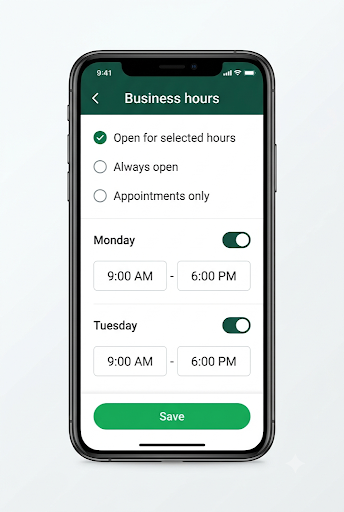
WhatsApp Business gives you three schedule options. Each one looks different on your profile.
| Schedule option | What customers see | Best for |
| Open for selected hours | Specific open and close times for each day you turn on | Shops, restaurants, offices, salons with fixed hours |
| Always open | No daily timetable, just a note that you are always open | Online stores, 24/7 support, hotels |
| Appointments only | No daily timetable, just a note that you work by appointment | Consultants, tutors, doctors, home services |
If you picked Always open or Appointments only and expected to see times, that is why they are missing. Switch to Open for selected hours and save.
Also check every day. A day with its toggle turned off shows as closed, which can look like “missing hours” to a customer checking on that day.
Fix 3: Fix Hours That Cross Midnight
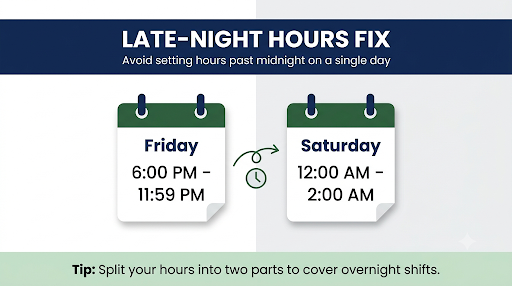
This is the most common hidden cause, and it affects bars, restaurants, cafes, and late-night delivery businesses the most.
Users on Reddit have reported that setting a closing time past midnight (for example, open 6:00 PM, close 2:00 AM) can automatically reset or break the opening time. The result is a schedule that looks wrong or does not display correctly.
The workaround: split the late shift across two days.
- Friday: 6:00 PM to 11:59 PM
- Saturday: 12:00 AM to 2:00 AM (plus your normal Saturday hours if the app lets you add them)
If splitting feels messy, keep the hours inside one day (for example, 6:00 PM to 11:59 PM) and mention your real closing time in your business description, like “Kitchen open until 2 AM on weekends.”
Fix 4: Turn On Automatic Date, Time, and Time Zone
WhatsApp uses time settings to work out whether you are open or closed. If your phone’s clock or time zone is set manually, customers may see “Closed” during your working hours, or the reverse.
On Android: Open Settings > System > Date and time, then turn on Set time automatically and Set time zone automatically. The exact path varies by phone brand.
On iPhone: Open Settings > General > Date & Time, then turn on Set Automatically.
After that, close WhatsApp Business fully, reopen it, and re-save your hours. This matters even more if you travel, or if your business serves customers in other states or countries.
Fix 5: Update WhatsApp Business
Old app versions can hide newer profile features or display them incorrectly. Open the Google Play Store or Apple App Store, search for WhatsApp Business, and tap Update if it is available.
Remember that the customer’s app matters too. If one customer says they cannot see your hours but others can, the problem is probably on their side. Ask them to update WhatsApp and reopen your profile.
Fix 6: Restart the App and Your Phone
It sounds basic, but it works more often than you would think. A restart clears temporary glitches that stop profile changes from loading.
- Force close WhatsApp Business.
- Restart your phone.
- Open the app and check your business profile.
Fix 7: Clear the App Cache (Android Only)
A corrupted cache can stop profile updates from showing. On Android, go to Settings > Apps > WhatsApp Business > Storage and tap Clear cache.
Warning: Tap Clear cache, not Clear data or Clear storage. Clearing data can log you out and, without a recent backup, you could lose chats.
iPhone does not have a clear cache button for individual apps. Restarting and updating are your best options there.
Fix 8: Check Your Profile From a Customer’s Point of View
You cannot fully judge how your profile looks by viewing it from your own account. Ask a friend or coworker to open a chat with your business number, tap your business name, and tell you what they see.
This test answers the big question fast. If they can see your hours, your setup is fine, and the issue is limited to one customer or one device. If they cannot, keep going with the fixes above.
If you manage chats on a computer or tablet, make profile edits on your main phone. Linked devices do not always reflect profile changes right away. If chats or updates are not syncing on those devices at all, our guide on WhatsApp Business linked devices not working covers the fixes.
Fix 9: What to Do If the Business Hours Edit Option Is Missing
Some users have reported on Reddit that the edit option for business hours disappeared from their profile. When that happens, try these steps in order:
- Update WhatsApp Business to the latest version.
- Restart your phone.
- Check the other path to the profile: tap your business name or photo from Settings and look for Business hours there.
- Back up your chats, then uninstall and reinstall the app.
- If the option is still gone, contact WhatsApp support from Settings > Help > Contact us and describe exactly what is missing.
Important: Always back up your chats to Google Drive or iCloud before reinstalling.
Fix 10: Using the WhatsApp Business API, Meta Business Manager, or a CRM?
This is the content gap most guides skip, and it is a big one. If your number is connected to the WhatsApp Business Platform (API) through Meta Business Manager, a CRM, or a messaging tool like a shared inbox, there is no business hours field to fill in.
Meta’s WhatsApp Business Platform documentation on business profiles lists the profile fields you can set: about, address, description, email, profile picture, websites, and industry (vertical). Business hours are not part of that list. So the hours toggle you see in the mobile app simply does not exist for API numbers.
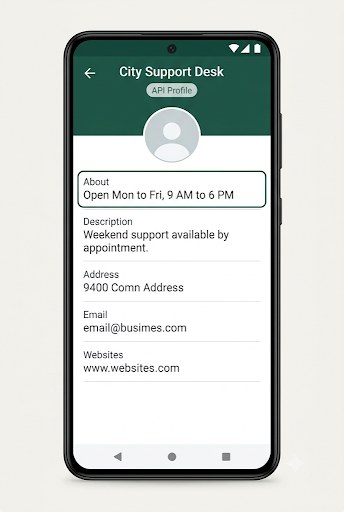
Here is how API users can still show their hours:
- Add hours to your About text. For example: “Open Mon to Fri, 9 AM to 6 PM ET.”
- Add hours to your Description. This gives you more room for weekend hours or holiday notes.
- Set hours inside your provider’s dashboard. Most CRMs and inbox tools have their own business hours setting that controls auto-replies. Some providers, like Spotler, keep it under the stream’s advanced settings.
- Set up an out-of-hours auto-reply in your platform. Your away message lives there now, not in the app.
If you are not sure whether you are on the API, ask yourself one thing: can you open this number in the WhatsApp Business app on your phone? If you can’t, and you manage it only through a web dashboard, you are on the API.
Why Is “Outside of Business Hours” Missing From My Away Message?
The “Outside of business hours” schedule in Away message only appears after you save business hours in your profile. No saved hours means no option.
To fix it:
- Save your business hours using Fix 1.
- Go to Business tools > Away message.
- Turn on Send away message.
- Tap Schedule and choose Outside of business hours.
- Choose your recipients and tap Save.
Your away message depends on your phone having an internet connection and on correct time settings. If customer messages are arriving but you are not getting alerts for them, check our guide to WhatsApp Business notifications not working.
How Do You Hide or Remove Business Hours on WhatsApp Business?
Some businesses want to remove their hours on purpose, for example during a move, a renovation, or a switch to appointment-only work.
- Go to Business tools > Business profile > Business hours.
- Look for the option to turn off or remove the schedule. The exact label can vary by app version.
- Tap Save.
Keep in mind that turning off individual days is not the same as removing hours. Days you turn off show as closed. If you want no hours displayed at all, remove the schedule completely or switch to Appointments only.
What Are the Most Common Mistakes With WhatsApp Business Hours?
- Not tapping Save. Backing out of the screen discards your changes.
- Setting hours past midnight. Split late shifts across two days instead.
- Using a manual phone clock. This throws off the open or closed status.
- Checking the wrong screen. Hours show on the business profile, not inside the chat.
- Changing hours for every holiday. Use an away message with a custom schedule for short closures instead of editing your weekly hours over and over.
- Clearing app data instead of cache. This can wipe your chats if you do not have a backup.
- Listing hours you do not keep. If your profile says 9 AM and you open at 10 AM, customers notice.
Other WhatsApp Business Profile Problems Worth Checking
When hours go missing, it is worth taking a minute to check the rest of your profile. Customers often judge your business by how complete it looks.
- If products are missing from your profile too, see why the WhatsApp Business catalog is not showing to customers.
- If your chat list shows numbers instead of names, here is how to fix WhatsApp Business contacts not showing names.
Frequently Asked Questions
Can customers on regular WhatsApp see my business hours?
Yes. Customers do not need the WhatsApp Business app. Anyone on regular WhatsApp can tap your business name in a chat to open your profile and see your hours, as long as you have saved them.
How long does it take for updated business hours to show?
Changes usually show up right after you save. If a customer still sees old hours, their app may not have refreshed your profile yet. Ask them to close WhatsApp, reopen it, and open your profile again.
Why does my WhatsApp Business profile say “Closed” when I am open?
This almost always comes down to time. Check that your phone uses automatic date, time, and time zone, and that none of your days run past midnight. Then re-save your schedule.
Why are my business hours not showing on iPhone?
The causes are the same as on Android: an unsaved schedule, the midnight issue, manual time settings, or an outdated app. On iPhone, you cannot clear the cache for one app, so update WhatsApp Business and restart your phone first.
Can I set different hours for holidays?
The app’s business hours are a weekly schedule, so there is no holiday calendar built in. For a short closure, keep your weekly hours and turn on an away message with a Custom schedule covering the holiday dates.
What is the 24-hour rule for WhatsApp Business?
The 24-hour rule applies to the WhatsApp Business API, not to your business hours. When a customer messages you, a 24-hour customer service window opens. After it closes, API users can only start the conversation again with an approved message template. It has no effect on the hours shown on your profile.
Does turning off WhatsApp Business hours affect my away message?
Yes. If you remove your business hours, the “Outside of business hours” away message schedule stops working. Switch your away message to Always send or Custom schedule if you still want automatic replies.
Final Recommendation
Start simple. Re-save your hours using Open for selected hours, keep each day inside one calendar day, and turn on automatic time on your phone. Then ask a friend to check your profile from their phone. That combination fixes the problem for most small businesses.
If you run your number through the WhatsApp Business API or a CRM, stop looking for the hours toggle, because it is not there. Put your hours in your About and Description fields, and set your out-of-hours replies in your provider’s dashboard. Either way, customers will know exactly when to expect a reply.
