


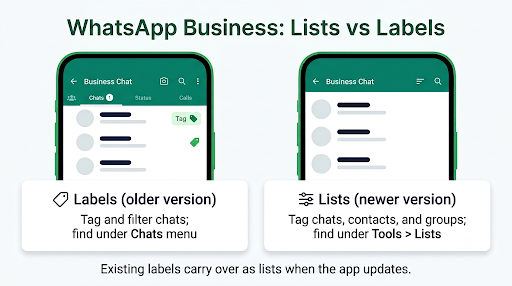
WhatsApp Business lists and labels do the same job. Lists are simply the new name and updated design for labels, so both let you tag customer chats with a name and a color and then filter your inbox by that tag. WhatsApp is rolling lists out gradually, which is why one phone may still show Labels while another shows Lists.
If your labels seem to have vanished, or you’re trying to figure out which feature to use for orders, payments, and follow-ups, this guide covers the differences, where to find each one on Android and iPhone, and how to set up a simple system that actually works.
Quick Overview
| Feature | Labels (older version) | Lists (newer version) |
| Purpose | Tag and filter customer chats | Tag and filter chats, contacts, and groups |
| Where to find it | Chats > More options (⋮ or ⋯) > Labels | Tools > Lists, the ⋯ menu on Chats, or the filter bar at the top of Chats |
| How to tag a chat | Press and hold a chat > Label icon | Press and hold a chat > Add to list |
| Limit | Up to 20 | Up to 20 |
| Colors | Yes, one color per label | Yes, one color per list |
| Visible to customers? | No | No |
| What happens to old tags? | Your existing labels carry over and appear as lists when your app updates | |
Bottom line: You don’t need to choose between them. Use whichever one your app shows. If you see Lists, your labels have already been converted.
What Are Labels in WhatsApp Business?
Labels are colored tags you attach to customer chats in the WhatsApp Business app. They work like sticky notes on your inbox. Tag a chat as “Pending payment,” and later you can tap that label to see every customer who still owes you money.
The app traditionally came with five default labels:
- New customer
- New order
- Pending payment
- Paid
- Order complete
You could rename or delete these and add your own, up to 20 in total. On older versions you could also label individual messages inside a chat, not just the whole conversation. That was handy for marking a specific order request or address.
What Are Lists in WhatsApp Business?
Lists are the updated version of labels. WhatsApp’s own help page for labels now opens by telling users that labels are now lists and that lists are rolling out gradually. Each list becomes a filter chip along the top of your Chats tab, right next to built-in filters like Unread, Favorites, and Groups.
Lists still let you name a group of chats, pick a color, and filter by it. The main upgrades are in how they show up and what you can add to them:
- Filters at the top of Chats. One tap filters your inbox. No digging through menus.
- Contacts and groups, not just one-to-one chats. You can add a group chat to a list, such as a wholesale buyers group.
- Suggested names. Newer versions suggest ready-made lists like New customer, New order, Pending payment, Paid, Order complete, Important, Follow up, and Lead.
- Reorder and manage in one place. You can rename, recolor, reorder, or delete lists from Tools > Lists.
Meta’s official WhatsApp Business site recommends building lists around your sales cycle, with examples like new lead, needs follow-up, paid, shipped or ready for pickup, and support needed. You can see those ideas in its guide to organizing your business inbox with lists.
What Is the Real Difference Between Lists and Labels?
The real difference is the interface, not the purpose. Both organize chats privately for your business. Here’s what actually changes when your app switches over:
1. The name and the location
Labels lived inside the Chats menu. Lists live under Tools > Lists and as filter chips at the top of Chats. This move is the number one reason people think their labels “disappeared.”
2. What you can tag
Labels were mostly applied to chats and, on some versions, individual messages. Lists focus on whole chats, contacts, and groups. If you used to label single messages, use starred messages or pinned messages for that job instead.
3. How filtering works
With labels, you opened a label to see its chats. With lists, you tap a chip above your inbox and the chat list filters instantly. The active list stays highlighted so you know which view you’re in.
4. Messaging the people in a group
On some older Android versions, opening a label showed an option to message its customers. This sent individual messages, not a group message. On the newer Lists screens this shortcut may not appear. If you want to message a tagged group, create a broadcast list or use business broadcasts instead. More on that below.
5. What stays the same
- The limit of 20
- Name plus color for each tag
- Complete privacy, so customers never see how you’ve tagged them
- One chat can sit in more than one list or label
Why Do I See Labels on One Phone and Lists on Another?
You see different versions because WhatsApp rolls out lists in stages. Two employees using WhatsApp Business on different phones, or the same account on Android and iPhone, can see different menus for a while. You can’t force the update from your side.
Here’s what helps:
- Update the app. Install the latest WhatsApp Business version from the Google Play Store or Apple App Store.
- Restart the app after updating.
- Check Tools > Lists. If it’s there, your labels have moved.
- Wait if it’s not there yet. If Labels still shows after updating, your account simply hasn’t received the change. Keep using labels. They will convert automatically.
If your labels are gone completely and you can’t find them under Lists either, follow our step-by-step guide on fixing WhatsApp Business labels that disappeared.
WhatsApp Business Lists vs Labels on iPhone vs Android
The feature is the same on both platforms, but the paths and timing can differ. iPhone users have generally been seeing Lists in recent versions, while some Android users still see Labels.
| Task | iPhone (Lists) | Android (Lists) | Android (older Labels) |
| Open the feature | Tools > Lists | Tools > Lists, or ⋮ > Lists | Chats > ⋮ > Labels |
| Create one | Create a custom list > name > color > check mark | Create a custom list > name > color > save | ⋮ > Labels > New label (+) |
| Tag a chat | Press and hold chat > Add to list | Press and hold chat > ⋮ > Add to list | Press and hold chat > Label icon > Save |
| Filter chats | Tap the list chip at the top of Chats | Tap the list chip at the top of Chats | Open the label from the menu |
Note: Menu wording can shift slightly between app versions. If a step looks different on your phone, look for the same words (Lists, Add to list, Labels) in the nearest menu.
How Do You Create and Use Lists in WhatsApp Business?
You create a list from Tools > Lists, give it a name and color, then add chats to it. Here’s the full process.
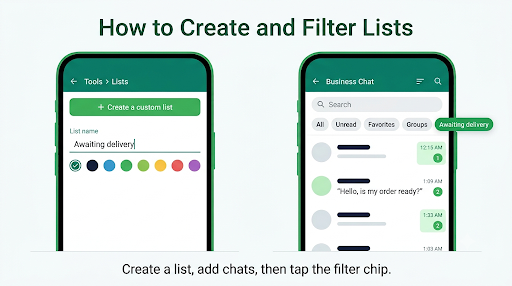
Create a new list
- Open the WhatsApp Business app.
- Tap Tools (on iPhone it’s in the bottom bar; on Android it may be under the ⋮ menu or Settings).
- Tap Lists.
- Tap Create a custom list, or pick one of the suggested names.
- Type a clear name, such as “Awaiting delivery.”
- Tap the color dot and choose a color.
- Save it.
Add chats to a list
There are two quick ways:
- One at a time: Press and hold a chat in your inbox, tap Add to list, and tick the lists you want.
- In bulk: Go to Tools > Lists, open a list, tap Add people or groups, and select several chats at once.
Filter your inbox
Swipe down slightly on the Chats tab if you don’t see the filter bar, then tap the list name. To go back to everything, tap All.
Edit, reorder, or delete a list
Open Tools > Lists. Tap a list to rename it, change its color, remove chats, or delete it. Use the edit or reorder option to move your most-used lists to the front of the filter bar.
How Do You Use Labels If Your App Still Has Them?
If your WhatsApp Business app still shows Labels, the steps are slightly different:
- Open Chats.
- Press and hold the chat you want to tag.
- Tap the Label icon (it looks like a tag).
- Pick an existing label or tap New label to create one.
- Tap Save.
To view labeled chats, tap the ⋮ or ⋯ menu on the Chats screen, then Labels, and choose the label. Anything you set up now will carry over when your app switches to lists.
Is There a Limit on WhatsApp Business Lists and Labels?
Yes. WhatsApp Business lets you create up to 20 labels or lists per account. Suggested and default lists you keep take up room in your set, so delete the ones you don’t use.
Twenty sounds like a lot until you start making a list for every product or every city. A better approach is to keep about 6 to 10 lists and make each one answer a single question:
- Where is this sale? Lead, Pending payment, Paid, Order complete
- Who is this customer? New customer, Repeat customer, Wholesale
- What do I need to do? Follow up, Important
That leaves plenty of room for seasonal lists like “Holiday orders” that you can delete later.
Are WhatsApp Business Lists the Same as Broadcast Lists?
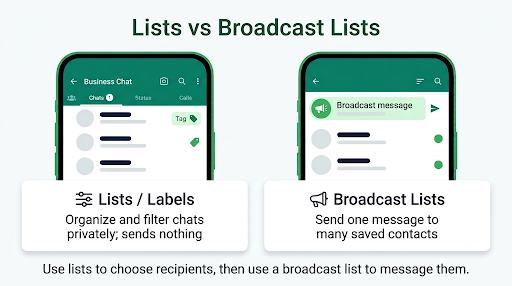
No. This is one of the most common mix-ups. Lists (formerly labels) organize chats. Broadcast lists send one message to many people at once.
| Lists / Labels | Broadcast lists | Business broadcasts | |
| Main job | Sort and filter chats | Send one message to many contacts | Send promotional messages with buttons, often scheduled |
| Who receives | Nobody, it’s internal | Only contacts who saved your number | Customers you choose, based on WhatsApp’s rules |
| Size | Up to 20 lists | Up to 256 contacts per broadcast list | Varies by account and region |
| Cost | Free | Free | Paid per delivered message, where available |
Practical tip: Use your lists to decide who should receive a message, then build a broadcast list from those same customers. For example, filter your “Repeat customer” list, then add those contacts to a “Repeat buyers offer” broadcast list. Remember that customers who haven’t saved your number won’t get broadcast list messages.
What Are Automatic Lists, and Should You Turn Them On?
Some WhatsApp Business accounts can turn on automatic events that sort orders and leads into lists for you. It sounds convenient, but there’s a trade-off you should understand first.
According to WhatsApp, turning this on may limit other features, including:
- Broadcast lists
- Disappearing messages
- Greeting and away messages
- Editing and deleting messages
It can also disconnect your linked devices, such as WhatsApp Web or Desktop, and chats may show customers a notice that a Meta secure service manages the conversation. You can switch it off later to get those features back.
Our advice: If you rely on automated greeting or away messages, stick with manual lists for now. If those messages already act strangely, check our guides on fixing an away message that isn’t sending and on why a greeting message only goes to new customers.
Do WhatsApp Business Lists Work on WhatsApp Web and Desktop?
Yes, in most cases. Lists you create on your phone should appear on WhatsApp Web and the desktop app, and the filter chips show above your chat list there too. Some business users have reported that old labels didn’t show up right away on WhatsApp Web after the switch.
If your lists aren’t syncing to your computer, try this:
- Update WhatsApp Business on your phone.
- Refresh WhatsApp Web, or update the desktop app.
- Keep your phone connected to the internet for a few minutes so it can sync.
- If nothing changes, log out of the linked device and link it again by scanning the QR code.
Heads up: Relinking reloads your chat history on that device, which can take a while if you have lots of media.
Does Regular WhatsApp Have Labels or Lists?
Regular (personal) WhatsApp doesn’t have labels. It does have lists, but they’re a separate, simpler feature. WhatsApp introduced custom lists for everyone in late 2024, building on its All, Unread, Favorites, and Groups filters. You can read the announcement on the official WhatsApp blog post about custom lists.
Personal lists let you group chats like Family, Work, or Neighbors. You can create up to 20, and only you can see them. What they don’t have are the business-focused extras, such as suggested sales stages or the link to WhatsApp Business tools.
If you run a small side business from your personal number, personal lists can work as a basic organizer. Once you’re juggling orders, payments, and follow-ups, the WhatsApp Business app is the better fit.
How to Make a List Inside a WhatsApp Message
Some people searching for “lists” actually want to format a list inside a message. That’s a different feature, and it works in both WhatsApp and WhatsApp Business.
- Bulleted list: Start each line with an asterisk or hyphen followed by a space, like “* Item” or “- Item.”
- Numbered list: Start each line with a number, a period, and a space, like “1. Item.”
- New line without sending: On Android, the keyboard’s Enter key adds a new line. On iPhone, use the return key in the message box.
This is useful for sending a price list, an order summary, or delivery steps to a customer. Pair it with saved quick replies so you don’t have to type the same formatted list every time. If your saved replies stopped appearing, here’s how to fix WhatsApp Business quick replies not showing.
How Do You Name a List or Add a Contact to One?
To name a list, open Tools > Lists, tap the list, and edit its name. Pick names that describe an action or stage, such as “Send invoice,” rather than vague names like “Misc.”
To add a contact who has never chatted with you, open a new chat with that contact first. Once the chat exists, press and hold it and tap Add to list. For broadcast lists, open the broadcast list’s info screen and tap the option to edit recipients.
A Simple List Setup for Small Businesses
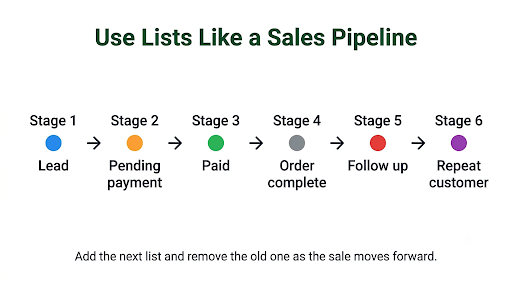
Here’s a practical setup that works for most shops, home bakers, salons, and online sellers:
| List name | Color idea | When to use it |
| Lead | Blue | Someone asked about price or availability |
| Pending payment | Orange | Order confirmed, payment not received |
| Paid | Green | Payment received, order not yet delivered |
| Order complete | Gray | Delivered and closed |
| Follow up | Red | Needs a reply or reminder today |
| Repeat customer | Purple | Bought more than once, good for offers |
The rule that keeps this working: When a chat moves to the next stage, add the new list and remove the old one. The app won’t stop you from leaving a chat in both “Pending payment” and “Paid,” so this part is on you.
Common Mistakes to Avoid
- Making too many lists. If you can’t remember what a list is for, delete it.
- Never removing old tags. A chat sitting in three sales stages tells you nothing.
- Thinking customers can see your lists. They can’t. But keep names professional in case you share your screen.
- Confusing lists with broadcast lists. Adding someone to a list doesn’t send them anything.
- Turning on automatic lists without checking the trade-offs. You may lose greeting messages and linked devices.
- Assuming a teammate sees the same menu. During the rollout, one phone may show Labels and another Lists.
When Do You Outgrow Lists and Labels?
Lists are great for a solo owner or a small team. They start to fall short when:
- More than one person replies to customers and you need to assign chats
- You need more than 20 categories
- You want chats tagged automatically based on keywords or orders without the trade-offs above
- You need reports on how many leads turned into sales
At that point, a shared inbox or CRM tool built on the WhatsApp Business Platform (API) makes more sense. Those tools use their own tagging systems, which don’t always sync with the lists inside the app.
FAQs
Did WhatsApp Business remove labels?
No. Labels weren’t removed. They were renamed and redesigned as lists. Your existing labels move over automatically, keeping their names and the chats inside them. Look under Tools > Lists.
Can I switch back from lists to labels?
No. There’s no setting to go back to the old labels layout. Once your account gets lists, that’s the version you’ll use going forward.
Can customers see which list or label I put them in?
No. Lists and labels are private to your business account. Customers don’t get a notification, and they can’t see their tag in their own app.
Can one chat be in more than one list?
Yes. A single chat can belong to several lists, such as “Repeat customer” and “Pending payment” at the same time. That’s useful for combining customer type with order stage.
Do lists transfer if I move WhatsApp Business to a new phone?
Your lists are generally restored along with your chat backup when you move to a new phone with the same number. Make a fresh backup before switching, and check your lists after restoring. Moving between Android and iPhone uses a separate transfer process, so double-check your lists afterward.
Why don’t my contacts show names in my lists?
Lists show whatever name your phone has for that contact. If you see only numbers, the contact likely isn’t saved, or WhatsApp doesn’t have permission to read your contacts. Our guide on WhatsApp Business contacts not showing names walks through the fix.
Can I send a message to everyone in a list at once?
Not directly from most Lists screens. Use a broadcast list for free messages to contacts who saved your number, or business broadcasts for promotional campaigns where available.
Final Recommendation
Don’t overthink the WhatsApp Business lists vs labels question. They’re the same tool with a new name. Update your app, open Tools > Lists, and set up five or six lists that follow your sales process. Move each chat forward as the sale progresses, clean up stale lists once a month, and use broadcast lists when you actually need to message a group.
If your app still shows Labels, keep using them. Everything you set up today will carry over when lists arrive on your phone.
