


If your WhatsApp Business greeting message only goes to new customers, the app is working as designed. WhatsApp sends the greeting only when someone messages you for the first time or after 14 days of no activity in that chat. Regular customers who chat with you often will not see it again, no matter how many times they say “Hi.”
Below, you’ll learn exactly how WhatsApp decides who gets the greeting, how to tell normal behavior from a real problem, and what to use instead when you want to reach existing customers.
Quick Overview
- Normal behavior: The greeting goes out on a customer’s first message or when they return after 14 days of inactivity.
- Existing customers skip it: If someone messaged you in the last 14 days, they will not get the greeting.
- Recipient settings matter: “Everyone not in address book” (Android) or “Exclude my contacts” (iPhone) means saved contacts never get it.
- Common blockers: Meta Business Agent turned on, no internet on your phone, or an outdated app.
- To reach regular customers: Use an away message, quick replies, labels, or a broadcast list instead.
How Does WhatsApp Business Decide Who Gets the Greeting Message?
WhatsApp uses two triggers, and only two. A customer gets your greeting when they message you for the first time, or when they message you after 14 days of inactivity in their chat with you. This rule comes straight from the WhatsApp Help Center guide to greeting messages.
Think of the greeting as a “welcome at the door.” It’s meant to greet someone walking in, not to repeat itself every time a regular customer sends a follow-up question.
Here is how that plays out in real chats:
| Customer situation | Gets the greeting? | Why |
| Messages your business for the very first time | Yes | First contact triggers it |
| Last chatted with you 3 days ago | No | Chat is still active (under 14 days) |
| Last chatted with you 20 days ago | Yes | 14 days of inactivity have passed |
| Saved in your contacts, and Recipients is set to non-contacts only | No | Your recipient setting excludes them |
| Excluded under “Everyone except…” | No | You manually removed them |
So if you’ve been testing with a friend or a regular customer who chats with you every week, the greeting won’t show up for them. That’s not a bug.\
Why Is My Greeting Message Not Reaching Existing Customers?
In most cases, existing customers miss the greeting because of the 14-day rule or your recipient settings. Less often, a technical issue is blocking it. Work through these causes in order.
1. The 14-Day Rule Is Doing Its Job
If the customer sent or received a message in that chat within the last 14 days, the chat counts as active. WhatsApp will not send the greeting again until the chat goes quiet for 14 days. There is no setting in the free WhatsApp Business app to shorten or change this window.
2. Your Recipient Setting Excludes Saved Contacts
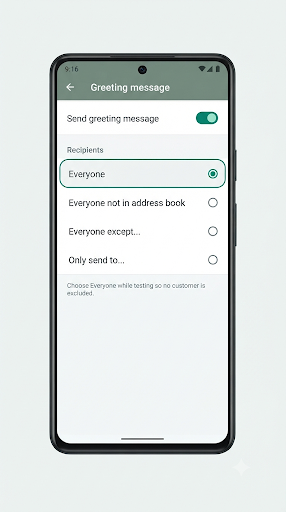
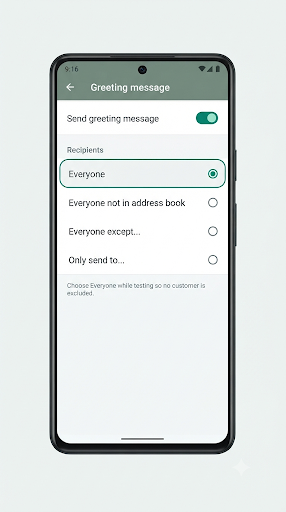
WhatsApp Business gives you four recipient options for greeting messages:
- Everyone: Anyone who messages you can get it (still subject to the 14-day rule).
- Everyone not in address book (Android) or Exclude my contacts (iPhone): Only people you haven’t saved.
- Everyone except…: Everyone except the contacts you pick.
- Only send to…: Only the contacts you pick.
Here’s a common mix-up. Many business owners save a customer’s number after the first order. If your setting is “Everyone not in address book,” that customer stops getting greetings forever, even after 14 quiet days. If contact matching itself looks off, such as saved customers showing as plain numbers, check our guide on WhatsApp Business contacts not showing names, because WhatsApp uses your phone’s address book to decide who counts as a contact.
3. Meta Business Agent Is Connected
In some countries, the WhatsApp Business app offers an AI agent called Meta Business Agent. While it’s connected, greeting messages are turned off automatically. WhatsApp’s Meta Business Agent help page notes that the agent can limit certain app features. If you set up the AI agent recently and greetings stopped right after, this is the likely cause.
4. Your Phone Is Offline
Greeting messages are sent from your primary phone. Your phone needs an active internet connection for the greeting to go out. If the phone is switched off, in airplane mode, or stuck on a weak signal, the greeting can be missed even for brand-new customers.
5. An Outdated App or a Temporary Glitch
Users on Reddit and support forums have reported automated messages acting up after updates. An old app version or a stuck background process can stop the greeting from firing. A quick update and restart often clears it.
How Do You Check If Your Greeting Message Is Set Up Correctly?
Open your greeting settings and confirm three things: the toggle is on, the message text is saved, and the recipient option matches who you want to reach. Here’s how to get there.
On Android
- Open WhatsApp Business and tap Tools (on some versions, tap the three dots, then Business tools).
- Tap Greeting message.
- Make sure Send greeting message is turned on.
- Tap the message to edit the text, then tap OK.
- Tap Recipients and pick the right option.
- Tap Save or the checkmark.
On iPhone
- Open WhatsApp Business and go to Settings, then Business tools (or the Tools tab on newer versions).
- Tap Greeting message and turn on Send greeting message.
- Tap the message to edit it, then tap Save.
- Tap Recipients and choose who should receive it.
Menu names can shift a little between app versions, so if you don’t see Tools, look under Settings first.
Test It the Right Way
Don’t test with a number that already chats with you. That chat is probably active, so you’ll get nothing and think the feature is broken. Instead:
- Use a second phone number that has never messaged your business.
- Make sure that number isn’t excluded by your recipient setting.
- Send a simple “Hi” and keep your business phone online.
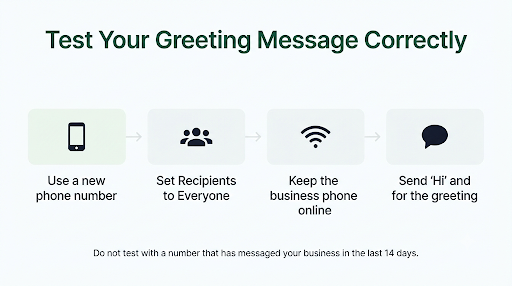
If a fresh number gets the greeting, your setup is fine. The “only new customers” behavior is simply the 14-day rule at work.
What Should You Do If New Customers Aren’t Getting It Either?
If even first-time customers aren’t getting the greeting, you have a real problem, not a rule. Try these fixes in order:
- Remove Meta Business Agent if it’s connected. Greetings won’t work until it’s deleted.
- Toggle the greeting off and on. Turn off Send greeting message, wait a few seconds, then turn it back on and save.
- Check your phone’s connection. Switch between Wi-Fi and mobile data and make sure the app isn’t restricted in the background.
- Turn off battery optimization for WhatsApp Business on Android so the system doesn’t pause it.
- Update WhatsApp Business from the Google Play Store or App Store.
- Restart your phone to clear temporary glitches.
If customers can’t get your regular replies either, the issue is bigger than the greeting. Our guide on WhatsApp Business messages not sending walks through connection and delivery fixes that also apply here.
Also, if your phone isn’t showing new chat alerts, you might assume no greeting went out when it actually did. Check the chat itself, and see our fix for WhatsApp Business notifications not working if alerts are missing.
Does the Greeting Message Work on WhatsApp Web and Linked Devices?
The greeting is tied to your WhatsApp Business account, and WhatsApp’s own guidance says the phone needs an internet connection for it to send. WhatsApp’s help pages don’t clearly explain how greetings behave when you work mostly from WhatsApp Web or a linked computer.
The safe approach is simple. Keep your primary phone online and logged in, even if your team replies from a computer. If greetings work on the phone but seem to behave differently when you answer from desktop, check our guide to WhatsApp Business linked devices not working to make sure your devices are syncing properly.
Is the Greeting Message Different From the Away Message?
Yes. They solve different problems, and mixing them up is one of the most common reasons people think the greeting is broken.
| Feature | Greeting message | Away message |
| When it sends | First message, or after 14 days of inactivity | Whenever someone messages you during the schedule you set |
| Who gets it | New or long-quiet customers | Anyone in your recipient list, including regular customers |
| Main job | Welcome and introduce your business | Tell people you’re unavailable and when you’ll reply |
| Schedule options | None (always on when enabled) | Always send, Custom schedule, or Outside of business hours |
If you choose “Outside of business hours” for your away message, it depends on the hours in your business profile. If those hours are missing or wrong, the away message can fire at the wrong times. Here’s how to fix WhatsApp Business hours not showing on your profile. You can learn more about away message options on the WhatsApp Help Center away messages page.
How Can You Send a Welcome-Style Message to Existing Customers?
You can’t force the greeting to reach active chats, but you can get the same result with other built-in tools. Pick the one that fits your goal.
Use Quick Replies for Instant Manual Greetings
Save your welcome text as a quick reply with a shortcut like /hi. When a regular customer messages, type the shortcut and send. It takes two seconds and feels personal. The app lets you store up to 50 quick replies.
Use an Away Message With a Custom Schedule
Want every customer to get an automatic reply during a sale weekend or holiday? Set an away message with a Custom schedule. Unlike the greeting, it reaches people who chatted with you recently. Just remember to turn it off afterward.
Use Labels to Track Who Needs a Welcome
Tag chats with labels like “New customer” or “Returning.” This helps your team spot which customers missed the automated greeting and need a manual hello.
Use Broadcast Lists for Announcements
If your goal is to share a new offer or update with existing customers, a broadcast list is the better tool. Keep in mind that broadcast messages only reach people who have saved your business number in their phone.
Consider the WhatsApp Business Platform for Advanced Rules
Larger teams that need custom re-greet timers, CRM-based rules, or chatbots usually move to the WhatsApp Business Platform (API) through a provider. These setups follow Meta’s messaging policy, which includes a 24-hour customer service window. Outside that window, businesses can only send approved message templates. This is overkill for most small shops but useful if you handle hundreds of chats a day.
What Mistakes Make the Greeting Seem Broken?
Most “not working” reports come down to a few avoidable mistakes:
- Testing with your own regular number. That chat is active, so no greeting is sent.
- Saving every customer and using “non-contacts only.” Saved customers stop getting the greeting for good.
- Forgetting to tap Save after editing the message or recipients.
- Running Meta Business Agent without realizing it disables greetings.
- Letting the phone go offline overnight or during work hours.
- Expecting the greeting to work like an away message. They’re separate features with separate rules.
Frequently Asked Questions
Can I change the 14-day greeting rule in WhatsApp Business?
No. The free WhatsApp Business app doesn’t let you shorten or extend the 14-day window. If you need a custom re-greet timer, you’ll need a WhatsApp Business Platform (API) tool that supports its own welcome rules.
Why did a customer get the greeting even though I messaged them first?
Some users and third-party providers report that the greeting can still fire when a business starts a brand-new chat or writes into a chat that’s been quiet for over 14 days. If that happens, it usually means WhatsApp treated the chat as new or inactive. Using “Everyone except…” for those customers can prevent it.
Does deleting a chat make the customer “new” again?
WhatsApp doesn’t officially confirm this either way. Because results can vary, don’t rely on deleting chats to trigger greetings. Test with a fresh number or wait out the 14 days instead.
Can I add images or links to a WhatsApp Business greeting message?
The greeting in the free app is a single text message. You can include a website link as plain text, and WhatsApp may show a preview. For images, buttons, or catalogs, use quick replies or share your catalog manually after the customer replies.
Is the greeting message available on regular WhatsApp?
No. Greeting messages, away messages, and quick replies are only available in the WhatsApp Business app. Regular WhatsApp Messenger has no automated replies.
Why does the greeting work for some new customers but not others?
Check whether those customers are saved in your phone and whether your recipient setting excludes contacts. Also confirm your phone was online when they messaged. A short connection drop can cause a missed greeting.
Final Recommendation
If your greeting only reaches new customers, nothing is broken. That’s how WhatsApp Business is built. Start by testing with a number that has never messaged you. If it works, leave the greeting alone and use quick replies or a scheduled away message for your regular customers.
If even new customers aren’t getting it, check three things first: remove Meta Business Agent, review your recipient setting, and keep your phone online. Then update and restart the app. Those steps fix the vast majority of greeting message problems.
