



If your WhatsApp Business catalog image is not uploading, the cause is usually one of five things: the photo is too large, it is in an unsupported format like HEIC or WebP, the app does not have full photo access, your connection or app version is unstable, or the item was rejected during WhatsApp’s review. Convert the photo to a square JPG under 5 MB, give WhatsApp Business full photo access, and update the app. That alone fixes most cases.
Below, you will find out how to tell which problem you have, the exact fix for Android and iPhone, and what to do when the photo uploads but still does not show up for customers.
Quick Overview
| What you see | Most likely cause | Fastest fix |
| Upload spins forever or fails | Large file, weak internet, or outdated app | Compress to under 5 MB, switch networks, update WhatsApp Business |
| Photo is greyed out or missing in the picker | Limited photo permission or a cloud-only photo | Allow full photo access and download the photo to your phone first |
| “One or more items cannot be used” on iPhone | iCloud photo not downloaded or unsupported file | Open the photo in the Photos app so it downloads, or save a JPG copy |
| Image uploads, but the item will not save | Missing required field, price issue, or duplicate title | Fill every required field, use a unique title, and try saving without the price or link |
| Red exclamation mark on the item | Item rejected under the Commerce Policy | Replace the photo with a clean product shot and request another review |
| Item saved but customers cannot see it | Still under review or hidden | Wait for approval and check the item is not hidden |
Why Is My WhatsApp Business Catalog Image Not Uploading?
Most failed uploads come from the image file itself or from the phone blocking WhatsApp from reading it. Server-side problems and policy rejections are less common, but they look similar, so it helps to know the difference.
Here are the real causes, in the order you should check them:
- File size is too large. Catalog images should stay under 5 MB. Photos from new phone cameras, especially in high-resolution or ProRAW modes, often go well past that.
- Unsupported format. JPG and PNG are the safe formats. HEIC (the default iPhone camera format), WebP (common on downloaded web images), AVIF, GIF, and TIFF can fail or behave unpredictably.
- Limited photo permission. If you gave WhatsApp Business access to only “selected photos,” the image you want may not show up at all.
- The photo lives in the cloud, not on your phone. Google Photos backups and iCloud “Optimize Storage” keep a small preview on your phone. WhatsApp needs the full file.
- Weak or blocked internet. Unstable Wi-Fi, a VPN, or a data saver mode can cut the upload halfway.
- Outdated app or corrupted cache. Old versions of WhatsApp Business are known to have catalog bugs that get patched in updates.
- Low phone storage. WhatsApp needs some free space to process and compress the image before sending it.
- Policy rejection. If the upload works but the item gets flagged, it is a review issue, not an upload issue.
What Image Size and Format Does the WhatsApp Business Catalog Need?
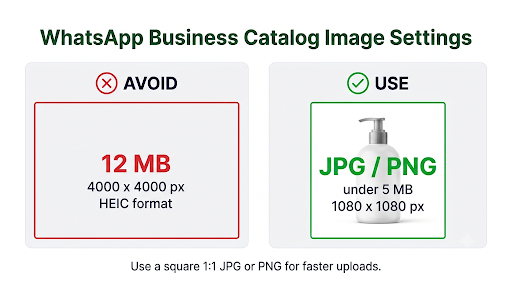
Use a square (1:1) JPG or PNG between 800 x 800 and 1080 x 1080 pixels, under 5 MB. That range uploads reliably and looks sharp on modern phone screens.
WhatsApp does not publish one official pixel size for in-app catalog photos, which is why you will see different numbers online. The table below uses the safest settings that line up across WhatsApp Business app guidance and Meta’s own catalog specs.
| Setting | WhatsApp Business app (phone or Web) | Meta Commerce Manager catalog |
| Format | JPG or PNG | JPEG or PNG |
| Max file size | Keep under 5 MB | Up to 8 MB |
| Shape | Square 1:1 (other shapes get cropped) | Square 1:1 recommended |
| Recommended size | 800 x 800 to 1080 x 1080 px | 1024 x 1024 px |
| Minimum size | Around 500 x 500 px for a clear photo | 500 x 500 px |
| Images per item | Up to 10 photos or videos | One main image plus extra images |
| Items per catalog | Up to 500 | Depends on your catalog setup |
Tip: Bigger is not better here. A 12 MB, 4000 x 4000 pixel photo gives you no visible benefit in the catalog grid. It just makes the upload slower and more likely to fail.
How Do You Fix a WhatsApp Business Catalog Image That Will Not Upload?
Work through these fixes in order. Try uploading again after each one, so you know which step solved it.
1. Resize and Compress the Image
Crop the photo to a square and export it as a JPG under 5 MB. You can use your phone’s built-in editor to crop, then any trusted image compressor to reduce the file size.
- Open the photo in your gallery editor and crop it to a 1:1 square.
- Resize it to around 1080 x 1080 pixels.
- Save it as a new copy in JPG format.
- Upload the new copy, not the original.
A simple shortcut that many sellers use: take a screenshot of the product photo and upload the screenshot. Screenshots are smaller and saved as PNG or JPG on most phones. It is not ideal for quality, but it quickly proves whether file size was the problem.
2. Convert HEIC, WebP, or Other Formats to JPG
If you shot the photo on an iPhone, it is likely saved as HEIC. If you saved it from a website, it may be WebP. Convert it to JPG before uploading.
- iPhone: Go to Settings > Camera > Formats and choose Most Compatible. New photos will save as JPG. For older photos, use the Files app or a converter to save a JPG copy.
- Android: Open the image in your gallery editor and save a copy, which usually exports as JPG. If not, use a trusted converter app.
- Computer: Open the file in any image editor and use “Save as” or “Export” to JPG.
3. Give WhatsApp Business Full Photo Access
Limited access is one of the most overlooked causes. The app can only see the photos you picked earlier, so new product photos never appear.
On iPhone:
- Open Settings.
- Tap Apps, then WhatsApp Business. On older iOS versions, scroll down and tap WhatsApp Business directly.
- Tap Photos and choose Full Access (labeled All Photos on some iOS versions).
On Android:
- Open Settings > Apps > WhatsApp Business > Permissions.
- Tap Photos and videos (or Files and media on older versions).
- Select Allow all instead of “Allow limited access.”
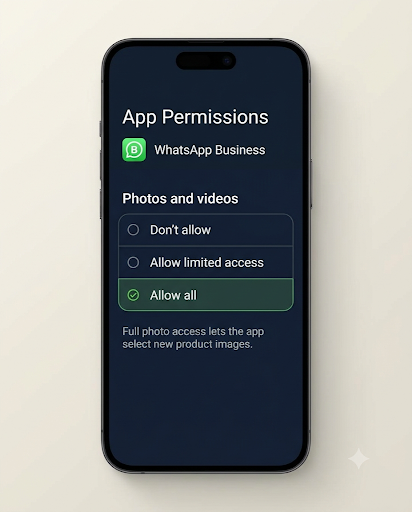
Menu names vary slightly by phone brand and Android version, but the permission is always under the app’s settings.
4. Download Cloud Photos to Your Phone First
If the photo is backed up to Google Photos or iCloud and not stored on the phone, WhatsApp may fail to load it or show it as greyed out.
- Google Photos: Open the photo, tap the three-dot menu, and tap Download.
- iCloud Photos: Open the photo in the Photos app and wait for the loading circle in the corner to finish. You can also save it to the Files app to make a local copy.
This is usually behind the iPhone message “One or more items cannot be used and have been deselected.”
5. Check Your Internet Connection
Switch between Wi-Fi and mobile data. Turn off any VPN or data saver mode, then try again. If you are on a slow network, upload one image at a time instead of selecting all 10 together.
6. Update WhatsApp Business
Open the Google Play Store or Apple App Store, search for WhatsApp Business, and tap Update if it is available. Catalog bugs are often fixed in new releases, so do not skip this even if the app seems fine otherwise.
7. Clear the Cache (Android) or Offload the App (iPhone)
- Android: Go to Settings > Apps > WhatsApp Business > Storage and tap Clear cache. Do not tap Clear data, as that can remove your chats if they are not backed up.
- iPhone: Go to Settings > General > iPhone Storage > WhatsApp Business and tap Offload App, then reinstall it. Offloading keeps your data and documents.
8. Free Up Phone Storage
If your phone is almost full, WhatsApp may not be able to process the image. Delete large videos or unused apps and keep at least 1 to 2 GB free.
9. Restart Your Phone
Force-close WhatsApp Business, restart the phone, and try again. It sounds basic, but it clears temporary glitches that block uploads.
10. Try Uploading From WhatsApp Web or Desktop
If the phone upload keeps failing, add the item from a computer. Open WhatsApp Web or the desktop app, go to your catalog through the menu, tap Add new item, and upload the image from your files. This also makes bulk edits much faster.
11. Check the Date, Time, and Phone Settings
A wrong date or time can break secure connections to WhatsApp’s servers. Set your phone to Set automatically under date and time settings.
12. Wait Out Temporary Issues
WhatsApp’s own help center notes that some add, save, and delete errors in the catalog are temporary. If everything checks out and it still fails, wait a few hours and try again before taking bigger steps.
Why Does the Image Upload but the Item Will Not Save?
When the photo uploads fine but you cannot save the item, the problem is usually the item details, not the picture.
Check these points:
- Every item needs a unique title and at least one image. Two items with the same name can cause saving errors.
- Required fields depend on your country. For example, businesses in India must add details like the country of origin and, for imported goods, importer information. If a required field is empty, the item will not save.
- The price field may not be supported in some regions. Try saving the item without a price. If it works, add the price to the description instead.
- The link field can cause errors. Remove the product link, save, then add it back later.
- “Changes not saved because the item wasn’t found.” This usually means the item was deleted, edited on another device, or changed in a connected Facebook catalog. Refresh the catalog, and if the item is gone, create it again.
If your website link in the catalog or profile does not open for customers, that is a separate issue. See our fix for a WhatsApp Business website link that is not clickable.
What Does a Red Exclamation Mark on a Catalog Item Mean?
A red exclamation mark means WhatsApp reviewed the item and rejected it. The image uploaded successfully, but customers will not see it.
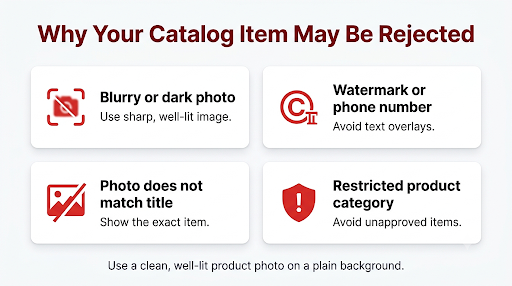
WhatsApp automatically reviews catalog items. Items stay hidden from customers while they are pending review or after they are rejected. Common reasons include:
- Blurry, dark, or low-quality product photos
- Watermarks, heavy text overlays, phone numbers, or contact details on the image
- A photo that does not match the title or description
- Products in restricted categories, such as alcohol, tobacco, weapons, medical products, or adult items
- Misleading prices or exaggerated claims
You can read the full list of restricted items in the WhatsApp Commerce Policy.
How to Request Another Review
- Open your catalog and tap the item with the red exclamation mark.
- Tap Request another review (or Request review).
- Explain briefly why the item follows the policy, such as “This is a cotton t-shirt, not a restricted product.”
- Tap Continue to submit.
Before you appeal, fix the image first. Replace it with a clean, well-lit product shot on a plain background. If the same item keeps getting rejected, the category itself may be restricted, and appealing again will not change the result.
Why Is My Catalog Image Uploaded but Not Showing to Customers?
If the item saved without any warning but customers still cannot see it, it is most likely still under review, hidden, or not loading on their end.
- Pending review: New and edited items need approval before they go live. This often takes a short while but can take longer.
- Hidden item: Open the item and check that it is not set to hidden.
- Customer’s app is outdated: Ask a friend to check your catalog from another phone with the latest WhatsApp version.
- Profile problem: If customers cannot see your business details at all, the catalog will not show either. Our guide on WhatsApp Business profile not showing to customers walks through that fix.
Profile sections often break together. If your catalog is missing, also check whether your business hours are showing and whether your location appears on your profile. A complete profile gives customers more reasons to trust your catalog.
What If Your Catalog Is Connected to Meta Commerce Manager or the API?
If your catalog is managed through Meta Commerce Manager, a Facebook or Instagram shop, or the WhatsApp Business Platform (API), image rules and errors work differently from the phone app.
- Edit items in Commerce Manager. When a catalog is connected from Meta, changes in the phone app may not stick or may be overwritten during sync.
- Use JPEG or PNG under 8 MB and at least 500 x 500 pixels. Meta shows an error saying the main image cannot be displayed when these rules are not met.
- Use RGB color, not CMYK. Print-ready product photos are often saved in CMYK, which can fail. Re-export them as RGB.
- Make sure image URLs are public. If your feed points to an image behind a login, a redirect, or a blocked server, Meta cannot fetch it.
- Use a new URL when replacing an image. Changing the photo but keeping the same URL can leave the old cached version in place.
- Check the Issues tab. In Commerce Manager, filter for errors and warnings to see which items are blocked and why.
For developers, Meta explains how catalogs, item review, and product updates work in its WhatsApp catalogs overview. API users who see error 131053 (Media upload error) should check the file type, color mode, and Content-Type header of the image.
Common Mistakes That Keep Catalog Uploads Failing
- Uploading the original camera file. Always upload a resized copy.
- Tapping “Clear data” instead of “Clear cache.” This can wipe chats that are not backed up.
- Adding text, prices, or phone numbers on the image. This often triggers a rejection after the upload works.
- Using photos downloaded from supplier websites. They are often WebP, watermarked, or copyrighted, all of which cause problems.
- Selecting 10 large images at once on a slow network. Upload a few at a time.
- Appealing a rejection without changing anything. Fix the photo or description first, then request a review.
Best Practices for Catalog Photos That Upload and Get Approved
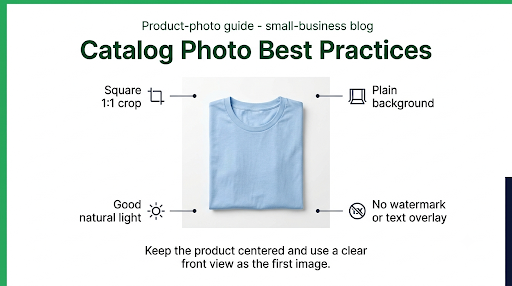
A good catalog photo is small enough to upload quickly and clean enough to pass review on the first try.
- Shoot in good natural light, on a plain white or neutral background.
- Keep the product centered, with some space around the edges, since WhatsApp crops to a square.
- Use the same size and style for every item so your catalog looks consistent.
- Put the clearest front view as the first image. Use the other slots for angles, details, and size references.
- Add a short product video in one of the 10 slots if it helps. Note that WhatsApp generates video thumbnails automatically, and you cannot edit them.
- Write a title and description that match exactly what is in the photo.
Frequently Asked Questions
Why are my WhatsApp Business catalog photos greyed out?
Greyed-out photos usually mean WhatsApp cannot read the file. It is often a cloud-only photo that has not been downloaded, or the app only has limited photo access. Download the photo to your phone and switch photo access to full or “Allow all.”
Can I upload catalog images from my computer?
Yes. WhatsApp Web and the WhatsApp desktop app let you open your catalog, add a new item, and upload images straight from your computer’s files. This is often easier for editing photos and adding many products.
How many images can I add to one WhatsApp catalog item?
You can add up to 10 photos or videos per item, and the catalog holds up to 500 items. Every item needs at least one image to be saved.
How long does WhatsApp take to approve a catalog item?
Most items are reviewed fairly quickly, but there is no fixed time. If an item has been pending for more than a day, edit it with a cleaner photo or simpler description, save it again, and check back later.
Why do my WhatsApp Business photos not show in my phone gallery?
That is a different setting from the catalog. In WhatsApp Business, go to Settings > Chats and turn on Media visibility (Android) or Save to Photos (iPhone). This controls whether received media is saved to your gallery.
Does deleting and re-adding a catalog item help?
Sometimes, yes. If a single item keeps failing to save or shows “item wasn’t found,” deleting it and creating it fresh with a new, compressed image often works. Just note that deleting an item removes it from any links you have already shared.
Final Recommendation
Start with the image file, since that is where most uploads fail. Make a square JPG copy around 1080 x 1080 pixels and under 5 MB, give WhatsApp Business full photo access, and update the app. If the upload works but the item still does not show, look for a red exclamation mark, fix the photo, and request another review. And if your catalog is managed through Meta Commerce Manager, make your edits there instead of in the phone app.
