


If your WhatsApp Business messages are not sending, the cause is almost always one of four things: a weak or blocked internet connection, phone settings that stop the app from running in the background, a problem with the recipient, or a temporary restriction on your business account. The icon next to your message tells you which one you are dealing with, so start there.
This guide walks you through each cause in the order that saves the most time. It covers the free WhatsApp Business app on Android and iPhone, plus the WhatsApp Business API (Cloud API) for teams that send messages through a platform or their own code.
Quick Overview
| What you see | What it means | Where to start |
| Clock icon | The message never left your phone | Internet, background data, battery saver, date and time |
| One gray tick | Sent to WhatsApp, but not yet delivered to the recipient | Recipient is offline, has blocked you, or has a privacy filter on |
| Red error or “message failed” | WhatsApp rejected the message | File type or size, account restriction, app version |
| Broadcast shows “sent” but people never get it | Recipients have not saved your number | Saved-contact rule for broadcast lists |
| API error code (like 131047) | A policy or billing rule blocked the send | 24-hour window, templates, payment method, phone number status |
What Do the Icons Next to Your Message Mean?
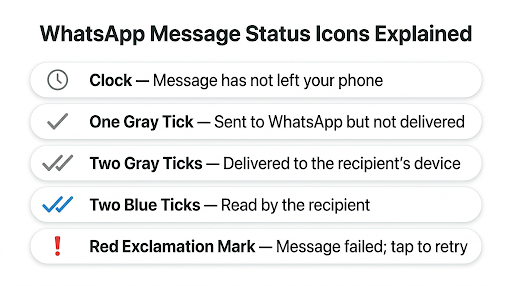
The icon is your fastest diagnosis tool. Each one points to a different part of the problem, so you can skip fixes that do not apply.
- Clock: Your phone could not reach WhatsApp’s servers. This is a problem on your side, usually the connection or a phone setting.
- One gray tick: The message reached WhatsApp, but the recipient’s phone has not picked it up yet.
- Two gray ticks: The message was delivered to the recipient’s phone.
- Two blue ticks: The recipient opened the chat and read it (unless they turned off read receipts).
- Red exclamation mark or “failed”: WhatsApp refused the message. Tap it to retry and see if an error appears.
A clock means “not sending.” A single tick means “sending fine, not delivering.” These are two different problems. If your message sends but does not show two ticks, it mean you have WhatsApp Business messages not delivering issue.
Is WhatsApp Down, or Is It Just You?
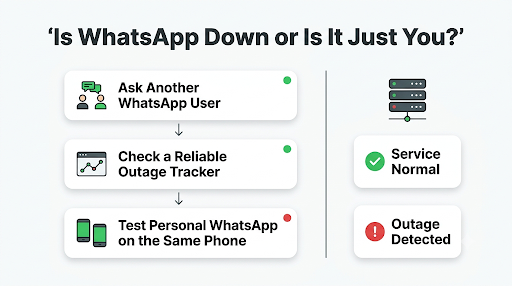
Before you change any settings, spend 30 seconds ruling out an outage. If WhatsApp’s servers are having trouble, nothing on your phone will fix it.
- Ask a colleague or friend whether their WhatsApp is working.
- Check an outage tracker such as Downdetector, or search “WhatsApp down” on X for recent reports.
- Try sending a message from your personal WhatsApp account on the same phone. If personal works and Business does not, the problem is specific to your Business app or account.
If there is a confirmed outage, wait it out. Your queued messages will usually send on their own once service returns.
How Do You Fix a Clock Icon (Message Stuck on Sending)?
A clock icon means your phone cannot connect to WhatsApp. Work through these steps in order. Most people fix it in the first three.
1. Confirm your internet actually works
Being “connected” to Wi-Fi does not mean you have internet. Open a browser and load a new website, or play a short video. If it fails, the issue is your network, not WhatsApp.
- Switch from Wi-Fi to mobile data, or the other way around.
- Turn Airplane mode on for 10 seconds, then off. This forces your phone to reconnect.
- Restart your router if several devices on the same Wi-Fi are having trouble.
2. Check public Wi-Fi, office firewalls, and VPNs
This is a cause many guides skip. Office networks, hotel Wi-Fi, and school networks sometimes block messaging apps. A VPN can also route your traffic through a server that WhatsApp has trouble reaching.
- Turn off your VPN and try again.
- If you are on work or public Wi-Fi, switch to mobile data. If messages suddenly send, the network is blocking WhatsApp.
3. Set your date and time to automatic
WhatsApp uses secure connections that depend on your phone’s clock. If the date or time is wrong, the app cannot connect, even with perfect internet.
- Android: Settings > System > Date & time > turn on automatic date and time. (The exact path varies by phone brand.)
- iPhone: Settings > General > Date & Time > turn on Set Automatically.
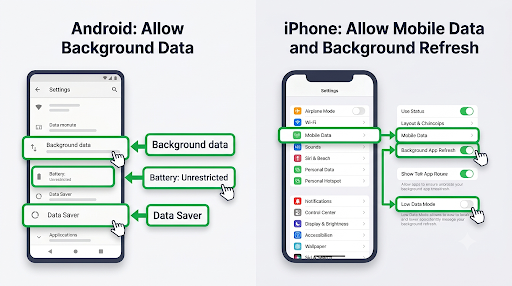
4. Allow background data and turn off battery restrictions
Battery savers and data savers quietly stop apps from working when they are not open on screen. That means messages you send right before switching apps can get stuck.
On Android:
- Go to Settings > Apps > WhatsApp Business.
- Tap Mobile data (or Data usage) and make sure Background data is on.
- Tap Battery and set it to Unrestricted (or “Don’t optimize”).
- Turn off Data Saver for WhatsApp Business, or add it as an exception.
On iPhone:
- Go to Settings > WhatsApp Business and turn on Mobile Data (Cellular Data) and Background App Refresh.
- Turn off Low Data Mode for your Wi-Fi network and mobile data if it is on.
- Turn off Low Power Mode while you test.
These same restrictions often cause missed alerts, which makes you think messages failed when they did not. Notification problems can also affect how you notice failed messages. Here is how to fix WhatsApp Business notifications not working.
5. Free up phone storage
When your phone is nearly full, WhatsApp may struggle to save and send messages, especially media. Aim to keep at least 1 to 2 GB free. Inside the app, you can go to Settings > Storage and data > Manage storage to delete large files you no longer need.
6. Clear the app cache (Android only)
A corrupted cache can cause odd sending glitches. Go to Settings > Apps > WhatsApp Business > Storage and tap Clear cache.
Warning: Do not tap “Clear data” or “Clear storage.” That signs you out and can wipe chats that are not backed up.
7. Update the app and restart your phone
Older versions of WhatsApp Business eventually stop working properly, and some new message types will not send from outdated apps. Open the Google Play Store or Apple App Store, search for WhatsApp Business, and tap Update if it appears. Then restart your phone to clear any stuck processes.
Why Does a Message Show One Tick and Never Deliver?
One gray tick means your side is working. The holdup is on the recipient’s end. Common reasons include:
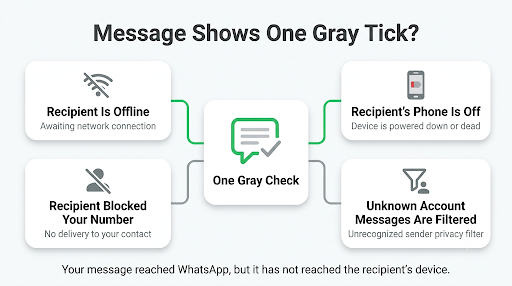
- The recipient’s phone is off, offline, or out of signal. The message will deliver when they reconnect.
- The recipient blocked your business number. Signs include no profile photo and no “last seen” for that chat, though privacy settings can hide these too.
- The recipient turned on “Block unknown account messages.” This privacy setting (Settings > Privacy > Advanced) blocks messages from unknown accounts when they arrive in high volume. If your number is not in their contacts and you have messaged a lot of people quickly, your messages may be filtered.
- The number is not on WhatsApp or the person changed numbers.
Why Can’t You Send Messages to One Specific Customer?
If messages work for everyone except one person, the problem is tied to that chat, not your app.
- Check whether you blocked them by accident. Open Settings > Privacy > Blocked contacts. It is easy to block someone while clearing spam.
- Double-check the number format. Saved numbers need the full country code. For U.S. customers, that means +1 followed by the 10-digit number.
- Ask them to message you first through another channel. If their message reaches you, the chat is working again.
Sometimes the number looks correct but the contact itself is saved wrong, or shows up without a name. If the recipient’s name is missing or contacts look incorrect, see WhatsApp Business contacts not showing names.
Why Are Your Broadcast Messages Not Reaching Customers?
Broadcast messages from the WhatsApp Business app only reach people who have saved your business number in their phone’s contacts. This is the most common reason a broadcast “sends” but large parts of your list never see it.
What makes this confusing is that the app does not warn you. The broadcast looks sent on your end, and there is no failure notice for the people who did not get it.
Key broadcast limits to know:
- Each broadcast list can hold up to 256 contacts.
- Recipients must have your number saved.
- Broadcasts are sent from the phone app, not from WhatsApp Web or desktop.
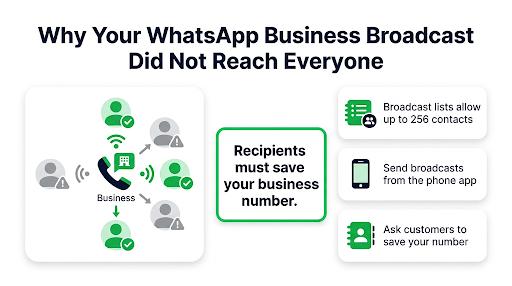
How to fix it: Ask customers to save your number when they first contact you. A simple line in your greeting message, like “Save this number so you don’t miss order updates,” works well. You can also add your number or a WhatsApp QR code to receipts, packaging, and your website.
If you need to reach people who have not saved your number, or more than a few hundred people at once, that is what the WhatsApp Business API is built for, with approved templates and opt-in rules.
Has Your Account Been Temporarily Restricted?
If you send a lot of messages quickly to people who do not have your number saved, or if many people block or report you, WhatsApp may temporarily limit what your account can send. You may see a notice in the app explaining the restriction and how long it lasts.
Signs of a restriction include:
- A banner or pop-up saying your account is limited
- New chats failing while existing chats still work
- Marketing or broadcast features becoming unavailable
What to do:
- Stop bulk sending right away. Repeated attempts can extend the restriction.
- Read the in-app notice. It usually says when the limit ends. If you think it was a mistake, use the review or appeal option if one is offered.
- Once you can send again, message only people who have asked to hear from you.
Common mistake: Copying the same promo message and pasting it into dozens of new chats in a row. To WhatsApp’s spam systems, that looks exactly like spam, even if your customers know you.
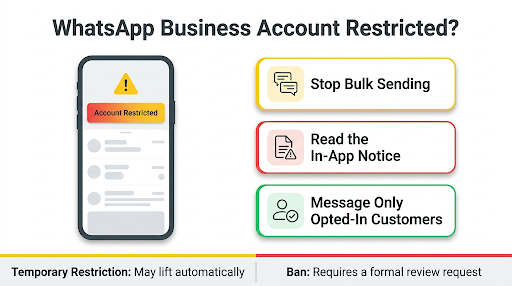
A temporary restriction is different from a ban. If your account is banned, you will see a message saying your number is banned from WhatsApp when you open the app. That needs a formal review request, not a settings fix.
Why Are Photos, Videos, or Documents Not Sending?
If text messages send fine but attachments fail, the issue is usually the file itself, your storage, or app permissions.
- Check permissions. Make sure WhatsApp Business can access Photos, Files, and the Camera in your phone’s app settings.
- Check file size. Very large videos often fail on slow connections. Try compressing the video or sending it as a document.
- Check free storage. WhatsApp needs space to process the file before it sends.
- Try a different network. Some networks throttle uploads even when text works.
If only photos, videos, or documents fail to send, see WhatsApp Business not sending photos or videos.
Why Do Messages Fail on WhatsApp Web or a Linked Device?
WhatsApp Business lets you use your account on a computer and other linked devices, which is great for teams. But a linked device can fall out of sync, and messages typed there may hang or fail.
- Refresh WhatsApp Web or restart the desktop app.
- Check the computer’s internet connection, not just the phone’s.
- Open the app on your phone so your main account is active and up to date.
- If it keeps failing, log out of the linked device and link it again by scanning the QR code.
Also remember that some features, like sending broadcast lists, only work from the phone app. If messages fail only on WhatsApp Web or a linked device, check our guide to WhatsApp Business linked devices not working.
Why Are Away Messages or Greeting Messages Not Sending?
Automated messages only go out when their trigger conditions are met, so “not sending” often means the rule does not match the situation you are testing.
- Check the schedule. In Business tools > Away message, the schedule controls when it fires. If you chose “Outside of business hours,” make sure your business hours are actually set in your business profile.
- Check the recipients setting. You can send automated replies to everyone, only to people not in your address book, or to selected contacts. If your test phone is excluded, it will never get the reply.
- Test from a different number. Greeting messages are meant for new customers or chats that have been quiet for a while, so sending a test from a number that just chatted with you may not trigger it.
- Keep the phone online. The app sends these replies from your phone. If battery saver has killed the app or the phone has no internet, the reply waits.
Some users on Reddit have reported that switching the away message schedule to “Outside of business hours” fixed replies that were not firing on a custom schedule. It is worth trying if your custom schedule seems ignored.
Should You Reinstall WhatsApp Business?
Reinstalling is the last resort for the app, not the first step. It can fix deep glitches, but it also risks your chat history if your backup is not working.
Before reinstalling the app, make sure your chat backup is working. Go to Settings > Chats > Chat backup and check the date of the last backup. If it is not, read WhatsApp Business backup not working.
Once your backup is current:
- Uninstall WhatsApp Business.
- Restart your phone.
- Install the latest version from the official app store.
- Verify the same phone number and restore from your backup when asked.
Tip: Your business profile, catalog, and labels are tied to your account and number, but always back up first so your customer conversations are safe.
How Do You Fix WhatsApp Business API Messages Not Sending?
If you send messages through the WhatsApp Business Platform (Cloud API) or a provider like a CRM or chatbot tool, the rules are different. Most failures come from policy rules, not connection problems, and the API returns an error code that tells you exactly why.
The 24-hour customer service window
You can send free-form messages only within 24 hours of the customer’s last message to you. After that window closes, you must use an approved message template. If the customer replies to your template, a new 24-hour window opens.
Testing tip: When testing, send a simple “Hi” from your personal WhatsApp to the business number first. That opens the window so free-form test messages can go through.
Common API error codes
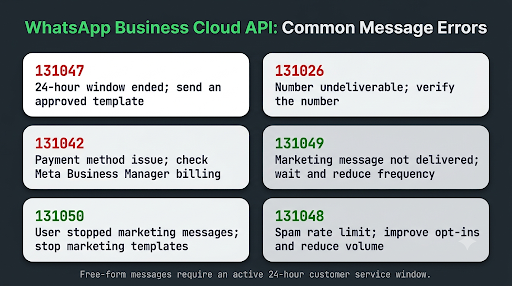
| Error code | What it means | How to fix it |
| 131047 | More than 24 hours have passed since the customer last replied | Send an approved template instead of a free-form message |
| 131026 | Message undeliverable. The number may not be on WhatsApp, the user may not have accepted current terms, or their app may be too old | Verify the number, ask the customer to update WhatsApp, and stop retrying invalid numbers |
| 131042 | Problem with the payment method on your WhatsApp Business Account | Check billing in Meta Business Manager and fix the payment method |
| 131049 | Meta chose not to deliver a marketing message to protect user experience | Do not retry right away. Wait at least 24 hours and send less often |
| 131050 | The user has stopped marketing messages from your business | Stop marketing templates to this user. Utility messages may still be allowed |
| 131048 | Spam rate limit reached due to blocks or reports | Reduce volume, improve opt-ins, and review template quality |
For the full list, see Meta’s official WhatsApp Cloud API error codes documentation. Error descriptions and limits change from time to time, so check the docs when you see a code you do not recognize.
Other API checks most guides miss
- Phone number status: In WhatsApp Manager, confirm your business phone number is registered and connected, not stuck on “Pending.”
- Template approval: A template that is pending, rejected, or paused cannot be sent.
- Quality rating and messaging limits: A low quality rating or a reached daily limit can stop new conversations.
- Webhooks: Some errors only appear in your status webhook, not in the initial API response. If the API says “accepted” but nothing arrives, check the webhook.
How Can You Stop This From Happening Again?
A few habits prevent most sending problems, especially for small businesses that rely on WhatsApp every day.
- Set WhatsApp Business to Unrestricted battery use once, so the app never gets put to sleep.
- Turn on automatic app updates for WhatsApp Business.
- Ask every new customer to save your number. This protects your broadcasts and lowers spam flags.
- Avoid bursts of identical messages to new contacts. Spread outreach out and personalize it.
- Keep a daily backup so a reinstall is never risky.
- Use labels and quick replies for speed instead of mass forwarding.
Frequently Asked Questions
Why is WhatsApp Business not sending messages even though I have Wi-Fi?
Your Wi-Fi may be connected without real internet access, or the network may block WhatsApp. Load a new website to test it, then switch to mobile data. If messages send on mobile data, the Wi-Fi network, router, or a firewall is the problem.
Why can I receive WhatsApp Business messages but not send them?
This usually points to an account restriction or a sending-side issue like a broken upload connection. Check for an in-app restriction notice first. If there is none, update the app, turn off your VPN, and restart your phone.
Does WhatsApp Business work differently on iPhone and Android?
The messaging rules are the same, but the fixes live in different places. Android users usually need to check battery optimization and background data. iPhone users should check Background App Refresh, Low Data Mode, and Low Power Mode. Clearing cache is an Android-only option.
How long does a WhatsApp Business restriction last?
It depends on the restriction. Many temporary limits last from several hours to a few days, and the in-app notice typically shows when it ends. Sending more messages during a restriction can make things worse, so pause outreach until it lifts.
Why are my WhatsApp Business group messages not sending?
Group admins can set a group so only admins can send messages. You may also have been removed from the group, in which case WhatsApp will tell you that you can no longer send messages there. Check the group info screen for both.
Can I send WhatsApp Business messages to people who haven’t saved my number?
Yes, in a normal one-on-one chat. Broadcast lists are the exception, because they only reach people who saved your number. Keep in mind that messaging many unknown contacts quickly can trigger spam filters or a restriction.
Will reinstalling WhatsApp Business delete my chats?
Not if you have a recent backup and restore it with the same phone number. Without a backup, you will lose your chat history. Always confirm the last backup date before uninstalling.
What Should You Do Next?
Look at the icon next to your failed message and follow the matching path.
- Clock icon: Fix your connection, date and time, and background data settings. This solves most cases.
- One gray tick: Your app is fine. Wait, or check whether the recipient blocked you or filtered unknown messages.
- Broadcast not reaching people: Ask customers to save your number.
- Restriction notice: Stop bulk sending and wait for the limit to lift.
- API error code: Match the code to the table above and fix the policy, template, or billing issue.
If none of these work, contact support from inside the app at Settings > Help > Contact us, or visit the WhatsApp Help Center. Include your phone model, app version, and what icon or error you see. That detail gets you a faster, more useful answer.
