



If your WhatsApp Business location isn’t showing on your profile, the usual cause is that the address was saved as plain text without a map pin, the “no physical location” option is turned on, or the app hasn’t refreshed the profile yet. Most of the time, you can fix it by editing the Business address field, placing the pin on the map, and saving again.
There’s a catch, though. “Location not showing” can mean four different problems, and each one has its own fix. Spend a minute figuring out which one you have and you won’t waste time on fixes that can’t work.
Quick Overview
- Address missing from your profile: Open WhatsApp Business, go to Tools (or Business tools) > Profile, tap Business address, pick your address from the suggestions or use Set location on map, then tap Save.
- Address shows but no map preview: You typed the address by hand. Edit it again and drop the pin on your exact building.
- Customers see the old address or nothing at all: Ask them to update WhatsApp and reopen your chat. Their app may still be showing an older copy of your profile.
- Your shop doesn’t appear when people tap Attach > Location: That list doesn’t come from your profile. You need to add your place to the map database WhatsApp uses for nearby places.
- Using the WhatsApp Business Platform (API): Edit the address in WhatsApp Manager, not in the phone app.
Which Location Problem Do You Actually Have?
Start by matching what you see to one of the problems below. Most guides lump these together, which is why so many fixes online don’t seem to work.
| What you see | Most likely cause | Where to fix it |
| No address at all when someone opens your business profile | Address field is empty, or “This business does not have a physical location” is selected | Profile > Business address |
| Address text shows, but there’s no map or pin | Address was typed manually and never pinned | Profile > Business address > Set location on map |
| The pin is on the wrong street or building | The suggested address matched a nearby place | Drag the pin manually and save |
| You see the address, but customers don’t | Their app is outdated or showing a cached profile | Customer side: update the app and reopen the chat |
| Your shop isn’t listed when people share a location in chat | Your business isn’t in the third-party places database | Add or claim your place outside WhatsApp |
| Your business doesn’t show in “Businesses” search inside WhatsApp | The business directory isn’t available in your country, or your profile is incomplete | Complete your profile and check directory availability |
Why Is My WhatsApp Business Location Not Showing on My Profile?
The address only appears when it’s saved correctly in the Business address field. When it’s missing, one of these is usually the reason:
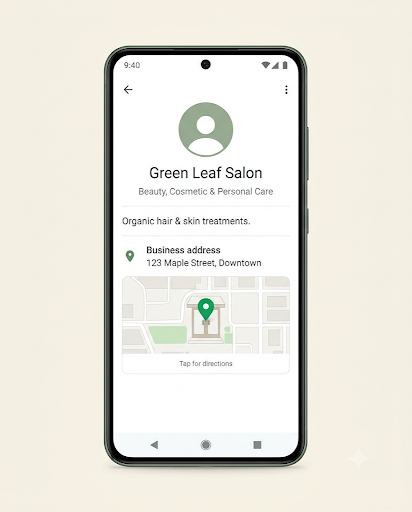
- The address was never saved. Many people fill in the field and then leave the screen without tapping Save.
- You chose the service area option. If “This business does not have a physical location” is turned on, WhatsApp shows a coverage area instead of a street address.
- No map pin. A typed address can show as plain text with no map preview. Customers then can’t tap it to get directions.
- An outdated app. Profile fields and layouts change between versions. An old version on your phone or your customer’s phone may not show the location properly.
- Location permission is blocked. This doesn’t hide a saved address. It does stop the “use current location” option from working while you’re setting the pin, so the pin never gets placed.
- The account runs on the API. If your number is connected to the WhatsApp Business Platform through a provider, the profile is managed in WhatsApp Manager. Changes made elsewhere won’t stick.
How Do You Add or Fix Your Business Address in WhatsApp Business?
Edit the Business address field, set the pin, and save. Here’s the full process. Menu names can differ slightly depending on your phone and app version.
On Android
- Open the WhatsApp Business app.
- Tap the Tools tab. In older versions, tap the three dots > Business tools.
- Tap Profile (sometimes shown as Business profile).
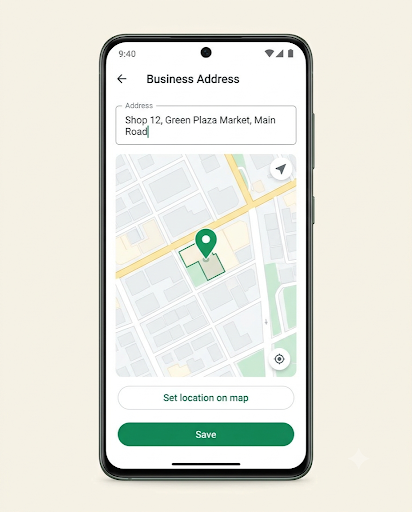
- Tap the Business address field.
- Start typing your address and pick the right one from the suggestions. This fills in both the text and the map pin.
- If the suggestion lands in the wrong spot, choose Set location on map and drag the pin onto your exact building or entrance.
- Tap Save.
On iPhone
- Open WhatsApp Business and tap Settings.
- Go to Business tools > Business profile.
- Tap Business address, then search for your address or use Set location on map.
- Adjust the pin if needed and tap Save.
Tip: After saving, go back and open the address again. If the map preview loads and the pin sits on your building, the setup worked.
How Do You Check What Customers Actually See?
Don’t rely on your own edit screen. It shows what you saved, not what other people see.
- Ask a friend or coworker with a different phone to open a chat with your business number.
- Have them tap your business name at the top of the chat.
- Check that the address appears and that tapping it opens a map.
If it works on their phone, your profile is fine. If one specific customer still can’t see it, the problem is on their side. An app update and closing and reopening the chat usually fixes it.
While you’re testing, check how that test contact appears on your side too. If people show up as plain numbers instead of names, see our guide on WhatsApp Business contacts not showing names.
Profiles can also look less complete on WhatsApp Web or the desktop app than on a phone. Always test on a phone first.
What If You Don’t Have a Physical Store?
Use the coverage area option instead of a street address. This works for home bakers, plumbers, delivery services, tutors, and anyone who goes to the customer.
- Open Profile > Business address.
- Tap This business does not have a physical location > Set coverage area.
- Drag the map to the area you serve and save.
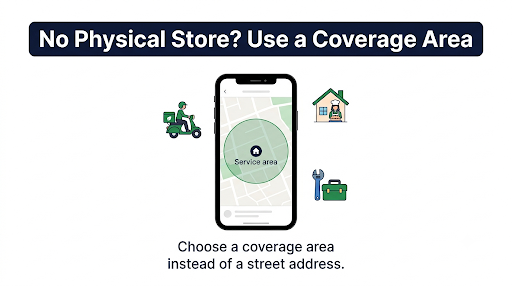
Common mistake: Some owners turn this on by accident and then wonder why their shop address disappeared. If you do have a storefront, switch back to a real address. You’ll get one or the other, not both.
Why Doesn’t My Business Show Up When Customers Share a Location?
This is the problem most top-ranking articles miss. When someone taps Attach > Location in a chat, WhatsApp shows a list of nearby places. That list doesn’t come from your WhatsApp Business profile, and it doesn’t come from your Google Business Profile either.
WhatsApp’s help center doesn’t name the source. Business owners on forums like the Warrior Forum have reported for years that the nearby-places list uses Foursquare data. That’s why a shop can show perfectly on Google Maps and still be missing in WhatsApp.
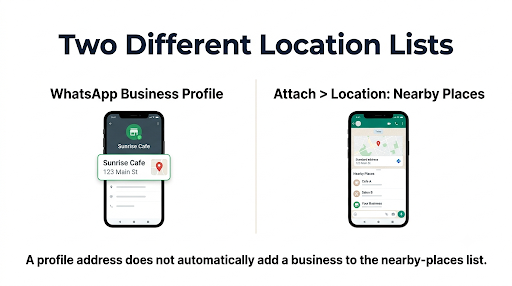
If you want to show up in that list:
- Search for your business on Foursquare.
- If it’s missing, add it using Foursquare’s own steps for adding a new place to Foursquare.
- Use the exact business name, address, and spelling you use on your WhatsApp profile.
- Give it time. New listings can take a while to reach other apps, and there’s no guaranteed timeline.
Faster workaround: You don’t need to wait for the places list. Open your Google Maps listing, copy the share link, and save it as a quick reply in WhatsApp Business (for example, /location). When a customer asks for directions, type the shortcut and send the link right away.
Why Isn’t My Business Showing in WhatsApp Business Search?
WhatsApp’s business directory and in-app business search are only available in some countries. In 2022, WhatsApp launched the directory in Brazil, Colombia, Indonesia, Mexico, and the UK, and it has expanded since. If the feature isn’t offered where you are, no profile setting will make you appear.
Where it is available, the directory uses your profile details. A complete profile gives you the best chance:
- A clear logo as your profile photo
- The right business category
- A pinned address or a coverage area
- Business hours, so customers can see if you’re open
- A short, specific description
A complete profile also helps customers trust your other listings. If people can find you but can’t see what you sell, read our guide on fixing WhatsApp Business catalog items that aren’t showing to customers.
What Other Fixes Should You Try If the Location Still Won’t Show?
If you’ve saved the address correctly and it’s still missing, work through these in order. Check the profile after each one.
1. Update WhatsApp Business
Open the Google Play Store or App Store, search for WhatsApp Business, and install any update. Profile bugs are often fixed in newer versions.
2. Allow location access
This matters when the map won’t load or “use current location” fails while you’re setting the pin.
- Android: Settings > Apps > WhatsApp Business > Permissions > Location > Allow only while using the app. Turn on Use precise location if you see it.
- iPhone: Settings > WhatsApp Business > Location > While Using the App, and turn on Precise Location.
3. Clear the address and save it again
Delete everything in the Business address field, tap Save, then go back and enter the address fresh with a pin. A clean re-save often fixes a stuck profile.
4. Clear the app cache (Android only)
Go to Settings > Apps > WhatsApp Business > Storage > Clear cache. Don’t tap Clear data or Clear storage. That can sign you out and, without a backup, you could lose chats.
5. Restart your phone and check your connection
A weak connection can stop the save from going through. Switch between Wi-Fi and mobile data and try again.
6. Check where your profile is managed
If your number is connected to a platform like Wati, Interakt, Twilio, or another provider, edit the address in Meta Business Suite > WhatsApp Manager > Phone numbers > Profile, or in your provider’s dashboard. Some providers note that profile changes can take time to appear.
7. Watch out for linked devices
If you edit your profile from WhatsApp Web or a linked device and the change doesn’t stick, make the edit on your main phone instead. If your linked devices are acting up in general, see our fix for WhatsApp Business linked devices not working.
Common Mistakes That Hide Your Business Location
- Typing a landmark instead of an address. “Near the City Mall” may not match anything on the map. Use your full street address.
- Trusting the first suggestion. In malls and busy streets, the suggestion often lands on the building next door. Always check the pin.
- Leaving without saving. Going back with the back button may not save your change.
- Mixing addresses. If your Google listing, website, and WhatsApp profile show different formats, customers get confused. Keep them the same.
- Expecting several branches on one profile. The profile has one address field. For other branches, save a quick reply with each branch’s map link or put them in your description.
A Real-World Example
Say you run a salon inside a shopping complex. You type the complex name, pick the first suggestion, and save. Customers then tell you the map sends them to the parking lot on the other side.
The fix: open Business address, choose Set location on map, zoom all the way in, and drag the pin to the entrance customers should use. Then add a line to your description like “2nd floor, next to the food court.” Now the pin gets them to the building, and the description gets them to your door.
Frequently Asked Questions
How long does it take for a new address to appear on my WhatsApp Business profile?
On the WhatsApp Business app, the change usually shows as soon as you save it. Customers with an older copy of your profile may need to reopen the chat or update the app first. API accounts can take longer.
Can I hide my business address on WhatsApp?
Yes. Delete the text in the Business address field and save, or switch to the coverage area option. This is a good choice for home businesses that don’t want a street address public.
Why does my location show on Google Maps but not in WhatsApp?
The two don’t sync. WhatsApp doesn’t pull your Google Business Profile details into your WhatsApp profile, so you have to add the address in WhatsApp Business yourself. The nearby-places list in chat also uses a separate map database.
Does my business address help me get found on WhatsApp?
Only where WhatsApp’s business directory is available. There, your category and location help people nearby find you. Elsewhere, the address mainly helps customers who already have your number find you in person.
Is there a character limit for the business address?
For WhatsApp Business Platform (API) accounts, providers such as Vonage list a 256-character limit for the address field. In the regular app, choosing a map suggestion keeps the address short and properly formatted anyway.
Do customers need location turned on to see my business address?
No. Your address is part of your profile, so anyone who opens it can see it. Customers only need location access when they search for nearby businesses or want WhatsApp to show how far away you are.
Final Recommendation
Start with the basics: open Profile > Business address, choose your address from the suggestions, check the pin, and tap Save. Then ask someone on a different phone to open your profile and confirm the map shows.
If you don’t have a storefront, set a coverage area instead. If your issue is that customers can’t find you in the location-sharing list, that’s a map database problem, so add your place there and save your Google Maps link as a quick reply for now.
And once your location is fixed, make sure customers actually get your replies on time. If alerts are slipping through, here’s how to fix WhatsApp Business notifications not working. For anything not covered here, the WhatsApp Help Center has the latest official steps for your app version.
