


If your WhatsApp Business catalog items are not showing to customers, the cause is usually one of five things: the item is still pending review, it was rejected under WhatsApp’s Commerce Policy, it is hidden, the catalog is switched off or disconnected, or the item is out of stock in a connected Meta catalog. Less often, an app glitch or an outdated app version on your phone or your customer’s phone is to blame.
The good news is that most of these problems take only a few minutes to fix once you know where to look. This guide walks you through how to see your catalog the way a customer sees it, find the exact cause, and get your products back in front of buyers.
Quick Overview
| What you see | Most likely cause | Quick fix |
| Item shows “under review” or a clock icon | Pending approval | Wait up to 24 hours. Do not edit or re-upload during review. |
| Red exclamation mark on the item | Rejected for a Commerce Policy issue | Fix the listing or tap the item and choose Request review |
| Item has a “hidden” icon on the image | Item was hidden | Open the item, tap More options, then Unhide |
| Whole catalog missing for every customer | Catalog off, disconnected, or archived | Check Catalog settings or WhatsApp Manager |
| Products vanished after linking Commerce Manager | Out of stock or wrong catalog connected | Check inventory and the connected catalog in Commerce Manager |
| Only one customer can’t see it | Their app, connection, or region | Ask them to update WhatsApp and open your profile again |
| Catalog won’t load or shows blank | App glitch, cache, or old version | Update, restart, clear cache (Android), check internet |
How Do You Check What Customers Actually See?
Start here, because your own catalog manager shows every item, including hidden, pending, and rejected ones. Customers only see approved, visible items. That difference is the source of most confusion.
To see your catalog from the customer side:
- Ask a friend or use a second phone with a regular WhatsApp account.
- Open a chat with your business number.
- Tap your business name at the top to open your business profile.
- Look for the Catalog or Products section and tap See all.
You can also share your catalog link, which follows the format wa.me/c/ plus your full number with country code. If the link opens an empty catalog or shows an “Invalid catalog link” message, the problem is on the business side, not the customer’s.
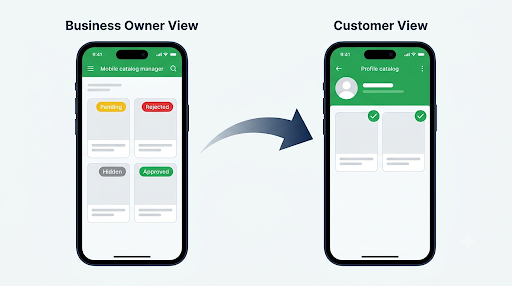
Tip: Write down which items are missing. If only a few items are gone, focus on review status and hidden items. If the whole catalog is gone, jump to the catalog settings and connection sections below.
Why Are My WhatsApp Business Catalog Items Not Showing After Adding Them?
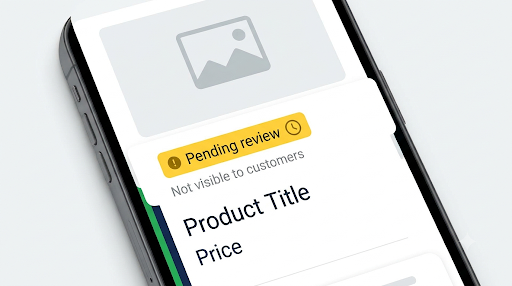
New items are not visible until WhatsApp approves them. Every new product, service, and collection goes through a review against the Commerce Policy before customers can see it. Edits to an existing item can also send it back into review.
How long does catalog review take?
Most items are approved within minutes to a few hours. WhatsApp says reviews can take up to 24 hours. Once approved, the item is added to your catalog automatically. You don’t need to publish it again.
What should you avoid while an item is pending review?
- Don’t delete and re-add the item. This restarts the review and can create duplicate listings.
- Don’t keep editing it. Each change can trigger a fresh review.
- Don’t upload the same product many times in a row. Duplicate titles can cause problems because each item needs a unique title.
If an item has been stuck in review for well over 24 hours, check your internet connection, update the app, and restart it. If it still shows pending, edit one small detail (such as the description) and save once. That can push it back into the queue.
What Does It Mean When a Catalog Item Is Rejected?
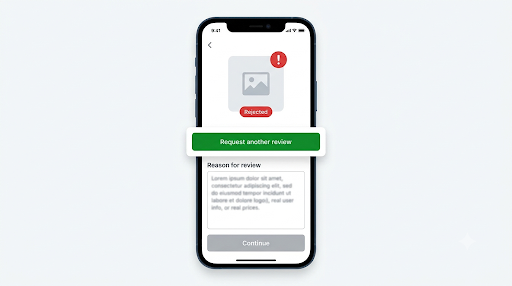
A red exclamation mark on an item means WhatsApp rejected it, usually because it appears to break the WhatsApp Commerce Policy. Rejected items stay in your catalog manager, but customers will never see them until the issue is resolved.
Common reasons items get rejected
- Restricted products: Alcohol, tobacco, drugs and drug paraphernalia, weapons and ammunition, adult products, gambling, and some health or supplement products are restricted or banned.
- Misleading claims: Phrases like “100% cure,” “guaranteed weight loss,” or fake discount claims can trigger a rejection.
- Problem images: Blurry photos, images that are mostly text, watermarked stock photos, or images showing something different from the product.
- Price issues: A price of zero, a suspiciously low price, or a mismatch between the title and the price.
- Keyword false positives: A harmless item can get flagged because of one word. For example, a “shot glass set” or “vape case” can be read as alcohol or tobacco related.
How to fix or appeal a rejected item
- Open Tools (or Settings > Business tools on some versions) and tap Catalog.
- Tap the rejected item to see the reason.
- If the item really breaks the policy, remove it. Appeals won’t help with banned categories.
- If you think it was flagged by mistake, first clean up the listing: use a clear photo, a plain product title, and a factual description.
- Tap Request review, then submit.
Example: A bakery lists “Rum Cake.” It gets rejected because “rum” reads as alcohol. Renaming it to “Caribbean Butter Cake” and describing the flavor accurately often fixes it. Just keep the listing honest. Don’t disguise a restricted product, because repeated violations can lead to restrictions on your whole account.
Are Your Catalog Items Hidden by Mistake?
Hidden items stay in your catalog manager but are invisible to customers. This feature exists so you can pull out-of-stock products without deleting them. It’s also easy to hide something by accident, especially when you long-press items to select several at once.
Hidden items show a small hidden icon over the product image. When you open one, you’ll see a note that the item is hidden.
How to unhide a catalog item
- Go to Tools > Catalog (or Settings > Business tools > Catalog).
- Tap the hidden item to open it.
- Tap More options (three dots) and choose Unhide.
- Confirm by tapping Unhide again.
To unhide several at once, long-press one item until a check mark appears, tap the other hidden items, then tap Unhide. On WhatsApp Web or Desktop, open the item, click Edit, uncheck Hide item, and save.
Is Your Product Listing Missing Required Details?
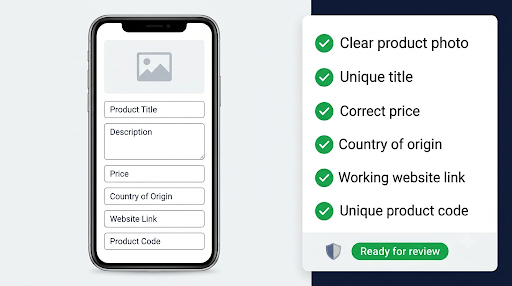
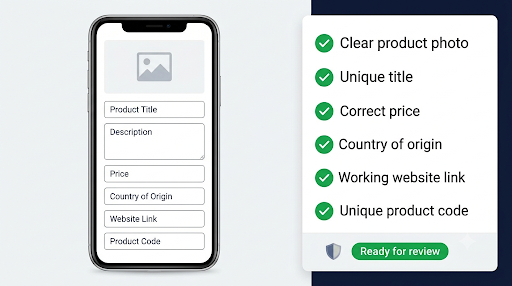
Every catalog item needs a unique title, at least one image, and the country of origin. If any of these failed to save, the item may not appear properly or may never get approved.
Other fields such as price, description, website link, and item code are optional, but filling them in helps customers and makes the listing look more trustworthy to reviewers.
Here’s a quick checklist for a listing that shows up and gets approved fast:
- A clear, well-lit product photo on a plain background
- A title that names the product plainly, with no all-caps or emoji spam
- A real price in the right currency
- Country of origin filled in
- A website link that works and matches the product, if you add one
- A unique item code so you and your customers can refer to the product easily
Note on regional rules: Businesses in some countries, including India, may need extra product details to comply with local regulations. If items keep failing review and you sell in India, check the extra required fields in Meta’s Business Help Center.
Is Your Catalog Turned Off, Disconnected, or Archived?
If every customer sees an empty catalog, or the catalog section is missing from your profile entirely, the problem is with the catalog itself rather than individual items.
In the WhatsApp Business app
- Go to Tools > Catalog, then tap the three dots or gear icon and open Catalog settings.
- Check which catalog is active. If you recently connected or disconnected a Meta catalog, make sure the right one is in use.
- Look at any visibility or storefront options your app version shows and make sure they’re switched on.
Menu names can differ slightly between Android, iPhone, and app versions. If you can’t find a setting, update the app first, since older versions may not show newer catalog options.
If you use a connected Meta catalog
A connected catalog comes from Meta Commerce Manager and is linked through a Facebook Page or Meta business account. A few things to know:
- Archived catalogs are not visible to customers. Check the catalog status in Commerce Manager.
- Out-of-stock items are hidden automatically. If inventory hits zero in Commerce Manager, customers won’t see that item on WhatsApp.
- Updates can take up to 24 hours to show up in the WhatsApp Business app.
- Your old catalog is replaced. Connecting a Meta catalog switches what customers see, which is why products from your old in-app catalog can seem to “disappear.”
- Product sets matter. If you see a catalog but missing categories or collections, check the product sets in Commerce Manager and confirm which products belong to each one.
Why Can’t Customers See the Catalog on the WhatsApp Business API?
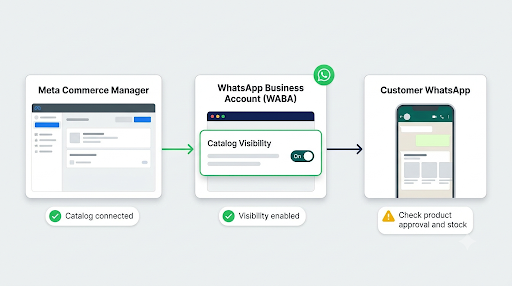
On the WhatsApp Business Platform (API), the catalog storefront is off by default. Even if your catalog is connected, customers won’t see the storefront icon or catalog buttons until visibility is turned on.
Work through these checks in order:
- Catalog is connected to the right WABA. In WhatsApp Manager, open Account tools, then Catalog, and confirm the correct catalog is connected. You can connect only one catalog per WhatsApp Business Account, though one catalog can serve multiple phone numbers.
- Catalog visibility is on. Set is_catalog_visible to true using the WhatsApp commerce settings endpoint, or use the visibility toggle in your provider’s dashboard (360dialog, Wati, Interakt, and similar tools).
- Permissions are intact. If the admin who connected the catalog lost access, or your provider lost catalog permissions, products may stop appearing. Reconnect and grant catalog access again.
- Products are approved and in stock. The same review and inventory rules apply to API catalogs.
- The catalog type supports products. Some tools require a Commerce-type catalog created in Commerce Manager. A catalog created inside the WhatsApp Business app is a different catalog and may not appear in third-party tools.
If product messages fail with a “products not found” style error, the product IDs (retailer IDs) in your request usually don’t match the catalog connected to that number.
Why Is the Catalog Not Showing to Only One Customer?
When most customers can see your products but one person can’t, the problem is almost always on their side. Ask them to:
- Update WhatsApp to the latest version from the Play Store or App Store
- Close and reopen WhatsApp, then open your business profile again
- Switch between Wi-Fi and mobile data
- Try your catalog link (wa.me/c/ followed by your number)
- Check that they’re opening the right number, especially if you have more than one business number
It also helps if the customer has your number saved. If your business appears as a plain number instead of a name, see our guide on fixing WhatsApp Business contacts that aren’t showing names, since contact sync problems can make it harder for customers to find the right profile.
Keep in mind that shopping features are not available in every country. If a customer is in a region where catalogs or carts aren’t supported, they may see limited or no catalog features.
What If Your Catalog Disappeared or Won’t Load?
If your catalog suddenly went blank, shows “Item can’t be displayed. Please try again later,” or keeps loading, it’s usually a temporary sync or app issue. WhatsApp says items in this situation are typically safe.
Try these steps in order:
- Check your internet. Switch networks and try again.
- Update WhatsApp Business. Several users have reported catalogs vanishing on specific app versions and returning after an update.
- Force close and reopen the app.
- Clear the app cache on Android. Go to Settings > Apps > WhatsApp Business > Storage > Clear cache. Do not tap Clear data, which can sign you out.
- Restart your phone.
- Check on WhatsApp Web or Desktop. If the catalog appears there, the problem is your phone’s app, not your catalog.
- Wait a few hours. Server-side outages usually fix themselves.
Only delete and re-add items as a last resort, and only for items that are truly gone. Re-adding sends them back through review.
Your catalog is tied to your business account on WhatsApp’s servers rather than to your local chat history. Even so, it’s smart to keep your account data protected. If you’re planning a reinstall to fix the issue, first make sure your chats are safe. Our guide on fixing WhatsApp Business backup problems can help before you uninstall anything.
Does the Catalog Show Differently on Android, iPhone, and WhatsApp Web?
The catalog itself is the same everywhere, but menu paths and features vary a little by device.
| Device | Where to find the catalog | Things to check |
| Android | Tools > Catalog, or three dots > Settings > Business tools > Catalog | Clear the app cache, keep the app updated |
| iPhone | Tools (or Settings) > Business tools > Catalog | Offload and reinstall only if updates don’t help; enable Background App Refresh |
| WhatsApp Web / Desktop | Menu > Catalog or Business tools > Catalog | Make sure the session is active and your phone is synced |
If edits you make on a computer aren’t saving or syncing, the link between your phone and WhatsApp Web may be the real problem. Our walkthrough on fixing WhatsApp Business linked devices that aren’t working covers how to reconnect them cleanly.
Why Isn’t Your Catalog Showing in Chats When You Share It?
Sometimes the catalog is fine, but sharing it in a chat fails. The customer gets a link without a preview, or the item card never sends.
- Use the share button inside the catalog. Open the item or collection and tap the share or forward icon rather than copying a link by hand.
- Check that the item is approved and visible. Hidden or pending items can’t be shared to customers.
- Look at the order message. If a customer sees “This order request was created from a catalogue that is no longer active,” the catalog they ordered from was disconnected or replaced. Ask them to place a new order from your current catalog.
If product cards or photos fail to send in general, the issue may be with media delivery rather than the catalog. See how to fix WhatsApp Business not sending media. And if regular messages are getting stuck with one clock icon too, our guide to WhatsApp Business messages not sending walks through connection and account checks.
How Can You Keep Catalog Items Visible Long Term?
A little routine maintenance prevents most visibility problems from coming back.
- Check your catalog from a customer’s view once a week. It takes one minute and catches hidden or rejected items early.
- Hide items instead of deleting them when something sells out. You avoid another review when it’s back in stock.
- Keep your inventory synced if you use Commerce Manager, Shopify, or another integration. Zero stock means hidden products.
- Stay under the limits. The WhatsApp Business app catalog supports up to 500 items.
- Use collections to group products so customers don’t have to scroll through hundreds of items.
- Turn on business notifications so you see approval and order updates right away. If alerts aren’t arriving, here’s how to fix WhatsApp Business notifications that aren’t working.
Common Mistakes That Keep Catalog Items Hidden
- Judging visibility from your own catalog manager instead of a customer’s view
- Deleting and re-uploading items during review, which resets the clock
- Connecting a Meta catalog without realizing it replaces the in-app catalog
- Leaving inventory at zero in Commerce Manager after a restock
- Forgetting to turn on catalog visibility after an API or provider setup
- Using the same title for several product variations
- Appealing rejections for items that are clearly banned under the Commerce Policy
Frequently Asked Questions
Why can I see my catalog items but my customers can’t?
Your catalog manager shows everything, including items that are hidden, pending review, or rejected. Customers only see items that are approved and visible. Check each missing item for a hidden icon, a review status, or a red exclamation mark.
How do I know if a WhatsApp catalog item is still under review?
Open the item in your catalog manager. Items waiting for approval show a review or pending status, and you may get a notification once the decision is made. If nothing changes after a full day, update the app and check your connection before re-saving.
Can I add a product to my catalog if it was rejected before?
Yes, if the product is allowed under the Commerce Policy. Fix what likely caused the rejection, such as the title, photo, or description, then request a review. Adding the exact same listing again usually gets the same result.
Will customers see my old catalog after I connect a Meta catalog?
No. Once a Meta catalog from Commerce Manager is connected, it becomes the catalog customers see. If you disconnect it later, check Catalog settings to confirm which catalog is active again.
Why do my WhatsApp catalog changes take so long to update?
Edits can go back through review, and changes made in a connected Meta catalog can take up to 24 hours to sync to the WhatsApp Business app. Price or description updates made directly in the app usually appear faster than changes pushed from Commerce Manager or a third-party integration.
Can customers see my catalog if they haven’t messaged me before?
Yes. Anyone can open your business profile or your wa.me/c/ catalog link to browse approved items. They don’t need an existing chat with you, though they do need WhatsApp installed.
Does WhatsApp Business charge for using the catalog?
No. The catalog is free in the WhatsApp Business app. On the API, the catalog itself doesn’t cost extra, but the messages you send to share products follow normal WhatsApp Business Platform pricing.
Final Recommendation
Start by checking your catalog from a customer’s phone. That one step tells you whether the problem is a few items or the whole catalog. If specific items are missing, look for review status, rejection marks, and hidden icons, and fix those first. If the entire catalog is gone, check Catalog settings, your connected Meta catalog, and inventory in Commerce Manager. API users should confirm the catalog is connected to the right WABA and that visibility is switched on.
If none of that works, update the app, restart it, and give it a few hours. If the catalog is still missing after that, contact WhatsApp support from Settings > Help > Contact us and include screenshots of the affected items so the team can look into it faster.
