


If your WhatsApp Business quick reply shortcut is not working, start with the basics: type a forward slash (/) at the very start of the message box, then type your shortcut name, and tap the reply when it pops up. If nothing shows up after the slash, the problem is usually an outdated app, a glitched saved reply, a sync issue with WhatsApp Web, or a known bug that came with an iPhone or app update.
The good news is that most cases take less than five minutes to fix. This guide walks you through every fix in the right order, from the 10-second checks to the deeper ones, so you can get your saved replies working again without losing chats.
Quick Overview
- Type “/” first in an empty message box, then your shortcut (for example, /hours).
- Confirm you are in WhatsApp Business, not regular WhatsApp. Quick replies only exist in the Business app.
- Check the shortcut: 25 characters max, no extra spaces, no autocorrected letters.
- Update WhatsApp Business from the App Store or Google Play.
- Delete and recreate the quick reply that is not showing.
- Clear cache (Android) or offload the app (iPhone), then reopen.
- Log out and back in on WhatsApp Web or Desktop if replies are missing there.
- Use a keyboard text shortcut as a temporary workaround while you wait for a bug fix.
How Are WhatsApp Business Quick Reply Shortcuts Supposed to Work?
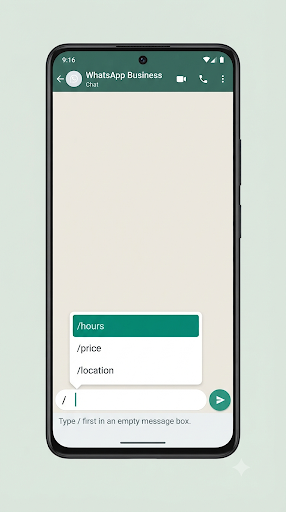
A quick reply is a saved message linked to a short keyword. When you type a slash in a chat, WhatsApp Business shows your saved replies, and typing the shortcut after the slash filters the list. You then tap the reply to drop it into the message box, edit it if needed, and hit send.
Knowing this matters, because many “not working” reports are really about expectations. A quick reply does not send itself when a customer asks a question. That is what greeting and away messages do. Quick replies only appear when you trigger them.
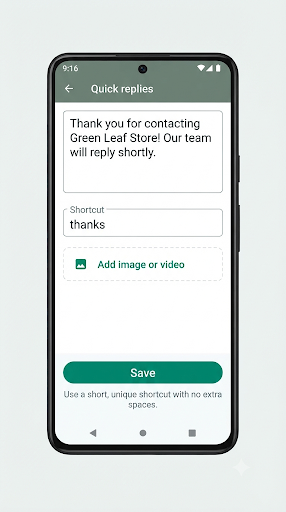
How to create a quick reply
The menu names vary a little by phone and app version, but the flow is the same:
- Open WhatsApp Business and go to the Tools tab. On some Android versions, tap More options (three dots) > Business tools. On some iPhone versions, it sits under Settings > Business tools.
- Tap Quick replies.
- Tap the Add (plus) button.
- Type your message, and add an image or video if you want.
- Tap Shortcut and enter a short keyword, such as thanks or price.
- Tap Save.
How to send a quick reply
- Slash method: In any chat, type / in the empty message box. Your list appears. Keep typing the shortcut to narrow it down, then tap the reply.
- Attachment method: Tap the paperclip or plus icon in the chat and choose Quick replies (available on many versions). This is the best backup when the slash shortcut fails, because it does not depend on your keyboard.
For the official walkthrough, see the WhatsApp Help Center and search “quick replies.”
Why Is My WhatsApp Business Quick Reply Shortcut Not Working?
The most common cause is a simple typing or setup issue. The second most common is an app bug, usually right after an app or iOS update. Here are the causes we see most often in support threads, Reddit discussions, and developer forums:
| What you see | Likely cause | Best first fix |
| Nothing happens when you type “/” | Slash typed mid-sentence, keyboard issue, or outdated app | Clear the message box, type “/” first, update the app |
| The list opens but your shortcut does not filter | Shortcut spelled differently, extra space, or autocorrect changed it | Open the reply and check the exact shortcut text |
| Reply saves, then disappears | Known app bug or a local data glitch | Update the app, then recreate the reply |
| You cannot edit or delete a quick reply | Bug reported on iPhone after iOS updates | Update or offload and reinstall the app |
| Replies work on phone but not on WhatsApp Web | Sync delay between devices | Log out of Web or Desktop and log back in |
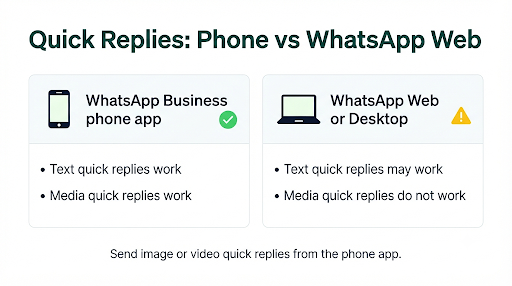
| Media quick reply will not send from computer | Media quick replies are not supported on Web or Desktop | Send media replies from the phone app |
| “Add” button is gone or greyed out | You hit the 50 quick reply limit | Delete replies you no longer use |
| No Quick replies option anywhere | You are using regular WhatsApp, not WhatsApp Business | Install and use the WhatsApp Business app |
How Do You Fix a WhatsApp Business Quick Reply Shortcut That Is Not Working?
Work through these fixes in order. The early ones are fast and fix most cases. Test your shortcut after each step so you know what actually solved it.
1. Type the slash at the very start of the message box
The slash trigger is designed for the start of the message. If you already typed “Hi” and then add “/price”, the list may not appear. Clear the message box completely, type / first, and wait a second for the list to load.
Also watch for keyboards that add a space right after punctuation. “/ price” with a space will not match “price.”
2. Make sure you are in the WhatsApp Business app
This sounds obvious, but it trips up a lot of people who have both apps installed. Regular WhatsApp does not have quick replies. Check the app icon: WhatsApp Business has a “B” inside the chat bubble.
3. Check the shortcut text exactly
Open Quick replies and tap the reply. Look closely at the shortcut field.
- Shortcuts are capped at 25 characters, and the message itself is limited to around 500 characters, according to several business messaging providers that document the app’s limits.
- Remove trailing spaces. A shortcut saved as “thanks ” (with a space) can behave differently from “thanks.”
- Check whether autocorrect changed it when you saved it, for example “addr” becoming “add.”
- Keep shortcuts to one simple word, all lowercase, with no emoji or special symbols.
Tip: Use shortcuts that are easy to remember and different from each other. If you have /price, /prices, and /pricing, the filter will show all three and it may feel like the shortcut “isn’t working.”
4. Use the attachment menu to test the reply
Tap the paperclip or plus icon in a chat and open Quick replies. If your reply shows up and sends from there, the reply itself is fine. The problem is with the slash trigger or your keyboard, so skip ahead to fixes 9 and 12.
5. Update WhatsApp Business
This is the single most effective fix for sudden failures. Quick reply bugs have come and gone with app releases for years. In a long-running Apple Developer Forums thread, iPhone users reported quick replies vanishing right after saving, and several later confirmed that updating WhatsApp Business fixed the saving bug. Similar reports showed up on Reddit in 2025 and on Meta’s developer community in early 2026, where iPhone users said they could not create, edit, or delete quick replies after an iOS update.
- iPhone: Open the App Store, tap your profile picture, scroll to pending updates, and update WhatsApp Business.
- Android: Open Google Play, search WhatsApp Business, and tap Update if it shows.
If you are already on the latest version and the problem started right after an update, it is likely a bug on WhatsApp’s side. Use the workaround in fix 12 until the next release.
6. Delete and recreate the glitched quick reply
Sometimes one saved reply gets corrupted while the rest work fine. Copy its message somewhere safe, delete it, and create it again with a fresh shortcut. If the new version works, the old entry was the problem.
7. Check if you hit the 50 reply limit
The free WhatsApp Business app lets you store up to 50 quick replies. Once you reach that number, you cannot add more until you delete some. If you keep trying to save a new one and it never shows up, count your list.
A good habit: review your replies every few months and remove the ones nobody uses, such as old holiday hours or expired offers.
8. Clear the cache on Android
Clearing the cache removes temporary files without deleting your chats.
- Long-press the WhatsApp Business icon and tap App info (or the “i” icon).
- Tap Storage (or Storage & cache).
- Tap Clear cache. Do not tap Clear storage or Clear data, because that can wipe your local chats.
- Reopen the app and test the shortcut.
9. Restart your phone and check your keyboard
A full restart clears stuck background processes that can stop the quick reply list from loading.
If the problem continues, try a different keyboard. Third-party keyboards with aggressive autocorrect, smart punctuation, or clipboard features sometimes interfere with how the slash is read. On iPhone, switch to the default Apple keyboard by tapping the globe icon. On Android, try Gboard or your phone’s stock keyboard for a quick test.
10. Offload or reinstall the app (iPhone)
iPhones do not have a “clear cache” button for single apps. The closest option is Offload App, which removes the app but keeps its documents and data. Several Reddit users said offloading and reinstalling brought their quick replies back.
- Back up your chats first. Go to WhatsApp Business > Settings > Chats > Chat backup and tap Back Up Now.
- Open iPhone Settings > General > iPhone Storage > WhatsApp Business.
- Tap Offload App, then tap Reinstall App.
If your backup is not completing, sort that out before reinstalling. Our guide on fixing WhatsApp Business backup not working covers iCloud and Google Drive issues step by step.
After a full reinstall, some people notice saved contacts showing as phone numbers until the app finishes syncing. If that happens to you, here is how to fix WhatsApp Business contacts not showing names.
11. Fix quick replies on WhatsApp Web or Desktop
Quick replies you create on your phone should appear on WhatsApp Web and Desktop, but syncing can lag or break. Two things to know:
- Media quick replies do not work on Web or Desktop. If a reply includes a photo or video, send it from your phone.
- Force a fresh sync by logging out of Web or Desktop and scanning the QR code again. On your phone, go to Linked devices, tap the computer, and choose Log out.
If the computer keeps disconnecting or will not link at all, the issue is bigger than quick replies. See our full fix for WhatsApp Business linked devices not working.
12. Use a keyboard text shortcut as a temporary workaround
When the bug is on WhatsApp’s side, you still need to reply to customers today. A keyboard text replacement works in any app, including WhatsApp Business, and does not depend on the quick reply feature at all.
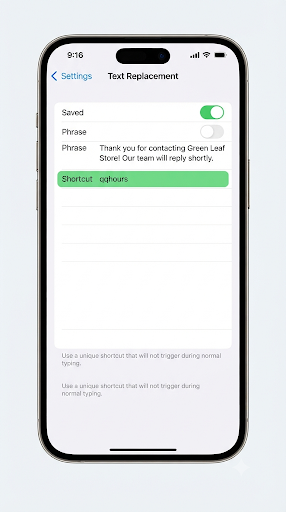
- iPhone: Go to Settings > General > Keyboard > Text Replacement, tap +, paste your message in “Phrase,” and add a short code in “Shortcut,” such as qqhours. Typing that code expands into the full message.
- Android (Gboard): Open Gboard settings, go to Dictionary > Personal dictionary, pick your language, tap +, and add your message with a shortcut.
- Microsoft SwiftKey: Some iPhone users on Reddit used SwiftKey’s clipboard feature to store and paste common replies while the bug lasted.
Tip: Start keyboard shortcuts with a double letter like “qq” or “zz” so they never trigger by accident in normal typing.
Is It a Quick Reply Problem or Something Else?
The word “shortcut” means different things in WhatsApp, and mixing them up can send you down the wrong path. Here is a quick way to tell them apart:
| Feature | What it does | Covered here? |
| Quick reply shortcut (/keyword) | Inserts a saved message in a WhatsApp Business chat | Yes |
| Notification quick reply | Lets you reply from the lock screen or notification banner | No, that is a notification issue |
| Apple Shortcuts app automation | Sends WhatsApp messages through an iPhone automation | No, that depends on Apple’s Shortcuts app |
| WhatsApp Web keyboard shortcuts | Keys like Ctrl + Alt + Shift + U to mark a chat unread | No, that is a desktop navigation feature |
| Greeting and away messages | Automatic replies sent without you typing anything | No, those are automated messages |
If you cannot reply from the lock screen, or alerts are not showing at all, check our guide to WhatsApp Business notifications not working. And if your quick reply inserts fine but the message gets stuck on one grey tick or a clock icon, the shortcut is not the issue. Follow the steps for WhatsApp Business messages not sending instead.
What Mistakes Make Quick Replies Stop Working?
- Typing text before the slash. Start with “/” in an empty box.
- Using long or similar shortcuts. Short, unique words are faster and easier to filter.
- Clearing storage instead of cache on Android. This can wipe chats that are not backed up.
- Reinstalling without a backup. Always run a manual backup first.
- Expecting media replies on a computer. Images and videos in quick replies only send from the phone.
- Skipping app updates. Most widespread quick reply bugs have been fixed in later app versions.
When Should You Move Beyond the WhatsApp Business App?
If you run into the 50 reply limit or need a team to share saved replies across several people, the free app may simply be too small for your needs. Businesses at that stage often move to the WhatsApp Business Platform (the API) through an approved provider. These tools typically offer far more saved replies, shared team inboxes, and categories. They cost money and take more setup, so they make sense only when your message volume justifies it.
Frequently Asked Questions
Why does nothing appear when I type / in WhatsApp Business?
Usually because the slash was not the first character, your app is out of date, or you have no saved quick replies yet. Open Tools > Quick replies to confirm you have at least one saved, then try “/” in an empty message box.
Can I use quick replies in regular WhatsApp?
No. Quick replies are a WhatsApp Business feature. In personal WhatsApp, the closest option is your phone keyboard’s text replacement or personal dictionary.
Why did my quick replies disappear after an update?
Some updates have shipped with bugs that hid or failed to save quick replies, especially on iPhone. Back up your chats, update to the newest version, and recreate any reply that is still missing. If they were lost after a reinstall, they may not come back from a chat backup, so keep a copy of your key replies in a notes app.
How many characters can a WhatsApp Business quick reply shortcut have?
Up to 25 characters. In practice, one short word of 4 to 8 letters works best because it is quick to type and less likely to be changed by autocorrect.
Do quick replies sync between my phone and WhatsApp Web?
Yes, text quick replies created on your phone are available on linked devices. If they are missing, log out of WhatsApp Web or Desktop and link it again to refresh the data.
Can a quick reply send automatically when a customer messages me?
No. Quick replies need you to pick them. For automatic responses, set up a greeting message or away message from the Business tools menu.
What Should You Do Next?
Start with the 30-second checks: type “/” in an empty box, confirm you are in WhatsApp Business, and check the shortcut spelling. If that does not work, update the app and recreate the broken reply. That combination fixes the large majority of cases.
If the problem began right after an app or iOS update and nothing helps, it is almost certainly a bug on WhatsApp’s end. Set up keyboard text replacements for your top five replies so customers are not kept waiting, and check for a new WhatsApp Business update every few days.
