


If your WhatsApp Business catalog link is not working, the cause is usually one of four things: the catalog is turned off, the item is still in review or was rejected, the item is hidden or deleted, or the link itself was edited or built wrong. Less often, the problem sits on the customer’s side, like an old app, an old phone, or a link tapped inside Instagram or TikTok that never hands off to WhatsApp.
The good news is that each cause leaves a clue. Once you know what the error looks like and where it shows up, you can usually fix it in a few minutes and send a fresh link that opens every time.
Quick Overview
| What you or your customer sees | Most likely cause | Fastest fix |
| “Invalid catalog link” message | Catalog is disabled, or the link has the wrong number format | Turn the catalog back on and reshare from Tools > Catalog |
| Share link button is grayed out | Item is still being reviewed | Wait for approval, then share |
| Red exclamation mark on an item | Item was rejected under Meta’s Commerce Policy | Edit the item or tap Request another review |
| Link opens but the item is missing | Item is hidden, deleted, or not yet approved | Unhide or recreate it, then share a new link |
| Link opens a browser page or WhatsApp Web login | Tapped inside an in-app browser or on a device without WhatsApp | Ask the customer to open it in Chrome or Safari, or send it inside WhatsApp |
| Link works for you but not for one customer | Outdated app, old Android version, or a network glitch on their side | Have them update WhatsApp and try again |
What Kind of Catalog Link Are You Sharing?
WhatsApp Business gives you two kinds of catalog links: a link to one product or service, and a link to your whole catalog. That difference matters, because each one breaks for different reasons.
- Single item link: Opens one product. It stops working if that product is hidden, deleted, rejected, or still in review.
- Whole catalog link: Opens your full catalog. It uses the format wa.me/c/ followed by your business number with country code. It breaks if the catalog is turned off or if the number in the link is wrong.
- Collections: These have no link of their own. According to the WhatsApp Help Center guide to sharing catalog links, collections can’t be shared as a single link. If you tried to share one, that is why it “doesn’t work.” Share the full catalog link instead and tell the customer which collection to open.
This is the first content gap most guides miss. Many business owners spend an hour clearing cache when the real issue is that they expected a collection link that WhatsApp simply does not offer.
Why Does WhatsApp Show “Invalid Catalog Link”?
The “Invalid catalog link” message most often means the catalog has been disabled. Meta’s developer documentation on catalog link messages states that when a catalog is disabled, wa.me catalog links and the View catalog button both show this message when tapped.
Here is what usually triggers it:
- The catalog was switched off. This can happen in catalog settings, or on the WhatsApp Business Platform (API) when catalog visibility is set to off for that phone number.
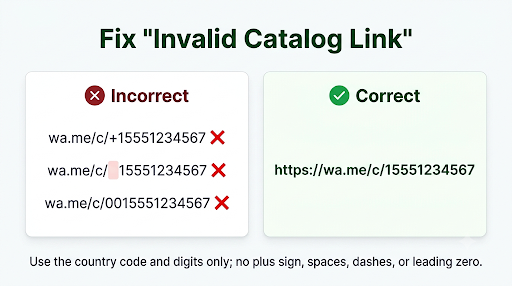
- The number in a hand-built link is wrong. A whole catalog link must look like https://wa.me/c/15551234567. No plus sign, no spaces, no dashes, no brackets, and no leading zero before the local number.
- Your business number changed. Old wa.me/c/ links still point to the old number. Any link you posted before the change needs to be replaced.
- You switched to a connected Meta catalog. Connecting a catalog from Commerce Manager archives your existing in-app catalog. Old item links from the archived catalog may no longer open.
How to fix the “Invalid catalog link” error
- Open the WhatsApp Business app and go to Tools > Catalog.
- Confirm the catalog has approved, visible items. An empty catalog gives customers nothing to open.
- If you use a connected Meta catalog, tap More options (three dots) > Catalog settings and check that the right catalog is still connected.
- If you use the API or a provider like a CRM or chatbot tool, check that catalog visibility is turned on for that number. Some tools, such as Kommo, also offer a manual sync. Run it and confirm the catalog status shows as active.
- Generate a new link from inside the app instead of typing one by hand.
Why Is the Share Link Button Grayed Out?
A grayed-out Share link button means the item is still being reviewed. Every product you add goes through an automatic review, and customers can only see it after WhatsApp approves it. Until then, you cannot share a working link.
WhatsApp does not publish a fixed review time for single items. Many items clear quickly, but some take longer. WhatsApp does say that new collections are reviewed within 24 hours.
Common mistake: editing the item again and again while it is in review. Each edit can send it back into the queue. Make your changes once, save, and wait.
If items stay stuck or never appear for buyers, our guide on WhatsApp Business catalog items not showing to customers walks through the review and visibility side in more depth.
What Does the Red Exclamation Mark on a Catalog Item Mean?
A red exclamation mark means the item was rejected because WhatsApp believes it breaks the WhatsApp Business and Commerce policies. A rejected item cannot be opened by customers, so any link to it fails.
To fix it:
- Tap the rejected item in Tools > Catalog.
- Read the reason, if one is shown.
- Fix obvious problems first. Blurry photos, images with heavy text overlays, missing details, or wording that suggests a restricted product are frequent triggers.
- Tap Request another review and explain why the item follows the policy.
- Once approved, share a brand new link.
Some categories are restricted outright, such as certain health products, weapons, alcohol, tobacco, and adult items. If your product falls into a restricted group, a review request will not change the outcome.
Product text matters too. If you are struggling to get details to stick while fixing an item, see how to handle WhatsApp Business product description not saving before you resubmit.
Why Does the Link Open but the Product Is Missing?
When the link opens but shows nothing, or an error about the item not being found, the item is usually hidden, deleted, or replaced.
- Hidden items: If you turned on Hide this item in the item’s Edit screen, customers can no longer see it. It still appears in your catalog manager with a hidden icon, which makes this easy to miss.
- Deleted and re-added items: A recreated product is a new item with a new link. The old link stays dead forever.
- Sold out or seasonal items: If you hid an item while it was out of stock, every old link you posted to it stops working until you unhide it.
Tip: keep a simple list of which links you posted where, such as your Instagram bio, Google Business Profile, or flyers. When you delete or replace an item, you will know exactly which posts need a fresh link.
Did Editing the Link Break It?
Yes, it can. WhatsApp’s Help Center notes that the auto-generated catalog or item link can’t be customized and may break if you try to change it.
Edits that often cause trouble include:
- Adding UTM tracking tags or other parameters to the end
- Deleting part of the link to make it look shorter
- Copying the link from a screenshot by hand and mistyping a character
- Pasting it into a website builder that adds extra formatting or encodes symbols
If you need tracking or a cleaner look, keep the original link intact and put it behind a redirect or button on your own site. Then test it on a real phone before you publish.
Why Does the Catalog Link Open in a Browser Instead of WhatsApp?
The link opens in a browser when it is tapped somewhere that can’t hand it off to the WhatsApp app. Inside WhatsApp Messenger or WhatsApp Business, a shared catalog link opens the item or catalog directly. From email or a browser, the customer is asked how they want to open it.
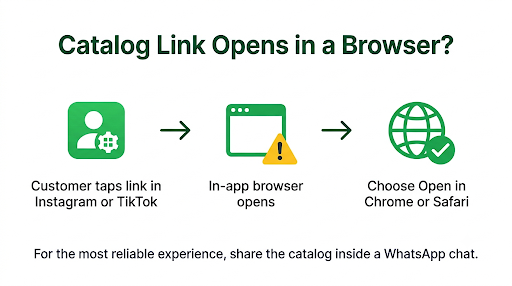
The biggest trap is in-app browsers. When a customer taps your link inside Instagram, TikTok, or Facebook, those apps often open it in their own built-in browser. That browser may fail to launch WhatsApp and land on the wa.me page or a WhatsApp Web login screen instead. To the customer, it looks like your link is broken.
Try these fixes:
- Ask customers to tap the three dots in the in-app browser and choose Open in Chrome or Open in Safari.
- Where possible, send the catalog inside a WhatsApp chat instead of only posting it in a bio.
- On desktop, the customer needs WhatsApp Desktop or WhatsApp Web linked to their phone, or the link will just ask them to log in.
This same handoff problem affects other links on your profile. If your profile link also refuses to open, read our fix for WhatsApp Business website link not clickable.
Why Does the Link Work for You but Not for Your Customer?
If the link opens fine on your phone but fails for a customer, the problem is likely on their device. That is good news, because your catalog is fine.
- Old WhatsApp version: Ask them to update WhatsApp from the App Store or Google Play.
- Old Android version: WhatsApp says shared catalog links might not open for recipients on Android versions older than 6.0.
- No WhatsApp installed: The link has nothing to open on their phone.
- Weak connection or a stuck app: A force close, restart, or switch from Wi-Fi to mobile data often fixes it. On Android, clearing the app cache in Settings > Apps > WhatsApp > Storage can also help. Do not tap Clear data unless you have a backup.
- They can’t see your profile at all: If customers also can’t find your business details, the catalog link is a symptom of a bigger visibility issue. Check our guide on WhatsApp Business profile not showing to customers.
How Do You Test Whether a WhatsApp Catalog Link Is Really Broken?
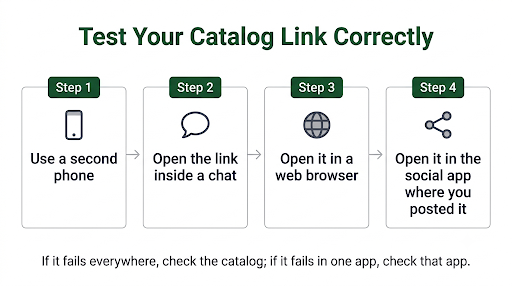
Test from a second phone that is not logged into your business account. Your own app can show you items that customers can’t see yet, which makes self-testing misleading.
- Send the link to a friend or a second number inside a normal WhatsApp chat.
- Open it from that chat. If it works here, your catalog is fine and the issue is where you posted it.
- Open it from a browser like Chrome or Safari on the same phone.
- Open it from Instagram or TikTok if that is where you shared it.
- Write down where it fails. That tells you whether to fix the catalog, the link, or the place you posted it.
This five-minute test saves a lot of guessing. If the link fails everywhere, the cause is on your business side. If it fails only in one app, the cause is that app.
How Do You Share a Fresh Catalog Link the Right Way?
The safest way to share is to generate the link inside WhatsApp Business every time. The exact steps vary slightly between Android and iPhone.
On Android
- Go to Tools > Catalog.
- Select the item you want to share, or use the link icon at the top for the full catalog.
- Tap Share.
- Choose to send it in WhatsApp Business, copy the link, or share it to another app.
On iPhone
- Go to Tools > Catalog.
- Select the item or service.
- Tap More (three dots).
- Tap Forward to send it in a WhatsApp chat, or Share to send it by email or another app.
From inside a chat
Open the chat, tap the attach or plus icon, choose Catalog, then pick items or tap Send catalog. The customer gets a message with a View catalog button, which is often the most reliable option because it never leaves WhatsApp.
Which Fix Should You Try First?
Start with the clue in front of you, not with a phone restart. Use this order:
- Look at the item in Tools > Catalog. Red mark, review message, or hidden icon? Fix that first.
- Check the error text. “Invalid catalog link” points to a disabled catalog or a bad number format.
- Check how the link was made. Hand-typed or edited links are a common cause. Generate a new one.
- Test from a second phone. This separates business-side problems from customer-side ones.
- Only then try app updates, restarts, and cache clearing. These fix glitches, not settings.
FAQs
Why is my WhatsApp Business catalog link not working on iPhone?
On iPhone, the most common cause is tapping the link inside an app like Instagram, which opens it in a built-in browser instead of WhatsApp. Open it in Safari, or send it inside a WhatsApp chat. Also make sure WhatsApp is updated, since older versions can struggle with newer catalog features.
Why is my catalog link not working on Android?
If you are on Android, check the Android version first. WhatsApp notes that catalog links might not open on versions older than Android 6.0. If the phone is newer, update WhatsApp and clear its cache from the app’s storage settings.
Can I share a link to a single collection?
No. WhatsApp does not create links for collections. Share your whole catalog link and point the customer to the collection by name, or share individual item links for the products you want to highlight.
Can I change or shorten my WhatsApp catalog link?
Not safely. The auto-generated link can’t be customized, and changing it may break it. If you want a short or branded link, use a redirect from your own website that points to the untouched original link.
Why does my catalog link ask customers to log in to WhatsApp Web?
That happens when the link is opened on a computer, or in a browser that can’t launch the WhatsApp app. On a computer, the customer needs to link WhatsApp Web or WhatsApp Desktop to their phone. On a phone, opening the link in Chrome or Safari usually hands it off to the app.
Do old catalog links stop working when I edit a product?
Editing price, photos, or description usually keeps the same item, but the item may go back into review, and the link won’t open for customers until it is approved again. Deleting a product and adding it back creates a new item, so the old link will never work again.
Is there a limit on catalog items that could affect links?
The WhatsApp Business app catalog holds up to 500 items, and each item can have up to 10 images or videos. If you hit the item limit, new products can’t be added, so links to them can’t exist yet.
Final Recommendation
When your WhatsApp Business catalog link stops working, check the item status in Tools > Catalog before anything else. Most broken links come from items that are in review, rejected, hidden, or deleted, or from a catalog that was turned off. Fix that, generate a fresh link from inside the app, and test it from a second phone in a WhatsApp chat, a browser, and the social app where you plan to post it.
If it works everywhere except Instagram or TikTok, the problem is the in-app browser, not your catalog. Send the catalog inside chats where you can, and ask customers to open bio links in their phone’s main browser.
