


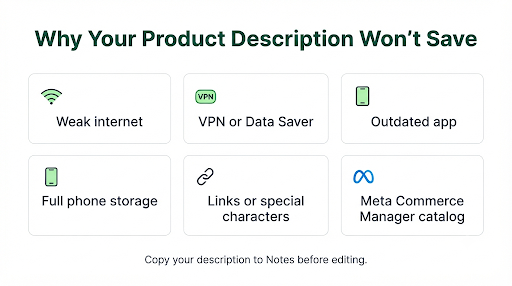
If your WhatsApp Business product description is not saving, the cause is usually one of four things: a weak or unstable connection, an outdated or glitchy app, text that breaks WhatsApp’s Commerce Policy, or a catalog that is connected to Meta Commerce Manager and can’t be edited inside the app. Most people fix it in a few minutes by checking the connection, updating the app, and cleaning up the description text.
This guide walks you through every fix in the right order, from the 30-second checks to the hidden causes most articles skip. Before you try anything, copy your description into a notes app so you don’t lose your work.
Quick Overview
- Spinning wheel or “Item wasn’t saved” error: switch networks, turn off any VPN, then force-close and reopen WhatsApp Business.
- Save button does nothing: update the app, free up phone storage, and clear the app cache (Android).
- Saves the name but not the description: remove links, phone numbers, emojis, and pasted formatting, then try a shorter version.
- Edit option is missing or greyed out: your catalog is probably connected to Meta Commerce Manager. Edit the product there instead.
- Saved, but customers still see the old text: edited items go back into review. Wait for approval before checking again.
Why Is My WhatsApp Business Product Description Not Saving?
Your description fails to save because WhatsApp either can’t reach its servers, can’t process the text you entered, or doesn’t allow edits from where you are trying to make them. Every catalog edit has to upload to WhatsApp’s servers before it counts, so anything that interrupts that upload will block the save.
Here are the most common causes, matched to what you see on screen:
| What you see | Most likely cause | Best first fix |
| “Item wasn’t saved” or “Couldn’t save item” | Network drop, server timeout, or rejected content | Switch Wi-Fi to mobile data and retry |
| Endless loading after tapping Save | Slow connection, VPN, or app cache issue | Turn off VPN, force-close the app |
| Save works only after deleting the description | Links, special characters, or flagged words in the text | Rewrite the description in plain text |
| No edit option or fields are locked | Catalog connected from Meta Commerce Manager | Edit the item in Commerce Manager |
| Changes save on phone but not on WhatsApp Web | Linked device sync or browser cache | Make the edit on your phone |
| Saved, but the old description still shows | Item is back in review after the edit | Wait for the review to finish |
How Do You Fix a Product Description That Won’t Save?
Start with the quick fixes below and work down the list. Test the save after each step so you know exactly which one solved it.
1. Check and Reset Your Internet Connection
A weak signal is the number one reason catalog edits fail. The app may look online for chats but still time out on uploads.
- Switch from Wi-Fi to mobile data, or the other way around.
- Turn on Airplane Mode for 10 seconds, then turn it off.
- Open a website or video to confirm the connection is actually working.
- Try saving the product again.
2. Turn Off Your VPN or Data Saver
VPNs, ad blockers, and data saver modes can block or slow down the connection WhatsApp uses for catalog uploads. Turn them off completely, then retry the save. On Android, also check that Background data and Unrestricted data usage are turned on for WhatsApp Business under Settings > Apps > WhatsApp Business > Mobile data.
3. Force-Close and Reopen WhatsApp Business
Sometimes the editing screen freezes in a bad state. Closing the app from your recent apps list is not always enough.
- Android: Go to Settings > Apps > WhatsApp Business > Force stop. Then reopen the app.
- iPhone: Swipe up from the bottom of the screen, pause, and swipe the WhatsApp Business card away. Then reopen it.
4. Update WhatsApp Business to the Latest Version
Old app versions often have bugs in the catalog editor, and some catalog features only work properly on current builds. Open the Google Play Store or Apple App Store, search for WhatsApp Business, and tap Update if you see it.
5. Clear the App Cache (Android Only)
Corrupted temporary files can stop the Save button from working. Clearing the cache does not delete your chats or catalog.
- Open your phone’s Settings.
- Go to Apps > WhatsApp Business > Storage.
- Tap Clear cache. Do not tap Clear data unless you have a recent backup.
Warning: Clear data wipes the app from your phone and you will need to restore from a backup. If your backups have been failing, fix that first with this guide on WhatsApp Business backup not working.
iPhones don’t have a cache button. Restarting the phone is the closest equivalent.
6. Free Up Phone Storage
When your phone is almost full, WhatsApp may not have room to process edits and images. Aim to keep at least 1 to 2 GB free. Deleting old videos and forwarded media inside WhatsApp (Settings > Storage and data > Manage storage) is a quick win.
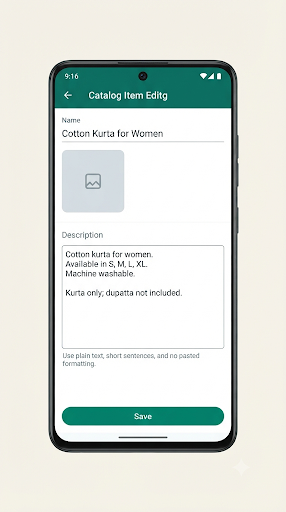
7. Clean Up the Description Text
This is the fix most guides miss. If the item saves when the description is empty but fails when you add text, the problem is the text itself.
Remove or change these one at a time:
- Links in the description. Put your website in the separate Link field instead.
- Phone numbers, email addresses, or “DM me” style contact lines. Customers can already message you from the catalog.
- Emojis and special symbols such as stars, arrows, or decorative fonts copied from font generator sites.
- Text pasted from Word, Google Docs, or a website. It can carry hidden formatting. Paste it into a plain notes app first, then copy it again.
- Very long descriptions. Trim to the key details: what it is, size or variant, material, and what’s included.
- Repeated keywords or ALL CAPS sales lines like “BEST PRICE GUARANTEED 100% ORIGINAL.”
Practical tip: Save the item with just one plain sentence first. If that works, add the rest of your description back in small chunks. The chunk that breaks the save is your culprit.
8. Check the Price and Link Fields Too
Sometimes the description isn’t the real problem. A bad entry in another field can block the whole item from saving.
- Enter the price as numbers only, without currency symbols or words.
- Make sure the link starts with https:// and opens a real, working page.
- If the save still fails, temporarily remove the price and link, save, then add them back one at a time.
If your item saves but the price disappears for customers, see this guide on WhatsApp Business product price not showing.
9. Re-Upload or Replace the Product Image
When you edit an item, WhatsApp saves the photo and text together. A broken, oversized, or unsupported image can make the entire save fail, even if you only changed the description. Remove the photo, add a fresh JPG or PNG from your gallery, and try again. If photos keep failing, follow the steps for WhatsApp Business catalog image not uploading.
10. Edit From Your Phone, Not WhatsApp Web
WhatsApp Web and Desktop rely on your linked phone and browser session. Catalog edits made there sometimes fail silently or don’t sync. Make the change directly in the WhatsApp Business app on your primary phone, then refresh WhatsApp Web. If you must use the browser, try a private window or clear the browser cache first.
11. Edit One Item at a Time
Adding or editing several products back to back can trigger errors, especially on slower connections. After each save, wait until the item appears in your catalog list before moving to the next one.
12. Restart or Reinstall the App
If nothing else works, restart your phone. As a last resort, back up your chats, uninstall WhatsApp Business, reinstall it, and restore. Your catalog is stored with your business account, but always confirm your backup is recent before uninstalling.
What If You Can’t Edit the Description at All?
If the edit option is missing, the fields are locked, or your changes never stick, your catalog is likely connected to a Meta catalog from Commerce Manager. When a Meta catalog is connected, product details come from Commerce Manager, so you need to edit them there instead of inside the app.
- Go to Meta Commerce Manager on a computer.
- Select the catalog connected to your WhatsApp Business number.
- Open Items, find the product, and update the description.
- Check the Issues tab for errors or warnings on that item.
- Wait for the change to sync to WhatsApp.
If your catalog comes from Shopify, WooCommerce, or another store through a data feed, edit the product in that store. Changes made directly in Commerce Manager can be overwritten the next time the feed syncs.
Want to go back to editing in the app? In WhatsApp Business, go to Tools > Catalog, tap the three-dot menu, open Catalog settings, and disconnect the Meta catalog. You’ll then manage items in the app again.
Why Does the Old Description Still Show After Saving?
Your edit probably did save. WhatsApp reviews catalog items against its Commerce Policy, and edited items can go back through review before customers see the change. Until that finishes, buyers may see the old version or not see the item at all.
Here’s what to expect during review, and how long it usually lasts, in our guide on WhatsApp Business catalog pending review.
Also check that you aren’t looking at a cached view. Close the catalog, reopen it, or ask a friend to view your catalog from their phone.
Can WhatsApp Commerce Policy Block a Description From Saving?
Yes. If your description mentions restricted items or makes claims WhatsApp doesn’t allow, the item can fail to save, get rejected, or be hidden from customers. Review the official WhatsApp Commerce Policy if you sell anything in a sensitive category.
Descriptions that commonly cause trouble include:
- Medical or health claims such as “cures,” “treats,” or “guaranteed weight loss”
- Restricted goods like alcohol, tobacco, vapes, supplements, weapons, or live animals
- Replica or “first copy” wording for branded products
- Adult products or suggestive language
- Financial services, loans, or investment promises
- Misleading wording like “100% free” when the item isn’t free
Example: A herbal tea seller writes “Cures acidity and diabetes naturally.” That health claim can get flagged. Changing it to “Caffeine-free herbal blend with ginger and mint, 100 g pack” describes the product without a medical promise.
If your item saves but customers can’t find it, it may be rejected or hidden. Here’s how to fix WhatsApp Business catalog items not showing to customers.
What Mistakes Make This Problem Worse?
- Tapping Save over and over. This can create duplicate items or extra errors. Tap once and wait.
- Clearing app data without a backup. You can lose chat history.
- Typing a long description directly in the app. If the save fails, the text is gone. Write it in a notes app first.
- Deleting and re-creating an approved item. The new item has to go through review again from scratch.
- Editing in two places at once. Changing the same item on WhatsApp Web and your phone, or in the app and Commerce Manager, causes conflicts.
How Do You Write a Description That Saves and Gets Approved?
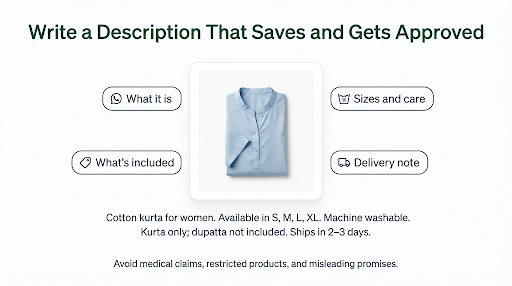
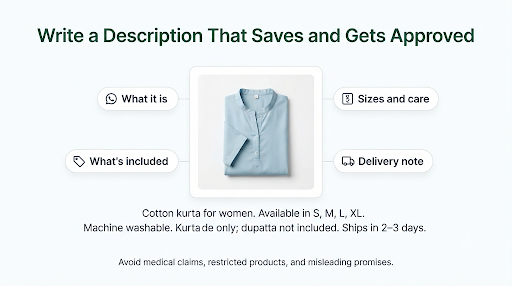
Keep it short, factual, and plain. A clean description saves faster, passes review more easily, and helps customers decide.
Use this simple formula:
- What it is: “Cotton kurta for women”
- Key details: “Available in S, M, L, XL. Machine washable.”
- What’s included: “Kurta only, dupatta not included.”
- One helpful note: “Ships in 2 to 3 days. Message us for custom sizes.”
Skip hashtags, emoji strings, and keyword lists. They add risk without helping you sell.
Frequently Asked Questions
Why does WhatsApp Business say “Item wasn’t saved”?
It means the edit didn’t reach WhatsApp’s servers or the content was refused. A dropped connection is the most common cause, but a bad image, broken link, or flagged text can trigger the same message. Retry on a different network first, then test with a plain-text description.
Does clearing cache delete my WhatsApp Business catalog?
No. Clearing the cache on Android only removes temporary files. Your catalog items, chats, and settings stay in place. Only Clear data or uninstalling removes local app data.
Is the product description not saving issue different on iPhone and Android?
The causes are the same, but the fixes differ slightly. Android lets you clear the cache and force stop the app from Settings. On iPhone, you force-close by swiping the app away and restart the phone instead, since there’s no cache option.
Can I edit my WhatsApp Business catalog description from a computer?
Yes. You can edit from WhatsApp Web or the Desktop app if your catalog was created in the app. If your catalog is connected from Meta, use Commerce Manager in a browser. If saves fail on the computer, make the edit on your phone instead.
Why does my description save but get cut off?
Customers often see a shortened preview in the catalog list, with the full text only after they tap the item. If the full description is also cut off, it may be too long or contain characters that didn’t save correctly. Trim it and remove any special symbols.
Is WhatsApp Business down when the catalog won’t save?
Occasionally, yes. If messages are also slow and the fixes above don’t help, WhatsApp may be having a temporary server issue. Wait 30 to 60 minutes and try again before changing anything else.
What Should You Do Next?
Start with the fastest wins: switch networks, turn off your VPN, force-close the app, and update WhatsApp Business. If the save still fails, test a one-line plain-text description to find out whether the text itself is the problem. And if the edit option is locked, go straight to Meta Commerce Manager, because no in-app fix will help when your catalog is managed from there.
Once the description saves, give the item time to clear review, then check your catalog from another phone to confirm customers see the update.
