


If your WhatsApp Business website link isn’t clickable, the usual cause is WhatsApp’s anti-spam rule. Links sent to someone who hasn’t replied to you or saved your number show up as plain text instead of a tappable hyperlink. Other causes include a badly formatted URL, a mistake in your business profile’s website field, a wrong wa.me number format, or a problem with the app on the customer’s iPhone or Android phone.
Most of these take a few minutes to fix once you know which one you have. This guide shows you how to spot the cause, fix it in the WhatsApp Business app or the API, and avoid it next time.
Quick Overview
| What you see | Most likely cause | Fastest fix |
| Link is plain gray text in a chat with a new customer | The customer hasn’t replied or saved your number | Ask a question first and send the link after they reply |
| Link in a template or API message isn’t clickable | The business started the conversation (WhatsApp’s spam control) | Use a “Visit website” call-to-action button |
| Website on your business profile doesn’t open | Typo, missing https://, or extra spaces in the website field | Re-enter the full URL in your business profile |
| Link is plain text for everyone, even saved contacts | URL formatting problem | Start with https:// and remove spaces and trailing punctuation |
| Link is blue but nothing happens when tapped | App version or phone settings on the customer’s device | Update WhatsApp, or long-press the link and choose Open |
| wa.me chat link opens an error | Wrong number format in the link | Use the country code with no +, spaces, dashes, or leading zero |
Why Is My WhatsApp Business Link Not Clickable?
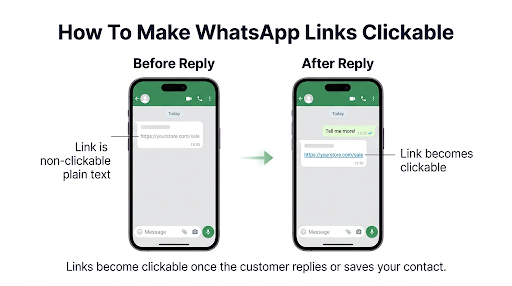
Most of the time it’s a security feature, not a bug. WhatsApp turns off hyperlinks in messages from businesses a person hasn’t interacted with yet, so that unknown senders can’t push them to risky websites.
Twilio’s support team explains that URLs in templated WhatsApp messages only become clickable once the recipient replies or adds the sender to their contacts. Businesses with an Official Business Account aren’t subject to this limit.
WhatsApp messaging platforms such as Superchat and Infobip describe the same pattern. A link is usually not clickable when:
- Your business sent the first message
- The customer has never messaged you before
- Your number isn’t saved in the customer’s phone
- Your API sender isn’t verified and the customer hasn’t added you as a contact
A link is usually clickable when:
- The customer started the chat
- The customer has replied at least once, even with a single emoji
- The customer saved your number as a contact
- Your account has the Official Business Account status
That’s why the same URL can work for a repeat customer and show as plain text for a new lead. If you see that difference, you’re dealing with the anti-spam rule, not a broken link.
How Do You Tell Which Problem You Have?
Look at how the link appears and who’s having the problem. Each cause leaves a different clue.
- Gray, not underlined, only for new contacts: the anti-spam rule.
- Gray for everyone, including people who saved your number: a formatting problem in the URL itself.
- Blue and underlined, but nothing opens: a device or app problem on the customer’s side.
- Opens, but the page is blank or won’t load: a problem with the website itself, not WhatsApp.
- The website on your profile page goes nowhere: the website field in your business profile.
- Opens, but shows “This link is incorrect”: a wa.me click-to-chat link with a bad phone number format.
One quick test: send the same link to a friend or coworker who has your business number saved. If it’s clickable for them, the link is fine and the problem is the recipient’s relationship with your account. Then try it from a phone that doesn’t have your number saved, so you see what a brand-new customer sees.
How Do You Make Links Clickable for New Customers?
You need the customer to engage before the link goes out. Here are the methods that work, starting with the simplest.
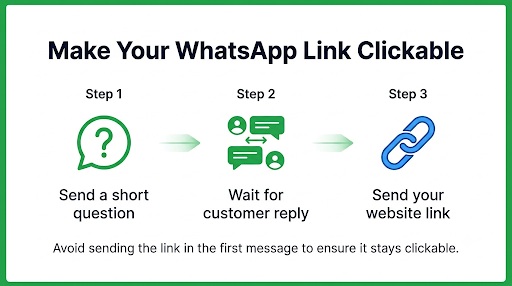
1. Ask a question before you send the link
Open with a short message that invites a reply, such as “Hi Maria, thanks for your interest in our spring menu. Want me to send the full list?” Once she answers, any link you send in that chat becomes a clickable link.
Don’t send the link in your first message. On some phones, links that arrived before the customer replied stay as plain text even after they reply. The customer then has to close and reopen the chat to see them as links. Sending the link after the reply avoids that.
2. Ask customers to save your number
Add a line like “Save this number so you can open our links” to your welcome message, receipts, or website. Sending your business contact card (vCard) makes saving it a one-tap step.
Saved numbers matter for another reason too. If you use broadcast lists in the WhatsApp Business app, customers who haven’t saved your number won’t get those messages at all.
3. Let customers start the conversation
When a customer messages you first, the restriction doesn’t apply. The easiest way to get there is the short link built into the WhatsApp Business app. WhatsApp creates one automatically for your account. You’ll find it under Settings, then Business tools, then Short link, where you can also add a default message and get a QR code.
Put that short link or QR code on your website, Instagram bio, flyers, packaging, and email signature. Every chat that starts this way is customer-initiated, so the links you send back are clickable.
4. Use a call-to-action button for API and template messages
If you send messages through the WhatsApp Business Platform (Cloud API), either directly or through a tool like Twilio, Superchat, Infobip, or AiSensy, don’t paste a plain URL into the template body. Use a “Visit website” call-to-action button. Buttons are part of the approved message template, so they’re much more likely to be tappable for first-time recipients than a URL in the text.
Timing matters on the API too. Once a customer messages you, a 24-hour customer service window opens. Links you send during that window go into a conversation the customer started, which is the most reliable time to share URLs.
5. Let customers accept your chat
When a business number messages someone for the first time, WhatsApp may show the customer a prompt asking whether to continue, block, or report. Some API providers note that when the customer taps to continue, or simply replies, the links in your messages become clickable. A short, clearly branded first message makes customers more likely to accept instead of blocking you.
6. Consider Official Business Account status
API accounts with Official Business Account status aren’t subject to the clickable-link restriction. Not every business qualifies, and Meta decides who does. It’s worth applying if you send a lot of business-initiated messages.
Why Isn’t the Website on My WhatsApp Business Profile Clickable?
If customers tap the website on your business profile and nothing happens, check the website field before anything else. A small typo there can break the link for every customer.
To fix it in the WhatsApp Business app:
- Open WhatsApp Business and go to Settings.
- Tap Business tools, then Business profile.
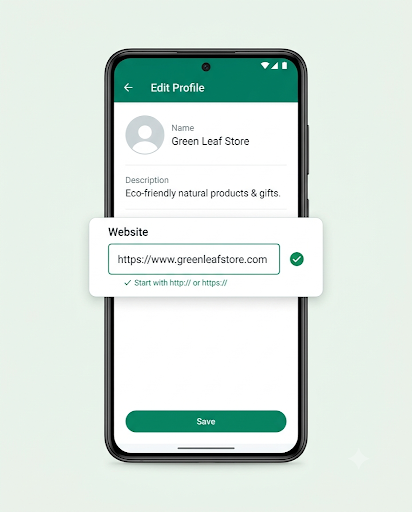
- Tap the Website field.
- Delete what’s there and type the full address, starting with https:// (for example, https://www.yourstore.com).
- Save, then open your profile from another phone to test it.
Common mistakes in the website field:
- A space before or after the URL
- A period or comma typed at the end
- Typing “www,yourstore.com” with a comma instead of a period
- Using an old domain that now redirects or has expired
- Pasting a long tracking URL that breaks partway through
If your profile details aren’t showing up for customers at all, the website field isn’t the real problem. Work through why your WhatsApp Business profile isn’t showing to customers first. A missing profile often comes with other missing details, and if customers can’t see when you’re open, here’s how to fix business hours not showing on WhatsApp Business.
API users, note: on the WhatsApp Business Platform, you manage the profile website in Meta’s WhatsApp Manager, not in the app. You can add up to two websites. Vonage’s documentation says profile URLs are not hyperlinked in some setups, so put your key links in message buttons instead of counting on the profile.
Could the Way You Typed the URL Be the Problem?
Yes. WhatsApp only turns text into a hyperlink when it recognizes a valid web address. If the format is off, the URL shows as plain text for everyone, including saved contacts.
| Formatting mistake | Example | Fix |
| No protocol | yourstore.com/sale | https://yourstore.com/sale |
| Punctuation stuck to the end | https://yourstore.com/sale. | Put a space after the link, or leave the punctuation off |
| Space inside the URL | https://yourstore.com/ spring-sale | Remove the space or use a hyphen |
| Link wrapped in formatting | *https://yourstore.com* | Don’t put bold, italic, or monospace formatting around the URL |
| Many links in one message | Five product links in one message | Send one main link per message, or use a catalog |
Also avoid generic URL shorteners like Bitly in business messages. They hide the real destination, which makes customers less likely to trust the link and can trip spam filters that hurt your account’s quality rating. A short URL on your own domain looks more trustworthy and works better.
If you want to share products, WhatsApp’s built-in catalog is often better than a long list of links. If your products don’t appear there, here’s how to fix WhatsApp Business catalog items not showing to customers.
Why Is My Link Preview Not Showing?
A missing link preview and an unclickable link are two different problems. The preview is the card with an image and title that appears above a URL. A link can work fine without one.
If the preview doesn’t appear:
- Wait a second before sending. After you paste the URL, give the preview a moment to load in the message box before you tap send.
- Check the “Disable link previews” setting. It’s under Settings, then Privacy, then Advanced. When it’s on, links you send won’t generate previews, but they still work as links.
- Check your website’s preview tags. WhatsApp builds the preview from your page’s title, description, and share image (Open Graph tags). If those are missing, or the image is too large, the preview can be blank or missing.
- Use the full https:// address. Partial URLs are less likely to generate a preview.
What If the Link Is Blue but Won’t Open?
If a link is blue and underlined but does nothing when tapped, the problem is on the device, not your WhatsApp Business account. Your customer, or you during testing, can try these fixes:
- Update WhatsApp. Some app versions have had bugs that stopped links from opening, and later updates fixed them.
- Long-press the link. On iPhone and Android, pressing and holding a link brings up an Open or Copy option, which gets around a tap that isn’t working.
- Copy and paste it into a browser. This shows whether the link works at all.
- Restart the phone. It’s simple, but it often clears a stuck app.
Fixes for Android
- Check the default browser. Go to Settings, then Apps, then Default apps, and make sure a browser is selected.
- Check “Open by default.” In your browser’s app settings, make sure it’s allowed to open supported web links.
- Clear WhatsApp’s cache. In Settings, then Apps, then WhatsApp, then Storage, tap Clear cache. This doesn’t delete your chats.
Fixes for iPhone (iOS)
- Update both WhatsApp and iOS. In a widely reported 2025 bug, iPhone users couldn’t tap links in WhatsApp, and Reddit users said an app update fixed it.
- Check your default browser. Go to Settings, then Apps, then Default Apps, and make sure a working browser is selected.
- Use long-press as a workaround until an update is available.
Fixes for WhatsApp Web and desktop
If links only fail on WhatsApp Web or the desktop app, check that your linked device is connected and synced, then try another browser. This guide on WhatsApp Business linked devices not working covers reconnecting.
What If the Link Opens but the Website Won’t Load?
If the link opens but you get a blank page, an endless loading spinner, or an error like “Can’t reach this page,” WhatsApp has done its job. The problem is the website.
- Open the URL in a regular browser to confirm the site is up.
- Check that your SSL certificate is valid, since browsers may block sites with expired certificates.
- Make sure the page loads on mobile data, not just on your office Wi-Fi.
- Remove long redirect chains, especially from tracking tools, which can time out on slow connections.
Why Is My wa.me Link Not Working?
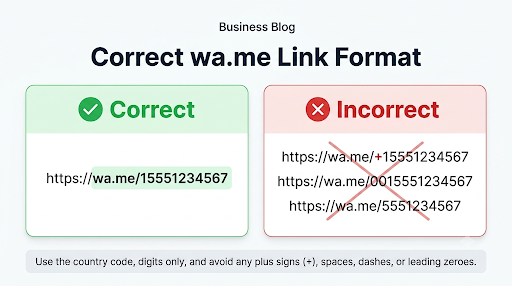
If your click-to-chat link (wa.me) opens an error like “This link is incorrect,” the phone number in it is formatted wrong. It needs the full international number with digits only.
- Correct: https://wa.me/15551234567
- Wrong: https://wa.me/+1 (555) 123-4567
- Wrong: https://wa.me/5551234567 (missing the country code 1 for US numbers)
- Wrong: https://wa.me/0015551234567 (the “00” international prefix shouldn’t be included)
Remove any leading zero used in local numbers, too, and confirm that the number is actually registered on WhatsApp. To skip the formatting entirely, use the short link from your Business tools.
Heads-up for Google Business Profile: Google doesn’t officially support pasting wa.me links into the website field, so they’re often rejected. WhatsApp’s Help Center explains how to link WhatsApp from your Google Business Profile: in your profile, go to Edit profile, then Contact, and set up WhatsApp in the Chat section.
What If the Message Never Arrives at All?
If customers say they never got your message, link or not, the problem is delivery, not clickability. A single gray tick means the message hasn’t been delivered yet. Work through the steps for WhatsApp Business messages not sending.
If you’re sending the link along with an image, PDF, or video that won’t upload, see this guide on WhatsApp Business not sending media.
Common Mistakes That Keep Links Unclickable
- Sending a link-heavy first message to a cold lead. It’s the most common reason links don’t work, and it also looks like spam.
- Testing only from your own phone. Your phone has your number saved, so links will always look fine. Test from a phone that doesn’t.
- Blaming your CRM or messaging tool. Twilio, Superchat, Infobip, and similar platforms all run into the same WhatsApp rule. Switching tools won’t fix it.
- Resending the same link again and again. If the customer hasn’t replied, more copies won’t become clickable, and repeat messages can get you blocked or reported.
- Confusing a missing preview with a broken link. No preview card doesn’t mean the URL is dead.
- Leaving an old domain in your profile. Check the website field any time you rebrand or change domains.
Frequently Asked Questions
Why are links clickable on Android but not on iPhone?
Some messaging platforms report that links in template messages are more often clickable on Android, while iPhones are stricter with first-time senders. On either device, the reliable fix is a reply from the customer or a call-to-action button.
Does the customer need to reply in a specific way?
No. Any reply works, including a thumbs-up emoji or “ok.” What matters is that the customer responded, not what they said.
Do I need a WhatsApp Business API account to send clickable links?
No. The free WhatsApp Business app sends clickable links once the customer has engaged with you. The API matters when you need message templates, buttons, or messaging at large volume.
Will a green checkmark or Meta Verified make my links clickable?
For API accounts, Official Business Account status removes the restriction on business-initiated links. Meta Verified for the WhatsApp Business app is a separate subscription, so don’t assume it changes how links behave until you’ve tested it with a new contact.
Can I make a link clickable without the customer saving my number?
Yes. A reply from the customer is enough. Chats that start from your short link or QR code also count, because the customer sent the first message.
Why did my link work yesterday but not today for the same customer?
If the customer deleted the chat, removed your contact, or switched phones, WhatsApp may treat you as a new sender again. Ask them to reply once and your links should become clickable again.
Are links in my catalog or business profile affected by the same rule?
The anti-spam rule applies to links inside messages. Profile and catalog problems usually come from wrong details or items that haven’t synced, so check those settings first.
What Should You Do Next?
Start with the cheapest fix. Stop putting links in your first message, and send them only after the customer replies. Next, check that your profile’s website field has the full https:// address with no extra characters, and test it from a phone that doesn’t have your number saved.
To prevent the problem altogether, share your WhatsApp Business short link or QR code so customers start the chat. If you send marketing or notification messages at scale, move your links into call-to-action buttons on approved templates. If a link is blue but won’t open, the fix is on the customer’s phone: an app update or a long-press usually solves it.
