


If your WhatsApp Business away message isn’t sending outside business hours, the cause is usually one of four things: your business hours aren’t saved in your profile, your phone is offline or the app is asleep in the background, the recipient settings leave the customer out, or the schedule setting is stuck. Most people fix it in under five minutes once they know where to look.
This guide walks you through every cause in the order you should check them, shows you how to test the fix properly, and covers the less obvious issues, like time zones, overnight hours, and the AI agent setting that quietly turns away messages off.
Quick Overview
Work through these fixes in order and test after each one:
- Set your business hours under Tools > Business profile > Business hours. The “Outside of business hours” option depends on them.
- Keep your phone online. Away messages only send when the phone running WhatsApp Business has an active internet connection.
- Turn off battery restrictions for WhatsApp Business so your phone doesn’t put it to sleep.
- Set Recipients to Everyone while you test.
- Reset the schedule: turn the away message off, switch the schedule to another option, save, then set it back to “Outside of business hours.”
- Check for a connected AI agent, which can disable away messages.
- Test from a different phone number during your closed hours, not from your own number.
How Does the “Outside of Business Hours” Away Message Actually Work?
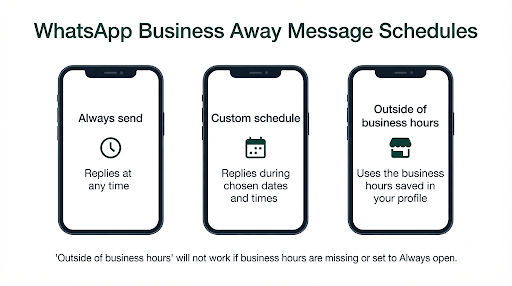
The away message is an automatic reply that WhatsApp Business sends when a customer messages you during times you’ve marked as unavailable. You set it up under Tools > Away message (on older versions, Settings > Business tools > Away message), and you pick one of three schedules:
- Always send: the reply goes out any time someone messages you.
- Custom schedule: the reply goes out only between a start and end time you choose.
- Outside of business hours: the reply goes out whenever your saved business hours say you’re closed.
That last option has no schedule of its own. It reads the hours stored in your business profile. So if those hours are missing, wrong, or set to “Always open,” the away message has nothing to work with.
There’s a second thing most people don’t realize. In the regular WhatsApp Business app, the away message is sent by your phone, not by WhatsApp’s servers. WhatsApp’s own help article on using away messages notes that your device needs an active internet connection to send them. If the phone is off, offline, or the app is frozen in the background, the customer gets silence.
Why Is My WhatsApp Business Away Message Not Sending Outside Business Hours?
Here’s a quick way to match what you’re seeing with the most likely cause.
| What you’re seeing | Most likely cause | Where to fix it |
| “Outside of business hours” option is missing or grayed out | No business hours saved in your profile | Business profile > Business hours |
| It never sends, not even once | Business hours set to “Always open,” wrong recipients, or an AI agent is connected | Business hours, Recipients, AI agent settings |
| It works in the evening but not late at night | Phone goes into battery saver or deep sleep overnight | Phone battery and background settings |
| It sends an hour early or late | Phone time zone or clock is off, or hours were set for a different time zone | Phone date and time settings |
| Some customers get it, others don’t | Recipient filter excludes them, or they already got one recently | Away message > Recipients |
| It worked before and suddenly stopped | Stuck schedule setting, app update, or a new AI or automation tool connected | Reset the schedule, update the app |
Now let’s go through each fix in detail.
Have You Actually Saved Your Business Hours?
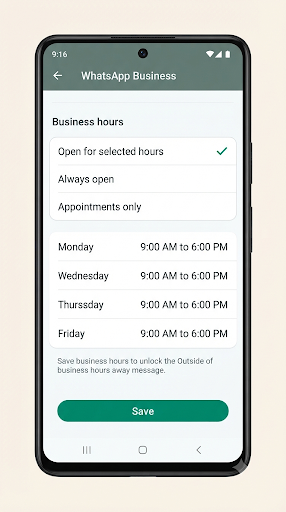
This is the number one cause. The “Outside of business hours” schedule only works if your business hours are saved in your business profile. WhatsApp says this option isn’t available until you’ve set them.
To check or set your hours:
- Open WhatsApp Business.
- Tap Tools (or More options > Settings > Business tools on Android, Settings > Business tools on iPhone).
- Tap Business profile, then Business hours.
- Choose Open for selected hours.
- Turn on each day you’re open and set the opening and closing times.
- Tap Save.
Watch out for “Always open.” If your hours are set to Always open, there’s no “outside” time, so the away message will never fire. Pick Open for selected hours instead. If you use “By appointment only,” switch to selected hours or use a Custom schedule for your away message so the timing is clear.
If you’ve saved your hours but they don’t appear on your profile, or they reset after you save, that’s a separate problem. Our guide on WhatsApp Business hours not showing covers that in detail.
Do Your Hours Cross Midnight?
If you close after midnight (for example, 6 PM to 2 AM), double-check how the app saved those hours. Some setups treat the closing time as the same day, which can leave a gap or overlap. A simple test: message your business number from another phone at 3 AM and see if the reply arrives. If it doesn’t, try splitting the hours or using a Custom schedule for the away message instead.
Is Your Phone’s Time Zone Correct?
Your business hours are read against your phone’s clock. If you travel, set your time zone manually, or your phone clock drifts, the away message can send at the wrong time or not at all.
- Android: Settings > System > Date and time > turn on Set time automatically and Set time zone automatically. The exact path varies by brand.
- iPhone: Settings > General > Date & Time > turn on Set Automatically.
Example: A shop in New York sets hours of 9 AM to 6 PM, but the owner’s phone is still on Pacific time after a trip. The away message won’t start until 9 PM Eastern, three hours after closing. Fixing the time zone solves it instantly.
Is Your Phone Online and Is WhatsApp Business Allowed to Run in the Background?
Your phone has to be on and connected to the internet for the away message to send. This is the cause behind most “it works sometimes” complaints.
Start with the basics:
- Keep the phone powered on and charged overnight.
- Stay on Wi-Fi or mobile data. Airplane mode or a dead Wi-Fi network means no away message.
- Make sure WhatsApp Business can send regular messages. If normal chats are stuck on one gray tick, fix that first. See our guide on WhatsApp Business messages not sending.
Turn Off Battery Optimization on Android
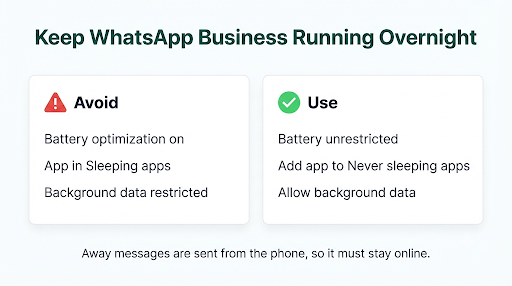
Android phones are aggressive about closing apps that run in the background. When that happens, WhatsApp Business can’t see new messages, so it can’t reply to them. Here’s how to stop it:
- Open Settings > Apps > WhatsApp Business.
- Tap Battery (or App battery usage).
- Choose Unrestricted.
- Go back and open Mobile data (or Data usage), then turn on Allow background data usage and, if shown, Allow data usage while Data saver is on.
On Samsung phones, also check Settings > Battery > Background usage limits and make sure WhatsApp Business isn’t in “Sleeping apps” or “Deep sleeping apps.” You can add it to Never sleeping apps. Xiaomi, OnePlus, Oppo, and Vivo phones have similar “Autostart” or “Battery saver” settings, so look for WhatsApp Business there too.
Check Background Settings on iPhone
iPhones manage background apps differently, but a few settings still matter:
- Background App Refresh: Settings > General > Background App Refresh. Make sure it’s on, and on for WhatsApp Business.
- Low Power Mode: Settings > Battery. Low Power Mode limits background activity, so turn it off overnight if you can keep the phone charging.
- Low Data Mode: Settings > Wi-Fi (tap the “i” next to your network) and Settings > Cellular > Cellular Data Options. Turn Low Data Mode off.
- Don’t force-close the app. Swiping WhatsApp Business away in the app switcher can stop it from running in the background until you open it again.
A good clue: if your WhatsApp Business notifications also arrive late or only when you open the app, the app is being put to sleep. Our guide to WhatsApp Business notifications not working goes deeper into fixing background delivery, and fixing it usually fixes the away message too.
Can WhatsApp Web or a Linked Device Send the Away Message for You?
Don’t count on it. WhatsApp Business lets you use linked devices like WhatsApp Web and the desktop app, and they can work even when your phone is offline. But WhatsApp’s away message guidance talks about your device needing an internet connection, and the setting lives on your main phone. The safest approach is to keep your main phone online overnight rather than relying on a laptop that’s left open.
If customers message you and nothing shows up on your computer either, the link itself may be broken. Check our walkthrough on WhatsApp Business linked devices not working.
Are Your Recipient Settings Leaving Customers Out?
Your away message only goes to the people you’ve selected. Under Away message > Recipients, you’ll see four choices:
- Everyone: every person who messages you.
- Everyone not in address book: only numbers not saved in your phone contacts.
- Everyone except…: everyone except the people you pick.
- Only send to…: only the people you pick.
Common mistake: setting “Everyone not in address book” and then testing from a friend’s or partner’s number that’s saved in your contacts. The away message works fine, but your test number is excluded, so it looks broken. Switch to Everyone while you test, then change it back if you want.
Is the Away Message Sending, Just Not Every Time?
The away message is designed to acknowledge a customer, not to reply to every single text. If a customer sends five messages in a row at night, they usually get one away message, not five. And a customer who just got one may not get another right away if they message again soon after.
WhatsApp doesn’t publish an exact waiting period for the Business app, so don’t assume it’s broken just because a repeat message didn’t trigger a second reply. When you test, use a number that hasn’t messaged your business recently.
Is a Meta AI Business Agent Turning Your Away Message Off?
This is a newer cause that a lot of guides miss. In some countries, the WhatsApp Business app lets you connect a Meta AI agent (sometimes called Business AI) to answer customers. When that agent is connected, WhatsApp can automatically disable greeting and away messages. Turning on Business AI can also limit other features.
If you or someone on your team recently tried an AI assistant in the Tools tab, open it and check whether it’s still active. Remove or turn off the agent, then go back to Away message and switch it on again.
The same idea applies to third-party tools. If your number is connected to a chatbot, CRM, or WhatsApp Business Platform (API) provider, that tool may be managing your automatic replies instead of the app. Check its own after-hours or away message settings.
How Do You Reset a Stuck Away Message Schedule?
Sometimes all the settings look correct, but the schedule seems stuck. Many users on Reddit and support forums report that resetting the schedule brings it back to life. Here’s the process:
- Go to Tools > Away message.
- Turn off Send away message and tap Save.
- Open it again, turn it on, tap Schedule, and choose Always send or Custom schedule. Tap Save.
- Open it once more, change the schedule back to Outside of business hours, and tap Save.
- Close the app normally (don’t force-close it) and run a test.
If “Outside of business hours” still won’t behave, use a Custom schedule that matches your closed hours as a backup. It doesn’t depend on your profile hours, so it’s a reliable workaround while you sort out the main issue.
Should You Update, Restart, or Reinstall WhatsApp Business?
Yes, in that order. Bugs in older app versions can break scheduled features.
- Update the app from the Google Play Store or Apple App Store.
- Restart your phone to clear any stuck background process.
- Clear the cache (Android only): Settings > Apps > WhatsApp Business > Storage > Clear cache. Do not tap “Clear data,” which signs you out.
- Reinstall as a last resort. Back up your chats first (Settings > Chats > Chat backup). After reinstalling, check that your business hours and away message settings are still there, because you may need to set them up again.
How Do You Test Your Away Message the Right Way?
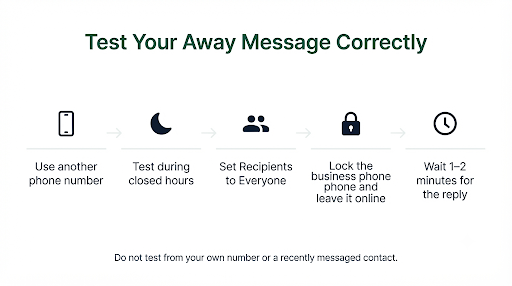
A lot of “not working” reports are really testing mistakes. Follow this checklist so you get a true result:
- Use a different phone number. Messaging yourself or using the “Message yourself” chat won’t trigger it.
- Test during closed hours. If you’re open until 6 PM, test at 6:15 PM, not 5:55 PM.
- Use a number that’s allowed by your Recipients setting.
- Use a number that hasn’t messaged you recently, so you’re not hitting the repeat limit.
- Leave the business phone alone. Lock it, leave it on Wi-Fi, and don’t open WhatsApp Business. This copies what really happens overnight.
- Wait a minute or two before deciding it failed.
Want a stronger test? Do one test right after closing time and another a few hours later, after the phone has been idle. If the first works and the second fails, the problem is almost always battery or background restrictions.
What Are the Best Workarounds If It Still Won’t Send?
If you’ve tried everything and the away message still fails, you have a few practical options:
- Use a Custom schedule instead of “Outside of business hours.” Set it to start at closing time and end at opening time.
- Use “Always send” temporarily during holidays or vacations, then switch it off when you’re back. The app doesn’t have a separate holiday setting, so this is the easiest way to cover days off.
- Keep a spare phone plugged in on Wi-Fi as the main WhatsApp Business device if your personal phone often goes offline.
- Consider the WhatsApp Business Platform (API) through a provider if you need replies that don’t depend on your phone. Away messages there run from the provider’s systems, but setup and pricing are different from the free app.
It’s also worth making sure customers know your hours before they message. If your profile details aren’t visible to them, they won’t see your hours either. Our guide on WhatsApp Business profile not showing to customers explains how to fix that.
What Should a Good After-Hours Away Message Say?
Once it’s sending again, make it useful. A strong away message tells customers three things: you got their message, when you’ll reply, and where to go if it can’t wait.
Example: “Thanks for messaging [Business Name]! We’re closed right now. Our hours are Monday to Friday, 9 AM to 6 PM ET, and we’ll reply first thing tomorrow. For order tracking, visit [link].”
Keep it short, include your hours and time zone, and update it before holidays so customers aren’t told you’ll be back on a day you’re closed.
Frequently Asked Questions
Why is “Outside of business hours” grayed out in WhatsApp Business?
It’s grayed out because you haven’t saved business hours in your business profile yet. Go to Business profile > Business hours, choose Open for selected hours, set your days and times, and save. Then go back to Away message and the option should be available.
Does the WhatsApp Business away message work when my phone is off?
No. In the free WhatsApp Business app, the away message is sent from your phone, so the phone must be on and connected to the internet. If you need automatic replies that work with the phone off, you’d need a WhatsApp Business Platform (API) setup through a provider.
Why does my away message work on weekends but not weeknights?
This usually points to your business hours or your phone’s overnight behavior. Check that each weekday has the right closing time saved. Also check whether a bedtime mode, battery saver schedule, or Wi-Fi sleep setting kicks in at night on weekdays and cuts the app’s connection.
Can I set a different away message for holidays?
The app only lets you have one away message at a time, and there’s no built-in holiday calendar. Before a holiday, edit the message text and switch the schedule to Always send or a Custom schedule. Set a reminder to switch it back when you reopen.
Will customers get the away message if they’re saved in my contacts?
Only if your Recipients setting allows it. If you chose “Everyone not in address book,” saved contacts won’t get it. Choose “Everyone” if you want every customer to receive it.
Is the away message the same as the “Away” status on WhatsApp?
No. The away message is an automatic reply sent in the chat by WhatsApp Business. A status or “About” line that says you’re away is just text on your profile. It doesn’t send anything to customers who message you.
Final Recommendation
Start with the two fixes that solve most cases: save your business hours using “Open for selected hours,” and set WhatsApp Business to Unrestricted battery use so your phone keeps it running overnight. Then set Recipients to Everyone and test from another number during closed hours with your business phone locked and idle.
If it still won’t send, check for a connected AI agent, reset the schedule, and update the app. And if you need a quick fix tonight, switch to a Custom schedule that matches your closed hours. It’s the most reliable backup until the “Outside of business hours” option is working again.
