


If your WhatsApp Business connected catalog is not syncing, the cause is usually one of four things: the catalog link between Meta Commerce Manager and your WhatsApp Business account broke, the items are stuck in review or were rejected, the product data has an error, or you are simply inside Meta’s 24-hour sync window. A smaller group of businesses hits a fifth wall: their number runs in Coexistence (CoEx) mode, which many platforms say does not support catalogs at all.
This guide walks you through each cause in the order you should check it, so you stop guessing and fix the real problem. It covers the WhatsApp Business app, WhatsApp Web, the Cloud API, and third-party tools like Shopify apps and CRMs.
Quick Overview
Work through these checks in order and stop at the first one that fails:
- Wait 24 hours after your last change. Meta says connected catalog updates can take up to a day to show on WhatsApp Web.
- Confirm the catalog is still connected in the app under Tools > Catalog > Catalog settings, or in WhatsApp Manager > Catalog.
- Check the Facebook Page link. The Page tied to your catalog must be linked to your WhatsApp Business account.
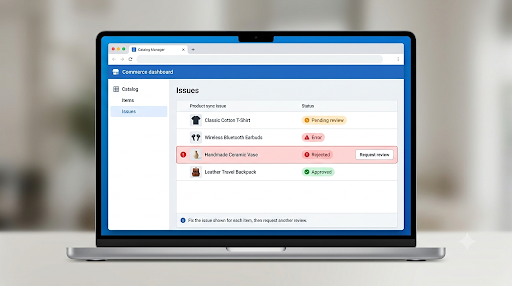
- Open Commerce Manager > Catalog > Issues and fix any rejected, pending, or errored items.
- Verify item data: in stock, published (not hidden), valid price, working public image URL.
- Check permissions: you need admin access and Manage Catalog permission in the same Business Manager that owns the Page.
- API users: make sure is_catalog_visible is set to true for your phone number.
- CoEx users: check whether your provider supports catalogs on Coexistence numbers.
- Third-party tools: run a manual sync in the tool, since many do not pull Meta changes automatically.
- Last resort: disconnect and reconnect the catalog, then wait for the full sync.
What Does “Connected Catalog” Mean on WhatsApp Business?
A connected catalog is a product catalog you build in Meta Commerce Manager and then attach to your WhatsApp Business account, instead of adding items one by one inside the WhatsApp app. It is the same catalog that can power your Facebook and Instagram shops.
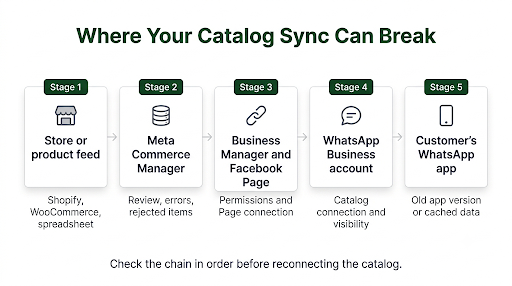
That matters for troubleshooting because the data flows through a chain:
| Link in the chain | What it does | What breaks sync here |
| Your store or feed (Shopify, WooCommerce, spreadsheet) | Holds your master product data | Broken feed URL, missing columns, app sync errors |
| Meta Commerce Manager | Stores and reviews the catalog | Items pending review, rejected, or flagged with errors |
| Business Manager and Facebook Page | Owns the catalog and grants permissions | Page unlinked, missing Manage Catalog permission, wrong portfolio |
| WhatsApp Business account (app or WABA) | Displays the catalog to customers | Catalog disconnected, visibility turned off, wrong phone number |
| Customer’s WhatsApp app | Renders product cards and the cart | Old app version, cached data |
When people say “my catalog isn’t syncing,” the break can be at any one of these links. The fixes below follow the chain from the most common failure point to the least common.
How Long Does a Connected Catalog Take to Sync?
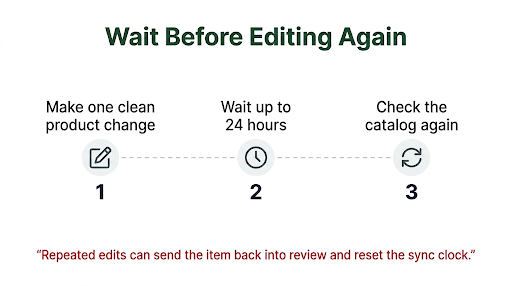
Plan for up to 24 hours. WhatsApp’s own Help Center states that updates to a connected catalog should reflect on WhatsApp Web within 24 hours. In practice, small edits often appear much sooner, but a day is the official window.
Third-party tools add their own delay on top of Meta’s:
- Shopify and store apps: many sync to Meta on a schedule, often hourly or daily, rather than instantly. A large first-time import can take one to two days.
- CRMs and chat platforms: some, such as Kommo, do not pull Meta changes at all until you press a manual sync button.
- Scheduled data feeds: Commerce Manager only fetches your feed file at the interval you set.
Common mistake: editing the same product again and again because the first change did not show. Each new edit can send the item back through review, which resets the clock. Make one clean change, then wait.
Why Is My Connected Catalog Not Syncing? The Main Causes and Fixes
1. Is the Catalog Still Connected to Your WhatsApp Business Account?
Check this first. A catalog can silently disconnect after you change phone numbers, reinstall the app, switch Business Manager accounts, or reconnect your number to a new provider.
On the WhatsApp Business app (Android or iPhone):
- Open WhatsApp Business and tap Tools.
- Tap Catalog.
- Tap More options (three dots) > Catalog settings.
- If you see Connect catalog, the link is gone. Tap it, choose your Meta catalog, and tap Continue.
On the WhatsApp Business Platform (API):
- Go to Meta Business Suite and open WhatsApp Manager.
- Select your WhatsApp Business Account (WABA).
- Under Account tools, click Catalog.
- If no catalog is listed, click Choose a catalog, select it, and connect.
Key detail many guides skip: the catalog must be connected to the WABA itself, and to the right phone number. If you run a test number and a live number, it is easy to attach the catalog to the wrong one.
Also note that you can only manage the connection from the phone app. WhatsApp Web lets you view a connected catalog, but connecting, disconnecting, and managing it happens on your iPhone or Android.
2. Is Your Facebook Page Linked to WhatsApp Business?
For the WhatsApp Business app, the connected catalog depends on a Facebook Page. Meta’s requirement is that the Page associated with your catalog must be linked to your WhatsApp Business account. If that Page link breaks, updates stop flowing even though the catalog still exists in Commerce Manager.
To relink it:
- In WhatsApp Business, go to Tools (or Settings > Business tools) > Facebook & Instagram.
- Tap Facebook > Continue and log in.
- Select the same Page that owns your catalog.
If linking fails, WhatsApp’s troubleshooting checklist says you need all of these:
- You are using the same phone number that is registered to your WhatsApp Business account.
- You are an admin on the Business Manager account.
- Your Facebook Page and your catalog belong to the same Business Manager.
- You have Manage Page permission for the Page and Manage Catalog permission for the catalog.
Real-world scenario: an agency builds the catalog in its own Business Manager, but the client’s Page lives in the client’s Business Manager. Everything looks connected, yet nothing syncs. The fix is to move or share the catalog into the same business portfolio as the Page.
3. Are Your Products Stuck in Review or Rejected?
WhatsApp automatically reviews every item added to a connected catalog. Items that break the WhatsApp Commerce Policies get flagged, and flagged items will not show to customers, no matter how healthy the connection is.
To check:
- Open Meta Commerce Manager and pick your catalog.
- Go to Catalog > Issues (or the Products tab and filter by status).
- Filter by Errors and Warnings.
- Fix the field named in each issue, then select Request review for rejected items.
Most items clear review quickly, but some categories take longer. If you are wondering whether your wait is normal, see our guide on how long WhatsApp catalog items stay in pending review.
Rejections often come from:
- Restricted categories, such as supplements, health claims, alcohol, or weapons
- Vague or missing descriptions
- Prices that look unrealistic
- Images with promo text, watermarks, or heavy borders
If the same item keeps getting rejected after clean edits, the product category itself may not be allowed on WhatsApp. That is a policy limit, not a sync bug.
4. Are Items Hidden, Out of Stock, or Missing From the Product Set?
An item can be approved and still never appear in chat. This is one of the most confusing versions of the problem, because Commerce Manager shows everything as “Active.”
Check these three settings on each missing product:
- Visibility: set to Published, not Hidden.
- Availability: set to In stock. Out-of-stock items show as unavailable in product messages, and if a customer already had the item in a cart, WhatsApp removes it and shows “One or more items in your cart have been updated.”
- Product sets: if your chatbot or template sends a specific product set or collection, the item must be inside that set, even if it exists in the master catalog.
For a full walkthrough of this “approved but invisible” situation, read our guide on why WhatsApp Business catalog items are not showing to customers.
5. Is Your Product Data Missing Required Fields?
If you upload products by data feed or spreadsheet, a single bad row can fail without stopping the rest of the upload. That is why some products sync and others never do.
Every row should include these core fields:
| Field | What to check |
| id | Unique, never reused. This is the Content ID or SKU WhatsApp uses. |
| title | Plain product name, no all-caps or promo text |
| description | Clear, honest description of the item |
| availability | in stock, out of stock, and so on |
| condition | new, refurbished, or used |
| price | Number plus currency code, for example 24.99 USD |
| link | Working product page URL |
| image_link | Public, working image URL |
| brand | Brand name |
In Commerce Manager, open Data sources and read the per-row errors, not just the top-line count. The summary may say “uploaded,” while 40 rows quietly failed.
Text fields are a frequent trouble spot. If edits to your copy keep vanishing, our article on WhatsApp Business product descriptions not saving walks through the usual causes and fixes.
6. Are Product Images Failing to Load?
When Meta cannot fetch an image, the item may fail review or show without a photo. Image errors are one of the top reasons a product “won’t sync.”
- Use a public HTTPS link. Images behind a login, a private Google Drive link, or an expiring URL will fail.
- Use JPG or PNG at a solid resolution. Many integrators recommend at least 500 x 500 pixels.
- Show the product clearly. Avoid overlaid text, watermarks, and borders.
- If images fail only sometimes, your host may be blocking or rate-limiting Meta’s crawler. Moving images to stable storage or a CDN usually fixes it.
If the problem is with uploading images directly in the app, see our step-by-step fix for WhatsApp Business catalog images not uploading.
7. Are Prices Showing Wrong or Not at All?
Price problems look like sync failures because customers see an old price, a strange price, or no price. Usually the data is the issue, not the connection.
- Missing currency: always include the currency code. In a feed, write 24.99 USD, not just 24.99.
- API pushes: if you or a developer send products through Meta’s API, check how the price field is formatted. Some API calls expect the price in the smallest currency unit (cents), so sending 2499 when the system expects dollars, or the reverse, produces a price 100 times off.
- Sale price conflicts: an expired or invalid sale price field can override the regular price.
For more on this exact symptom, read our guide to fixing a WhatsApp Business product price that is not showing.
8. Is the Catalog Visibility Turned Off (API Users)?
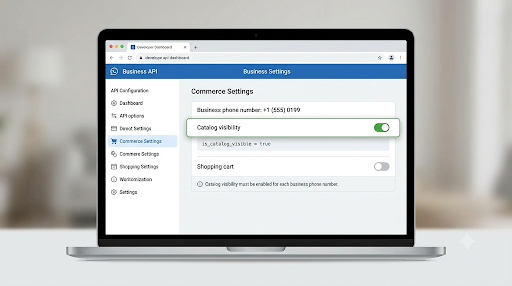
If you use the WhatsApp Business Platform through the Cloud API or a provider, catalog visibility is a separate switch on each business phone number. Your catalog can be connected and fully approved while the storefront stays hidden from customers.
Meta’s Commerce Settings API controls two flags per number:
- is_catalog_visible: shows or hides the catalog storefront icon and catalog buttons.
- is_cart_enabled: turns the shopping cart on or off.
Your developer or provider can check the current value with a GET request to the /{phone-number-id}/whatsapp_commerce_settings endpoint and set is_catalog_visible=true with a POST request. Meta’s older On-Premises documentation noted that the storefront icon was hidden by default, which is why so many API users miss this step. See Meta’s commerce settings documentation for the current request format.
If you use a no-code platform, look for a setting labeled “Show catalog,” “Catalog visibility,” or similar in its WhatsApp integration page.
9. Is Your Number Using WhatsApp Coexistence (CoEx)?
This is the newest and least understood cause. Coexistence lets you keep using the WhatsApp Business app on your phone while the same number is also connected to a Business Solution Provider (BSP) on the Cloud API.
The catch: several major providers, including Wati, list WhatsApp catalogs as a feature that is not supported on CoEx numbers. Business owners on community forums report the same thing: the catalog shows in the app but will not connect or load through the platform.
Your options:
- Keep CoEx and manage the catalog in the app only. Customers can still browse the catalog on your profile, but your BSP’s catalog features may not work.
- Move the number to the standard Cloud API through your provider’s normal embedded signup. This is the route most providers recommend for full catalog support, but it means giving up the WhatsApp Business app on that number.
- Use a second number on the Cloud API for catalog-driven sales, and keep the CoEx number for everyday chats.
Warning: if you move a number from the WhatsApp Business app to the Cloud API, the catalog link often does not carry over. After the move, reconnect the catalog to the WABA in Commerce Manager or WhatsApp Manager, and turn catalog visibility back on.
Before choosing, ask your provider directly whether catalogs work on CoEx for your account. Support varies by provider and Meta keeps updating the feature.
10. Is a Third-Party Tool Holding Up the Sync?
If you sync from Shopify, WooCommerce, or a CRM, the hold-up may be in that tool, not in WhatsApp.
- Run a manual sync. Many platforms have a “Sync now” or “Sync products” button. Some, like Kommo, will not reflect Meta changes until you press it.
- Check the partner assignment. In Business Settings > Data sources > Catalogs, confirm your provider is assigned as a partner on the catalog with the right access.
- Reconnect with catalog permission. If the tool was connected before you granted catalog permissions, its access token may lack catalog access. Reconnect and approve catalog management.
- Check the WABA match. The catalog must be linked to the same WABA that the tool is connected to. A catalog on a different WABA will not connect.
- Edit in one place. Change products at the source (for example, Shopify). Edits made directly in Commerce Manager can be overwritten at the next scheduled sync.
11. Are You Seeing “Catalog Already Linked” or an Empty Catalog Error?
Two error messages come up again and again:
- “Product catalog already linked to WhatsApp Business account”: the catalog is still attached to another WABA or a previous provider, even if you cannot see it. Disconnect it from the old account in WhatsApp Manager, then connect it to the new one. A number can only use one catalog at a time.
- Error #2027, “Empty catalog”: the linked catalog has no active products. Either add products in Commerce Manager or connect the catalog that actually holds your items.
12. Is It Just the App or Device?
Once you have ruled out the account-level causes, check the device. These steps fix display and loading issues, not data problems:
- Update WhatsApp Business from the Google Play Store or Apple App Store.
- Force-close and reopen the app, or restart your phone.
- Toggle airplane mode or switch between Wi-Fi and mobile data to rule out a network issue.
- Android only: go to Settings > Apps > WhatsApp Business > Storage & cache > Clear cache. Do not tap Clear storage or Clear data unless your chats are backed up.
- WhatsApp Web: log out, clear browser cache, and scan the QR code again.
Remember that the customer’s phone matters too. Very old versions of WhatsApp can show catalog cards inconsistently. Ask a friend on a current app version to check your catalog before assuming it is broken.
Should You Disconnect and Reconnect the Catalog?
Yes, but only after the checks above. Reconnecting is a reset, not a diagnosis. If the real problem is a rejected item or a missing permission, reconnecting will not help, and you will wait through another full sync for nothing.
When you do reconnect:
- Note which catalog and which Page you are using, so you reconnect the same ones.
- In the app: Tools > Catalog > More options > Catalog settings > disconnect, then Connect catalog again.
- On the API: in WhatsApp Manager > Catalog, disconnect and choose the catalog again, then recheck is_catalog_visible.
- Wait up to 24 hours before making further changes.
Which Fix Should You Try Based on Your Symptom?
| What you see | Most likely cause | Start with |
| No catalog at all on your profile | Catalog disconnected or visibility off | Fix 1, Fix 8 |
| Catalog shows in the app but not on WhatsApp Web | Normal sync delay | Wait 24 hours |
| Some products show, others never do | Rejected items or bad data rows | Fix 3, Fix 5 |
| “Active” in Commerce Manager but missing in chat | Hidden, out of stock, or not in product set | Fix 4 |
| Old prices or photos still showing | Third-party sync not run, or source overwrite | Fix 10, Fix 7 |
| Catalog works in app but not in your chat platform | CoEx limitation or WABA mismatch | Fix 9, Fix 10 |
| Catalog stopped after switching providers | Link lost during migration | Fix 9, Fix 11 |
| Catalog spins or will not load on your phone | App or network issue | Fix 12 |
How Do You Prevent Catalog Sync Problems in the Future?
- Keep everything in one business portfolio. Page, catalog, and WhatsApp account should live in the same Business Manager.
- Pick one source of truth. Edit products in your store or in Commerce Manager, not both.
- Check the Issues tab weekly. Catch rejections before customers notice missing items.
- Host images somewhere stable. Avoid links that expire or require a login.
- Recheck the connection after any account change, such as a new phone, a new provider, or a number migration.
- Write down your setup. Record the catalog ID, Page, WABA, and phone number so anyone on your team can troubleshoot fast.
Frequently Asked Questions
Why does my catalog show on my phone but not on WhatsApp Web?
Most often it is timing. WhatsApp Web picks up connected catalog updates within about 24 hours. WhatsApp Web also only supports viewing the catalog, so if you need to fix or reconnect anything, do it from the WhatsApp Business app on your phone.
Can I edit connected catalog products inside the WhatsApp Business app?
With a connected Meta catalog, plan to make product changes in Commerce Manager or in the store that feeds it. That keeps one clean source of data and prevents your edits from being overwritten at the next sync from Shopify or another platform.
Can one WhatsApp number have two catalogs?
No. A phone number can only use one catalog at a time. If you sell several product lines, keep them in one catalog and use product sets or collections to group them.
Do I need a Facebook Page to use a connected catalog?
For the WhatsApp Business app, yes. Meta requires the Facebook Page associated with your catalog to be linked to your WhatsApp Business account. On the WhatsApp Business Platform, the catalog connects to your WABA through Business Manager instead.
Will deleting and re-adding products fix sync issues?
Usually not, and it can make things worse. New items go back through review, and reusing old IDs can confuse links shared with customers. Fix the specific error shown in Commerce Manager instead.
My products are approved and visible, but categories or collections do not show. Why?
Collections and categories depend on product sets being set up and approved, not just the individual items. Recheck the set in Commerce Manager, confirm each product is assigned to it, and allow time to sync. Some developers on Meta’s forum report this as an intermittent Meta-side issue, so if everything checks out, report it through Meta Business Support.
Who should I contact if nothing works?
If you use the WhatsApp Business app, contact WhatsApp support from Settings > Help in the app. If you use a provider on the Cloud API, start with your provider’s support team, since they can see your WABA setup and partner permissions. For Commerce Manager errors, use Meta Business Support.
Final Recommendation
Do not start by reconnecting or deleting products. First wait 24 hours, then open Commerce Manager > Issues and fix every flagged item. If the items are clean, confirm the catalog is connected to the right WhatsApp account and phone number and that your Facebook Page link is intact. API and platform users should then check catalog visibility and run a manual sync in their tool. If your number runs on Coexistence, ask your provider whether catalogs are supported before you spend more time troubleshooting. Most catalog sync problems are solved somewhere in those steps, and checking them in this order saves you from waiting through repeat sync cycles.
