


Most WhatsApp Business catalog items clear review within a few minutes to a few hours, and almost everything should be approved or rejected within 24 hours. WhatsApp officially says a new collection review should take no more than 24 hours. It does not publish a fixed time for individual items, so anything stuck past 48 hours usually points to a problem with the listing itself.
Below, you’ll find what “pending review” actually means, a realistic hour-by-hour timeline, and exactly what to do when your catalog is still pending after a day or more.
Quick Overview
| What you’re waiting on | Typical review time | What to do if it takes longer |
| New catalog item (product or service) | A few minutes to a few hours, sometimes up to 24 hours | After 24 hours, check the title, image, and description, then edit and save the item |
| Edited catalog item | Goes back into review, usually same timeframe as a new item | Avoid repeated edits while it’s pending |
| New collection | No more than 24 hours, per WhatsApp | Make sure every item inside the collection is approved |
| Rejected item after “Request another review” | No fixed time published; often a day or two | Fix the listing first, then appeal with a clear reason |
| Rejected product in Meta Commerce Manager (API catalogs) | Usually a few days | Appeal once, with a short, specific rationale |
Key rule: while an item is pending review or rejected, customers cannot see it. Once it’s approved, it appears in your catalog automatically.
What Does “Pending Review” Mean in a WhatsApp Business Catalog?
“Pending review” means WhatsApp has received your item but hasn’t finished checking it against its commerce rules. The item exists in your catalog, but only you can see it.
Every product or service you add, and every image or video attached to it, goes through a review. Most of this check is automated. The system looks at your title, description, photos, price, and link to confirm you’re not selling something prohibited or describing a product in a misleading way.
According to the WhatsApp Help Center guide on creating and maintaining a catalog, an item that is pending review or has been rejected is not visible to customers. Once it’s approved, it’s added to the catalog automatically. You don’t need to republish anything.
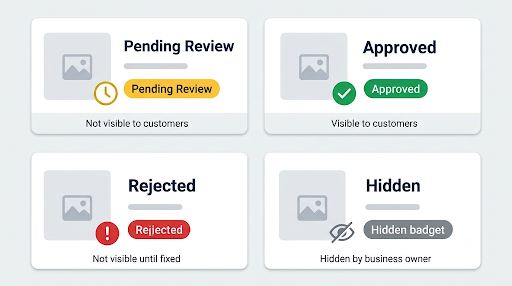
Here’s how the common statuses compare:
- Pending review / Under review: WhatsApp is still checking the item. Hidden from customers.
- Approved: The item passed review and is live in your catalog.
- Rejected / Not approved: Usually shown with a red exclamation mark. Hidden from customers until you fix it or win an appeal.
- Hidden: Shown with an eye-with-a-slash icon. This is a setting you (or someone on your account) turned on. It’s not a review status at all.
That last one trips up a lot of business owners. A hidden item looks “unavailable” just like a pending one, but no amount of waiting will fix it.
How Long Does WhatsApp Business Catalog Review Take, Hour by Hour?
The short answer is up to 24 hours. The more useful answer is to know what each waiting stage usually means, so you know when to act and when to leave it alone.
0 to 3 hours: Normal
Most items with clear photos and plain descriptions get approved in this window. Many sellers see approval in minutes. Don’t edit the item yet. Every edit sends it back into the queue.
3 to 24 hours: Still normal
Busy review periods, a new business account, or a large batch of items uploaded at once can push approval later in the day. WhatsApp’s own 24-hour guideline for collections is a good benchmark for items too.
24 to 48 hours: Time to check the listing
If your WhatsApp Business catalog is still pending after 24 hours, something may be slowing the automated check down. This is the point to review the item details (covered below). One careful edit and save can push the item back through review.
48 hours to several days: Something is likely wrong
When a catalog item stays pending for days, the cause is usually one of these: the item needs a closer manual look, it sits in a sensitive product category, required details are missing, or there’s a bigger issue with your account or catalog setup. Waiting longer rarely fixes it on its own.
How Do You Check the Review Status of a WhatsApp Catalog Item?
You check the status inside the catalog itself. WhatsApp doesn’t always send an alert when an item is approved, so opening the catalog is the most reliable way to know.
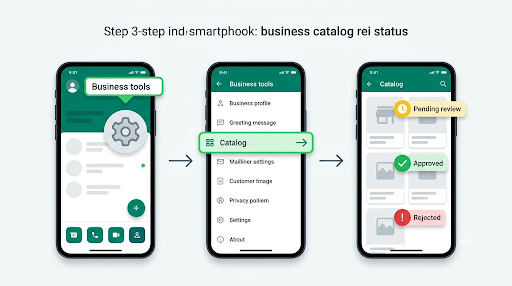
- Open the WhatsApp Business app.
- Go to Tools (on Android) or Settings > Business tools (on iPhone). The exact menu name can vary by app version.
- Tap Catalog.
- Look at each item. Pending items show a review label, rejected items show a red exclamation mark, and hidden items show the crossed-out eye icon.
- Tap any item to see more detail about its status.
On WhatsApp Web or the desktop app, open the menu and select Catalog. If you manage the catalog from a computer and changes don’t seem to appear on your phone, the problem may be with the connection between devices rather than the review. Our guide on fixing WhatsApp Business linked devices that stop syncing walks through that.
Tip: If you’re used to relying on app alerts, don’t assume “no notification” means “still pending.” Open the catalog and check. And if WhatsApp Business alerts have gone quiet in general, it’s worth looking at why WhatsApp Business notifications aren’t working.
Why Is My WhatsApp Business Catalog Still Pending Review?
A catalog item usually stays stuck in pending review because the automated system can’t confidently decide whether it follows the rules. These are the most common reasons:
- Vague or generic title: Names like “Item 1,” “New stock,” or “Combo offer” give the reviewer nothing to work with.
- Low-quality or confusing images: Blurry photos, collages, heavy text overlays, screenshots, or images that don’t clearly show the product.
- Missing required details: Every item needs a name and at least one image. In some regions, the app also asks for details like country of origin. Skipping a required field can stall review.
- Sensitive or borderline categories: Supplements, health and wellness products, cosmetics with medical-sounding claims, and brand-name goods often get a closer look.
- Misleading claims: Words like “guaranteed cure,” “100% weight loss,” or “original replica” can trigger extra checks or a rejection.
- Bulk uploads: Adding dozens of items in one sitting can mean some items clear quickly while others sit in the queue longer.
- Repeated edits: Each edit restarts review. Editing an item five times in an hour can keep it pending far longer than leaving it alone.
- Account-level issues: If your business account itself is under review or restricted, catalog changes may stall too.
What Should You Do If Your WhatsApp Catalog Is Pending for More Than 24 Hours?
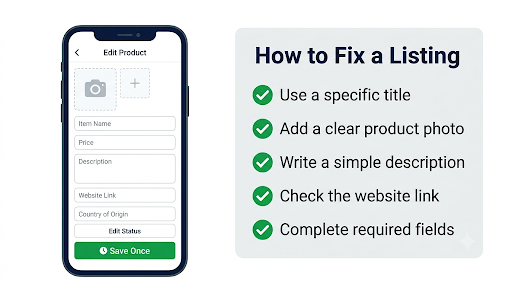
If an item has been pending for more than 24 hours, clean up the listing and save it once. That often nudges it back through review. Follow these steps in order.
- Rewrite the title. Make it specific and unique. “Handmade Cotton Kurta, Blue, Size M” works far better than “Kurta.”
- Replace the main image. Use a clear, well-lit photo of the actual product on a plain background. Remove logos, watermarks, phone numbers, and price stickers from the image. WhatsApp allows up to 10 photos or videos per item, but the first one matters most.
- Simplify the description. Say plainly what the item is, what it’s made of, and what it does. Drop exaggerated or medical claims.
- Check the link. If you added a website link, make sure it opens, loads over HTTPS, and leads to the same product.
- Fill in any required fields the app prompts you for, including price and country of origin where applicable.
- Save once and wait. Give it another 24 hours before making any more changes.
- If it’s still pending after 48 to 72 hours, consider deleting the item and creating it again from scratch with the cleaned-up details. Note any item code you used so you can reuse it.
Common mistake: deleting the app and reinstalling it to “refresh” the catalog. Your catalog review happens on WhatsApp’s side, so reinstalling won’t speed it up, and it can cost you chats if your backup isn’t working. If you ever do need to reinstall, first confirm your backup is healthy. Here’s how to fix a WhatsApp Business backup that isn’t working.
If you’re having trouble uploading the product photos in the first place, the item may not be saving correctly at all. That’s a different problem from review, and our guide to WhatsApp Business not sending media covers the usual upload and storage causes.
Why Was My WhatsApp Business Catalog Item Rejected?
A catalog item is rejected when WhatsApp decides it breaks its commerce rules or is described in a way that looks misleading. The rejection is shown with a red exclamation mark on the item.
The rules come from the WhatsApp Commerce Policy, which is part of the broader WhatsApp Business Messaging Policy. Items that are commonly prohibited include:
- Alcohol and kits for making alcohol
- Tobacco products and related accessories
- Prescription drugs, recreational drugs, and drug paraphernalia
- Unsafe supplements and certain medical or healthcare products
- Weapons, ammunition, and explosives
- Live animals
- Adult products or anything positioned in a sexually suggestive way
- Real-money gambling, dating services, and real, virtual, or fake currency
- Counterfeit goods or items that infringe on someone else’s brand or rights
Some related items are allowed. For example, wine glasses and bottle holders are generally fine even though alcohol itself isn’t. If your business sells both, list only the permitted items in your catalog.
Important: if a product is genuinely prohibited, an appeal won’t help. Remove it. Repeated violations can lead to restrictions on your WhatsApp Business features, not just the catalog.
Wrongly rejected? It happens
Automated review isn’t perfect. A protein snack might be read as a supplement. A kitchen knife set might trip a weapons filter. A photo with a model can be flagged for “suggestive positioning” even when it’s a normal clothing shot. In these cases, fixing the wording and image, then requesting another review, often works.
How Do You Request Another Review for a Rejected Catalog Item?
You can appeal a rejected item directly in the WhatsApp Business app. Fix what you can first, because an appeal on an unchanged listing is less likely to succeed.
- Open Catalog in the WhatsApp Business app.
- Tap the item with the red exclamation mark.
- Tap Request another review.
- Explain briefly and specifically why the item follows the rules. For example: “This is a stainless steel kitchen knife set for home cooking, not a weapon.”
- Tap Continue to submit.
If that second review is also rejected, WhatsApp may let you reply to the decision to ask for one more look. There’s no published time for appeal decisions, so give it at least a day or two before following up.
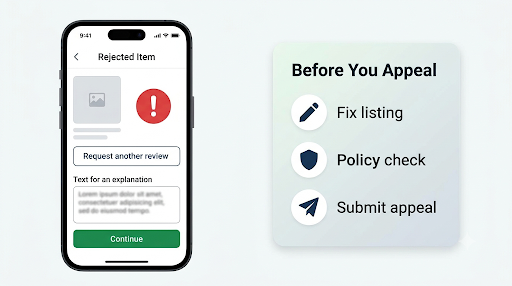
What makes an appeal work: a short, factual reason in plain English, a listing that has already been cleaned up, and no repeated submissions. Sending the same appeal over and over doesn’t speed anything up.
Why Is My Approved WhatsApp Catalog Not Showing to Customers?
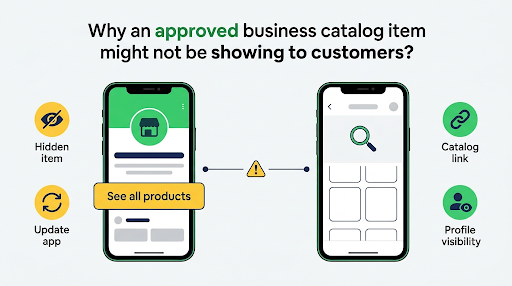
If an item shows as approved but customers still can’t see it, review isn’t the problem anymore. Visibility is. The usual causes are:
- The item is hidden. Open it and tap Unhide, or on WhatsApp Web, edit the item and untick Hide item.
- The customer is on an outdated version of WhatsApp. Ask them to update the app.
- The customer is looking in the wrong place. Point them to your business profile, then the catalog section and “See all,” or send them a direct item or catalog link.
- You’re sharing a collection link. Collections can’t be shared as standalone links. Share the catalog link or individual item links instead.
- A Meta catalog is connected. If you linked a catalog from Meta Commerce Manager, the in-app catalog is archived and hidden from customers. Manage products in Commerce Manager instead.
- Prices don’t appear. Adding prices is only available in certain countries, so the absence of a price isn’t always an error.
We cover every one of these visibility issues in depth in our guide to WhatsApp Business catalog items not showing to customers, including device-specific steps.
Does a New Collection Take Longer to Review Than an Item?
A new collection should take no more than 24 hours to review, according to WhatsApp. That’s the only catalog review time WhatsApp states clearly.
Collections let you group items, such as “New Arrivals,” “Best Sellers,” or “Under $25.” To create one, open Catalog, tap Add new collection, give it a name, pick the items, and save.
Two things to keep in mind:
- The collection name is reviewed too. Keep it simple and descriptive. Avoid names with prohibited terms or sales hype.
- Items inside still need their own approval. A collection can be approved while a product inside it is still pending or rejected. That product won’t show to customers until it clears.
How Long Does WhatsApp Business API or Meta Catalog Review Take?
If you use the WhatsApp Business Platform (API) with a catalog managed in Meta Commerce Manager, review works a little differently from the free app.
Per Meta’s WhatsApp catalogs documentation, items added to a catalog connected to a WhatsApp Business Account are reviewed automatically. Policy-violating items get flagged, and businesses can appeal disapproved items directly in Commerce Manager.
- Initial review: Most products clear in minutes to a few hours, with flagged categories taking up to about 24 hours.
- Appeals in Commerce Manager: Review of a rejected product usually takes a few days and can sometimes take longer.
- Appeal limits: Meta allows an additional review only after a product is rejected, and only once per product. Make that one appeal count.
- Where to appeal: In Commerce Manager, open the rejected item and select Request review, or use the Issues and policy violations area. In Account Quality, you can request review for several products at once.
If you work with a solution provider (like a chatbot or CRM platform), they can see the same statuses but can’t approve items on Meta’s behalf. Final decisions always come from Meta.
How Can You Avoid WhatsApp Catalog Review Delays?
The fastest approvals go to listings that are easy for an automated system to understand. Build these habits and most of your items will clear quickly.
- Use specific, unique titles that name the product type, material, color, or size.
- Lead with one clean product photo. Square images around 1080 x 1080 pixels on a plain background work well.
- Keep descriptions factual. Say what it is, not what miracle it performs.
- Check the Commerce Policy before listing anything in health, beauty, food supplements, or branded goods.
- Upload in small batches rather than dumping 100 items at once.
- Don’t edit pending items unless they’ve been stuck for over 24 hours.
- Stay under the limits. The app catalog supports up to 500 items, with up to 10 images or a video per item.
What Can You Do While Your Catalog Is Still Pending?
You don’t have to lose sales while you wait. Pending items are invisible in the catalog, but nothing stops you from selling in chat.
- Send product photos, prices, and details directly to interested customers.
- Set up a quick reply with your top products so you can answer fast.
- Share already-approved items or your full catalog link for everything else.
- Save new leads as contacts so you can follow up once the item goes live.
If customers who message you show up as plain phone numbers, following up gets messy. Here’s how to fix WhatsApp Business contacts not showing names. And if your replies or catalog links aren’t going through at all, check out our fix for WhatsApp Business messages not sending before blaming the catalog.
Frequently Asked Questions
Does WhatsApp notify you when a catalog item is approved?
Not reliably. Some sellers get an in-app notice when an item is rejected, but approvals often happen silently. The safest habit is to open your catalog and check the item’s status directly.
Can I speed up WhatsApp Business catalog approval?
There’s no button to fast-track review, and WhatsApp doesn’t offer priority review for paid tiers in the app. The only real way to speed it up is to submit listings that are clear from the start, so they don’t need a second look.
Does editing an approved item send it back to pending review?
Yes. Changing the title, images, description, or other details can trigger a new review. The item may be hidden from customers until the update is approved, so avoid editing best-sellers during busy sales hours.
My catalog item has been pending for a week. Is it rejected?
Not necessarily, but it’s unlikely to approve on its own at this point. Delete it and create a fresh listing with a new title and cleaner image. If several items are stuck this long, check whether your business account has any warnings or restrictions.
Can I contact WhatsApp support about a stuck catalog review?
Yes. In the WhatsApp Business app, go to Settings > Help > Contact us and describe the item, how long it’s been pending, and what you’ve already changed. Support replies can take time, so fix the listing in parallel instead of waiting on a response.
Why was one item approved while an almost identical one is still pending?
Each item is reviewed on its own, including every image. A slightly different photo, title, or description can be enough for one to pass instantly while the other gets a closer look. Compare the two and copy the format of the approved one.
Is WhatsApp catalog review the same as business account verification?
No. Catalog review checks individual products and collections. Business account or Meta business verification checks your business identity and can take days or weeks. A slow verification won’t always block your catalog, but account-level restrictions can.
Final Recommendation
Give any new WhatsApp Business catalog item a full 24 hours before you touch it. If it’s still pending after that, clean up the title, main image, and description, then save it once and wait another day. If it’s rejected, fix the listing first and use Request another review with a short, specific reason. And if it’s approved but customers still can’t see it, stop thinking about review and start checking visibility settings, hidden items, and how you’re sharing the catalog link.
