


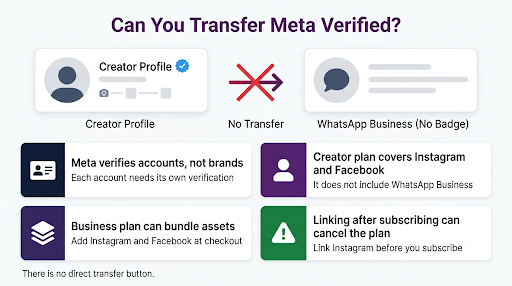
You can’t transfer a Meta Verified badge from Instagram to WhatsApp Business. Meta ties every badge to the account it verified, and its Meta Verified for Business terms say that once an account is verified, the subscription and badge can’t be moved to any other business asset. To get the blue tick on WhatsApp Business, you have to verify your WhatsApp number itself, either with a WhatsApp subscription that bundles your Instagram account or by adding WhatsApp to the right business plan.
The good news is that you don’t have to start from zero. If you set things up in the right order, you can verify Instagram, Facebook, and WhatsApp under one subscription and avoid the mistake that cancels a lot of people’s badges.
Quick Overview
- Direct transfer: Not possible. The badge stays on the Instagram account you paid for.
- Creator (personal) Meta Verified: Covers Instagram and Facebook profiles only. It does not include WhatsApp.
- Best route: Open the WhatsApp Business app, go to Tools (or Settings) > Meta Verified, pick a plan, and add your Instagram and Facebook accounts at the payment step.
- Biggest mistake: Linking Instagram or Facebook to a WhatsApp Business account after it already has an active Meta Verified subscription. WhatsApp says this may cancel the subscription.
- Review time: Usually up to three business days after payment.
- Free option: The blue checkmark through an Official Business Account is only for notable brands on the WhatsApp Business Platform (API), not the regular app.
Why Can’t You Move a Meta Verified Badge from Instagram to WhatsApp?
Because Meta verifies accounts, not people or brands in general. Your Instagram badge proves that one specific Instagram account belongs to you. Your WhatsApp Business number is a separate account with its own phone number, profile name, and business details, so Meta has to check it separately.
The Meta Verified for Business Terms of Service say this directly: once an account is verified, you can’t transfer the subscription or the verified badge to another business asset. That rule applies whether you’re moving it to WhatsApp, a new Facebook Page, or a second Instagram account.
There’s a second reason too. Many people have the creator version of Meta Verified on Instagram. That plan is built for personal and creator profiles on Instagram and Facebook, and it lets you verify up to two profiles (one Instagram and one Facebook) in the same Accounts Center. WhatsApp Business isn’t part of it at all.
Important Point to be Considered! If you see YouTube videos titled “link verified Instagram to WhatsApp,” they usually show how to add your Instagram link or account to your WhatsApp profile. That makes your Instagram badge visible to people who tap through, but it does not put a blue tick next to your WhatsApp Business name in chats.
Which Meta Verified Plan Do You Have Right Now?
Your next step depends on the subscription you already pay for. Check it on Instagram by going to your profile, tapping the menu, and selecting Meta Verified.
| Your current setup | Does it cover WhatsApp Business? | What to do |
| Meta Verified for creators (Instagram personal or creator profile) | No | Get a separate Meta Verified for Business subscription inside the WhatsApp Business app |
| Meta Verified for Business bought on Instagram or in Meta Business Suite | No, unless WhatsApp was included as an asset | Subscribe from WhatsApp and bundle your assets, or contact Meta Verified support before buying a second plan |
| Meta Verified for Business bought in the WhatsApp Business app | Yes, for the WhatsApp number you selected | Add Instagram and Facebook assets during payment so all three are covered |
| Meta One business plan | Depends on the plan and your region | Check Settings > Subscriptions > Meta One in WhatsApp Business |
Pro Tip! Third-party guides say WhatsApp may not let you subscribe if your account already has an active Meta Verified subscription through Meta Business Suite or an older WhatsApp Business Premium subscription. If the purchase screen won’t move forward, check for an existing plan first before you assume something is broken.
How Do You Get the Meta Verified Badge on WhatsApp Business When You Already Have It on Instagram?
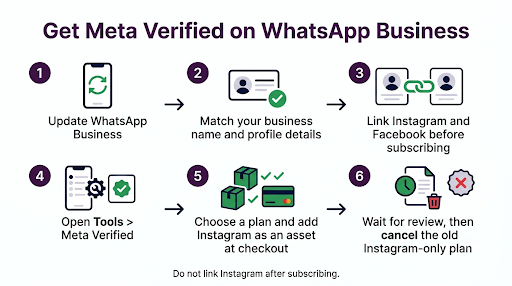
Subscribe from the WhatsApp Business app and add your Instagram account to the same plan at checkout. This verifies your WhatsApp number and keeps everything under one subscription. Here is the process, step by step.
Step 1: Check That Meta Verified Is Available for Your Account
- Update the WhatsApp Business app from the App Store or Google Play.
- Open the app and tap Tools (on iPhone, look under Settings > Business Tools).
- Look for Meta Verified.
If you don’t see it, WhatsApp says the feature isn’t available to you yet. Meta rolls out plans based on your country and your business activity, including how much you chat with customers. If the option is missing or you’re stuck on a waitlist, these fixes for the Meta Verified waitlist not being available on WhatsApp Business walk through what you can actually control.
You can also open wa.me/meta_verified in a browser on the phone that has WhatsApp Business installed. It jumps straight to the subscription screen if your account qualifies.
Step 2: Get Your WhatsApp Business Profile Ready
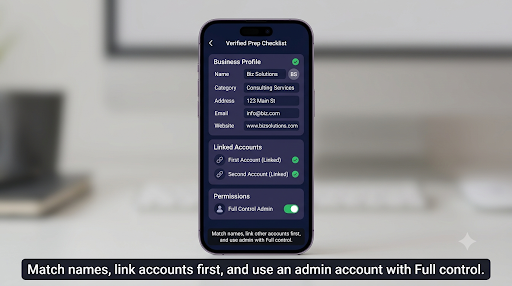
This step decides whether you pass review. WhatsApp checks that your business name matches your WhatsApp profile name. After you’re verified, several fields get locked.
- Profile name: Use the same business name you use on Instagram. If the names don’t match, WhatsApp can’t verify you.
- Profile picture: Add your real logo now. It gets locked for a while after verification.
- Category, address, email, and website: WhatsApp says these lock once you subscribe, and changing them later can cost you your verified status.
- Recent activity: Make sure the account has been in use for a while and has sent messages recently.
- Two-step verification: Turn it on under Settings > Account > Two-step verification. It protects the account you’re about to pay for.
Double-check your website link before you subscribe, since you can’t easily change it later. If it shows up as plain text, read this guide on fixing a WhatsApp Business website link that isn’t clickable.
Step 3: Link Your Instagram Account Before You Pay
This is the step most guides skip. WhatsApp’s help center warns that linking a Facebook or Instagram account to a WhatsApp Business account that already has an active Meta Verified subscription may cancel that subscription. It recommends adding those accounts before you subscribe.
- In WhatsApp Business, go to Tools (or Settings) > Facebook & Instagram.
- Tap Instagram and log in to your verified Instagram business or professional account.
- Do the same for your Facebook Page if you want it included.
Linking also unlocks features like Click-to-WhatsApp ads from Instagram. If those ads fail after linking, see this guide on the Click-to-WhatsApp ads “Something went wrong” error.
Step 4: Choose a Plan and Add Your Instagram Asset
- Go to Tools > Meta Verified and tap Continue.
- Pick the plan WhatsApp recommends or offers you: Business Standard, Business Plus, Business Premium, or Business Max.
- Confirm your WhatsApp business account.
- On the payment screen, add your other business assets. WhatsApp says you can add Facebook and Instagram accounts to your Meta Verified subscription when you submit payment.
- Pay and submit.
If WhatsApp asks you to log in to Facebook or Instagram during checkout, your number is probably connected to a Meta business portfolio. The account you log in with needs Full control admin permission in that portfolio. If not, you’ll see an error saying the account doesn’t have admin permission. Tap Use a different Facebook account or Use a different Instagram account and sign in with the admin.
Step 5: Wait for Review
WhatsApp says verification can take up to three business days, and sometimes longer when there’s a high volume of applications. You can check the status under Tools > Meta Verified. If it has been stuck for a while, here’s what to do when your WhatsApp Business Meta Verified subscription is stuck on pending.
Once you’re approved, the badge shows up in chats, the calls tab, your business profile, context cards, and incoming calls from your business.
What If Your Instagram Badge Is Already Paid For Separately?
You have two realistic options, and neither one “moves” the badge.
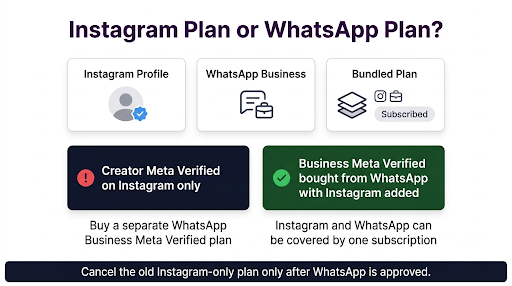
- Keep both subscriptions: Leave the Instagram plan as it is and buy a WhatsApp-only plan. This is the simplest choice, but you pay twice.
- Consolidate into one plan: Subscribe from WhatsApp, include Instagram as an asset, and then cancel the old Instagram plan once the new one is active.
Important Point to be Considered! Don’t cancel your Instagram subscription first. On creator plans, Meta says canceled plans run until the end of the billing cycle, refunds aren’t offered, and every profile on the plan loses verification when it ends. Get WhatsApp approved first, then cancel the old plan. If you’re unsure whether bundling will create a conflict, open Tools > Meta Verified > Enhanced Support on WhatsApp (once subscribed) or use Meta Verified support on Instagram and ask before paying again.
Can One Subscription Cover Multiple WhatsApp Business Numbers?
Partly. Higher plans let you protect extra numbers, but that’s not the same as giving each one its own badge.
WhatsApp’s Protected business accounts benefit lets you mark other WhatsApp numbers as belonging to your business, so they aren’t wrongly banned for impersonating you.
| Plan | Protected business accounts |
| Meta Verified Business Standard / Plus | Not included |
| Meta Verified Business Premium | Up to 10 |
| Meta Verified Business Max | Up to 50 |
| Meta One Expert | Up to 10 |
| Meta One Max | Up to 50 |
To add them, open your primary WhatsApp Business account and go to Business Tools > Meta Verified (or Settings > Subscriptions > Meta One), then tap Protected business accounts > Select business account. If protected numbers are still getting flagged, check out these fixes for WhatsApp Business impersonation protection not working.
Meta Verified plans also include multi-device access, so your team can answer chats from several phones or computers on one verified number. If team devices keep dropping off, see this guide on WhatsApp Business linked devices not working.
Is Meta One Different from Meta Verified for WhatsApp Business?
Yes. Meta One is Meta’s newer subscription that bundles features across WhatsApp, Instagram, and Facebook. It’s still in limited testing and isn’t available everywhere. If you’re on Meta Verified, Meta is gradually adding a way to switch to a matching Meta One plan:
- Meta Verified Standard to Meta One Essential
- Meta Verified Plus to Meta One Advanced
- Meta Verified Premium to Meta One Expert
- Meta Verified Max to Meta One Max
Meta says switching lets you keep your verified badge. Still, switching plans doesn’t change the core rule: each account, including your WhatsApp number, has to be one of the verified assets.
What Is the Difference Between Meta Verified and the Free WhatsApp Blue Tick?
Meta Verified is a paid monthly subscription for the WhatsApp Business app. The free blue checkmark comes from an Official Business Account (OBA), which is only for notable brands on the WhatsApp Business Platform (API).
| Meta Verified for Business | Official Business Account (OBA) | |
| Cost | Paid monthly, price varies by region and plan | No badge fee, but API messaging costs apply |
| Who it’s for | Small and mid-size businesses using the WhatsApp Business app | Notable brands using the WhatsApp Business Platform |
| Where you apply | WhatsApp Business app > Tools > Meta Verified | WhatsApp Manager or API, usually through a provider |
| Covers Instagram and Facebook? | Yes, if you add them as assets | No, WhatsApp number only |
| Extras | Impersonation protection, support, verified channels, multi-device | Badge and display name in chats |
If your Instagram is verified because you’re a well-known brand, it doesn’t make your WhatsApp number an OBA automatically. You still need to request OBA status for that phone number. Meta also requires Meta Business Verification first, and Meta decides notability.
Why Did My WhatsApp Badge Disappear After Linking or Changing Instagram?
The most common reason is changing linked accounts or locked profile details after subscribing. WhatsApp warns that linking Instagram or Facebook to a WhatsApp account with an active Meta Verified subscription may cancel it. Editing your business name, category, address, email, or website can also remove your verified status.
Other causes include:
- A failed or expired payment renewal
- A change in plan benefits or a canceled subscription
- Changing your profile picture or name without going through review
- A policy issue on the WhatsApp account or one of the linked accounts
If the badge shows on your side but customers can’t see your profile properly, it may be a visibility issue rather than a lost badge. This guide on WhatsApp Business profile not showing to customers covers that case.
Pro Tip! Before you change anything on a verified account, take screenshots of your subscription screen and profile. If support needs to restore your status, it helps to show exactly what was active before.
Common Mistakes When Trying to Get the Same Badge on Instagram and WhatsApp
- Linking Instagram after subscribing on WhatsApp. Link first, then pay.
- Using different business names on each app. A mismatch is one of the fastest ways to get rejected.
- Assuming the creator plan covers WhatsApp. It only covers Instagram and Facebook profiles.
- Canceling the Instagram plan first. You can lose verification on Instagram before WhatsApp is approved.
- Deleting and recreating the WhatsApp account to “reset” eligibility. Some forum posts suggest this, but you can lose chat history, and a brand-new account may not meet the activity requirements.
- Subscribing with a non-admin Facebook account. The account must have Full control in the business portfolio.
FAQs
Can I use my Instagram Meta Verified subscription on WhatsApp Business for free?
No. An Instagram plan doesn’t add a free badge to WhatsApp. Your WhatsApp number has to be included in a Meta Verified for Business or Meta One business plan. The only badge without a subscription fee is the Official Business Account, which is for notable brands on the WhatsApp API.
How much does Meta Verified cost on WhatsApp Business?
The price depends on your country, the plan Meta offers you, and sometimes the app store you pay through. WhatsApp shows the exact monthly price on the plan screen before you pay, so check Tools > Meta Verified for the current rate in your region.
Can I move my WhatsApp verified badge to a new phone number?
No. The badge belongs to the verified number, and Meta’s terms don’t allow moving it to another asset. If you change numbers, the new number has to go through verification on its own. Your old number can be added as a protected business account if your plan includes that benefit.
How do I share my Instagram profile or posts on WhatsApp Business?
For a single post or reel, tap the share icon on Instagram and pick WhatsApp Business. To keep it on your profile, link Instagram under Facebook & Instagram in WhatsApp Business, or add your Instagram URL to your business profile before you subscribe, because website fields lock afterward.
Can I link my Instagram to my personal WhatsApp?
Yes, but it works differently. Personal WhatsApp can be added to Meta’s Accounts Center, which lets you cross-post Status to Instagram and Facebook Stories. It doesn’t give you a badge, since Meta Verified for WhatsApp is only for the WhatsApp Business app.
Will my Instagram badge stay if I verify WhatsApp separately?
Yes. Verifying WhatsApp doesn’t touch an active Instagram subscription. Your Instagram badge keeps showing as long as that plan stays active and the account follows Meta’s rules.
Final Recommendation
Stop looking for a transfer button, because there isn’t one. If your goal is the same blue tick on Instagram and WhatsApp Business, the cleanest setup is one subscription bought from the WhatsApp Business app, with Instagram and Facebook added as assets.
Do it in this order: match your business name across apps, lock in your profile details, link Instagram, subscribe and add assets at payment, wait for approval, and only then cancel any old Instagram-only plan. If Meta Verified doesn’t appear in your app yet, keep your profile complete and active, and check back after app updates.
