


If your WhatsApp Business catalog item was rejected, tap the item with the red exclamation mark, read the reason, fix what broke the rules (or confirm nothing did), and then tap Request another review. Most rejections come from one of two things: the product is on WhatsApp’s prohibited list, or the listing itself (photo, title, description, price, or a missing field) looks like a policy problem.
The good news is that the second type is usually fixable in a few minutes. The trick is knowing which type you are dealing with before you appeal, because an appeal for a truly banned product will not succeed no matter how well you word it.
Quick Overview
- Find the reason: Open the catalog, tap the rejected item (red exclamation mark), and read the policy note.
- Decide the type: Is the product itself banned, or is something in the listing wrong?
- Fix the listing: Use a clean product photo, a plain title, a factual description, a real price, and fill in required fields like country of origin.
- Request another review: Tap the item, choose Request another review, write a short reason, and tap Continue.
- Using Commerce Manager or the API? Fix the item there and request a review from the Items tab. You usually get only one review request per product, so fix first and appeal second.
What Does “Item Wasn’t Approved” Mean in a WhatsApp Business Catalog?
It means WhatsApp’s review system checked the item against its commerce rules and decided it should not be shown to customers. A rejected item stays in your catalog, but customers cannot see it.
WhatsApp reviews every product or service you add. Meta’s developer documentation confirms that items added to a catalog connected to a WhatsApp Business account are reviewed automatically, and anything that looks like a policy violation gets flagged.
Because the first check is mostly automated, mistakes happen. A clothing store can get flagged for a “body” keyword. A kitchen shop can get flagged for a knife set. That is exactly why the review request option exists.
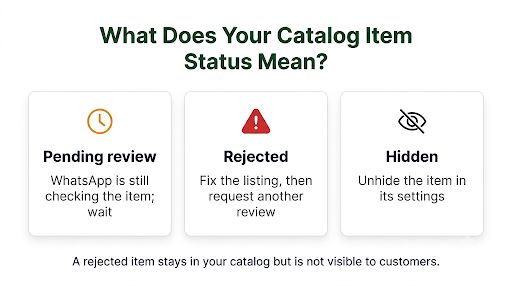
Rejected vs. Pending vs. Hidden: Which One Do You Actually Have?
People often mix these up, and each one has a different fix.
| Status | What you see | What it means | What to do |
| Pending review | A clock or “in review” note | WhatsApp has not finished checking the item | Wait. Do not keep editing it. |
| Rejected | Red exclamation mark, “item wasn’t approved” | The item failed the policy check | Fix the listing or request another review |
| Hidden | Item marked as hidden in your catalog | You (or a teammate) turned off its visibility | Unhide it in the item settings |
If your item is still waiting, this guide on how long a WhatsApp Business catalog review usually takes explains what normal wait times look like and when a delay becomes a real problem.
Why Was My WhatsApp Business Catalog Item Rejected?
Almost every rejection falls into one of two groups. Figuring out which group you are in saves you from wasting your only review request.
Group 1: The Product Itself Is Not Allowed
WhatsApp’s Commerce Policy lists products and services that cannot be sold through the catalog at all. If your item is in one of these categories, editing the photo or title will not help. Common prohibited categories include:
- Alcohol, tobacco, vapes, and related products
- Drugs, prescription medicines, and drug paraphernalia
- Weapons, ammunition, and explosives
- Adult products and sexual content
- Live animals and animal products from protected species
- Medical and healthcare products, plus ingestible supplements
- Gambling, real money games, and lottery tickets
- Real, virtual, or fake currency, including crypto
- Digital and subscription services in many cases
- Counterfeit goods or items that copy someone else’s brand
- Recalled or hazardous products
Important: The policy examples are not a complete list, and some categories depend on your country. Always check the live policy page before you appeal.
There is one useful exception. If you sell a mix of allowed and banned products, you can still list the allowed ones. The policy’s own example is a store that sells alcohol plus wine glasses: the glasses can go in the catalog, the alcohol cannot.
Group 2: Something in the Listing Looks Wrong
This is the fixable group, and it covers a lot of false rejections. The product is fine, but a detail triggered the review system. Watch for these:
- Photos with text, watermarks, or collages. A banner that says “50% OFF, DM NOW” looks like an ad, not a product.
- Images that do not show the product. Logos, price lists, menus, or “contact us” graphics often get flagged as “no item for sale.”
- Before-and-after images or body-focused photos, especially for beauty, fitness, and wellness items.
- Risky words in the title or description. Words like “cure,” “weight loss guaranteed,” “gun,” “shot,” or brand names you do not own can trip the filter even when the product is harmless.
- Misleading or fake pricing, such as a price of 0 or 1 used as a placeholder.
- Missing required details. In the WhatsApp Business app, every item needs a name, at least one image, and a country of origin.
- Links to a website that sells banned items, or a link that does not match the product.
How Do You Fix a Rejected Item in the WhatsApp Business App?
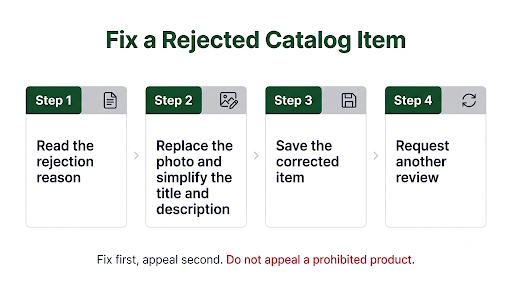
Fix the listing first, then ask for another review. The steps are almost the same on Android and iPhone.
Step 1: Read the Rejection Reason
- Open WhatsApp Business.
- Go to Settings (iPhone) or the three-dot menu > Business tools (Android).
- Tap Catalog.
- Tap the item with the red exclamation mark and read the note.
Step 2: Edit the Item
Tap the item, then tap the edit option and clean up anything from Group 2 above.
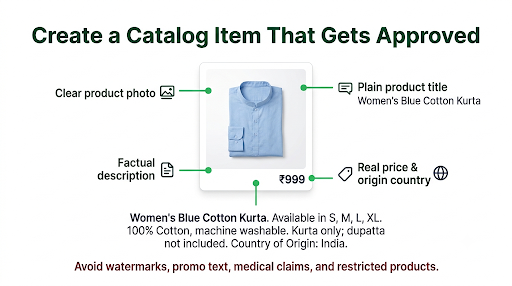
- Swap the main photo for a clear, well-lit shot of the actual product on a plain background. A square image around 1080 x 1080 pixels is a safe choice. If the new photo will not upload, follow these steps to fix a WhatsApp Business catalog image that is not uploading.
- Rewrite the title as a plain product name. “Cotton Kurta, Blue, Size M” works better than “BEST KURTA SALE!!!”
- Make the description factual. Say what it is, what it is made of, and the size or quantity. Remove health claims and hype. If your edited description refuses to save, see this fix for a WhatsApp Business product description that is not saving.
- Enter a real price or leave it blank. Do not use dummy prices.
- Set the country of origin.
Tap Save. Keep in mind that a saved edit usually sends the item back into review, so give it time before you change anything else.
Step 3: Request Another Review
- Tap the rejected item again.
- Tap Request another review.
- Type a short, clear reason.
- Tap Continue.
Here is a simple message you can adapt:
“This item is a [cotton kitchen towel set] made for household use. It does not contain or promote any restricted products. I have updated the photo and description to show the product clearly. Please review it again.”
Keep it short, factual, and polite. Explain what the product is and what you changed. Long, emotional, or angry messages do not help.
What About WhatsApp Web or Desktop?
You can add and edit items from WhatsApp Web through the business tools icon and Catalog. If you do not see the review option there, switch to the mobile app. The phone app is the most reliable place to request a review.
How Do You Appeal a Rejected Item in Meta Commerce Manager?
If your catalog is connected to Meta Commerce Manager (common for larger stores, Shopify users, and WhatsApp Business API accounts), the item must be fixed and appealed there. Edits in the phone app may not apply to a catalog managed in Commerce Manager.
- Open Commerce Manager and select your catalog.
- Go to Catalog > Items.
- Filter by Issues and then by policy violations.
- Select the rejected product and choose View issues to see the reason.
- Fix the product data in your feed, your store platform, or directly in Commerce Manager.
- Click Request review, add a short explanation, and submit.
You can also review rejected items from the Account Quality section in Meta Business Suite, which helps when many items are flagged at once.
Warning: Meta generally lets you request a review only once per rejected product. If you appeal before fixing the listing and it gets rejected again, you may lose the review option for that item. Fix first, appeal second.
For Developers Using the WhatsApp Business API
Businesses on the Cloud API can request extra reviews through Meta’s product catalog additional reviews endpoint. Meta’s documentation says you can send up to 100 items per request, with a rate limit of 10 calls per day per catalog, and only once per product. Add a short rationale in English to improve the chance of approval.
Does India Have Extra Rules for WhatsApp Catalog Approval?
Yes. Businesses based in India must follow local online selling laws, and Meta asks them to submit business compliance details before some catalog features work. Meta explains these requirements in its help article on selling online on WhatsApp in India.
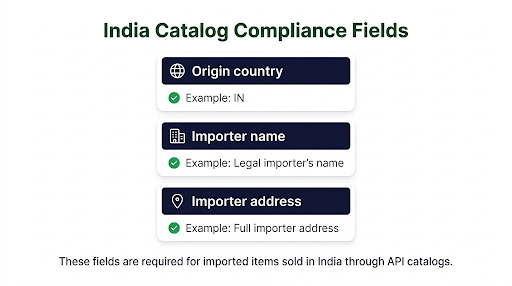
For API and Commerce Manager catalogs, items sold in India often need these fields filled in:
- origin_country: the two-letter country code, such as IN or US
- importer_name: the legal importer’s name, if the item is imported
- importer_address: the importer’s full address, if the item is imported
If these are missing, products may not be usable in product messages, and API users can see errors such as code 2028 for incomplete India compliance. This is not a policy rejection, so an appeal will not fix it. Filling in the fields will.
What Should You Do If the Item Is Rejected Again?
A second rejection is a strong signal. Here is how to handle it based on your situation.
| Situation | Best next move |
| The product is on the prohibited list | Remove it from the catalog and sell it through another channel, like your website. |
| The product is allowed, but the listing still fails | Create a fresh item with a brand-new photo, a simpler title, and a short description. |
| Many unrelated items get rejected at once | Check your linked website and business profile for banned content, then check Account Quality. |
| Your entire catalog or account is restricted | Request a review of the account in Business Support Home, not item by item. |
Once your item is approved, it should show up for customers. If it is approved but buyers still cannot see it, work through this checklist for WhatsApp Business catalog items not showing to customers.
Common Mistakes That Keep Items Stuck in Rejection
- Appealing a banned product. No message will get alcohol or prescription medicine approved.
- Requesting a review without changing anything. If the listing caused the problem, the same listing will fail again.
- Deleting and re-adding the same item over and over. It does not fix the root cause, and repeated policy hits can lead Meta to limit your commerce features or account.
- Editing during a review. Every save can restart the clock.
- Using promotional graphics as product photos. Product photos should show the product, not the offer.
- Ignoring the website link. If your linked site sells banned items, your clean listing can still get flagged.
How Can You Avoid Catalog Rejections in the Future?
A few habits prevent most rejections before they happen.
- Read the Commerce Policy once before you build your catalog, especially if you sell beauty, health, food, or kitchen items.
- Shoot one clean product photo per item, then add extra angles as secondary images.
- Write titles like a store shelf label, not an ad.
- Keep descriptions factual and free of medical or guaranteed-results claims.
- Add a real price. If your prices are not displaying properly after approval, here is how to fix a WhatsApp Business product price that is not showing.
- Add items in small batches. If one batch gets rejected, you can spot the pattern quickly.
FAQs
How long does WhatsApp take to review a catalog item after I request another review?
Most re-reviews finish within about 24 hours, though some take longer during busy periods. Commerce Manager reviews can take a few days. Avoid editing the item while you wait, since that can restart the review.
Can I request another review more than once?
Usually not for the same rejection. Meta typically allows one review request per rejected product. If it fails, your best option is to create a new, cleaner listing or remove the product.
Why was my item rejected when similar sellers have the same product listed?
Reviews are largely automated and not perfectly consistent. Another seller may have used a cleaner photo or safer wording, or their item may simply not have been flagged yet. Compare their listing with yours and copy the plain, factual style.
Will a rejected catalog item get my WhatsApp Business account banned?
One rejected item will not ban your account. Repeatedly listing prohibited products, though, can lead Meta to restrict commerce features or the whole business account. Remove items that clearly break the policy.
Can I list services instead of physical products in my catalog?
Yes. WhatsApp Business catalogs support services like appointments and consultations. Services still go through review, and some, like many medical or financial services, may be restricted.
Is the review process different on Android and iPhone?
No. The policy and review process are the same. Only the menu path differs: Settings on iPhone, and the three-dot menu then Business tools on Android.
My item was approved but now shows as rejected. Why?
Items can be reviewed again after you edit them, after a policy update, or when your linked website changes. Open the item, read the new reason, and follow the same fix-then-appeal steps.
Final Recommendation
Start by opening the rejected item and reading the reason. If the product is on the prohibited list, remove it and save your effort. If it is an allowed product, clean up the photo, title, description, price, and country of origin, wait for the edit to settle, and then send one short, factual review request. That simple order, fix first, appeal second, gives your item the best chance of getting approved on the first try.
